
Apply bank transactions
In 365 business Banking, you can apply bank transactions to entries automatically, for a selection, with Quick Apply, or manually.
When you apply, every line in the payment reconciliation journal receives the account or the open entries it is settled against when posting. 365 business Banking uses the application functionality of Microsoft Dynamics 365 Business Central for this and adds its own matching and two additional application methods.
Standard functionality in Business Central
Apply Automatically compares each line with the open entries and rates every candidate according to the Payment Application Rules (related party, document number, amount). With Apply Manually, you open the Payment Application page for a line, select the entries, and accept the application. If no entry fits, you transfer the difference to an account with Transfer Difference to Account.
For more information from Microsoft, see Reconcile payments using automatic application, Review or apply payments after automatic application and Reconcile payments that can't be applied automatically.
What 365 business Banking adds
All automatic application methods are available in the payment reconciliation journal in the Apply Automatically split button:
| Action | For which lines | How |
|---|---|---|
| Apply Automatically | all lines of the journal | standard application plus all additions of 365 business Banking |
| Apply Selected Automatically | only the selected lines | the same process |
| Quick Apply | all lines except accepted and manual ones | only the fast, unambiguous matching, without rating |
| Check Application | exactly one line | runs automatic application as a test without changing anything: Check application |
| Check Quick Apply | exactly one line | runs Quick Apply as a test without changing anything: Check Quick Apply |
On the Payment Application page, 365 business Banking also adds the Remaining Amount After Posting column with color coding, G/L entries and open sales documents as candidates, the Payment Group Account No. and Deduction Amount columns, and the Bank Transaction Details, Record Deduction and Assign Returned Direct Debit actions (see below).
The order in which the matching runs is described in How automatic application works.
Apply Automatically
- Open the payment reconciliation journal.
- Choose Apply Automatically. The action is the default of the split button.
- If the journal contains lines with the match confidence Accepted or Manual, Business Central asks whether to overwrite them. If you choose No, they remain unchanged. If you choose Yes, they are applied again as well. This behavior corresponds to the standard.
- Review the result in the Match Confidence column and post: Post.
You can repeat Apply Automatically as often as required. Before every run, Business Central removes the applications that are replaced and then applies all lines again. A second run on the same data therefore produces the same applications as the first.
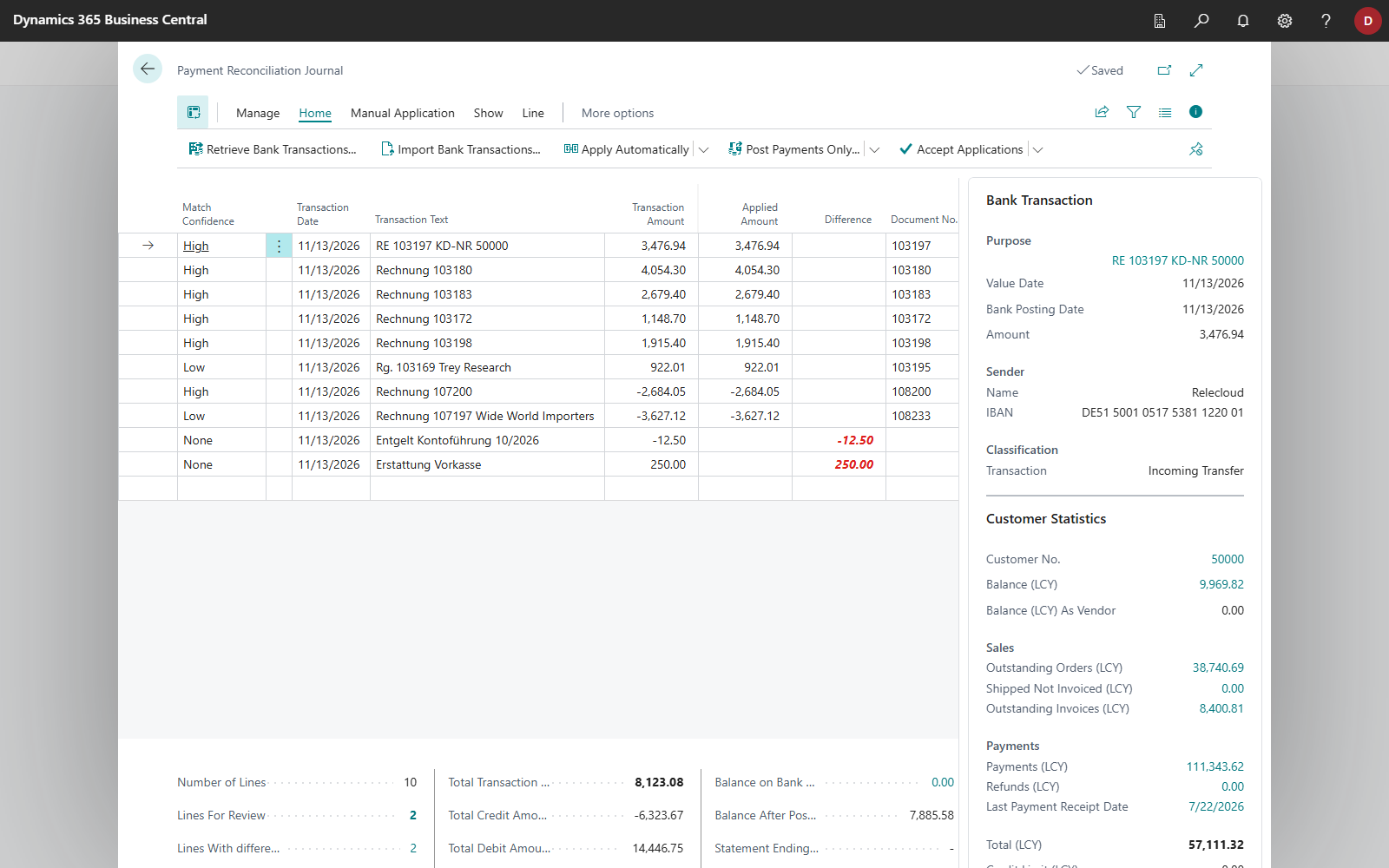
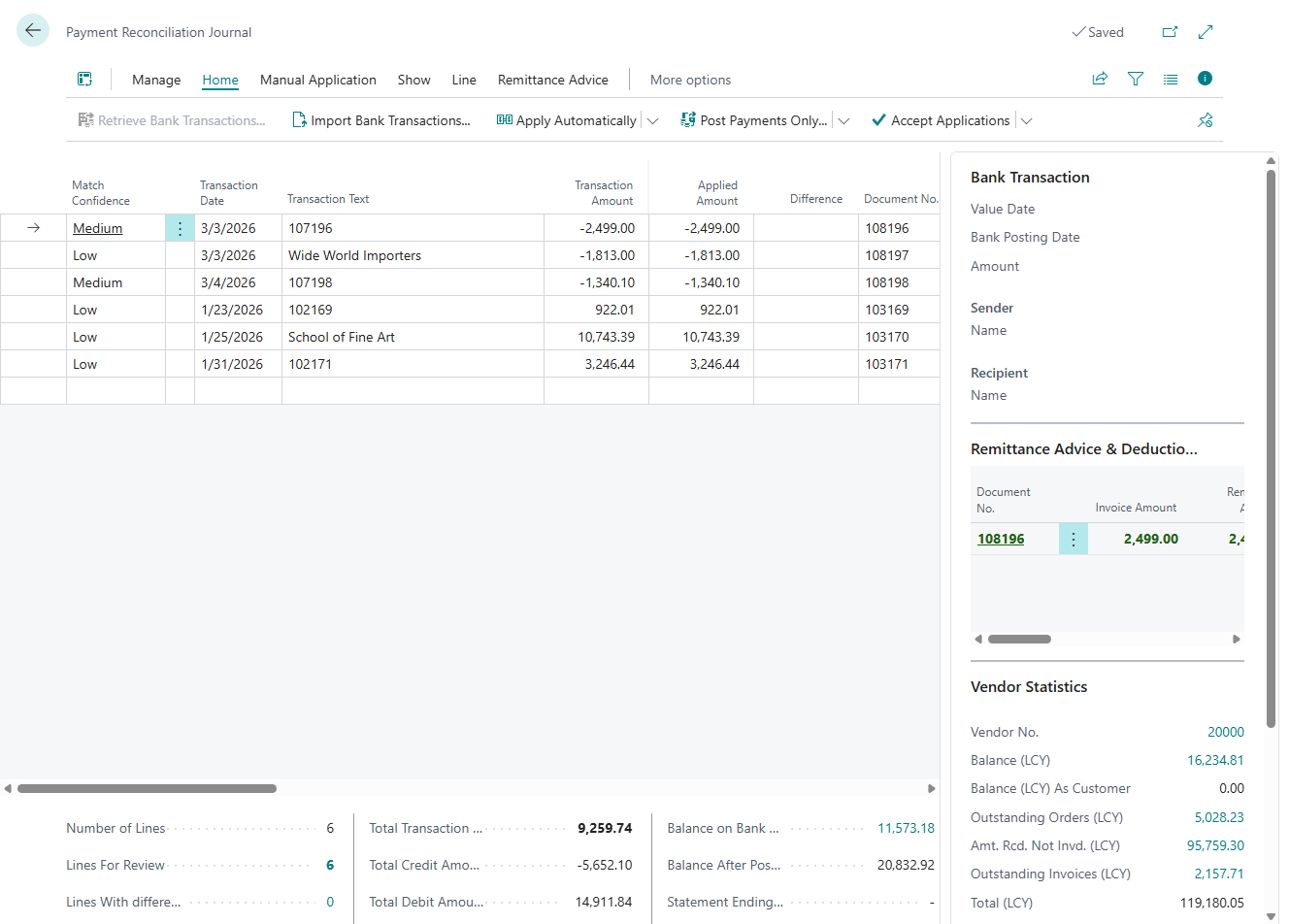
Returned direct debits are not applied like payments. They are linked to their original collection: Returned direct debits.
The same process runs when automated retrieval runs with Apply Automatically. In this case, there is no confirmation prompt, and accepted and manual lines always remain unchanged.
Apply Selected Automatically
If you want to reapply only some lines, for example after creating a reconciliation rule, you can limit the application to these lines.
- Select the lines.
- In the Apply Automatically split button, choose the Apply Selected Automatically action.
- If the selection contains accepted or manual lines, Business Central asks: "Overwriting previous applications will not affect Accepted and Manual ones. Choose Yes to overwrite, or No to apply only new entries."
The process is the same as Apply Automatically but limited to the selection. Applications of other lines remain unchanged. Pending lines are skipped.
Quick Apply
With very large statements, for example from payment service providers with tens of thousands of lines and open entries, the standard application takes a long time because it rates every open entry against every line. Quick Apply skips this rating and only uses matching that can look up entries directly. Per line, in this order:
- Transaction ID matching: for payment service providers, exactly one open customer ledger entry with the transaction ID
- Direct purpose matching: exactly one open customer ledger entry whose reference is in the payment reference
- Reconciliation rules
- Payment code mappings
- Text-to-account mapping: only if the mapping text appears literally in the transaction text
- On account: only if none of the other matching methods finds a result
The line receives the best candidate found. A customer ledger entry found directly receives the match confidence High - Quick Match if the amount fits the entry. The amount fits if it equals the remaining amount of the entry or, within the payment discount date or the payment discount tolerance date, the remaining amount less the discount, in each case within the payment tolerance of the entry. If the amount differs, the entry receives Medium. Review such lines before you accept them. Reconciliation rules, payment codes and on-account matching keep their own confidence. At the end, Business Central reports "… of … lines are applied." The count includes the lines with an amount that are neither accepted, manually applied nor pending.
| What Quick Apply does not do | Consequence |
|---|---|
| no rating by related party, document number, amount and date | Lines that can only be found through this rating remain open. Apply them afterwards with Apply Selected Automatically. |
| no payment groups, no sales documents, no returned direct debits | these lines remain open |
| does not change lines with Accepted or Manual, lines without an amount or pending lines | none |
Check Quick Apply shows the result Quick Apply would produce for a particular line and the reason: Check application.
A customer ledger entry in a currency other than the bank account currency is skipped without stopping the whole run. The direct matching is controlled by the Enable Transaction ID Matching and Enable Direct Purpose Matching switches. See the note under Direct matching.
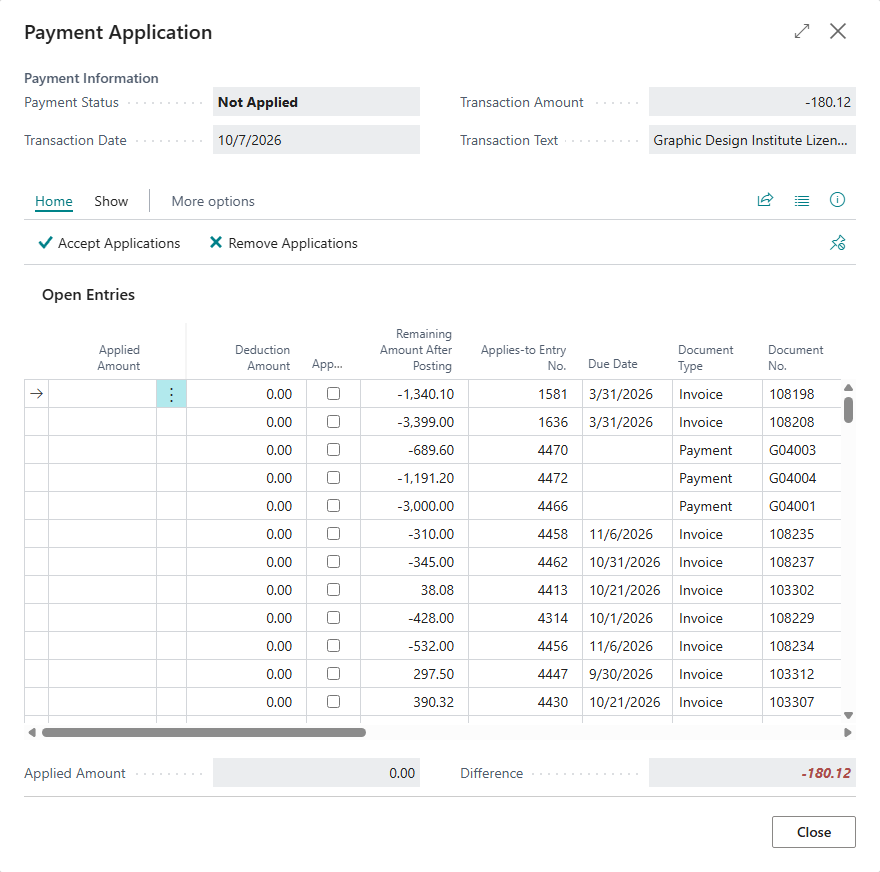
Apply Manually and the Payment Application page
- Select the line and choose Apply Manually (Shift+F11).
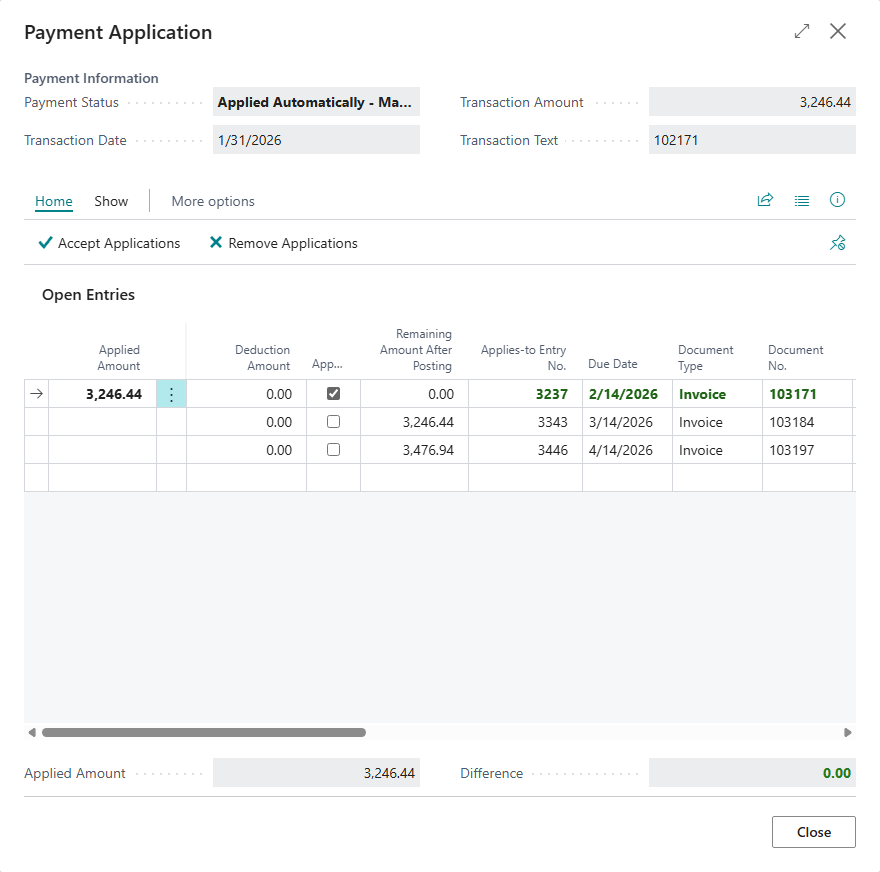
- The Payment Application page shows the open entries that qualify. Select Applied for the entries you want and adjust the Applied Amount if needed.
- Choose Accept Applications and close the page. The line then has the match confidence Accepted or Manual and is not overwritten by later automatic runs, as long as you answer the overwrite prompt with No.
365 business Banking adds the following elements to the page:
| Addition | Meaning |
|---|---|
| Remaining Amount After Posting | For bank accounts with 365 business Banking, the column shows the 365 business Banking value. For all other bank accounts, it shows the standard field. For entries, the value is calculated as in the standard, for customer and vendor ledger entries less the recorded deductions. For open sales documents, it is the remaining amount incl. discount minus the applied amount incl. discount. For more information, see Payment discount, tolerance and partial payments. |
| Color coding | Green: the entry is applied on this line. Red: the entry is not applied, and nothing would remain after posting. Otherwise, the standard formatting applies. |
| G/L entries | G/L entries under review appear as candidates when Show General Ledger Entries in "Apply Manually" page is enabled: G/L entry matching. |
| Open sales documents | Sales orders and invoices appear with the account type Sales Order or Sales Invoice when Show Sales Documents in "Apply Manually" page is enabled: Application with open sales documents. |
| Payment Group Account No. | central account of the payment group the account belongs to. The column is only visible when payment groups are set up. For a line on a payment group, the page shows the entries of all members: Payment groups. |
| Deduction Amount, Record Deduction | sum of the deductions recorded for the entry; the action records, changes or discards a deduction for the entry on the selected row: Application in payment reconciliation |
| Bank Transaction Details | all information the bank delivered for the line: Payment reconciliation journal |
| Assign Returned Direct Debit | only for returned direct debits: assigns the selected collection as the one that was returned. After that, Applied and the applied amount are locked: Returned direct debits |
Overview of application methods
| Situation | Way |
|---|---|
| Daily reconciliation | Apply Automatically, or automated on retrieval |
| A new reconciliation rule should only affect some lines | Apply Selected Automatically |
| Very many lines, especially from payment service providers | first Quick Apply, then Apply Selected Automatically for the remaining lines |
| A line is applied incorrectly or not at all, and you want to determine the reason | Check Application or Check Quick Apply |
| Individual case, partial payment, collective payment across several entries | Apply Manually |
Troubleshooting
| Message | Cause and remedy |
|---|---|
| "Sales document … is already applied on statement line … of this reconciliation." | A sales document can only be assigned to one line in a reconciliation. Remove it on the other line. |
| "A sales-document settlement cannot be combined with other applications on the same statement line." | A line applies either sales documents or entries, not both. |
| "Line … is an entry your bank has not booked yet, …" | The line is pending: Pending bank entries. |
| A line remains open although the invoice number is in the payment reference | Choose Check Application. The explanation states the cause: Check application. |
See also
- How automatic application works
- Payment application settings
- Check application
- Payment discount, tolerance and partial payments
- Post