
Posting setup and clearing accounts
Post bank fees and subscriptions with posting type, posting groups and VAT directly from the payment reconciliation journal with 365 business Banking.
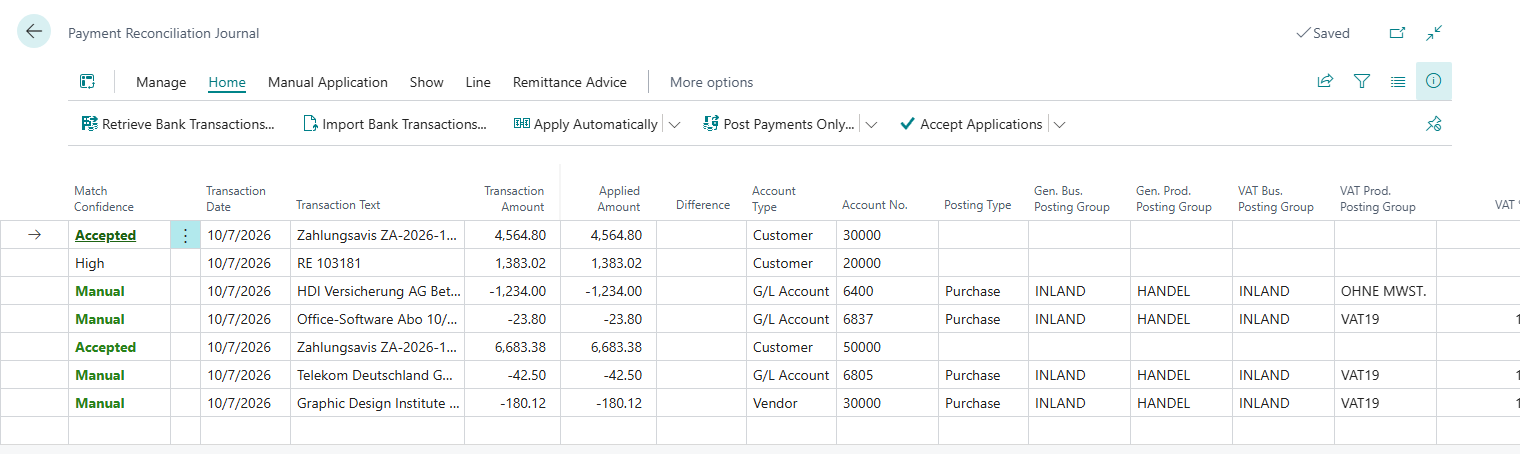
Many transactions have no invoice they could be applied to: account maintenance fees, a software license paid by direct debit, a card payment at a supplier. In the standard, the payment reconciliation journal posts such lines as a payment only, without VAT and without an expense posting with tax. With the posting setup in the line, you post these transactions in one step.
Standard functionality in Business Central
In the standard, the posting type, posting groups and the accounts and tax rates derived from them come from the General Posting Setup and the VAT Posting Setup. They are used in documents and general journals, not in the payment reconciliation journal. For more information from Microsoft, see Set up posting groups and Set up VAT.
What 365 business Banking adds
The lines of the payment reconciliation journal receive the following fields:
| Field | Meaning |
|---|---|
| Posting Type | empty, Sale or Purchase |
| Gen. Bus. Posting Group, Gen. Prod. Posting Group | determine accounts and clearing accounts through the general posting setup |
| VAT Bus. Posting Group, VAT Prod. Posting Group | determine the tax rate through the VAT posting setup |
| VAT %, VAT Amount, VAT Base Amount | are calculated and cannot be edited |
| Deferral Code | spreads the expense over several periods, see Deferrals |
You fill in the fields manually or let a reconciliation rule set them. For recurring transactions, the reconciliation rule is the usual way. No reconciliation rule sets the Deferral Code; you always enter it manually on the line.
When you can use the posting setup
- The line has the Account Type G/L Account, Customer or Vendor.
- The line is not applied to an entry, such as an open invoice. For an applied line, the posting setup already took place in the document, and the fields are locked.
Business Central supports you when filling in the fields as follows:
- When you choose a Posting Type, the posting groups are taken from the line's account: the general and VAT business posting groups for a customer or vendor, all four for a G/L account.
- A changed general business or product posting group suggests the matching VAT posting group.
- If a G/L account has the posting type Sale or Purchase and Copy VAT Setup to Jnl. Line is turned on for the payment reconciliation journal, the posting type is taken over when you choose the account.
- If you change the Account No. or clear the Posting Type, the posting groups and the deferral code are cleared.
How VAT is calculated
VAT % comes from the VAT posting setup. The line's amount counts as the gross amount: VAT Base Amount = amount / (1 + VAT % / 100), rounded according to the line's currency; VAT Amount is the difference. Example: A debit of −119.00 at 19 % gives −100.00 base and −19.00 VAT.
The three fields are recalculated as soon as the amount or one of the two VAT posting groups changes, also when a general posting group suggests the VAT posting group. If one of the two VAT posting groups is empty or their combination is missing from the VAT posting setup, all three are 0.
What posting creates
Line with account type Customer or Vendor
Besides the payment, 365 business Banking posts an invoice to the customer or vendor: revenue or expense with VAT on the sales or purchase account of the general posting setup. The invoice is applied to the payment: with application method Manual explicitly via the payment's document number, otherwise according to the customer's or vendor's application method. As a result, the partner's account is balanced, and the expense or revenue and the VAT are posted.
Line with account type G/L Account
Here the Bank Account Reconciliation Line Posting setting in the Banking Setup decides.
Use Clearing Account
The payment is posted against a clearing account. A second posting (technically an invoice) posts the expense or revenue with VAT through the posting setup and clears the clearing account again. The general posting setup defines which clearing account is used: AR Clearing Account for posting type Sale, AP Clearing Account for Purchase. For setup, see Clearing accounts in the general posting setup.
The expense or revenue goes to the purchase or sales account of the general posting setup for the chosen posting groups. The line's G/L account is replaced by the clearing account in the process. It does not receive the expense or revenue. Expense and revenue follow the posting groups of the line.
- Payment and expense or revenue are clearly separated.
- VAT is always treated as on an invoice.
- More posting lines are created.
Direct Posting
The payment is posted directly to the line's G/L account. Posting type and posting groups are applied to that posting. Expense or revenue and VAT are created in one step.
- Fewer posting lines.
- If the G/L account has VAT settings of its own, those of the line apply.
With a Deferral Code, 365 business Banking always uses a clearing account, even with Direct Posting, because a deferral cannot be created directly through a bank account.
Options compared
| Option | Advantages | Disadvantages | Typical cases |
|---|---|---|---|
| Use Clearing Account | payment and expense/revenue separated; VAT as on an invoice; good basis for reconciliation and corrections | more posting lines; clearing accounts required in the general posting setup | bank fees and other transactions subject to VAT, recurring business transactions |
| Direct Posting | fewer entries; fast posting | less transparent; VAT logic acts directly on the payment | simple G/L account payments without deferral |
Default value after installation
Installing 365 business Banking sets Bank Account Reconciliation Line Posting to Direct Posting once per company. If you then choose Use Clearing Account, this setting is kept after a reinstallation or an update.

Step by step: post a bank fee with VAT
- Open the Payment Reconciliation Journal and select the fee line.
- In the Account Type field, choose G/L Account, and in the Account No. field, the G/L account for bank fees.
- In the Posting Type field, choose Purchase.
- Check Gen. Bus. Posting Group, Gen. Prod. Posting Group, VAT Bus. Posting Group and VAT Prod. Posting Group and adjust them if needed. VAT %, VAT Amount and VAT Base Amount show the result.
- Check the posting with the Preview Posting action.
- Post the journal, see Post the payment reconciliation journal.
If the fee recurs, create a reconciliation rule from the line. The rule takes over the posting setup.
Choose the posting setup carefully
A wrong posting type or VAT posting group leads to wrong tax postings. If in doubt, agree the posting setup with your tax advisor, and check new reconciliation rules with the posting preview first.
Troubleshooting
| Message | Cause and remedy |
|---|---|
| "You cannot specify posting setup fields when the bank reconciliation line is applied to a document." | The line is applied to an entry. Remove the application or post without posting setup. |
| "The Account Type must be either G/L Account, Customer or Vendor to specify posting setup fields." | The line has the account type Bank Account or another one. |
| "… … and … … is not allowed." | Customer with posting type Purchase or Vendor with Sale. |
| "When specifying General Business Posting Group, General Product Posting Group, VAT Business Posting Group, and VAT Product Posting Group, the Posting Type must also be specified." | All four posting groups are filled, the posting type is empty. Choose a posting type. |
| "General Posting Setup is missing for Gen. Bus. Posting Group …, Gen. Prod. Posting Group …." | The general posting setup has no line for this combination. Create it. |
| Posting errors about missing clearing accounts | AR Clearing Account or AP Clearing Account is empty in the general posting setup. Posting shows all missing accounts at once, each with a link to the line of the general posting setup. |
See also
- Clearing accounts in the general posting setup
- Deferrals in the payment reconciliation journal
- Reconciliation rules
- Post the payment reconciliation journal
- Banking Setup