
Date tolerance: apply entries posted after the payment date
With the date application policy, 365 business Banking also applies entries posted after the payment date, either always or within a tolerance period.
A payment can arrive before the related invoice. For example, the customer pays after the order confirmation, and the invoice is posted two days later. Similarly, a purchase invoice may only be entered after the transfer. In such cases, Microsoft Dynamics 365 Business Central does not apply. With the Date Application Policy, you allow this application.
Standard functionality in Business Central
Automatic application only considers open entries whose posting date is on or before the transaction date. An entry posted later is not a candidate. On posting, Business Central also checks that a payment is not posted before the entry it is applied to.
For more information from Microsoft, see Reconcile payments using automatic application.
What 365 business Banking adds
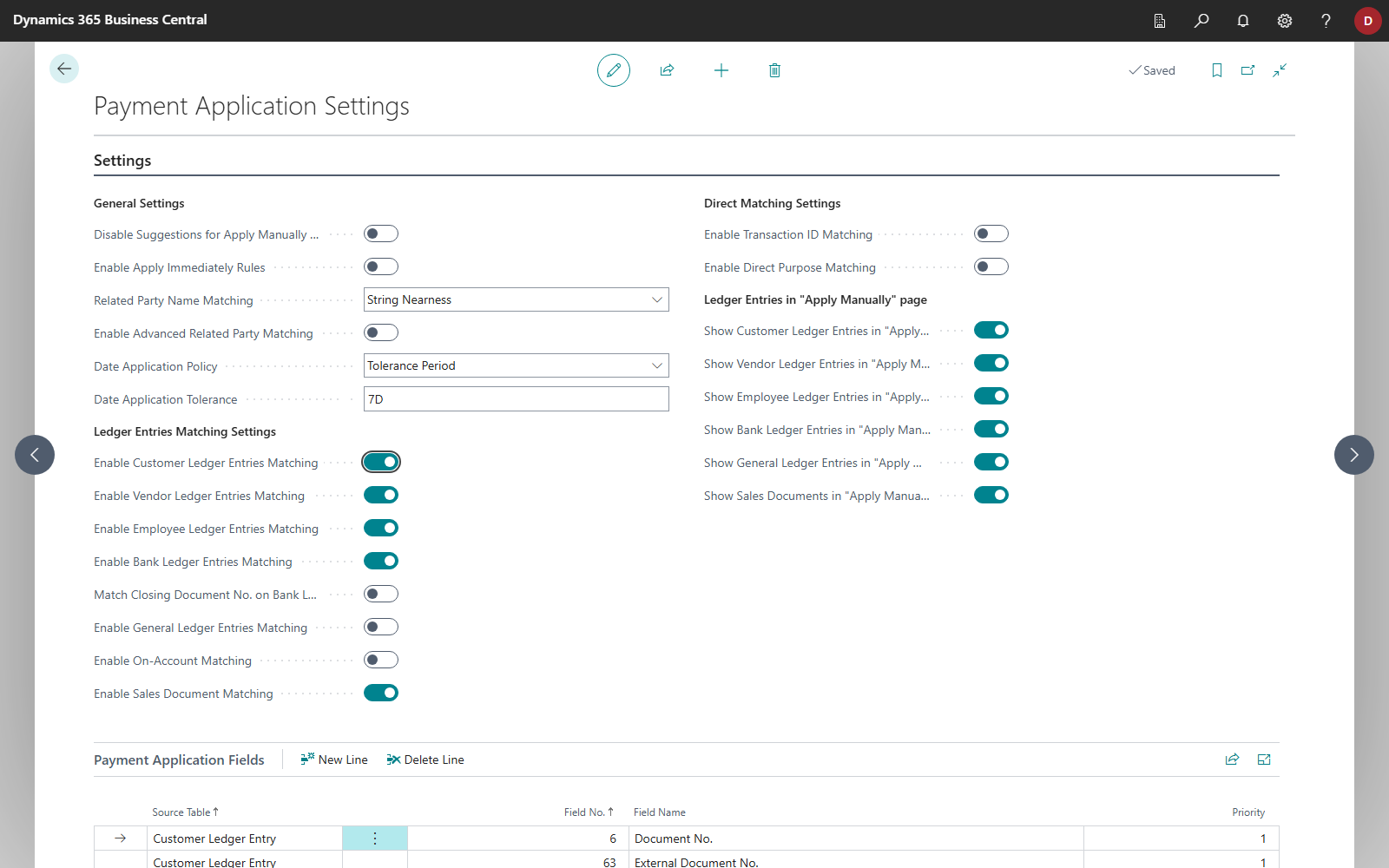
The Payment Application Settings page has two fields:
| Field | Values |
|---|---|
| Date Application Policy | blank: as in the standard Always: The posting date of the entry is not considered. Tolerance Period: The entry may be posted up to a period after the transaction date. |
| Date Application Tolerance | the period as a date formula, for example 7D or 1M. The field is marked as mandatory when Tolerance Period is chosen. Without a formula, the entry must be posted on or before the transaction date. |
When a policy is set, two further rules apply:
- The sign must fit. An entry that would have to be settled by a payment in the other direction, such as a credit memo for an incoming payment, is discarded in automatic application. Without a date limit, the risk of assigning a payment to the wrong document would be too high.
- The posting check is relaxed. For journal lines with the document type Payment, the check "payment before the applied entry" is skipped, entirely with Always and within the period with Tolerance Period. This applies only to posting from the payment reconciliation journal. Other journals, such as the payment journal, keep the standard check.
The policy also affects G/L entry matching. On the Payment Application page (Apply Manually), it does not restrict the entries shown.
Set up
- Choose the Search icon, enter Payment Application Settings and open the page.
- In the General Settings group, choose Always or Tolerance Period in the Date Application Policy field.
- For Tolerance Period, enter a date formula such as
7Din the Date Application Tolerance field.
How the period is calculated
365 business Banking applies the date formula exactly as you enter it, forwards from the transaction date. An entry is a candidate if it was posted no later than the day the formula returns from the transaction date. Compound formulas such as 1W+2D are therefore supported (nine days in this case). Month, quarter and year terms and current-period terms also count from the transaction date. With CM, the entry may be posted up to the end of the month in which the payment arrived.
Examples
A payment of €500.00 arrives on March 3. The invoice for €500.00 is posted on March 5.
| Date Application Policy | Is the invoice a candidate? |
|---|---|
| blank | No, it was posted after the transaction date. |
Tolerance Period, 7D | Yes, March 5 is within 7 days after March 3. |
Tolerance Period, 1D | No, March 5 is two days later. |
| Always | Yes |
A credit memo of the same customer for €500.00 is not a candidate for this incoming payment with Always or Tolerance Period, because it would have to be settled by an outgoing payment.
See also
- How automatic application works
- Payment application settings
- Check application
- Apply bank transactions