
Retrieve bank transactions
This page describes how to retrieve bank transactions in 365 business Banking, what happens per bank connection, and how duplicate transactions are prevented.
With Retrieve Bank Transactions, Microsoft Dynamics 365 Business Central transfers the new transactions of a bank account into a payment reconciliation journal. For you, retrieval works the same way with every connection. The background processing depends on the Account Information Service of the bank account.
Prerequisites
- The bank account is connected through 365 business Banking and has an Account Information Service, see Connect a bank account.
- Your company has a valid license for 365 business Banking.
Standard functionality in Business Central
In the standard, you import a bank statement as a file into the payment reconciliation journal (Import Bank Transactions). 365 business Banking replaces this step with retrieval. If you have connected bank accounts and still choose the file import for a new journal, Business Central asks:
"We discovered you've connected online bank accounts. Do you really want to import a electronic file containing the related bank transactions?"
The choices are Import bank transactions, Retrieve bank transactions from online bank account and Do not ask again. You can turn the prompt back on under My Notifications (notification Import Bank Transactions).
For more information from Microsoft, see Reconcile payments using automatic application.
Step by step
- Choose the Search icon, enter Payment Reconciliation Journals and open the page.
- Choose Retrieve Bank Transactions.
- If you have more than one connected bank account, the Payment Bank Accounts page opens. Select the account and confirm with OK. The page lists all bank accounts that are connected through 365 business Banking and not blocked. The Linked column shows the connection.
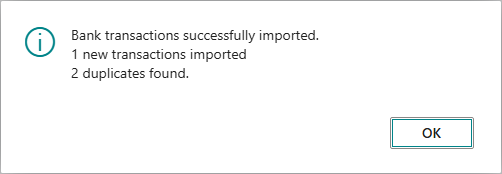
- Business Central retrieves the transactions, creates the lines and reports the result (see Message after retrieval).
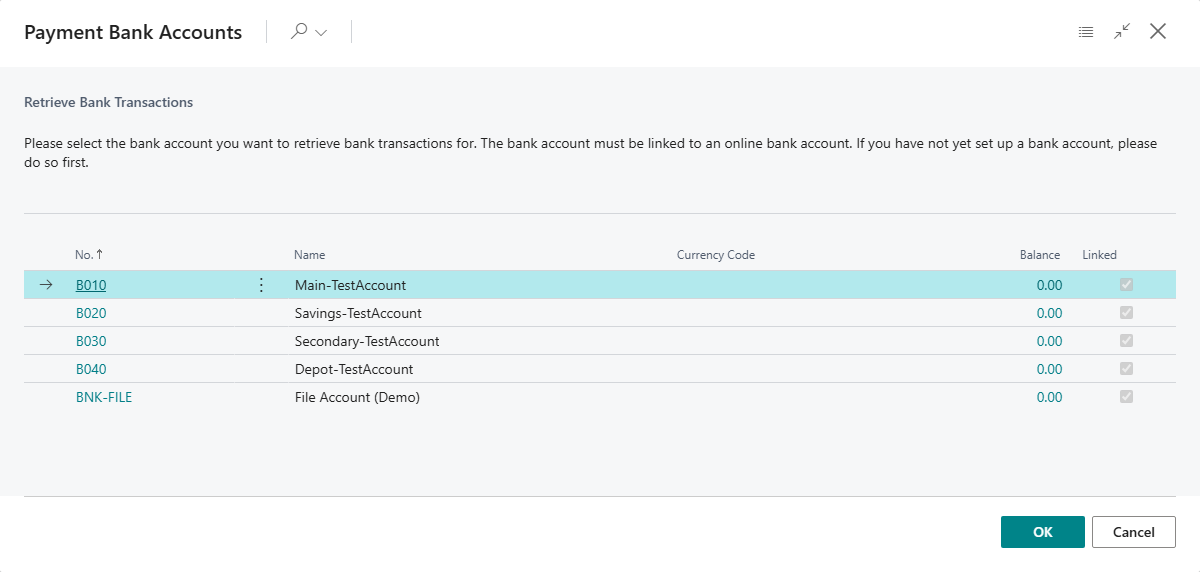
From an open journal: Choose Retrieve Bank Transactions in the payment reconciliation journal. The transactions of the bank account of this journal are retrieved and, in Default mode, written into this journal.
List action or journal action
From the Payment Reconciliation Journals list, retrieval in Default mode creates a new journal. From an open journal, the transactions are added to that journal. You can also run retrieval in the job queue: Automate retrieval.
What happens per connection
| Account Information Service | Processing on retrieval | More information |
|---|---|---|
| SEPA Bank Account (PSD2/XS2A via finAPI) | Business Central requests new transactions from finAPI starting from the Retrieve Transactions From date. If the bank requires a new consent, its web form opens. This is only possible with manual retrieval. | Renew PSD2 consent |
| SEPA Bank Account (EBICS) | Business Central retrieves the statements (camt.053) that have not been acknowledged yet and acknowledges them only once the lines have been created. If there are no new transactions, it reports "No new bank transactions found for bank account …." | Statements via EBICS |
| Bank Account (camt File Import) | A file selection dialog opens. You select the camt file you downloaded from online banking. | Import a bank statement |
| Payment service providers (PayPal, Stripe, Adyen, Mollie, Klarna, Shopify, Unzer, Amazon Pay) | Business Central queries the payment service provider with the stored credentials. | Payment service providers |
| Universal | You import the CSV transaction file. | Universal |
For camt and Universal accounts, a user must select the file. If retrieval runs in the job queue, Business Central therefore skips these accounts and retrieves the others, see Automate retrieval.
Duplicate prevention
Before a line is created, Business Central checks whether the transaction is already known:
- Transaction ID: The transaction ID of the delivering service already exists in a payment reconciliation journal or a posted payment reconciliation for this bank account. This check applies to every bank account.
- Transaction fingerprint: For bank accounts whose account information service does not deliver a permanently unique transaction ID, that is, Bank Account (camt File Import) and Universal, Business Central also checks the fingerprint. It is built from the information the bank provides about the transaction: bank account, booking date, amount and counterparty IBAN.
For SEPA Bank Account (finAPI), SEPA Bank Account (EBICS) and the payment service providers, the transaction ID is unique. A transaction with a new ID counts as a new transaction there, even if it resembles an existing one, for example a second card payment for the same amount on the same day.
For camt and Universal files, the fingerprint recognizes a transaction even if it is delivered again with a different ID, for example after switching from finAPI to camt files: Combine banking services. A transaction that is recognized by its fingerprint only is not imported. The message after retrieval lists it with date, amount and counterparty, because the fingerprint cannot reliably tell a second genuine transaction from a repeated delivery.
Two details apply to the fingerprint:
- The payment reference is not part of the fingerprint. Every service delivers it in a slightly different form (line breaks, SEPA tags, truncation). Otherwise, the same transaction would be recognized as two different transactions.
- Identical transactions on the same day are counted, not merged. Two direct debits for the same amount from the same payer on the same day share a fingerprint. If one of them already exists, the second one is still taken over.
Posted lines of a reversed payment reconciliation do not count as known. For this reason, you can retrieve a transaction again after reversal and Reset Transaction: Reverse a posted payment reconciliation.
Transactions without an amount
Business Central does not create lines for transactions with an amount of 0, because they do not represent turnover. The message after retrieval states their number.
Message after retrieval
After a manual retrieval, Business Central shows the result. The message consists of the following parts:
| Part | Meaning |
|---|---|
| "Bank transactions successfully imported. … new transactions imported" | number of lines created |
| "No new bank transactions found for bank account." | no new transactions available |
| "… duplicates found." | number of transactions that already existed and were skipped |
| "… possible duplicate(s) were not imported because this bank connection does not provide a stable transaction id (date, amount, counterparty):" | only for camt and Universal accounts: the transactions recognized by their fingerprint only, one line per transaction with date, amount and counterparty |
| "… transactions ignored because they do not represent turnover." | number of transactions with an amount of 0 |
| "The bank transactions have been imported into the payment reconciliation journals …." | only if the transactions were distributed over several journals, with their numbers |
When retrieval runs in the job queue, no message appears.
Which payment reconciliation journal the transactions go to
The Pmt. Rec. Journal Creation field on the bank account card determines how transactions are distributed over journals:
| Value | Behavior |
|---|---|
| Default | An open payment reconciliation journal of this bank account is reused. From the Payment Reconciliation Journals list, a new one is created. |
| Daily | one journal per calendar day, reused by later retrievals |
| Weekly | one journal per calendar week |
| Monthly | one journal per month |
| Per Bank Statement | one journal per bank statement, named with the statement number of your bank. Set and not changeable on bank accounts that receive their statements through EBICS or camt files. |
You set the field per bank account, for example a period for accounts with many transactions and Default for accounts with few transactions. It can only be edited on bank accounts connected through 365 business Banking.
One journal per bank statement with EBICS and camt files
EBICS and camt files deliver bank statements (camt.053) that your bank numbers and closes with an opening and a closing balance. On such bank accounts, the payment reconciliation journals follow the statements:
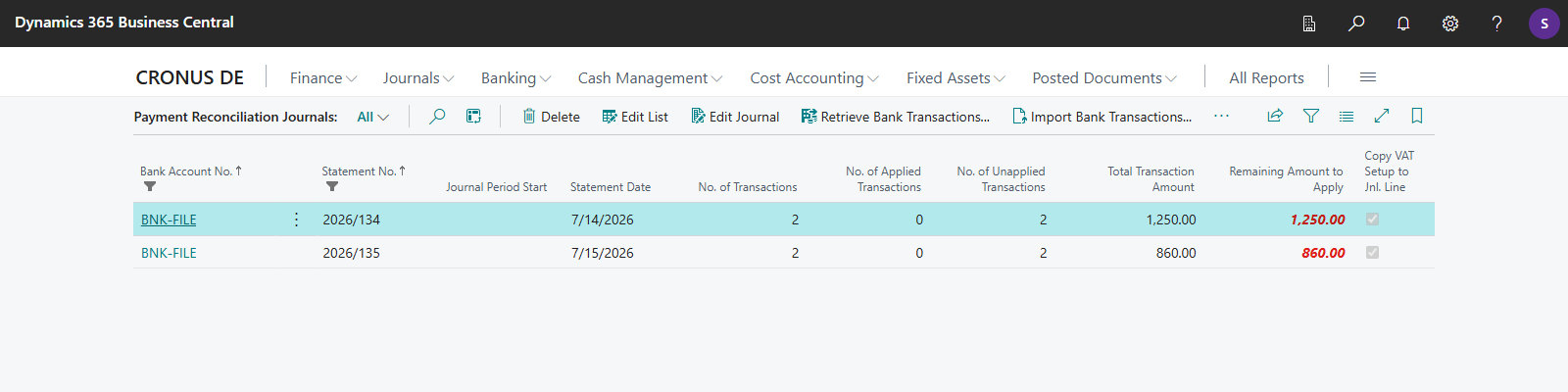
- Every bank statement receives its own journal. The Statement No. is the statement number of your bank with the year, for example
2026/134for statement 134 of 2026, as printed on the statement. - The Statement Date is the last day the statement covers. The Statement Ending Balance is the closing balance your bank reports for the statement.
- Further transactions of the same statement, for example from a following page, are added to its open journal.
- If the statement number is already used on the bank account, for example because a posted statement was reversed and read again, the journal receives a counter:
2026/134-1, then2026/134-2. - Transactions that are not on a numbered statement, that is, pending transactions from the intraday report (camt.052) or batch booking files (camt.054), are added to one journal per booking day, named with the date, for example
2026-07-14.
On these bank accounts, Pmt. Rec. Journal Creation is set to Per Bank Statement, and the Payment Reconciliation No. Series cannot be edited, because your bank assigns the number. If you change the account information service of a bank account to EBICS or camt files later, Business Central asks first: "Bank account … will receive its bank statements through …. From now on, one payment reconciliation journal is created per bank statement and numbered with the statement number of your bank. …" Journals that are already open remain unchanged. Conversely, Per Bank Statement is only available for these bank accounts. For other bank accounts, Business Central reports: "Per Bank Statement is only available for bank accounts that receive bank statements through EBICS or camt files."
The bank posting date is decisive, not the day of retrieval. A transaction that is delivered late is added to the journal of its period. If the posting date is missing, the value date is used.
Period journals prevent a single journal from growing over weeks when there are many transactions, and a posting stop from always affecting the entire backlog. With period journals, each reconciliation remains manageable and can be closed per period.
Statement date and ending balance:
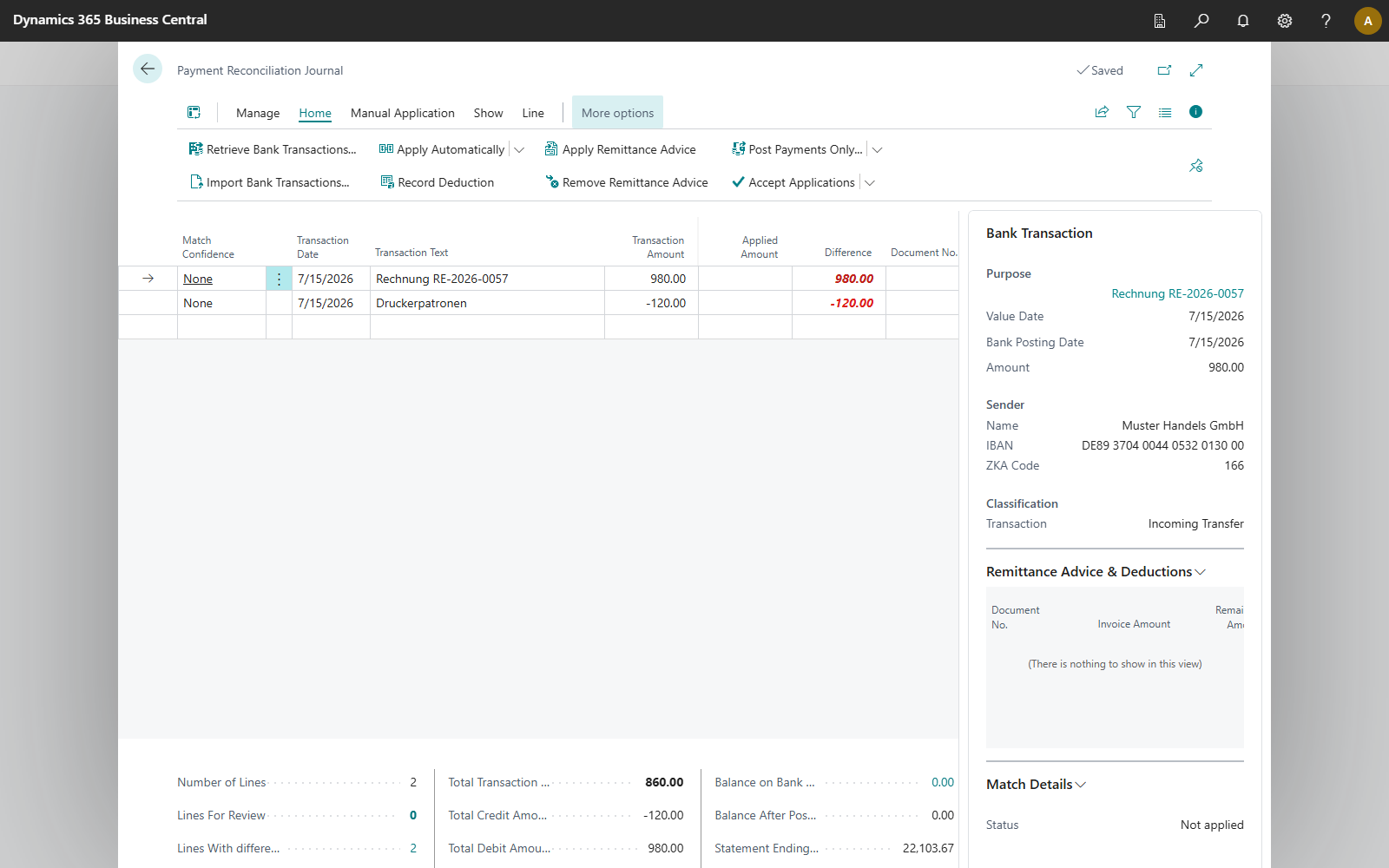
- Default: The journal takes the account balance reported by the service as statement ending balance and its date as statement date.
- Daily, Weekly, Monthly: The statement date is the date of the latest transaction in the journal. Business Central calculates the ending balances of the open period journals backwards from the reported account balance, so each journal shows the balance of its period.
- Per Bank Statement: Statement date and statement ending balance are taken from the statement of your bank. The balance last statement is derived from them and the lines of the journal. It equals the opening balance of the bank once all transactions of the statement are in the journal.
Many new journals at once
If a retrieval would create more than 50 new journals, for example on the first retrieval of an account with a long history in Daily mode, Business Central asks: "The retrieved bank transactions will be distributed over … new payment reconciliation journals. Do you want to continue?" With Per Bank Statement, the prompt is: "The retrieved bank transactions belong to … bank statements that have no payment reconciliation journal yet. …" On the first retrieval of an EBICS account that reaches back a quarter, this is the normal case with daily statements. Choosing No cancels the retrieval. In the job queue, no prompt appears.
The Payment Reconciliation Journals list shows Journal Period Start, Statement Date, No. of Transactions, No. of Applied Transactions and No. of Unapplied Transactions for each journal. This shows which period still contains open lines: Payment reconciliation journal.
Import Until Date Formula
The Import Until Date Formula field on the bank account card limits retrieval to transactions up to and including the calculated date. The default is -1D. Transactions of the current day are not retrieved, because the bank can still change them during the day. The calculation starts from the work date, for PayPal from the current date. If the field is empty, there is no limit.
The formula does not have the same effect for every connection:
| Connection | Effect |
|---|---|
| PSD2/XS2A via finAPI | Transactions with a value date after the calculated date are discarded and retrieved on the next retrieval. |
| PayPal | The query ends at the calculated date. |
| EBICS | only when all transactions are retrieved, not on the usual retrieval of new transactions. In this case, EBICS delivers the transactions the bank has not handed over yet. |
| camt file, Universal, other payment service providers | no effect, because a file contains the transactions you downloaded |
The tooltip of the field contains the same information.
The Retrieve Transactions From field, which is set by the first Last Statement Date, determines the date from which an account is retrieved: Bank account card.
Troubleshooting
| Message | Cause and remedy |
|---|---|
| "No bank accounts found with online banking enabled." | No bank account is connected through 365 business Banking, or all connected bank accounts are blocked. Connect an account: Connect a bank account. |
| "Too many bank transactions to import into a payment reconciliation journal. …" | The retrieval delivers more transactions than a journal has line numbers. Limit the start of retrieval: the first Last Statement Date on the bank account card sets Retrieve Transactions From. If that field is already set, adjust Retrieve Transactions From, see Bank account card. |
| "Updating the bank connection requires the user to authenticate again. …" | The bank requires a new PSD2 consent, but retrieval ran in the background. Run a manual retrieval once: Renew PSD2 consent. |
| "A camt file can only be imported by a user who selects it. …" or "A Universal Banking Provider file can only be imported by a user who selects it. …" | The import ran in a background session. Import the file manually from the bank account or the payment reconciliation journal. |
| Transactions of the current day are missing | The cause is the Import Until Date Formula (default -1D). The transactions are taken over with the next retrieval. |
More messages: Troubleshooting.
See also
- Automate retrieval
- Pending bank entries
- Payment reconciliation journal
- Apply bank transactions
- Combine banking services