
Split lines manually and with split rules
In 365 business Banking, you split a bank transaction into several lines manually or automatically at retrieval with split rules.
Some transactions combine several amounts. For example, the tax office collects VAT and wage tax in one direct debit, a loan installment contains principal and interest, or a collective transfer pays several invoices. So that each part can be posted to its own account and applied separately, you split the line in the payment reconciliation journal.
Split a line
- Open the Payment Reconciliation Journal and select the line.
- Choose the Split Line action. The Split Payment Reconciliation Journal Line dialog opens with the original line.
- Add a line for each partial amount and enter the Transaction Amount and, if needed, a separate Transaction Text. New lines start with an amount of 0.
- Reduce the amount of the original line accordingly. At the bottom, you see Number of Lines, Total Transaction Amount and the Difference.
- Choose OK as soon as the Difference is 0.
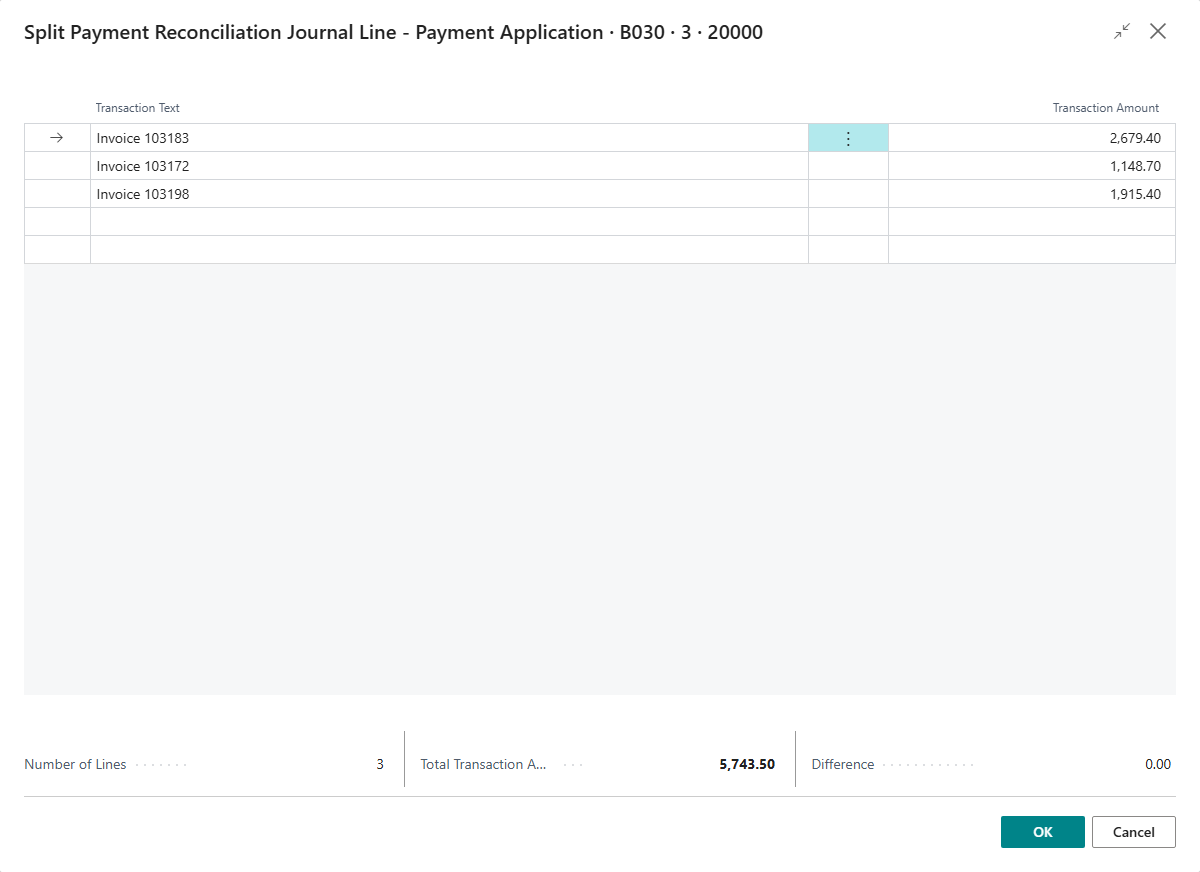
The first line remains the original line of the journal. The other lines are inserted below it. You then apply each line separately, automatically, through a reconciliation rule or manually.
The total must match
As long as the partial lines do not add up exactly to the amount of the bank transaction, you cannot close the dialog with OK: "The difference between the total of the transaction amount in the Reconciliation Journal and the total of the splitted lines is not zero." You cannot delete the original line in the dialog, only change it.
Undo a split
The Undo Split Line action reverses a split. The original line gets its transaction text and amount back, and the added lines are deleted. The action is only available for split lines. You can choose it on the original line or on one of the partial lines.
Automatically with split rules
You do not have to split recurring collective bookings manually every time. A bank transaction split rule describes how the transaction is recognized and how to split it. 365 business Banking applies it when the bank transactions are retrieved. The transaction is then added to the payment reconciliation journal already split.
A split rule consists of:
- filters on the bank account and the counterparty IBAN,
- a purpose pattern for the purpose (Contains, Starts With or Regular Expression). It is checked against the complete text the bank delivered, not only the first 140 characters in the Transaction Text of the line.
- lines that each read a partial amount from this text (after a label such as "VAT" or through a regular expression) or, if it is not in the text, set it as a percentage or fixed amount, each with a G/L Account No. and Posting Text,
- a Tolerance (LCY): differences up to this amount between the statement amount and the sum of the partial lines are accepted unchanged,
- the On Sum Mismatch field for a larger difference: Skip (do not split), Create Remainder Line or Scale Proportionally. If a line of the rule is marked Is Remainder, it takes up the difference with Create Remainder Line.
Calculated amounts are rounded to the currency of the bank account, or to the local currency for an account without a currency code.
Priority decides first which rule applies. Of the rules that match the transaction (bank account, IBAN and purpose pattern taken together), the rule with the lowest priority number is applied. Only with the same priority does the specificity of the rule decide: a rule for bank account and IBAN takes precedence over a rule for only one of them, which in turn takes precedence over a general rule. A rule with Priority 0 is the default rule and only applies when no other rule matches.
Setup, testing and order of the rules are described in Set up bank transaction split rules. The Bank Transaction Split Rules action in the payment reconciliation journal opens the rules directly.
Only for newly retrieved transactions
Split rules are applied at retrieval, not to lines that are already in the journal. The message shown when you open the rules also indicates this. If a new rule is to apply to an existing line, delete the line and retrieve the bank transactions again. With PSD2/XS2A, the line is taken over again at the next retrieval. With EBICS, read the statement again (Retrieve bank statements via EBICS). With a camt or CSV file, import the file again. Lines already in the journal are recognized as duplicates and skipped.
365 business Banking also splits a line without a rule of your own: if the bank reports a returned direct debit and its return fee as one transaction, the fee is split off into a separate line, "Return fee …", at retrieval, provided no split rule has already split the line.
What distinguishes split lines
- A separate text per part: Every partial line stores the part of the text it was created from. Reconciliation rules check their Mapping Text against that part, not against the text of the whole transaction. This way, one rule "wage tax" can match the wage tax line and another rule the VAT line.
- One shared bank transaction: All partial lines belong to the same bank transaction and show the same bank details in the Bank Transaction FactBox.
Limits
- Only unapplied lines. If the line or one of its partial lines is applied, 365 business Banking rejects Split Line with the message "You cannot split applied bank account reconciliation lines. …" and Undo Split Line with the message "You cannot undo split lines for applied bank account reconciliation lines. …" Remove the application first.
- Undo no longer possible. If the stored original values are missing, 365 business Banking reports "Unable to undo split line for selected bank account reconciliation line." In this case, delete the lines and retrieve the bank transactions again.
See also
- Set up bank transaction split rules
- Posting text with placeholders
- Reconciliation rules
- Retrieve bank transactions