
Posting text with placeholders
With placeholders, you define in 365 business Banking which posting text is created from a bank transaction, for reconciliation rules, split rules and deductions.
Without a setting of your own, the transaction text of the bank is used as the description of the posted entries. This text is machine-generated, often abbreviated and contains many technical parts. It is therefore of limited use for analysis, even if the posting is automated by a rule. With a Posting Text, you define the structure of the description instead, for example {Sender Name} - {Purpose}.
Where you define the posting text
| Where | Field and action | When the text is created |
|---|---|---|
| Reconciliation rule | Posting Text field on the reconciliation rule and in the Reconciliation Rules list, Posting Text action | when the rule is applied to a line, that is, during Apply Automatically, Quick Apply or when the rules are re-applied |
| Line of a split rule | Posting Text field in the Lines of the split rule, Posting Text action | when the bank transaction is split at retrieval |
| Deductions from remittance advices | Deduction Posting Text field in the Payment Application Settings, … button | when the deduction is posted; the placeholders of a deduction are listed under Application in payment reconciliation |
The resolved text is written into the transaction text of the line in the payment reconciliation journal and, as in the standard, copied from there into the description of the posted entries.
Step by step
- Open the reconciliation rule or the split rule.
- Choose the Posting Text action or the … button in the Posting Text field.
- In the Posting Text dialog, place the cursor where a value should go and choose Insert Placeholder.
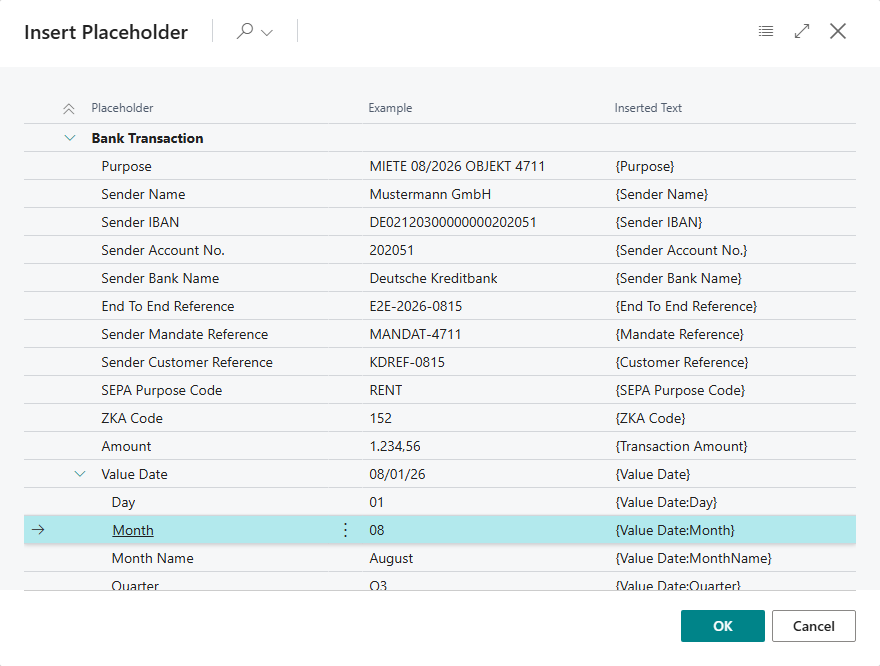
- Choose the placeholder in the list, then OK. The list groups the placeholders by their origin (bank transaction, bank statement line, rule, split rule line, business partner) and shows a sample value for each. Below a date are its parts, such as month or year, see Date parts. Use the search to find a placeholder quickly.
- Add fixed text between the placeholders. Below the field, the preview shows the result with the sample values.
- Choose OK.
- Apply the reconciliation rule, for example by answering Yes to the re-apply prompt when you close the reconciliation rules. A changed split rule only affects transactions retrieved afterwards.
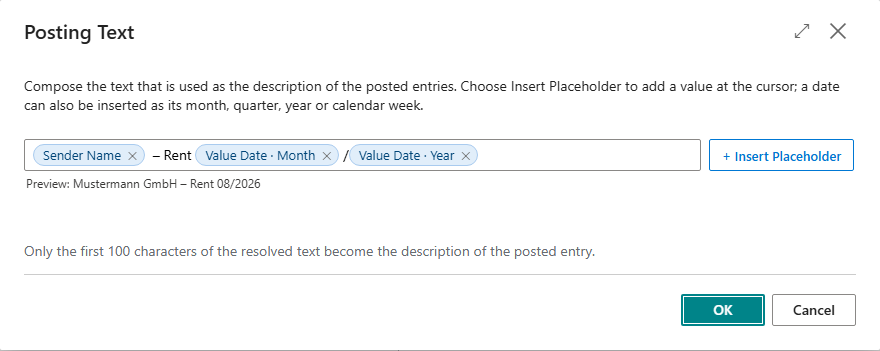
An inserted placeholder is shown in the field with its caption in the language of the user, such as Value Date · Month. ✕ removes it again. You can also enter placeholders directly in curly brackets, such as {Purpose}. A placeholder that 365 business Banking does not know is highlighted in red.
Placeholder names are not translated
Placeholders are stored in English, for example {Sender Name} or {Value Date:Month}. As a result, a posting text remains valid regardless of the language in which Business Central is used. The field and the list show the caption in the language of the user. The Inserted Text column of the list shows how the placeholder is stored.
Date parts
You insert a date as the complete date or as one of its parts. The part follows the placeholder after a colon. Two parts of the same date form a period: {Value Date:Month}/{Value Date:Year} turns the value date 06/01/2026 into the text 06/2026.
| Part | Written as | Result for June 1, 2026 |
|---|---|---|
| Date | {Value Date} | the date in the date format of the session, such as 06/01/26 |
| Day | {Value Date:Day} | 01 |
| Month | {Value Date:Month} | 06 |
| Month name | {Value Date:MonthName} | June (in the language of the session in which the text is created) |
| Quarter | {Value Date:Quarter} | Q2 |
| Year | {Value Date:Year} | 2026 |
| Calendar week | {Value Date:Week} | 23 (ISO 8601, weeks start on Monday) |
These parts are available for every date placeholder: {Value Date}, {Bank Posting Date}, {Transaction Date} and {Statement Date}. If the date is empty, the part is also empty.
Placeholders
Bank Transaction
Values from the bank transaction details, as delivered by the bank.
| Placeholder | Content |
|---|---|
{Purpose} | Payment reference, complete |
{Sender Name} | Name of the sender or recipient |
{Sender IBAN} | IBAN of the sender or recipient |
{Sender Account No.} | Account number of the sender or recipient |
{Sender Bank Name} | Name of the bank of the sender or recipient |
{End To End Reference} | End-to-end reference |
{Mandate Reference} | Mandate reference of a direct debit |
{Customer Reference} | Customer reference |
{SEPA Purpose Code} | SEPA purpose code |
{ZKA Code} | ZKA code |
{Transaction Amount} | Amount of the transaction |
{Value Date} | Value date, with date parts |
{Bank Posting Date} | Posting date at the bank, with date parts |
{Bank Transaction Code} | Bank transaction code |
Bank Statement Line
Values of the line in the payment reconciliation journal, of the journal itself and of your bank account.
| Placeholder | Content |
|---|---|
{Transaction Text} | the text delivered by the bank, not a posting text applied earlier |
{Transaction Date} | Transaction date, with date parts |
{Statement Amount} | Amount of the line |
{Related-Party Name} | Name of the counterparty |
{Related-Party IBAN} | IBAN of the counterparty |
{Bank Account No.} | Your bank account |
{Bank Account Name} | Name of your bank account |
{Currency Code} | Currency of your bank account; for a bank account in local currency its code, such as EUR |
{Statement No.} | Number of the payment reconciliation journal |
{Statement Date} | Statement date of the payment reconciliation journal, with date parts |
{Statement Line No.} | Line number |
Rule
| Placeholder | Content |
|---|---|
{Account No.} | Number of the account that is posted to: the Bal. Account No. for a reconciliation rule, the G/L Account No. for a split rule line, otherwise the account of the line |
{Account Name} | Name of that account |
{Account Type} | Account type of that account, such as G/L Account |
{Rule Line No.} | Number of the reconciliation rule, reconciliation rules only |
Business Partner
The customer, vendor or employee the line is matched to. Unlike {Account No.}, this value is kept when a rule posts to a balancing account of its own. For example, a fee posted to a G/L account still names the customer in the posting text.
| Placeholder | Content |
|---|---|
{Business Partner No.} | Number of the customer, vendor or employee |
{Business Partner Name} | Their name |
If the line is not matched to a customer, vendor or employee, both are empty.
Split Rule Line
Only available for split rules.
| Placeholder | Content |
|---|---|
{Label} | Label/Pattern of the line |
{Extracted Amount} | the amount the line received |
{Match Fragment} | the part of the transaction text the amount comes from |
{G/L Account No.} | G/L Account No. of the line |
{Percent} | Percent % of the line |
{Rule Code} | Code of the split rule |
{Rule Description} | Description of the split rule |
Length and truncation
- The resolved text is truncated to 140 characters, the length of the transaction text of the line.
- Only the first 100 characters are copied into the description of the posted entries. The dialog indicates this: "Only the first 100 characters of the resolved text become the description of the posted entry." Therefore, place the most important information first.
- A placeholder that 365 business Banking does not know, for example because of a typo, remains unchanged in the text. It is then visible in the entry and is not removed without notice.
- A known placeholder without a value, such as
{Mandate Reference}for a transfer, is replaced by an empty text.
When the original text is kept
365 business Banking stores the text delivered by the bank and restores it in the following cases:
- Empty Posting Text field: For a reconciliation rule, the text of the bank is kept. For a split rule line, the matched part of the transaction text is kept. The dialog shows "Empty → the transaction text of the bank remains the posting text."
- Empty result: The same applies if the posting text resolves to an empty text.
- Rule without posting text applied: If the line already contained the posting text of another rule or an earlier version of the rule, 365 business Banking writes the original text of the bank back into the line. If no original text is stored for a line, its text remains unchanged.
- Undo Split Line: When you undo a split, the line gets its original text and amount back, see Split lines.
Rules are always checked against the original text, never against a posting text. For this reason, a rule continues to apply after you change its posting text.
Examples
| Posting text | Result |
|---|---|
{Sender Name} - {Purpose} | Allianz Versicherungs-AG - Premium policy 4711 period 01/10-31/12 |
Account fee {Bank Account No.} {Value Date} | Account fee CHECKING 09/30/26 |
{Label} {Extracted Amount} ({Rule Description}) | Wage tax 1,250.00 (Tax office Springfield) |
Rent {Value Date:Month}/{Value Date:Year} {Business Partner Name} | Rent 06/2026 Contoso Ltd. |
Statement {Statement No.} week {Statement Date:Week} | Statement B00042 week 36 (statement date August 31, 2026) |
Placeholders from other apps
Partner apps can add placeholders of their own. They appear in the list in a separate group and are resolved like the placeholders of 365 business Banking. For developers: Placeholders of your own.
See also
- Reconciliation rules
- Split lines and split rules
- Set up bank transaction split rules
- Payment reconciliation journal