
Deferrals in the payment reconciliation journal
In 365 business Banking, you can defer payments directly in the payment reconciliation journal using a deferral code.
Some payments concern several future periods, such as an annual insurance premium, a software license, a maintenance contract, or an advance payment for services. If there is no purchase invoice for such a payment, you spread the expense over the periods directly from the line of the payment reconciliation journal.
Prerequisites
- A deferral template is set up.
- The line has the Account Type G/L Account or Vendor, and Account No. is filled in.
- The line is a debit, which means its amount is negative.
- A Posting Type is chosen. VAT Bus. Posting Group and VAT Prod. Posting Group are only required if the line carries VAT. The net amount is deferred, and it is derived from the VAT posting setup. Without VAT posting groups or at 0 %, the full amount is deferred.
- The line is not applied to an entry. Otherwise, the posting setup is locked, see Posting setup and clearing accounts.
- For account type G/L Account: The general posting setup has a clearing account for the posting groups, the AP Clearing Account for posting type Purchase. With a deferral code, 365 business Banking always posts a G/L account line through the clearing account, even with Direct Posting. See Clearing accounts in the general posting setup.
Standard functionality in Business Central
Deferral is a standard function. A deferral template defines over how many periods and from which start date an amount is spread. The deferral schedule of a line shows the distribution and can be adjusted. In the standard, this function is available in purchase and sales documents and in the general journal. For more information from Microsoft, see Defer revenues and expenses.
What 365 business Banking adds
- The Deferral Code field in the line of the payment reconciliation journal and the Deferral Schedule action.
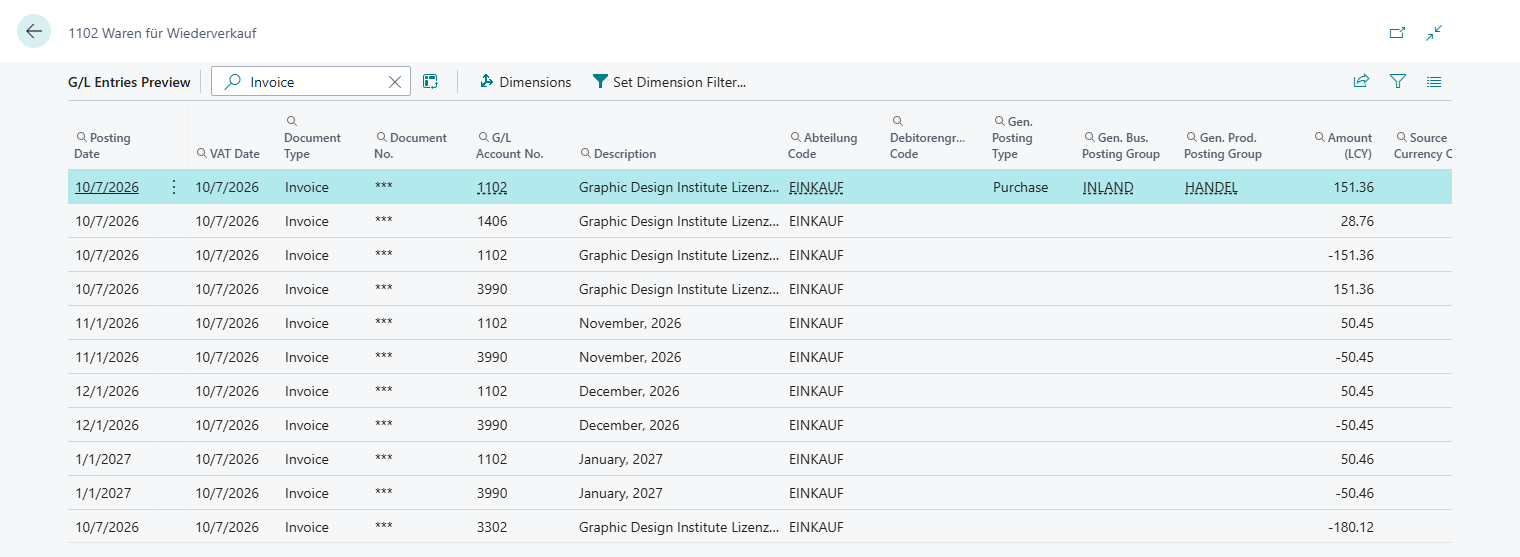
- On posting, the expense is posted as an invoice to the vendor or, for a G/L account, through a clearing account, and Business Central defers it according to the schedule. The deferral itself is performed by the standard.
How the schedule is created
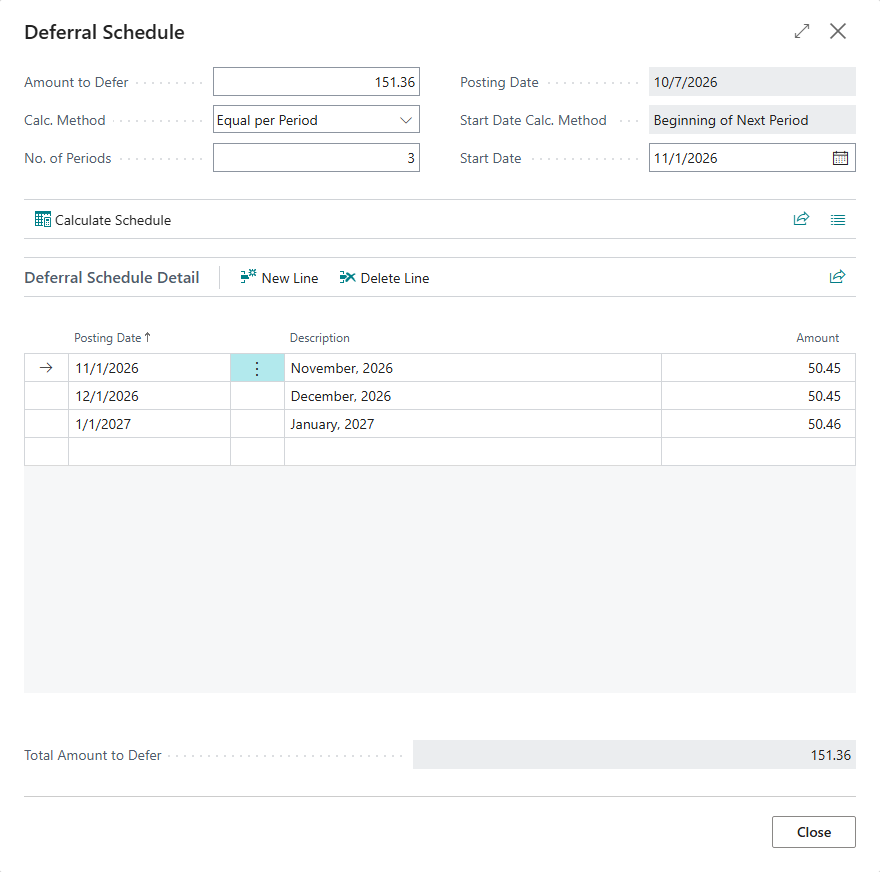
As soon as you enter a Deferral Code, 365 business Banking creates the deferral schedule of the line:
- Amount: the VAT Base Amount of the line, that is, the net amount, as a positive value. Without VAT, this is the full amount.
- Posting date: the Transaction Date of the line. You cannot specify another date.
- Start date and distribution: according to the method of the deferral template, starting from the transaction date.
Open and edit the schedule with the … button in the Deferral Code field or with the Deferral Schedule action. The action is only available when a deferral code is entered.
Step by step
Example: €1,200.00 is debited for a software subscription billed annually. There is no purchase invoice. The expense is to be spread over 12 months and posted through the vendor.
- Open the Payment Reconciliation Journal and select the line of the debit.
- In the Account Type field, choose Vendor, and in the Account No. field, choose the provider of the subscription.
- In the Posting Type field, choose Purchase. The general and VAT business posting groups are taken from the vendor. Adjust them if needed.
- Choose the Gen. Prod. Posting Group and check the VAT Prod. Posting Group.
- In the Deferral Code field, choose the deferral template for 12 months.
- Optional: Open the schedule with Deferral Schedule and adjust it.
- Check the posting with the posting preview and post with Post Payments and Reconcile Bank Account.
Notes
Only when an expense is created
Only an expense that the posting setup of the line creates can be deferred. A payment of an existing invoice is deferred in the invoice, not in the payment reconciliation journal.
If you change the Account No. or clear the Posting Type, the Deferral Code is cleared as well.
Troubleshooting
| Message | Cause and remedy |
|---|---|
| "The Statement Amount must be negative when specifying a Deferral Code." | The line is an incoming payment. Only debits are deferred. |
| Account type "must be either G/L Account or Vendor when specifying a Deferral Code" | The line has another account type, such as Customer. |
| Error message about an empty Posting Type or Account No. | Fill in the field named in the message before you enter the deferral code. |
| Posting error about the clearing account (account type G/L Account) | The AP Clearing Account or AR Clearing Account is missing in the general posting setup. |
See also
- Posting setup and clearing accounts
- Clearing accounts in the general posting setup
- Post the payment reconciliation journal
- Reconciliation rules