
Automating Bank Account Reconciliation
This page describes how 365 business Banking retrieves bank transactions per bank account regularly through the job queue and applies them automatically.
Instead of choosing Retrieve Bank Transactions every day, you create a job queue entry for a bank account. The entry retrieves the new transactions, writes them into the payment reconciliation journal and, optionally, applies them immediately. You then review and post the lines.
Applies to: PSD2/XS2A via finAPI · EBICS · payment service providers
Prerequisites
- The bank account is connected through 365 business Banking: Connect a bank account.
- You have permission to create job queue entries and set them to Ready.
Standard functionality in Business Central
The job queue runs reports and codeunits in the background at defined times. A job queue entry defines what runs, at which interval and how many attempts are made after an error.
More information from Microsoft: Use job queues to schedule tasks.
What 365 business Banking adds
The Automate bank transaction retrieval action creates a preconfigured job queue entry for the Retrieve Bank Transactions report:
| Setting | Default |
|---|---|
| Bank account | filter on the No. of the bank account you started the action from |
| Option Apply Automatically | turned on |
| Recurrence | daily, on all weekdays, every 1,440 minutes |
| Attempts after an error | 3 |
| Status after creation | on hold (you release the entry yourself) |
Step by step
- Open the Bank Account Card of the account, or select the account in the Bank Accounts list.
- Choose Actions > Automate bank transaction retrieval. The action is only available for connected bank accounts.
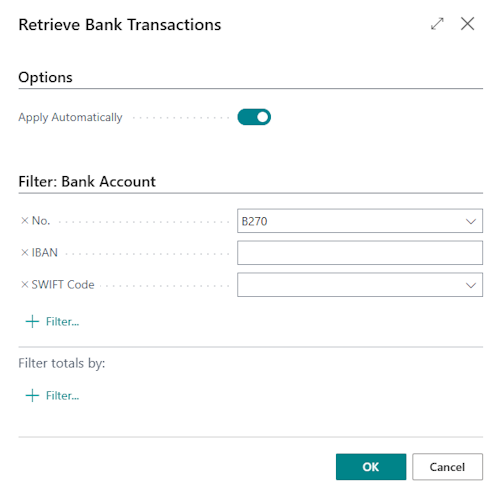
- The request page of the Retrieve Bank Transactions report opens. On the Options FastTab, leave the Apply Automatically toggle turned on if the transactions should be applied immediately. The bank account is already entered in the filters. You can add further connected bank accounts using No., IBAN or SWIFT Code.
- Choose OK.
- Business Central reports: "Job Queue Entry to automate bank transaction retrieval has been created. Do you want to open the Job Queue Entry page to review the entry?" Choose Yes.
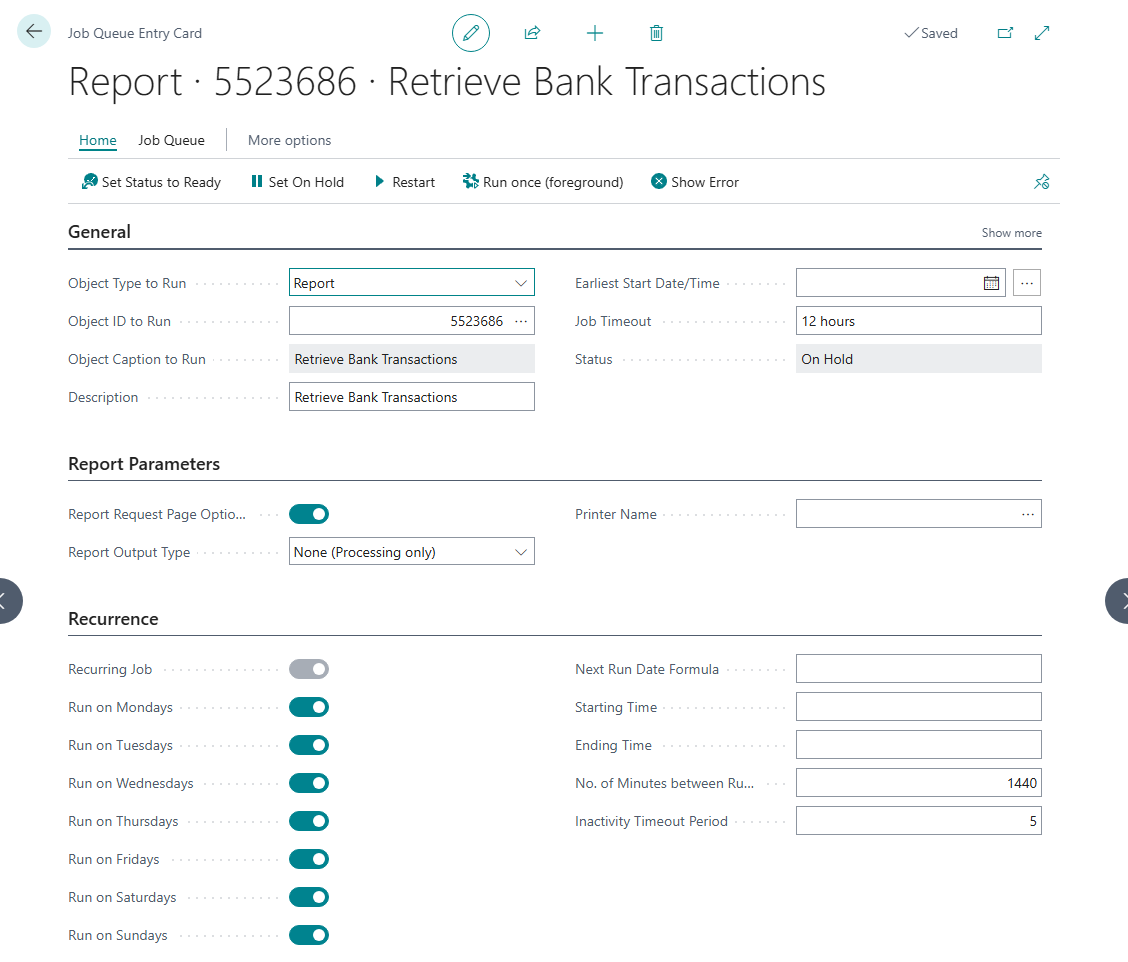
- On the Job Queue Entry Card, check frequency, weekdays and start time, and adjust them if required.
- Choose Set Status to Ready.

What happens on every run
- Retrieve. For each bank account in the filter, the report retrieves the new transactions. The same rules apply as for manual retrieval, including the duplicate check. In Default mode, the transactions are written into an existing open payment reconciliation journal of the account or into a new one, in the Daily, Weekly and Monthly modes into the journal of their period, and in the Per Bank Statement mode into the journal of their bank statement: Retrieve bank transactions.
- Apply (only with Apply Automatically). Only journals that received new transactions in this run and contain at least one line with an amount but no application are considered. Journals of earlier periods remain unchanged.
- Reject first, then apply again. In each of these journals, all automatic applications from earlier runs are rejected. The entire journal is then applied again. Lines with the match confidence Accepted or Manual remain unchanged.
Reasons for rejecting first: Automatic application only considers open entries that are not already applied to another line. Without rejecting, the entries applied by an earlier run would no longer be candidates, while their lines would lose their application in the new run. In addition, the matching can only decide across all lines which entry belongs to which line if the entire journal is applied in one step. The result is therefore the same as choosing Apply Automatically in the journal. Applications that you accepted or made manually are kept.
The order of matching is described in How automatic application works.
What applies per connection
| Connection | In the background |
|---|---|
| PSD2/XS2A via finAPI | Runs as long as the consent at the bank is valid. If the bank requires a new consent (sign-in with TAN), the background run cannot open a web form. The run then stops with "Updating the bank connection requires the user to authenticate again. Please retrieve the bank transactions manually to renew the authentication." Run the retrieval once manually and sign in. Automation then runs again. Your bank determines when the consent expires: Renew PSD2 consent. |
| EBICS | Runs without interruption, because no consent expires. Business Central authenticates with the keys of the EBICS participant: Statements via EBICS. |
| Payment service providers | Run with the stored credentials. Exception Mollie: if Mollie no longer accepts the stored sign-in, the background run cannot open a sign-in window and stops with "An authentication is required to connect Mollie Connect. Please run retrieve bank transactions manually, to refresh authentication." Run the retrieval once manually and sign in. For the other payment service providers, the run only stops if the stored credentials are no longer valid, for example if access was revoked in the Shopify store. In this case, enter the credentials again or reconnect the account. |
| camt file, Universal (CSV) | Not suitable, because the file must be selected manually and no file dialog can open in the background. The run therefore skips these accounts without stopping. The other accounts in the filter are still retrieved. Import the statements for these accounts manually: Import a bank statement. |
Monitor the job queue
If a run fails, the job queue restarts it up to three times (Maximum No. of Attempts to Run 3). Because no Rerun Delay (sec.) is set, the retries follow within a few seconds. If the last attempt also fails, the entry gets the status Error and is no longer run, not even at the next scheduled time. Only then does Business Central report the error: the user of the entry receives a note with the error message, and depending on the job queue notification settings, the Role Center shows a notification about failed jobs. If no new transactions arrive, check the job queue entry and its log entries. Set Status to Ready releases it again.
Notes
- No messages in the background. The message after retrieval and the confirmation for more than 50 new journals are only shown for manual retrieval.
- Frequency. The default is one run per day. To retrieve more often, change the number of minutes between runs on the Job Queue Entry Card. With the default Import Until Date Formula (
-1D), however, PSD2/XS2A transactions of the current day are only retrieved on the following day. - Several bank accounts. Each time you use the action, it creates one entry for one bank account. You can also extend the filter on the request page so that one entry retrieves several accounts.
- Only automatic applications are renewed. The run does not change applications that you accepted or made manually in the journal.
- No tolerance questions. If a payment lies after the payment discount date but within the payment discount tolerance, or within the payment tolerance, the run answers the payment discount tolerance warning and the payment tolerance warning without a dialog with their default option. A late payment discount is not granted, and no payment tolerance is posted. The remaining amount stays open and can be applied manually. Apply Automatically in the journal still shows the questions.
Troubleshooting
| Observation or message | Cause and remedy |
|---|---|
| "Updating the bank connection requires the user to authenticate again. …" | The PSD2 consent has expired. Choose Retrieve Bank Transactions once manually and sign in. |
| The action is not available | The bank account is not connected through 365 business Banking. |
| Transactions are retrieved but not applied | The Apply Automatically option is turned off in the job queue entry. Choose Report Request Page on the entry and turn the option on. |
| An entry that was applied is applied to another line after a run | Automatic applications that were not accepted are recalculated on every run. Accept applications that should be kept. |
See also
- Retrieve bank transactions
- Apply bank transactions
- Renew PSD2 consent
- Use job queues to schedule tasks (Microsoft Learn)