
Payment application settings
This page describes the switches that 365 business Banking adds to the payment application settings and the matching in application that each switch affects.
The Payment Application Settings page belongs to Microsoft Dynamics 365 Business Central. 365 business Banking adds the switches for its own matching and the Payment Application Fields part there. You open the page via Search or in the Role Center under Setup.
Standard functionality in Business Central
The standard settings define which entry types automatic application considers (customer, vendor, employee and bank account ledger entries), which of them appear on the Payment Application page, whether suggestions are calculated for Apply Manually, whether apply-immediately rules apply and how related party names are compared. These settings continue to apply unchanged.
For more information, see Microsoft Learn: Review or apply payments after automatic application and Set up rules for automatic application of payments.
What 365 business Banking adds
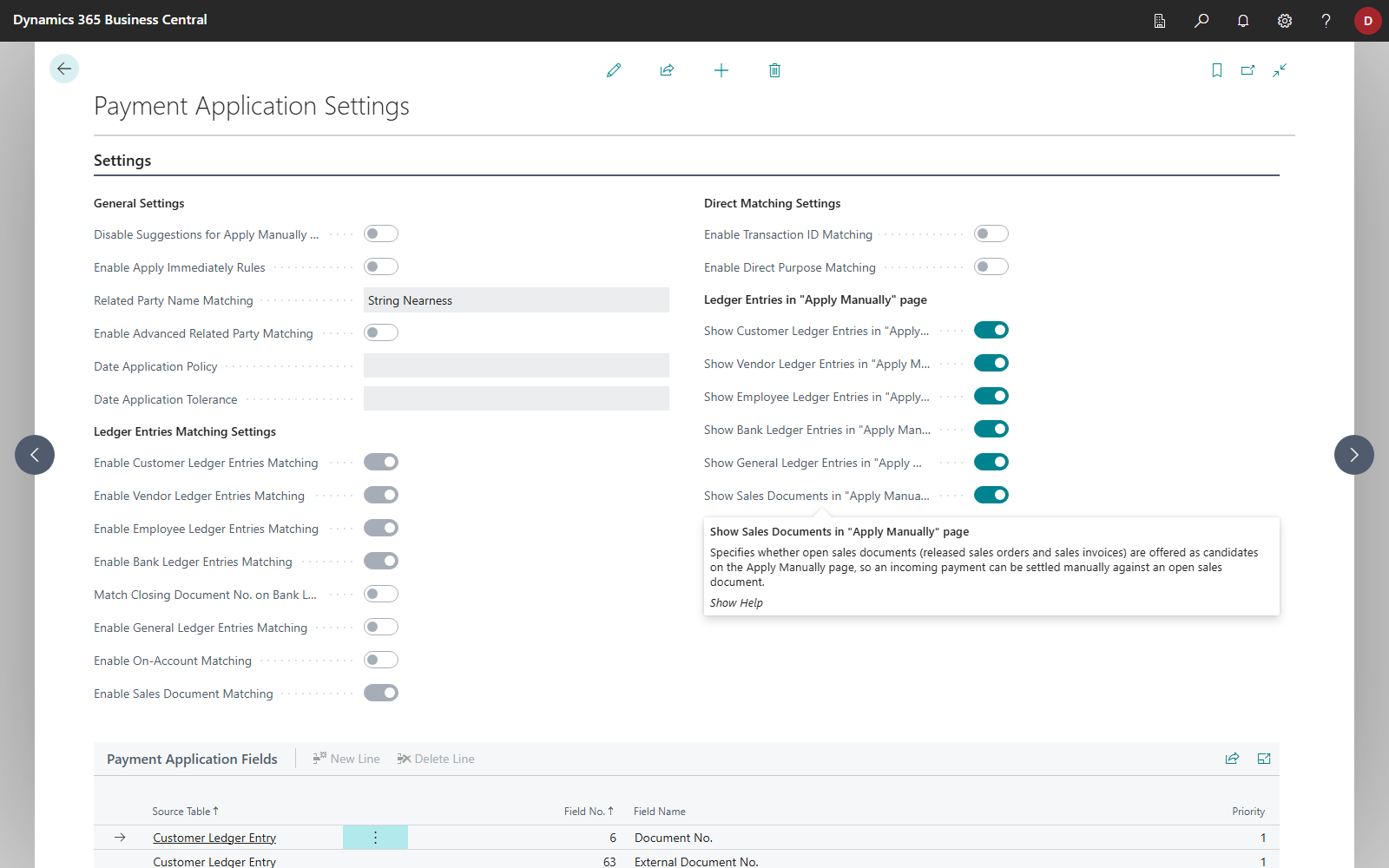
Settings in detail
General Settings group
| Field | Default | Effect | More |
|---|---|---|---|
| Enable Advanced Related Party Matching | off | compares names tolerantly (umlauts, punctuation, word order; 50 % rule) and additionally checks the account holder of customer and vendor bank accounts | Related party matching |
| Date Application Policy | blank | blank: as in the standard; Always: no date limit; Tolerance Period: only entries posted on or before the transaction date, or at most the period after it. If a policy is set, entries with the wrong sign are discarded. | Date tolerance |
| Date Application Tolerance | blank | the period as a date formula, such as 5D or 1W+2D; mandatory for Tolerance Period | Date tolerance |
Ledger Entries Matching Settings group
| Field | Default | Effect | More |
|---|---|---|---|
| Enable General Ledger Entries Matching | off | applies bank transactions to G/L entries under review (requires Review Entries, from BC 27). | G/L entry matching |
| Enable On-Account Matching | off | posts a payment on account to a customer or vendor uniquely recognized by IBAN, full name or the payment application fields when there is no other candidate | Customer/vendor matching |
| Enable Sales Document Matching | off | assigns incoming payments to open, released sales orders and invoices and creates preliminary entries | Application with open sales documents |
Direct Matching Settings group
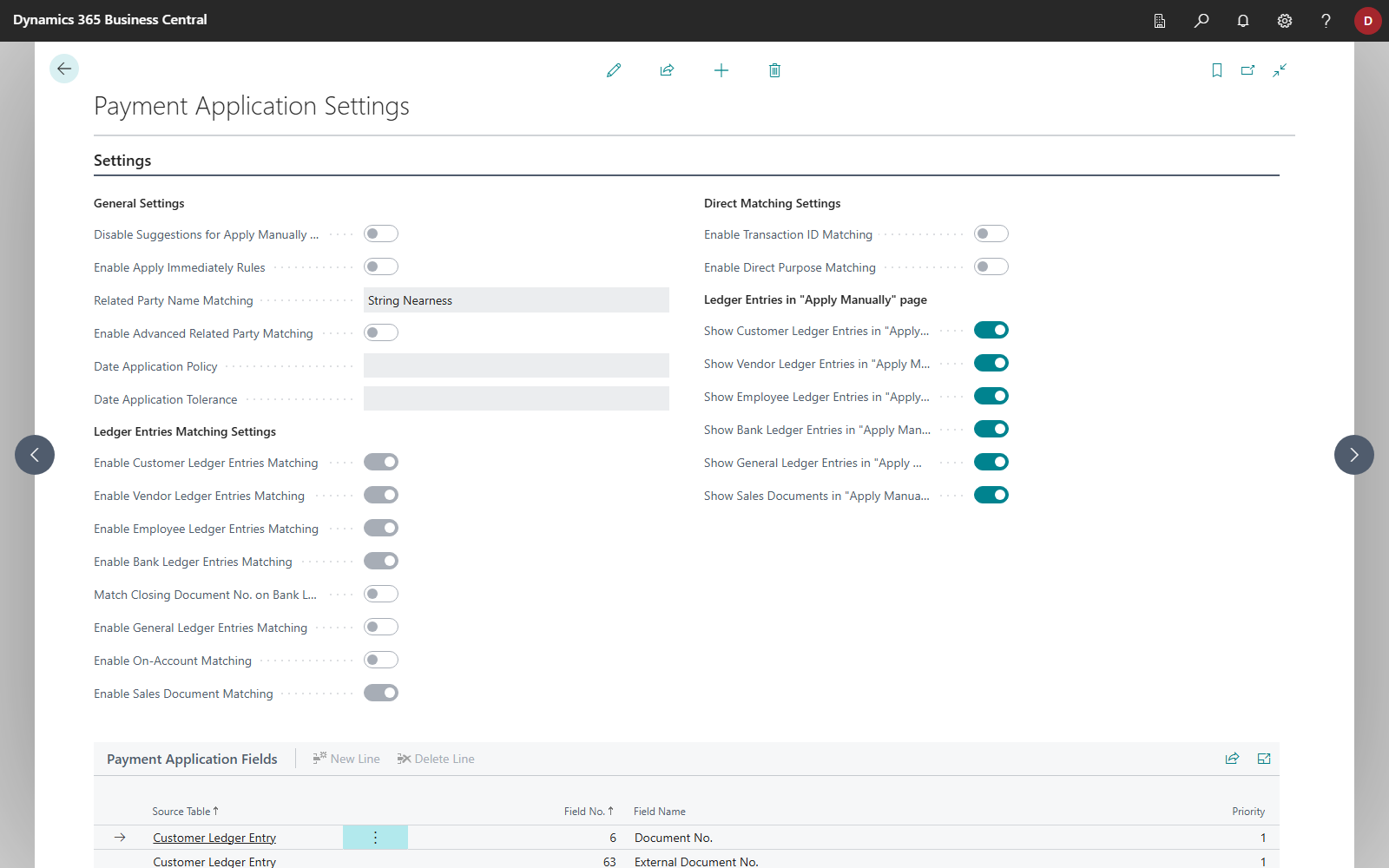
| Field | Default | Effect | More |
|---|---|---|---|
| Enable Transaction ID Matching | off | applies lines of payment service provider accounts (Universal accounts count as such here) that carry a transaction ID directly to the one open customer ledger entry whose payment application field holds the same ID. The full scoring is skipped for that line. | Direct matching |
| Enable Direct Purpose Matching | off | searches the transaction text for a document reference, such as an invoice number, that identifies exactly one open customer ledger entry, and applies the line to that entry directly. This applies to bank accounts and payment service provider accounts alike. | Direct matching |
Apply Automatically and Quick Apply both use direct matching. When a switch is off, Apply Automatically scores these lines like any other line, and Quick Apply applies its remaining rules to them.
Switch on direct matching only after a deliberate decision
Both switches are off in new companies. An update can also switch them off in existing companies, see What installation sets up. This also affects Quick Apply. Turn the switches on here if you want to use direct matching. For more information, see Direct matching.
Ledger Entries in "Apply Manually" page group
| Field | Default | Effect | More |
|---|---|---|---|
| Show General Ledger Entries in "Apply Manually" page | on | from BC 27: shows G/L entries under review as candidates on the Payment Application page, independent of Enable General Ledger Entries Matching | G/L entry matching |
| Show Sales Documents in "Apply Manually" page | on | shows open, released sales documents as candidates on the Payment Application page, independent of Enable Sales Document Matching | Application with open sales documents |
As in the standard, the more entries the Payment Application page has to load, the longer it takes to open. Turn off entry types you do not need there.
Remittance Advice & Deductions group
| Field | Default | Effect | More |
|---|---|---|---|
| Enable Remittance Advice Matching | on | applies open remittance advices (from REMADV import and camt structured remittance) to matching bank transactions automatically, deductions included | Remittance advice setup (REMADV) |
| Default Deduction G/L Account No. | blank | G/L account for a deduction whose reason has no G/L account of its own | Remittance advice setup (REMADV) |
| Record Undocumented Difference as Deduction | off | posts an unexplained amount deviation on an applied document automatically as a deduction | Remittance advice setup (REMADV) |
| Undocumented Deduction Reason | 43 | reason used for that deduction | Remittance advice setup (REMADV) |
| Deduction Posting Text | default posting text | template for a deduction's posting text, with placeholders | Posting text with placeholders |
The Deduction Reasons and REMADV Partners actions open the related master data pages.
Payment application fields
In the Payment Application Fields part, you define which fields of customer ledger entries, vendor ledger entries, customers, vendors and G/L entries application looks for in the payment reference. After installation, it contains Document No., External Document No. and Payment Reference for customer and vendor ledger entries. Application checks the fields in the order of their Priority. For more information, see Payment application fields.
See also
- How automatic application works
- Apply bank transactions
- Context words
- Banking Setup
- Remittance advice setup (REMADV)