
Bank Account Reconciliation
With 365 business Banking, you can retrieve bank transactions and use them in the payment reconciliation in Microsoft Dynamics 365 Business Central. This enables efficient management of your bank accounts and seamless integration into your financial processes.
Good to know
Retrieving bank transactions does not involve fetching account statements; instead, transactions are retrieved directly from the bank. This allows for faster and more accurate processing of your financial data, with additional information about the transactions that may not be included in account statements.
Prerequisites
To retrieve bank transactions, you must first set up a banking user in Microsoft Dynamics 365 Business Central. This user is used to connect to your bank and has access to the banking features. Additionally, a connection to your bank or banks must be established. For more information, see the Step-by-Step Guide to Bank Account Connection.
Step-by-Step Guide
Follow these steps to retrieve bank transactions in 365 business Banking:
- Select Payment Reconciliation Journals in the search bar of Microsoft Dynamics 365 Business Central.
- Select the action Retrieve Bank Transactions.
- Select the bank account for which you want to retrieve transactions.
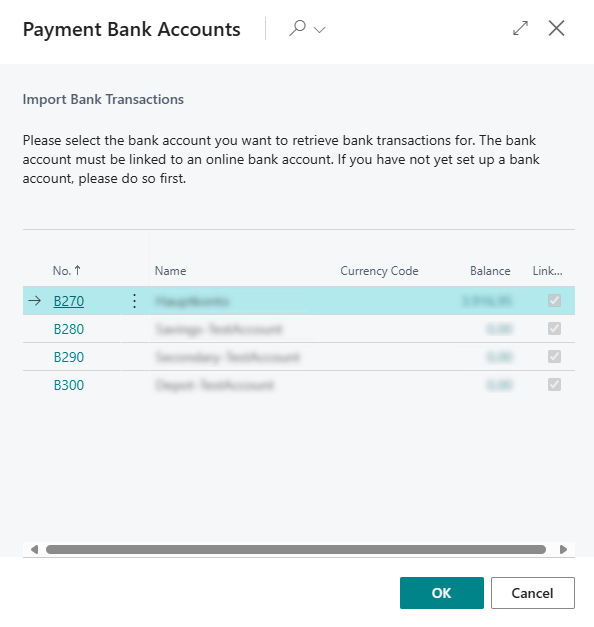
- Select OK to start retrieving bank transactions.
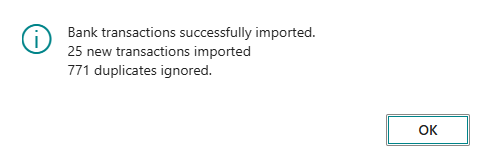
- Confirm the message that the bank transactions have been retrieved.
Good to know
The import of bank transactions automatically checks for duplicate transactions and ignores them. This ensures that your payment reconciliation is always up-to-date and accurate.
Splitting Bank Transaction Lines
In some cases, it may be necessary to split bank transaction lines to allocate them to multiple general ledger accounts. This can be the case, for example, with direct debits from the tax authority, where multiple taxes are included in a single transaction.
Good to know
Bank transaction lines can also be automatically split using Bank Transaction Split Rules. These rules are applied when retrieving bank transactions and help to optimize and automate the payment reconciliation process.

Follow these steps to split bank transaction lines:
- Select the bank transaction line you want to split.
- Select the action Split Lines in the Line group.
- Split the bank transaction line into multiple lines by adjusting the respective amounts and, if necessary, changing the transaction text.
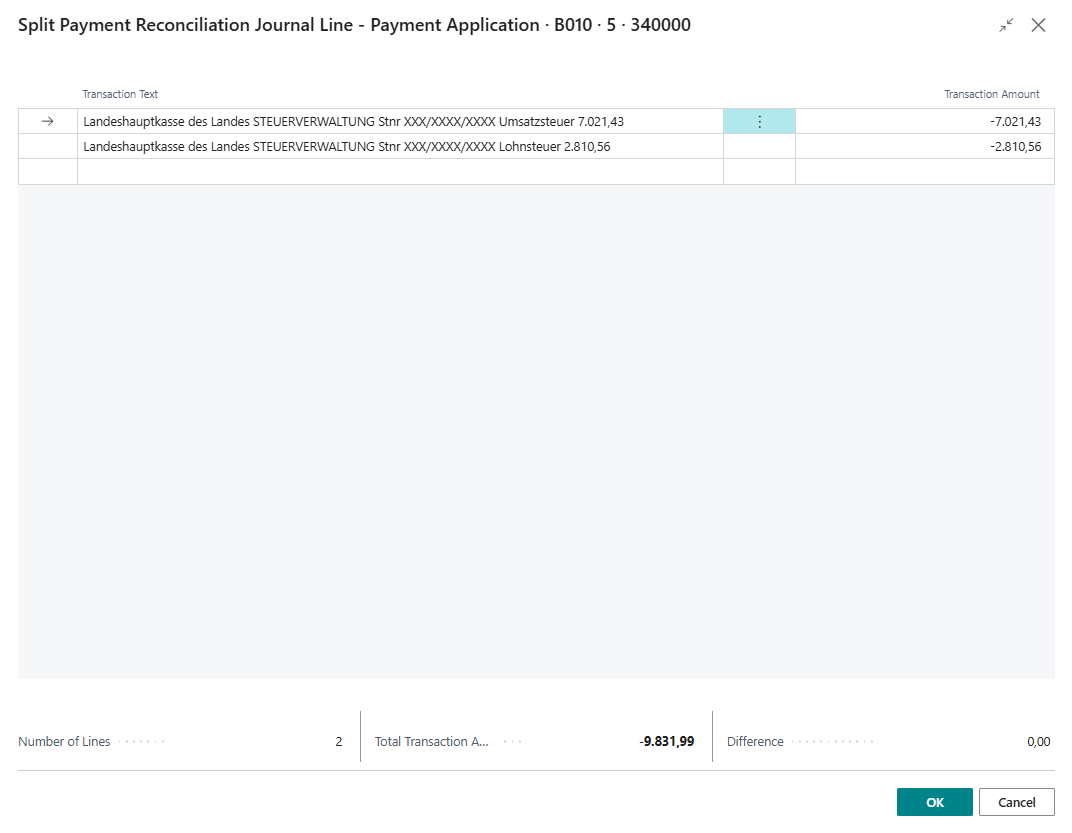
- Select OK to save the changes.
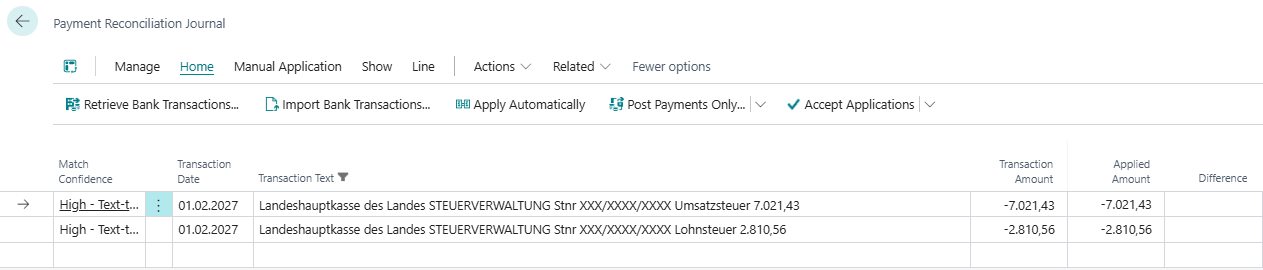
Info
You can undo the splitting of bank transaction lines using the Undo Split Line action. This restores the original state of the bank transaction lines.
Payment Reconciliation
After retrieving bank transactions, you can use them in payment reconciliation. The bank transactions are automatically matched to the open entries in Microsoft Dynamics 365 Business Central to enable efficient reconciliation. The Microsoft Dynamics 365 Business Central bank reconciliation (see Managing and Reconciling Your Bank Accounts) is used and enhanced with additional features to achieve better results when matching bank transactions.
Payment reconciliation essentially consists of three steps, which can result in an automatic matching of bank transactions to open entries:
- Related Party Matching
Bank transactions are automatically matched to the related party (e.g., customer, vendor) to improve the allocation to open entries. - Document No. Matching
The document numbers in the purpose of the bank transaction are analyzed and compared with the document numbers of the open entries to improve the allocation. - Amount Matching
The amounts of the bank transactions are compared with the amounts of the open entries to improve the allocation.
Related Party Matching
In addition to the Microsoft standard, 365 business Banking performs further steps during payment reconciliation to more accurately identify the related party of the bank transaction.
For more information on related party matching, see the documentation on Related Party Matching.
Document No. Matching
In addition to matching the related party, 365 business Banking also analyzes the document number in the purpose of the bank transaction during payment reconciliation to improve the allocation to open entries. Partial document numbers are also considered to allow for more accurate allocation in batch payments.
For more information on document number matching, see the documentation on Document No. Matching.
Payment Code Mapping
As part of a SEPA payment, additional payment codes are transmitted alongside the purpose, which are used to identify the payment. These codes can be used during payment reconciliation to improve the allocation of bank transactions to open entries or general ledger accounts.
The following payment codes are supported:
-
ZKA Code: The ZKA code, also known as the business transaction code, is used to identify the business transaction of the bank transaction. This code is usually provided by the bank and can be used to identify the type of transaction. For more information, see ZKA Code.
-
SEPA Purpose Code: The SEPA purpose code is used to identify the purpose of the SEPA transfer. This code is optional and can be used to specify the purpose of the payment. For more information, see SEPA Purpose Code.
On the Payment Code Mapping page, you can map payment codes to account type and account number. This allows for more accurate allocation of bank transactions to the respective accounts and improves the efficiency of reconciliation.
For more information, see the documentation on Payment Code Mapping.
As part of the automatic reconciliation of bank transactions, the payment code mapping is automatically considered. If a payment code is mapped, it is used when allocating the bank transaction to open entries or general ledger accounts. This improves the efficiency of reconciliation and reduces the manual effort required for allocating bank transactions.

Date Application Policy
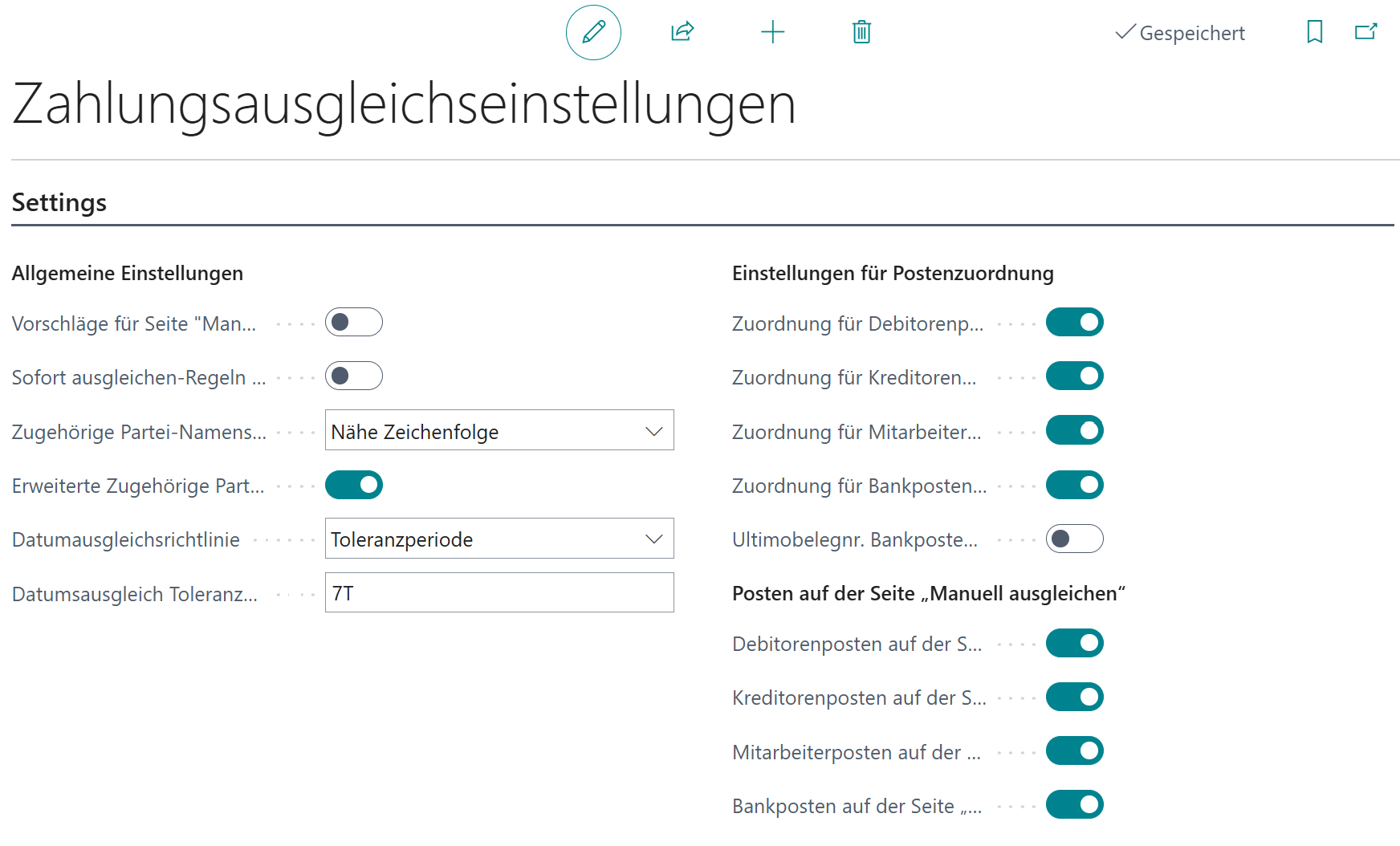
The date application policy defines the rules by which bank transactions are matched based on the date. The following options are available:
- Always
Bank transactions are matched regardless of the posting date of the entry. - Tolerance Period
Bank transactions are only matched to entries that fall within a defined period after the date of the bank transaction.
If no selection is made, the date application policy is disabled and no matches are suggested for bank transactions where the entry date is after the bank transaction date.
Tolerance Period
The tolerance period allows you to define a time frame within which bank transactions can be matched to open entries. This is particularly useful for accounting for transactions that may be posted with a certain time delay.
The tolerance period is specified as a date formula (e.g., 7D), which indicates how many days after the date of the bank transaction entries should be considered for matching.
Payment Reconciliation Creation Mode
By default, 365 business Banking places retrieved transactions in a payment reconciliation journal that is already open for the bank account. With a high transaction volume, that journal keeps growing.
Use the Pmt. Rec. Journal Creation field on the Bank Account card to distribute the transactions across separate journals per period instead:
- Default – any journal that is already open for this bank account is re-used (previous behavior).
- Daily, Weekly, Monthly – one journal is created and re-used per calendar day, calendar week or month.
The period is determined by the bank posting date of the transaction, not by the time of retrieval. A transaction retrieved later therefore ends up in the journal of its own period.
Good to know
The setting is made per bank account and is only available for bank accounts connected through 365 business Banking. There is no global setting.
For more information, see Payment Reconciliation Creation Mode.
Dynamic FactBox Captions
The Bank Transaction FactBox captions the counterparty details to match the direction of the transaction: an incoming payment shows the Sender group, an outgoing payment the Recipient group – each with Name, Bank Name, Account No. and IBAN. Details the bank did not supply are hidden.
The purpose text is broken into sections for the narrow FactBox and rendered across several lines. Clicking a section leads straight to the reconciliation rules for that transaction.
For more information, see Dynamic FactBox Captions.
Dynamic Posting Description
By default, the transaction text supplied by the bank is used as the description of the entries created when posting. Use the Posting Text field on the reconciliation rule and on the split rule line to define how that description is composed instead.
The text is assembled from placeholders in curly brackets, for example {Sender Name} - {Purpose}. The Posting Text action opens an editor listing all available placeholders. If the field is left empty, the transaction text of the bank is kept, as before.
Placeholder names are not translated
Placeholder names are deliberately not localized and are written in English in every language version. The editor shows the localized field caption and a sample value for each placeholder.
For more information, see Dynamic Posting Description.
Bank Transaction FactBox in Posted Entries
The Bank Transaction FactBox is available not only in the payment reconciliation journal, but also in Customer, Vendor, Employee, General Ledger and Bank Account Ledger Entries. The purpose text, counterparty and bank references therefore remain available in the entry after posting.
In posted entries the FactBox works in read-only mode; the jump into the reconciliation rules is omitted, because no journal line is left. It is only shown when bank transaction details actually exist for the entry.
Retention policy
The bank transaction details table is enabled for retention policies, so you can control how long the bank details are kept.
For more information, see Bank Transaction FactBox in Posted Entries.
Dynamic Token Lengths in Document Matching
For automatic payment application, 365 business Banking breaks the purpose text of a bank transaction into individual tokens and compares them with the document references of open entries. The permitted minimum and maximum token length is derived from your real data: from the values of the Payment Application Fields configured in the Payment Application Settings, read from the open customer ledger entries.
Short document references – such as web shop order numbers with only five characters – are therefore found, without diluting match quality through arbitrarily short random sequences.
No setup required
The calculation runs automatically. You influence it indirectly through the Payment Application Fields: the fields configured there determine which values are taken into account. If no values can be determined, 4 to 30 characters apply.
For more information, see Dynamic Token Lengths.
See Also
- Automating Bank Account Reconciliation
- Setting Up Banking Users
- Establishing Bank Account Connections
- Payment Code Mapping
- ZKA Code
- SEPA Purpose Code
- Posting Setup in Payment Reconciliation Journal
- Reconciliation Rules
- Managing and Reconciling Your Bank Accounts (Microsoft Learn)