
Payment reconciliation journal
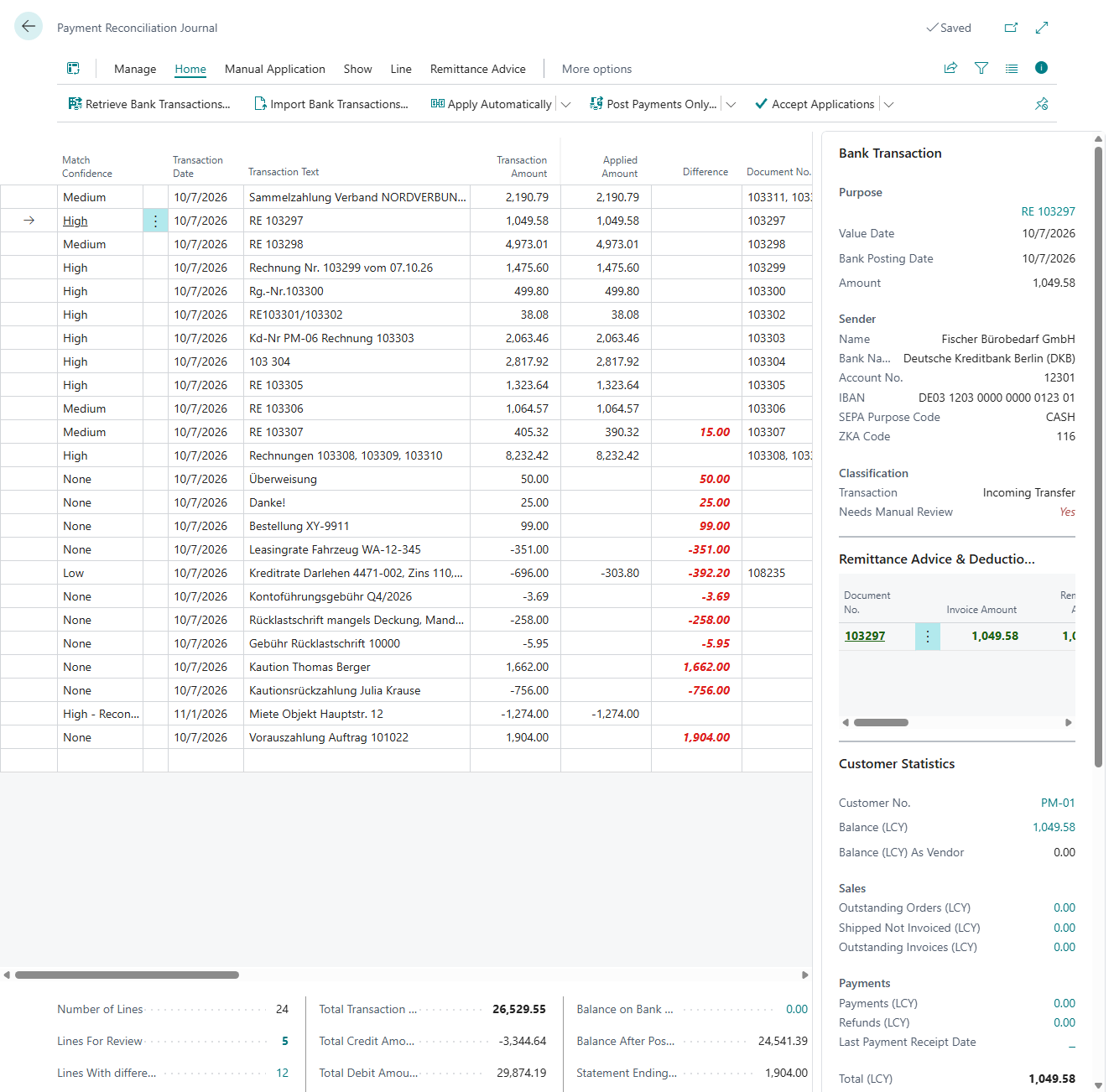
This page describes the layout, fields, actions and FactBoxes of the payment reconciliation journal, where you process your bank transactions with 365 business Banking.
The payment reconciliation journal is a page of Microsoft Dynamics 365 Business Central. 365 business Banking fills it with the retrieved bank transactions, adds fields, actions and FactBoxes, and protects the bank data from accidental changes. This page describes the elements shown. Applying is described in Apply bank transactions.
Standard functionality in Business Central
In the standard, the payment reconciliation journal contains one line per bank transaction with transaction date, transaction text and amount. Automatic application proposes an account or open entries for each line. You correct the proposal manually on the Payment Application page, and posting creates the payments and the bank account ledger entries.
For more information from Microsoft, see Reconcile payments using automatic application.
What 365 business Banking adds
| Addition | Purpose | More information |
|---|---|---|
| Retrieve Bank Transactions | retrieve transactions directly from the bank or the payment service provider, without a statement file | Retrieve bank transactions |
| Action group Apply | Apply Automatically, Apply Selected Automatically, Quick Apply, Check Application and Check Quick Apply in one place | Apply bank transactions |
| FactBox Bank Transaction and page Bank Transaction Details | all information the bank delivered for a transaction: payment reference, counterparty, references, classification | below |
| Split Line / Undo Split Line | distribute one transaction over several accounts | Split lines |
| Reconciliation Rules, Bank Transaction Split Rules | post or split recurring transactions automatically | Reconciliation rules |
| Posting fields on the line | posting type, posting groups, VAT and deferral directly on the line | Posting setup |
| Card, Ledger Entries, FactBoxes Customer Statistics / Vendor Statistics | navigate to the account without leaving the journal | below |
| Action group Remittance Advice, FactBox Remittance Advice & Deductions | apply remittance advices and record deductions | Application in payment reconciliation |
List of payment reconciliation journals
On the Payment Reconciliation Journals page, the following additional columns are shown for each journal:
| Column | Meaning |
|---|---|
| Journal Period Start | first day of the period the journal was created for. Only filled when the bank account creates journals per day, week or month. |
| Statement Date | date of the latest bank transaction in the journal |
| No. of Transactions | number of lines |
| No. of Applied Transactions | lines without a difference, that is, fully applied lines |
| No. of Unapplied Transactions | lines with a difference that are not fully applied yet |
Retrieve Bank Transactions and Edit Journal are also available here.

The field Pmt. Rec. Journal Creation on the bank account card controls how transactions are distributed over journals: Retrieve bank transactions.
Read-only bank data
For a bank account connected through 365 business Banking, Transaction ID, Transaction Date and Transaction Amount are read-only. These values were reported by the bank, and 365 business Banking uses them on every retrieval to recognize whether a transaction already exists. A changed amount would also invalidate the reconciliation with the bank statement.
If a transaction is to be posted to several accounts, split it: Split lines and split rules.
Additional fields on the line
| Field | Meaning | More information |
|---|---|---|
| Pending Entry | The bank has not booked the transaction yet. The line is for information only. The column is hidden. Show it via Personalize. | Pending bank entries |
| Posting Type, Gen. Bus. Posting Group, Gen. Prod. Posting Group, VAT Bus. Posting Group, VAT Prod. Posting Group | posting setup for lines that are not applied to a document. On a line applied to a document, the fields are locked. | Posting setup |
| VAT %, VAT Amount, VAT Base Amount | calculated from the VAT posting setup and the transaction amount, not editable | Posting setup |
| Deferral Code | deferral for the line; action Deferral Schedule | Deferrals |
| Returned Direct Debit | the direct debit collection that was returned with this transaction (drill-down to the customer ledger entry) | Returned direct debits |
| Return Fee Amount | the fee the bank charged for the returned direct debit, split off into a line of its own | Return fee |
| Deduction Amount, Remittance Advice No. | sum of the deductions recorded for the line and the applied remittance advice | Application in payment reconciliation |
The bank's original text is kept
A Posting Text from a reconciliation rule or split rule replaces the transaction text of the line. 365 business Banking still stores the text delivered by the bank (field Original Bank Transaction Text, not on the page). Reconciliation rules always compare against the text delivered by the bank, not against the current transaction text. A rule therefore still applies after another rule has changed the text. After a split, Undo Split Line restores the original transaction text and amount.
Actions
| Action | Where | Function |
|---|---|---|
| Retrieve Bank Transactions | Home | retrieves new transactions of the bank account: Retrieve bank transactions |
| Apply (split button) | Home | Apply Automatically (default), Apply Selected Automatically, Quick Apply, Check Application, Check Quick Apply: Apply bank transactions |
| Apply Manually | Manual Application | opens the Payment Application page; shortcut Shift+F11 |
| Reconciliation Rules | Manual Application | creates a rule from the current line or opens the existing matching rule, and then asks whether the reconciliation rules are to be applied again to all lines: Reconciliation rules |
| Bank Transaction Split Rules | Actions > Manual Application | opens the split rules. They are applied on retrieval, not to lines that already exist. For this reason, the message "Bank Transaction Split Rules will be applied when retrieving bank transactions. …" appears. |
| Split Line / Undo Split Line | Line | Split lines |
| Bank Transaction Details | Line | opens all information the bank delivered for the line (see below). For bank accounts without 365 business Banking, the standard action of the same name appears here instead. |
| Record Deduction, Apply Remittance Advice, Remove Remittance Advice | Remittance Advice | Application in payment reconciliation |
| Deferral Schedule | Related | only active if the line has a Deferral Code |
| Card / Ledger Entries | Related | see Navigation and statistics |
Bank Transaction FactBox
The Bank Transaction FactBox next to the lines shows the information the bank delivered for the selected line. Purpose lines, bank name, account number, IBAN and codes are only shown when the bank delivered them.
| Area | Content |
|---|---|
| Purpose | The payment reference, split at the line breaks of the bank and at word boundaries into up to ten lines of at most 35 characters. Choosing a line opens the reconciliation rules for this transaction. |
| Date and amount | Value Date, Bank Posting Date, Amount, plus Original Amount and Original Currency if the bank reports an original amount, for example the amount in the payer's currency before it was converted |
| Sender or Recipient | For an incoming payment, the group is called Sender, for an outgoing payment Recipient, each with Name, Bank Name, Account No. and IBAN. The bank always delivers the counterparty in the same fields. The caption depends on the direction. |
| Codes | SEPA Purpose Code and ZKA Code, if present |
| Classification | type of transaction (see Classification below) and the highlighted note Needs Manual Review. The group only appears when the transaction was classified or should be reviewed. |
The same FactBox is also available on posted entries, without the link to the reconciliation rules: Bank account ledger entries.
Bank transaction details
The Bank Transaction Details action opens the Bank Transaction Details page with all information the bank delivered. All fields except Needs Manual Review are read-only.
| FastTab | Fields |
|---|---|
| General | Value Date, Bank Posting Date, Currency, Amount, Original Amount, Original Currency, Type, Purpose, End To End Reference |
| Sender | Sender Name, Sender Bank Name, Sender Account No., Sender IBAN, Sender SWIFT Code, Sender Mandate Reference, Sender Customer Reference. The FastTab is always called Sender here, even for an outgoing payment, because it describes the counterparty. |
| Classification | Transaction, Needs Manual Review, Bank Transaction Code, Bank Transaction Code Description, SEPA Purpose Code, ZKA Code, SWIFT Code, Is Adjusting Entry, Counterpart Creditor ID |
| Signal Flags | see the table below |
Signal flags are yes/no values that 365 business Banking derives from the bank data on retrieval:
| Flag | Is set when … |
|---|---|
| Has Mandate Reference | the bank delivered a SEPA mandate reference |
| Has End To End Reference | the bank delivered an end-to-end reference |
| Has Original Amount | the bank delivered an original amount |
| Is Return Debit | the transaction is classified as Direct Debit Return |
| Is Fee Related | there is a fee amount, a fee business transaction code, or the SEPA purpose code FEES/CHRG |
| Is Direct Debit Related | the bank reports a direct debit or its return, or delivers a mandate reference or creditor ID |
| Is Card Related | the transaction is classified as Card Payment |
| Is Internal Transfer | the SEPA purpose code is INTC (transfer between own accounts) |
The bank transaction details are kept after posting so that posted entries can show the origin of a payment. You define the retention period via retention policies.
Transaction classification
On retrieval, 365 business Banking assigns each transaction a type. It is based on the information provided by the bank: business transaction code (ZKA/GVC), ISO bank transaction code, SEPA purpose code, fee amount, sign and, for payment service provider settlements, the payment reference. Of your setup data, only the creditor IDs of your bank accounts (to recognize returns of your own direct debits) and whether the bank account is held at a payment service provider are taken into account. The values of the Transaction field:
| Value | Recognized by |
|---|---|
| Adjusting Entry (Zwischensaldo) | not an actual bank transaction but a balancing value from finAPI for a balance gap; always with Needs Manual Review |
| Direct Debit Collection | a direct debit collection according to the business transaction code or ISO code, either your own or one collected from you |
| Direct Debit Return | the return of a direct debit that you collected (see below) |
| Incoming Transfer / Outgoing Transfer | a transfer according to the code; otherwise by the sign of the amount |
| Card Payment | a card transaction according to the code |
| Fee | a fee code, SEPA purpose code FEES or CHRG, or a fee amount |
| Interest | an interest posting according to the code |
| Internal Transfer | SEPA purpose code INTC or a transfer between accounts of the account holder |
| Securities Transaction | a securities transaction according to the code |
| PSP Settlement | a payment service provider settlement, recognized from the name of the provider in the payment reference or the type; always with Needs Manual Review |
| Unknown | none of the above applies; with Needs Manual Review |
On bank accounts of a payment service provider, 365 business Banking first checks a transaction that no code classifies for a settlement of the provider (PSP Settlement) and only then classifies it by the sign of its amount. On ordinary bank accounts, the sign decides directly in this case (Incoming Transfer or Outgoing Transfer).
Needs Manual Review is also set when the business transaction code contradicts the sign, for example for a credit transfer receipt with a negative amount, or when a return of your direct debit is credited to your account instead of debited.
Returns only for your own direct debits
The value Direct Debit Return controls the entire return handling. The line is not applied normally but linked to the original collection. For this reason, 365 business Banking only assigns this value when the bank confirms that it is the return of your collection and the amount is debited from your account. Confirmation is provided by business transaction codes 108, 109 or 193, the ISO code for returns of issued direct debits, or your own creditor ID. Money returned on a direct debit that was collected from you is a normal incoming payment for the reconciliation. For more information, see Returned direct debits.
You can use the classification and the signal flags in reconciliation rules via the Detailed Bank Transaction Filters: Reconciliation rules.
Navigation and statistics
| Element | What it shows |
|---|---|
| Card (Shift+F7) | the card of the account of the line: customer, vendor, bank account or G/L account card |
| Ledger Entries (Ctrl+F7) | the entries of that account: customer, vendor, bank account or general ledger entries |
| FactBox Customer Statistics | appears when the line is for a customer (account type Customer and Account No. filled) |
| FactBox Vendor Statistics | appears when the line is for a vendor |
Card and Ledger Entries are only active when the line has an account number. For other account types, such as employees, they remain inactive.
See also
- Retrieve bank transactions
- Apply bank transactions
- How automatic application works
- Post
- Bank account ledger entries