
Connect a bank account
The Connect Bank Account wizard connects any bank account in 365 business Banking: via PSD2/XS2A, EBICS, file or a payment service provider.
The wizard is the same for every provider. First, you choose the provider. The wizard then shows only the steps that this provider requires. When you finish, the bank account's Account Information Service is set and, if the provider also carries out payments, its Payment Initiation Service.
Prerequisites
- The banking setup with the Company Bank Access is complete. If the bank access is missing, the wizard automatically takes you there for PSD2/XS2A.
- For EBICS: an EBICS participant with the status Ready.
- For a payment service provider: its credentials. The required credentials are described on the page of the payment service provider.
Open the wizard
| Location | Action |
|---|---|
| Bank Accounts list | Connect Bank Accounts |
| Banking Setup > Company Bank Access | Connect Bank Accounts |
| Assisted Setup | Connect a banking provider |
All three actions open the Connect Bank Account wizard. The help link of the entry in Assisted Setup leads to this page: the German version for a German client, otherwise the English version.
Step by step
-
Open the wizard from one of the three entry points.
-
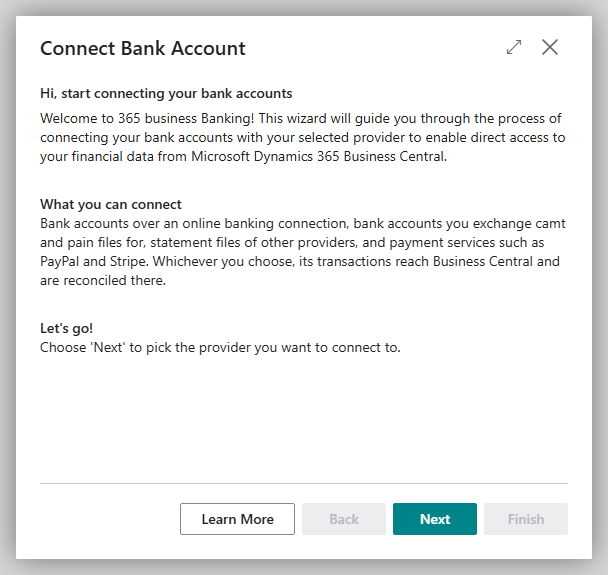
The first step shows which connections are possible. Choose Next.
-
Choose your banking provider: in the Provider field, choose what you want to connect to. Below the selection, the provider and its requirements are described; Learn More opens its description in this documentation. Choose Next.
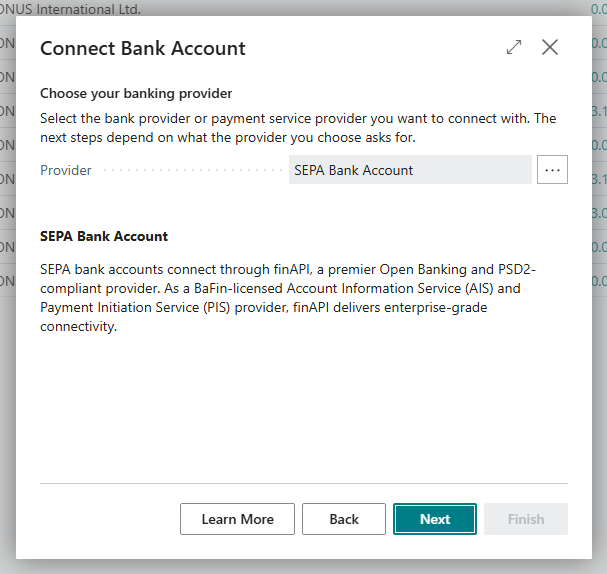
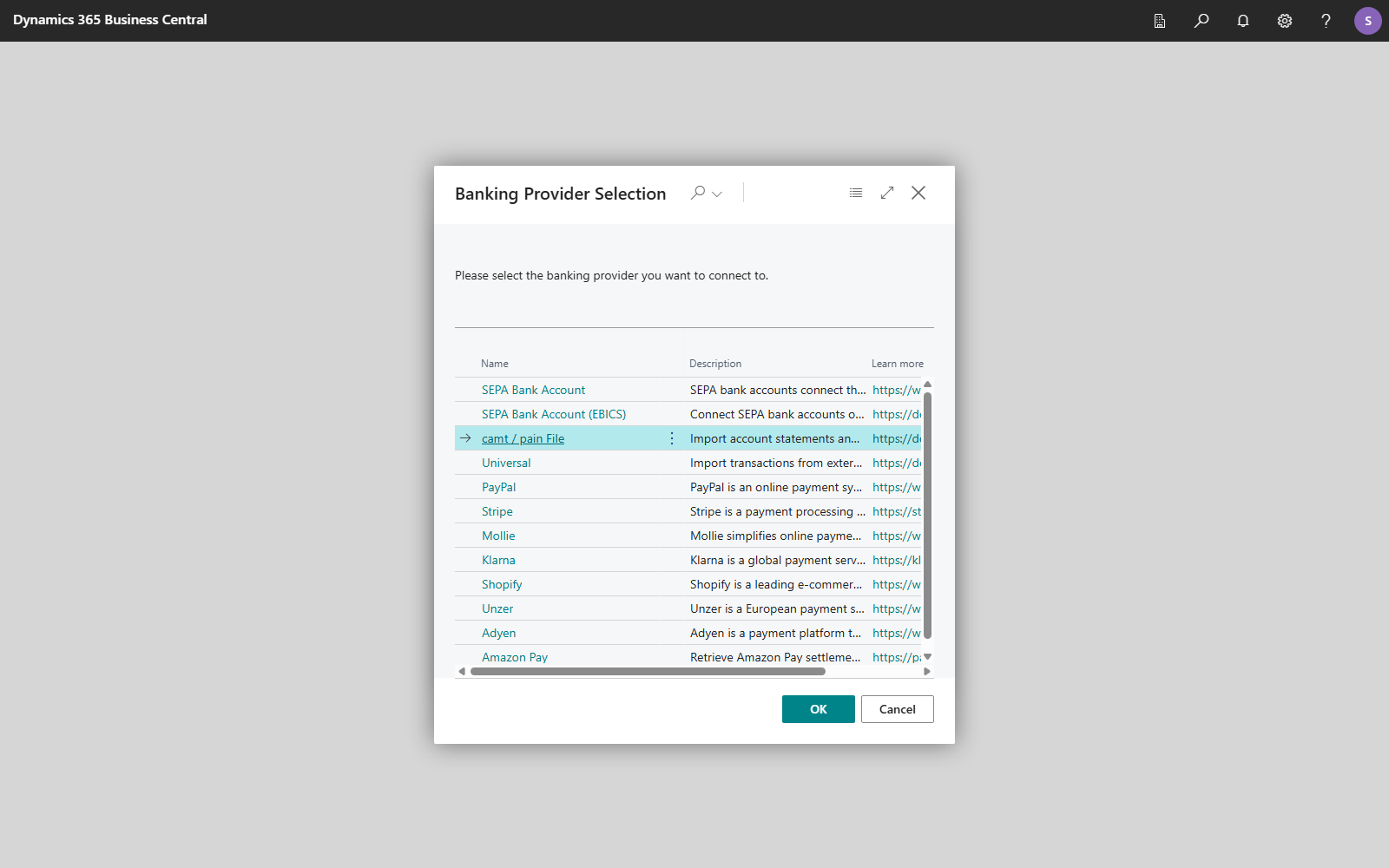
The … button next to the field opens the Banking Provider Selection list with the name, description and link of each provider:
-
Complete the provider's steps (see the table below).
-
Choose Next. The wizard summarizes what Finish connects (Congratulations!) or explains why the connection cannot be established (We're sorry!).
-
Choose Finish.
Provider not in the list
Only providers for which you have a license are offered. SEPA Bank Account (EBICS), for example, is only offered with the EBICS Connection license.
Steps per provider
| Provider | Steps after "Choose your banking provider" | Guide |
|---|---|---|
| SEPA Bank Account (PSD2/XS2A via finAPI) | Connect your bank accounts (your bank's web form) → Select your bank accounts | Connect via PSD2/XS2A |
| SEPA Bank Account (EBICS) | choice of the EBICS participant (skipped if exactly one participant has the status Ready) → Select your bank accounts | Connect via EBICS |
| camt / pain File | Choose the bank account → Choose your message versions | Set up a bank account for camt/pain files |
| Universal | Choose the bank account → Describe your statement file | Set up Universal |
| PayPal | Choose the bank account → Enter your PayPal API credentials | Connect PayPal |
| Stripe | Choose the bank account → Enter your Stripe secret key | Connect Stripe |
| Adyen | Choose the bank account → Enter your Adyen credentials | Connect Adyen |
| Unzer | Choose the bank account → Enter your Unzer private key | Connect Unzer |
| Amazon Pay | Choose the bank account → Connect your Amazon Pay merchant account (setup card) | Connect Amazon Pay |
| Klarna | Choose the bank account → Enter your Klarna API key | Connect Klarna |
| Mollie | Choose the bank account → Authorize Business Central with Mollie | Connect Mollie |
| Shopify | Choose the bank account → Name your Shopify store → Authorize Business Central with Shopify | Connect Shopify |
The wizard checks a payment service provider's credentials with the provider immediately. If they are not accepted, the wizard remains on the current step and you can correct them.
New or existing bank account
With PSD2/XS2A and EBICS, the wizard creates the bank accounts that your bank reports or connects existing accounts with the same IBAN. An account is never created twice. A new EBICS account is named after the account description that your bank provides in its customer data (HTD). If there is none, the account holder is used. You decide which accounts are taken over in the Connect column of the Select your bank accounts step; newly reported accounts are preselected. With PSD2/XS2A, accounts that you do not select are removed from finAPI again. See Connect via PSD2/XS2A.
For payment service providers and files, you specify in the Choose the bank account step which bank account the transactions are assigned to:
- Create a new bank account: with No., Name and Currency Code, or
- Use an existing bank account: for example the account on which you have kept these transactions manually so far. The wizard rejects an account that is already connected, even if this account is only used for payments (for example via EBICS): "Bank account … is already connected to a banking provider." You set up a second service for a connected account under Combining bank services.
For camt / pain File, the step also asks for the IBAN of a new bank account, because the camt and pain files identify the account by its IBAN. The wizard rejects an existing bank account without an IBAN in this step: "Bank account … has no IBAN. The provider you chose names the account by its IBAN, so it has to be filled in." Enter the IBAN on the bank account card or choose another account.
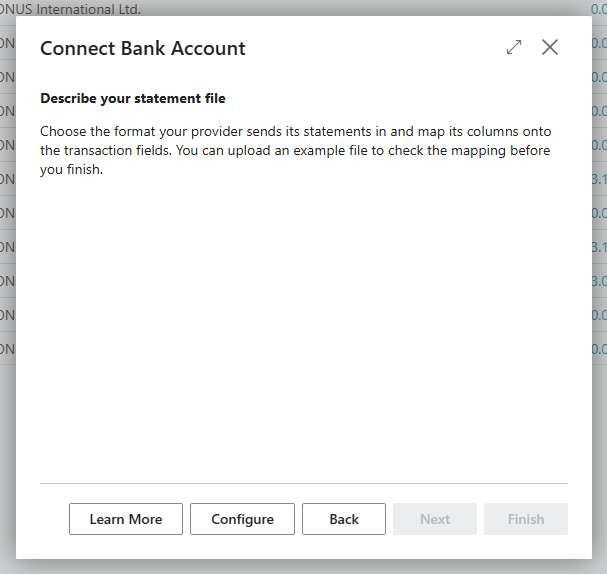
Universal only imports statement files. The account's Payment Initiation Service therefore remains empty; you do not carry out payments from this account through 365 business Banking.
Cancel
If you close the wizard before Finish, Business Central asks "Do you really want to close the setup?". If you choose Yes, all changes are rolled back: a bank account that the wizard created is deleted, and an existing bank account is reset to its previous state.
What you see afterwards
On the Bank Account Card, the Account Information Service and Payment Initiation Service are shown. The Connection field summarizes where statements come from and where payments are sent, and Banking Provider contains the actions for this account. For more information, see Bank account card.
If bank statements and payments are to run via different routes, switch one of the two services afterwards. See Combine banking services.