
Set up bank transaction split rules
This page describes how to set up split rules in 365 business Banking that automatically distribute collective bookings such as tax debits across several lines at retrieval.
A split rule recognizes a recurring transaction (such as the tax office's direct debit or a loan installment) and splits it into partial lines with their own amount, G/L account and posting text when the bank transactions are retrieved. When splitting a line manually is the better option, and which properties partial lines have, is described in Split lines and split rules.
Step by step
- Choose Bank Split Rules in the Microsoft Dynamics 365 Business Central search, or choose the Bank Transaction Split Rules action in the payment reconciliation journal.
- Choose New and enter a Code and Description.
- Assign a Priority of 1 or higher, or 0 for a fallback rule (see Which rule applies).
- On the Filters FastTab, narrow the rule down to a bank account and the counterparty IBAN if needed.
- On the Matching FastTab, define how the transaction is recognized (Purpose Match Type, Purpose Pattern) and what happens on a sum mismatch (Tolerance (LCY), On Sum Mismatch).
- In the Lines, enter one line per partial amount.
- Check the rule with Test Rule against an existing line.
- Turn on Active. Only then is the rule applied at retrieval.
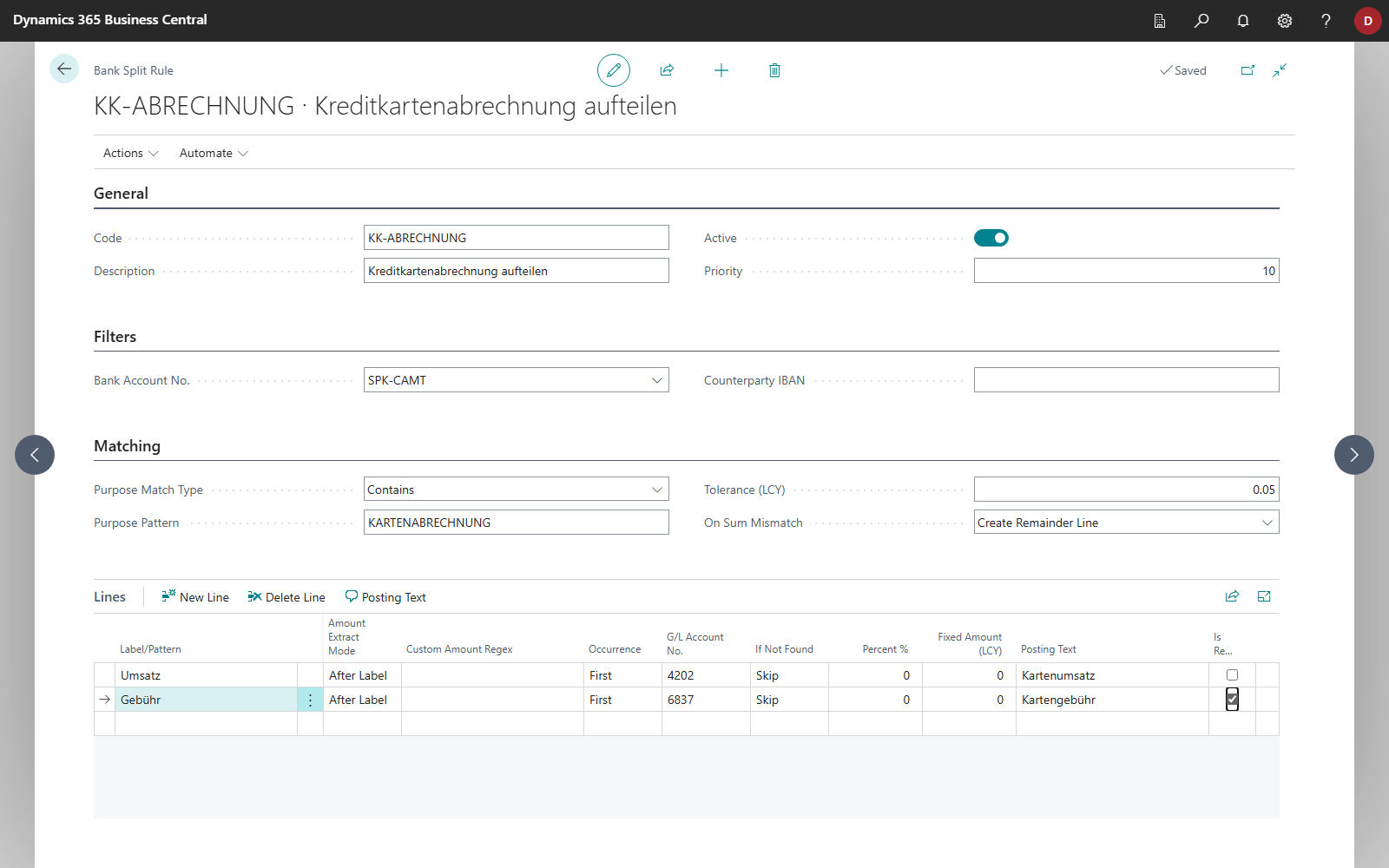
Fields of the rule
| FastTab | Field | Meaning |
|---|---|---|
| General | Code, Description | Identifier and name of the rule |
| General | Active | Only active rules are applied at retrieval. |
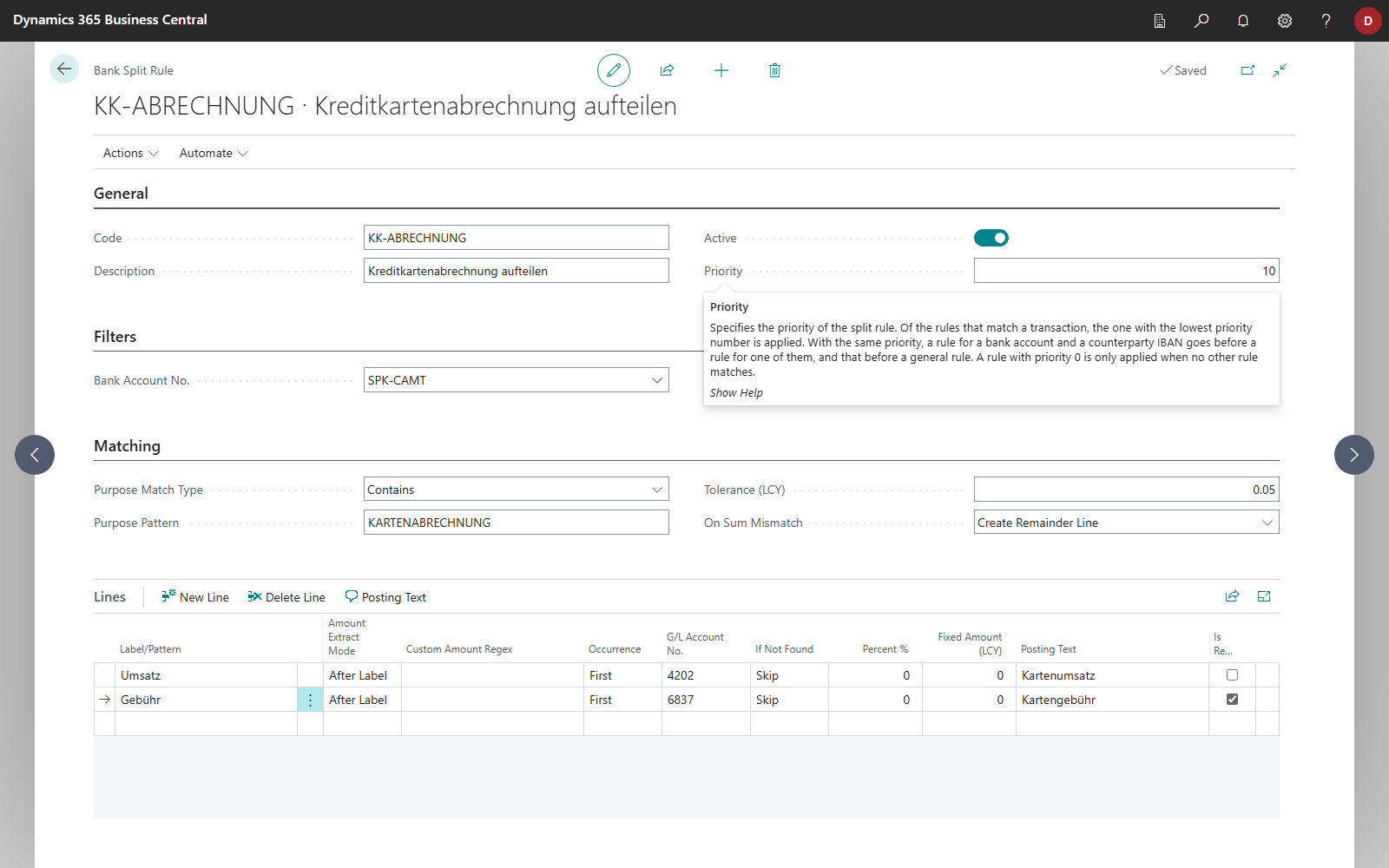
| General | Priority | Order among several matching rules, lower number first. With the same priority, the more specific rule goes first. A value of 0 makes the rule a fallback rule, see below. |
| Filters | Bank Account No. | The rule only applies to this bank account. Empty: all bank accounts. |
| Filters | Counterparty IBAN | The rule only applies to transactions of this IBAN. Empty: all transactions. |
| Matching | Purpose Match Type | Contains, Starts With or Regular Expression. All three options ignore upper and lower case. |
| Matching | Purpose Pattern | Text or regular expression that must appear in the payment reference, for example Tax office. |
| Matching | Tolerance (LCY) | The largest difference between the statement amount and the sum of the partial lines that is accepted without further handling. Only a larger difference is handled as specified in On Sum Mismatch. |
| Matching | On Sum Mismatch | Specifies what happens if the lines together do not add up to the amount of the bank transaction: Skip, Create Remainder Line or Scale Proportionally. |
The tooltip of Priority summarizes the rule:
Upper and lower case are not distinguished
Banks transmit the payment reference in varying case. For this reason, a regular expression also ignores upper and lower case. Tax office|Tax administration finds transactions that contain either phrase in any case.
Lines
Each line describes a partial amount.
| Field | Meaning |
|---|---|
| Label/Pattern | Text after which the amount appears in the payment reference, for example VAT or Wage tax. |
| Amount Extract Mode | After Label: the amount is read directly after the label. A month abbreviation or a year in between is skipped. Custom Regex: the amount is read with an expression of your own. |
| Custom Amount Regex | Only for Custom Regex, and then mandatory. The amount must be in the first group in parentheses. %1 in the expression stands for the label. Groups of the form (?:…) do not count. If the expression has no group, the amount counts as not found. |
| Occurrence | First, Last or Every occurrence of the label. With Every, all amounts found are added up. |
| G/L Account No. | Account the partial line is posted to. The line then gets the account type G/L Account. Empty: the partial line is applied like any other line. |
| If Not Found | Specifies what applies if the amount is not in the text: Skip (no partial line), Percent of Total or Fixed Amount. |
| Percent % | Only for Percent of Total: share of the amount of the bank transaction. |
| Fixed Amount (LCY) | Only for Fixed Amount: the amount of the partial line. |
| Posting Text | Description of the partial line, composed of placeholders. Empty: the matched part of the payment reference, or the transaction text for Percent of Total or Fixed Amount. See Posting text with placeholders. |
| Is Remainder | With Create Remainder Line, this line takes up the difference between the statement amount and the sum of the partial lines. If no amount is found for it, a partial line is created for it with the difference. If several lines are marked Is Remainder, the first line applies. |
Amounts that are found and fixed amounts automatically get the sign of the bank transaction. Amounts are recognized with a period or comma as thousands separator and two decimals, such as 1,250.00. Business Central reads the amount found in the number format of the Region in My Settings, which for English (United States) means the period as decimal separator. If the amount cannot be read in that format, it counts as not found, and If Not Found applies.
Therefore, enter a Fixed Amount (LCY) as a positive value, like a found amount. For a debit, it becomes negative.
Which rule applies
At retrieval, 365 business Banking checks for every new line:
- Active rules with a priority other than 0 whose Bank Account No. and Counterparty IBAN are empty or fit the line.
- Of these, all whose Purpose Pattern appears in the line's payment reference. The search covers the complete payment reference the bank delivered, not only the first 140 characters of the transaction text.
- If none of these rules fits, 365 business Banking checks the active rules with Priority 0 (the fallback rules) in the same way.
- The rules found are applied in turn. The first rule that splits the line applies. If a rule does not split because of Skip, the next rule is applied.
The Priority determines the order first: the rule with the lowest number is applied first. With the same priority, the specificity of a rule decides. A rule with Bank Account No. and Counterparty IBAN takes precedence over a rule with only one of these fields, which in turn takes precedence over a general rule.
Priority 0 as a fallback rule
A rule with Priority 0 only applies if no rule with another priority fits the line by bank account, IBAN and purpose pattern. This way, you create a general rule that only splits when no more specific rule recognizes the transaction.
On sum mismatch
Once all lines are calculated, 365 business Banking compares their total with the amount of the bank transaction. On Sum Mismatch only concerns this sum difference. If the purpose pattern is not found, the rule is not applied. If a single amount is missing, the If Not Found setting applies.
| Option | Result |
|---|---|
| Skip | The rule does not split. Another matching rule is applied. If no rule fits, the line remains unchanged. |
| Create Remainder Line | If the rule has a line marked Is Remainder, the difference goes to its partial line. Otherwise, an additional partial line "[REMAINDER] …" is created with the transaction text and no account. You apply this line like any other line. |
| Scale Proportionally | The difference is spread across the partial lines in proportion to their amounts. A rounding remainder is assigned to the last partial line. |
A difference up to the Tolerance (LCY) is accepted. Only a larger difference triggers the behavior. If the field is 0, any difference triggers it. Calculated amounts and the difference are rounded to the rounding precision of the bank account's currency, or of the local currency for a bank account without a currency code.
Test a rule
With Test Rule, you check a rule against a line that is already in the payment reconciliation journal:
- Open the split rule and choose Test Rule.
- Select the line on the Bank Account Reconciliation Lines page.
- The result is shown in the Split Payment Reconciliation Journal Line dialog for viewing only. The journal remains unchanged.
The test applies the Lines and On Sum Mismatch, even if the rule would not be selected at retrieval. If Active, one of the filters or the Purpose Pattern prevents the selection, the test indicates this first: "The rule … would not be selected automatically for this line because of the … field. The preview shows how the rule would split the line anyway." The test does not check the Priority. At retrieval, another matching rule can therefore take precedence. If the rule does not split, the test reports "Failed to apply the selected rule to the chosen bank account reconciliation line."
Limits
- Only at retrieval. Rules affect newly retrieved transactions, not lines in the journal. The action in the payment reconciliation journal points this out: "Bank Transaction Split Rules will be applied when retrieving bank transactions."
- Unreadable amount. If an amount that was found cannot be read as a number, it counts as not found. In this case, the If Not Found setting applies. The same goes for a Custom Regex line whose expression is empty. If you clear the Custom Amount Regex field with this mode, Business Central reports: "Custom Amount Regex must be filled in when Amount Extract Mode is Custom Regex."
Troubleshooting
| Observation | Cause and remedy |
|---|---|
| The rule never applies | Active is not set, the Purpose Pattern is not in the payment reference, or the rule has Priority 0 and a rule with another priority fits the line. |
| Another rule applies | It has a lower Priority, or is more specific with the same priority. Adjust the priority or make the other rule's pattern more precise. |
| The line is not split | The total of the lines differs and On Sum Mismatch is Skip. Test the rule with Test Rule. |
| A line "[REMAINDER] …" appears | A partial amount was not found or was read incorrectly. Check Label/Pattern and Amount Extract Mode, or mark a line Is Remainder to take up the difference. |
| The amount of a fixed-amount line has the wrong sign | Enter Fixed Amount (LCY) as a positive value. Business Central takes the sign from the bank transaction. |
See also
- Split lines and split rules
- Posting text with placeholders
- Retrieve bank transactions
- Reconciliation rules