
Report selection and email for banking documents
This page describes how to set up reports, layouts and email scenarios for remittance advice, netting statement, prenotification and mandate in 365 business Banking.
365 business Banking produces five documents that go to business partners: the remittance advice to vendors, the netting statement to companies that are both customer and vendor, the direct debit prenotification and the SEPA direct debit mandate to customers, and the payment authorization to customers who pay through a payment service provider. The documents are printed or sent by email with the standard features of Microsoft Dynamics 365 Business Central: report selection, document layouts, report layouts and email scenarios.
Standard functionality in Business Central
- Report selection defines per usage which report prints a document, see Report selections.
- Document layouts on the customer or vendor card define a partner's own report, layout and email address, see Define document layouts for customers and vendors.
- Report layouts determine appearance and email body, see Manage report layouts.
- Email scenarios define which email account a document is sent from, see Set up email.
What 365 business Banking adds
| Document | Report | Layouts | Report selection | Document layout | Email scenario |
|---|---|---|---|---|---|
| Remittance advice | Remittance Advice | Remittance Advice (print), Remittance Advice Email (email body) | Report Selection - Purchase, usage Remittance Advice | vendor card | Remittance Advice |
| Netting statement | Netting Statement | Netting Statement (print), Netting Statement Email (email body) | none | not available | Netting Statement |
| Prenotification | Direct Debit Prenotification | Direct Debit Prenotification (print), Direct Debit Prenotification Email (email body) | Report Selection - Sales, usage Direct Debit Prenotification | customer card | Direct Debit Prenotification |
| SEPA direct debit mandate | SEPA Direct Debit Mandate | SEPA Direct Debit Mandate (print), SEPA Direct Debit Mandate Email (email body) | Report Selection - Sales, usage SEPA Direct Debit Mandate | customer card | SEPA Direct Debit Mandate |
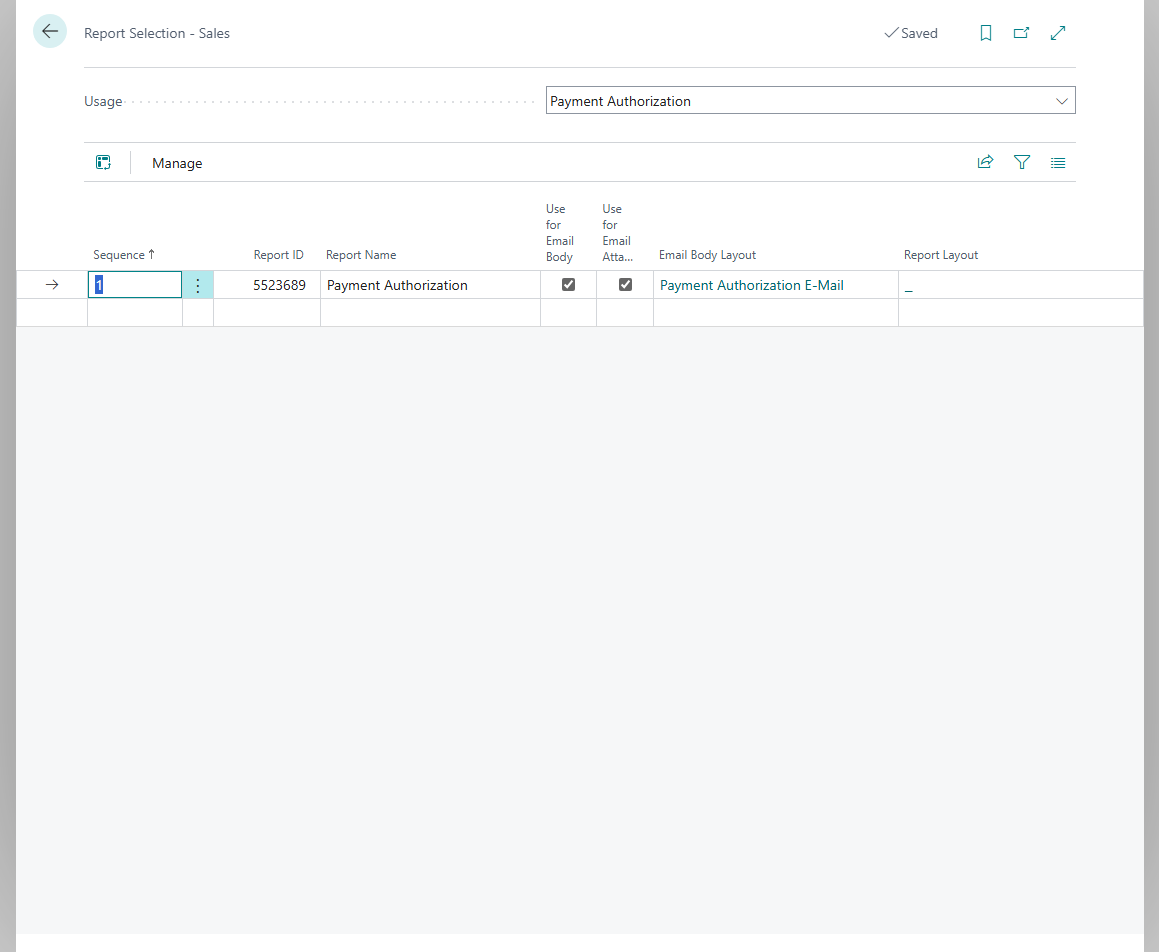
| Payment authorization | Payment Authorization | Payment Authorization E-Mail (email body) | Report Selection - Sales, usage Payment Authorization | not available | Payment Authorization |
Installation creates one report selection entry each for remittance advice, prenotification, mandate and payment authorization, with Use for Email Body and the email layout as the email body. For remittance advice, prenotification and mandate, the printed version is attached as a PDF. If you have already entered a report for a usage, your entry is kept.
Report selection
- Choose the Search icon, enter Report Selection - Purchase (remittance advice) or Report Selection - Sales (prenotification, mandate, payment authorization) and open the page.
- In the Usage field, choose the document.
- Check the report and the email layout, or enter your own report or layout.
Document layouts per vendor or customer
To define a separate report, layout or recipient address for a business partner:
- Open the vendor or customer card.
- Choose the Document Layouts action.
- Add a line with usage Remittance Advice (vendor) or Direct Debit Prenotification or SEPA Direct Debit Mandate (customer).
For the remittance advice, this order applies: the vendor's document layout, then the report selection, then the standard Remittance Advice report.
Remittance advices for several vendors at once
If you print the remittance advices of a whole journal, Business Central groups the lines by the report, layout and language selected for each vendor. Each vendor receives a remittance advice with their own selection. The request page of each report involved appears once before printing starts. If you cancel it, nothing is printed for that report and no line is marked Remittance Advice Printed. No preview is available in this case. When sending by email, the line is only marked once you send the email from the email editor. The subject contains the posting date of the payment. See Remittance advice.
Remittance advices are sent by email to vendors, customers (for refunds, for example) and employees. For customers and employees, the report and layout of the general report selection for remittance advices apply. The recipients of the email are listed in the table below.
Email scenarios
Each of the five documents has its own email scenario. Assign the scenario to an email account if the document is not to be sent through the default account, for example remittance advices from the accounts payable address and prenotifications from the accounts receivable address:
- Choose the Search icon, enter Email Accounts and open the page.
- Choose the Email Scenarios action. On the Email Scenario Assignment page, select the account you want, choose Assign scenarios and select Remittance Advice, Netting Statement, Direct Debit Prenotification, SEPA Direct Debit Mandate or Payment Authorization.
Who receives the email
| Document | Recipient | Language |
|---|---|---|
| Remittance advice to vendors | the vendor's email address or the one from their document layout | the vendor's language code |
| Remittance advice to customers | the address from the customer's document layout for remittance advices, otherwise their Email | the customer's language code |
| Remittance advice to employees | the employee's Company Email, otherwise their Private Email | the session language |
| Netting statement | one email per customer-vendor pair with the statement of that pair only, proposed to the email addresses of that customer and vendor | the session language |
| Direct debit prenotification | the customer's email address or the one from their document layout | the customer's language code |
| SEPA direct debit mandate | the customer's email address or the one from their document layout | the customer's language code |
As a result, no business partner sees the set-offs of the others in the netting statement. Print, however, prints the whole statement. Each email opens in the email editor so you can check recipients and text.
For the mandate, Business Central stores the sent version as an attachment on the mandate, provided that the email was sent. Likewise, a prenotification only counts as sent once it was printed or the email was sent. Like remittance advices, prenotifications are printed without a preview (in Business Central online as a PDF download), because that is the only way to detect a cancellation.
Your own email texts
The email body comes from the Word layout (… Email). To adapt it, copy the layout under Report Layouts, edit the copy and enter it in the report selection or document layout. The netting statement has no report selection. For this document, a custom Word layout of the Netting Statement report takes precedence over the supplied email layout.
Payment authorization
The Request Payment Authorization email to customers of a payment service provider goes out through the account of the Payment Authorization email scenario. Report and email layout come from Report Selection - Sales, usage Payment Authorization. If nothing is entered there, the supplied report with the Payment Authorization E-Mail layout applies, see Collect payments via payment service providers.
See also
- Remittance advice
- Customer-vendor netting
- Prenotification
- SEPA direct debit mandates
- What installation sets up