
Payment journal
The payment journal in 365 business Banking: payment suggestion, Carry Out Payment, payment status, Verification of Payee, remittance advice and printout.
In Microsoft Dynamics 365 Business Central, you enter outgoing payments in the Payment Journal. 365 business Banking creates the payment order to your bank from it. Every journal batch is assigned to a bank account and a payment method. The payment method determines whether the lines are carried out as SEPA Credit Transfer, SEPA Instant Credit Transfer, SEPA Collective Credit Transfer or, if the bank offers it via EBICS, as Euro Urgent Credit Transfer. You can therefore set up several journal batches for one bank account, for example one for standard transfers and one for instant transfers.
For direct debits, use the Cash Receipt Journal. See SEPA direct debit in the cash receipt journal.
Prerequisites
- A journal batch with Bal. Account Type Bank Account, a connected bank account as Bal. Account No., and a Payment Method Code. The setup is described in Journal batches for Banking.
- A payment method with a suitable banking Payment Method. See Payment methods.
New lines take the payment method code and balancing account from the journal batch. Bal. Account Type and Bal. Account No. cannot be edited in a banking journal. For payments to vendors and refunds to customers, the recipient's bank account is mandatory.
Standard functionality in Business Central
In the standard application, you enter payments to vendors and employees and refunds to customers in the payment journal. You suggest payments with Suggest Vendor Payments, apply them to open entries and post them. You export a payment file there with Electronic Payments. See Microsoft Learn: Make payments.
What 365 business Banking adds
- The Payment action group with Carry Out Payment, Carry Out Payment and Post and Suggest Payments.
- The line actions Verification of Payee (VoP), Print Remittance Advice/Send Remittance Advice, Print Netting Statement/Send Netting Statement, Record Deduction and, for bank accounts that pay via EBICS, Update Payment Status and EBICS Submissions.
- The actions Print Remittance Advices and Send Remittance Advices for the entire journal, and Print with the Print Approval option.
- The columns Verification of Payee (VoP) Status, Payment Status, Remittance Advice Printed and Deduction Amount. You can show the hidden End-to-End Reference column through personalization.
- Protection of the payment: posting is only possible once all payments are Completed. After carrying out, the payment fields are locked.
In banking journals, 365 business Banking hides the standard Electronic Payments action. The transfer to the bank is done with Carry Out Payment.
Step by step
- Choose the Search icon, enter Payment Journals, and open the list.
- In the Batch Name field, choose the batch for your bank account and payment method.
- Enter the lines manually, or have them suggested with Suggest Payments or Suggest Vendor Payments.
- Check amounts, Message to Recipient and the recipient's bank account. If required, run the Verification of Payee (VoP).
- If an approval workflow is set up, send the approval request and wait for the approval.
- Choose Payment > Carry Out Payment. The next steps depend on the bank connection: Carry out payment: process per bank connection. If payments of more than EUR 12,500 go to recipients outside Germany, Business Central first points out the reporting obligation under section 67 AWV and asks whether to continue. No cancels the process. You file the report to the Deutsche Bundesbank yourself.
- Post the journal as soon as all lines have the Payment Status Completed.
Carry Out Payment and Post
The Carry Out Payment and Post action combines both steps for every service. The lines that are Completed afterwards are posted: with PSD2/XS2A after the approval, with the file route as soon as the file is saved (before you upload it). Lines submitted via EBICS have the status Pending until the bank's status report is available. They remain in the journal, Business Central reports their number, and you post them later.
Determine the message to recipient again
If you enter a line manually or change which entries it applies to, Business Central can build the Message to Recipient by the same rules as the payment suggestion:
- Apply the line to the entries it pays with Applies-to Doc. No. or Apply Entries.
- In the Message to Recipient field, choose the … button.
- If a message already exists, Business Central asks: "Do you want to update the message to recipient?" With No, the line remains unchanged. An empty field is filled without confirmation.
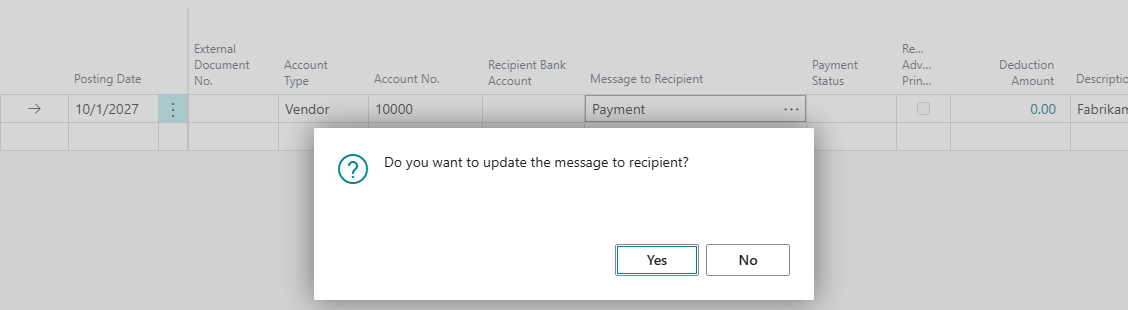

Content of the message:
- One entry (Applies-to Doc. No.): the vendor ledger entry's message from the Diff. Message to Recipient of the purchase invoice. If none exists, the document type and external document number are used, for example
Invoice 2026257. - Several entries (Apply Entries): the entries, itemized as for a collective payment, for example
Credit Memo EGU-1051, Invoice 2026257, 2026345. - Too long: If the itemization exceeds 140 characters, the Purpose Exceed Option of the vendor or the Banking Setup applies. Create Remittance Advice and Always Create Remittance Advice refer to a remittance advice, for example
Remittance Advice RA-0042 as of 06/01/2026. Split Payment also refers to a remittance advice, because an existing line is not split into several lines. Without an option or without a number series for remittance advices, the itemization is truncated. - Remittance advice already exists: The line keeps its number. If the itemization now fits into 140 characters, the remittance advice is removed.
These rules apply to payments to vendors and employees and to refunds to customers. No template of Suggest Payments is used, because a line entered manually is not assigned to a template. If the line does not apply to an open entry, Business Central reports this and changes nothing. Once a payment has been carried out, its message is locked.
Payment status
The Payment Status column shows the processing state of a line: blank or Open, Pending, Rejected, Completed. The meaning of the values, the connections with which they occur and the fields that are locked after carrying out are described in Payment status.
The following rules apply in the journal:
- You can only post once all payments are Completed. A line with the Payment Status Open, Pending or Rejected prevents posting of the entire journal. This applies to Post, to Post and Print and to posting from the list of journal batches. Remove lines that you do not want to pay in this run from the journal first. A line without a payment status only prevents posting if it is to be transferred to the bank or pays a vendor, customer or employee. A fee or transfer line to a G/L or bank account that you add manually is posted with the journal. Lines of a customer-vendor netting are not considered either. They are never transferred to the bank, Carry Out Payment skips them, and they are posted with the journal. The rule applies in the payment journal and in the cash receipt journal as soon as it contains a banking line.
- You can only delete carried-out lines after a confirmation. If you delete a line that is Pending or Completed, Business Central asks: "The payment on this line has already been handed to the bank or carried out. If you delete the line, the invoice it pays will be suggested for payment again. Do you still want to delete the line?" Without a user interface, for example in a job queue, the deletion is refused.
- After carrying out, the payment fields are locked. Posting date, document no., account, amount, message to recipient and other fields can no longer be changed once a line is Pending or Completed.
EBICS submissions and update payment status
Applies to: EBICS
If the bank account pays via EBICS, the lines have the status Pending after carrying out until the bank answers. Update Payment Status requests the status from the bank immediately. EBICS Submissions shows every submitted file with its order number and status. Both actions are only available in journals whose bank account pays via EBICS. See Payments via EBICS and EBICS jobs and EBICS submissions.
Suggest Payments
With Payment > Suggest Payments, you create lines for customers, vendors and employees in one run. On the request page, you only enter the Template Code and the Last Due Date. All other settings are defined in the template. See Extended payment suggestion.
A suggestion with customer-vendor netting creates a Netting Statement. You output it with the line actions Netting Statement > Print Netting Statement or Send Netting Statement. See Customer-vendor netting.
Remittance advice
If a line has a remittance advice, print or send it with Print Remittance Advice or Send Remittance Advice (line), or for the entire journal with Print Remittance Advices or Send Remittance Advices. The Remittance Advice Printed column shows whether the remittance advice has been printed. Before posting, Business Central points out remittance advices that have not been printed. See Print and send remittance advice.
For vendors and customers that expect an electronic advice in UN/EDIFACT format instead, use Create REMADV or Create REMADVs for Batch to create a REMADV file per recipient, including recorded deductions. See Export remittance advices (REMADV).
Print the payment journal
With Print, you create a printout of the journal, for example for review, approval or filing. It contains the payment details, the recipient data and the bank account from which the payment is made.
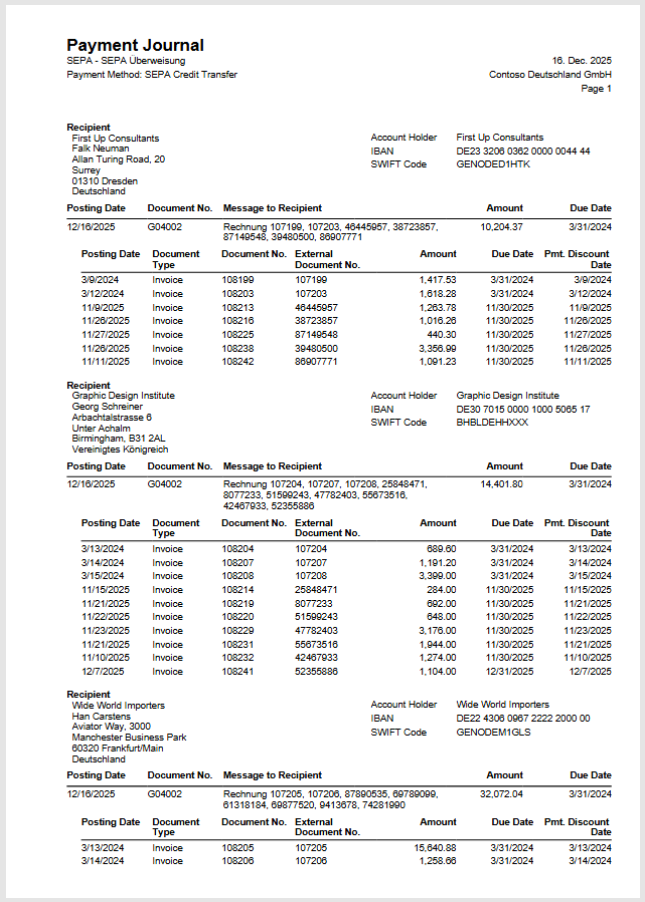
- Open the Payment Journal.
- Choose the Print action.
- Turn on Print Approval if the printout should contain an area for the approvers' signatures.
- Choose Print.
More background information: Print the payment journal (new feature).
Verification of Payee (VoP)
The Verification of Payee (VoP) checks whether the Account Holder of the recipient bank account matches the name that the recipient's bank has stored for the IBAN. In the payment journal, the Verification of Payee (VoP) Status column shows the result per line.
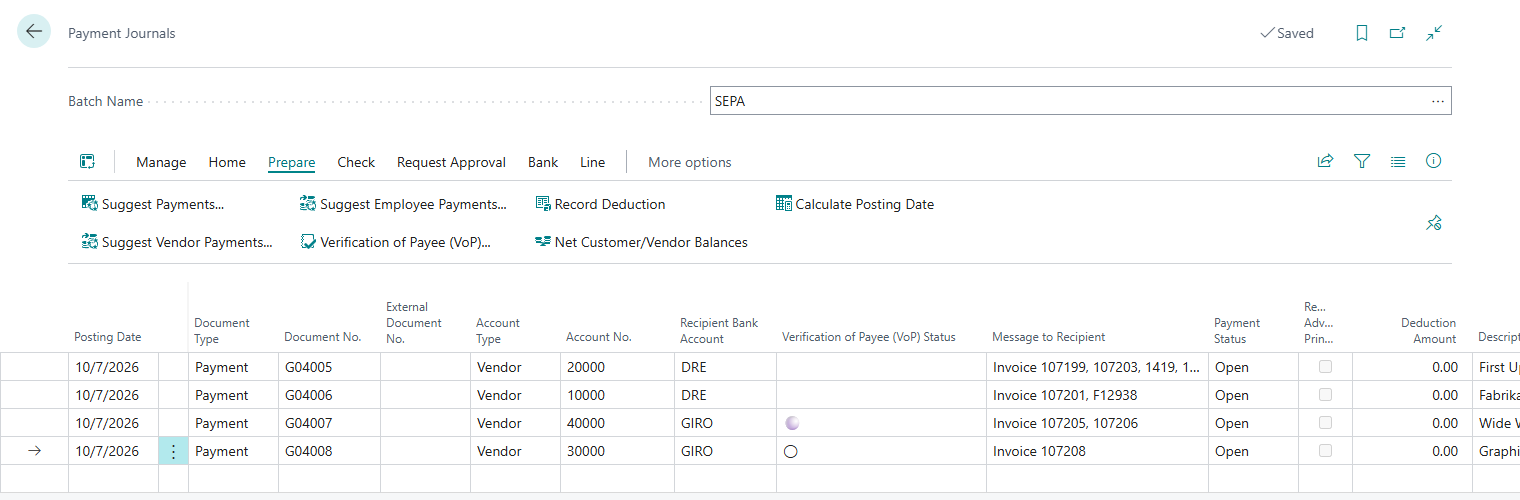
Select the lines and choose Verification of Payee (VoP) to check the bank accounts of these lines. If a payee is not confirmed at Carry Out Payment, Business Central asks whether you still want to pay. Details, the meaning of the symbols and the log: Verification of Payee (VoP).
See also
- Outgoing payments
- Carry out payment: process per bank connection
- Journal batches for Banking
- Approvals
- Verification of Payee (VoP)
- Export remittance advices (REMADV)