
EBICS jobs and submissions
This page describes the EBICS Jobs and EBICS Submissions pages in 365 business Banking: every order to the bank, its files, its status and the available actions.
Applies to: EBICS
| Page | Content | Where to find it |
|---|---|---|
| EBICS Submissions | every submitted payment or direct debit file, as a record of what was sent to the bank and when | payment journal and cash receipt journal, action EBICS Submissions |
| EBICS Jobs | every order to the bank (retrievals, submissions, key orders) with outcome and file | search; EBICS participant card, action EBICS Jobs |
EBICS Submissions
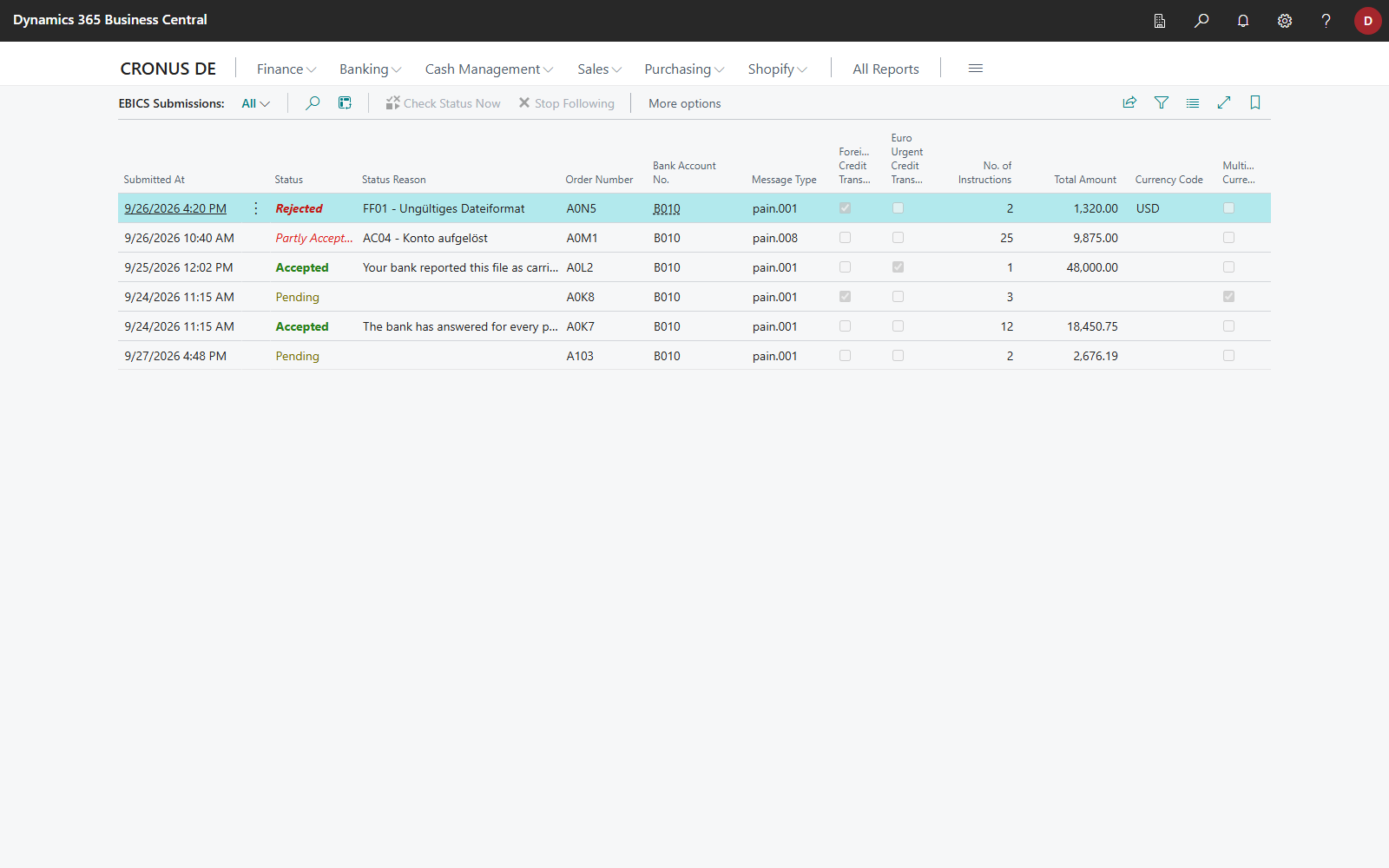
| Field | Meaning |
|---|---|
| Submitted At | The time at which the file was submitted to the bank |
| Order Number | Your bank's reference. Provide this number when you contact your bank about a payment. |
| Message ID | The ID in the file that the bank quotes in its status report (hidden by default) |
| No. of Instructions / Total Amount | Size of the file |
| Foreign Credit Transfer | The file was submitted as foreign credit transfers, that is, outside SEPA or in a currency other than euro. Your bank reports on these in a separate status report. |
| Euro Urgent Credit Transfer | The file was submitted as Euro urgent credit transfers (same-day transfers in euro). These also have a separate status report. |
| Multiple Currencies | The file contained payments in more than one currency. Total Amount then remains empty, because a sum across currencies is not meaningful. |
| Status / Status Reason | Content of the status report |
| Last Checked At | The time at which the status was last requested (hidden by default) |
If a payment journal contains both SEPA and foreign payments, one Carry Out Payment creates two submissions, one per order. See Payments via EBICS.
| Status | Meaning |
|---|---|
| Pending | The bank has received the file but has not yet reported a result. |
| Accepted | The bank accepted the file; the payments it contains are being carried out. |
| Partly Accepted | Part of the payments was accepted, part rejected. Status Reason gives the reason. Such a report only names the rejected payments and those still being processed: the rejected journal lines are then Rejected and can be carried out again, those still being processed remain Pending, and all others are Completed. |
| Rejected | The bank rejected the whole file; none of the payments it contains was carried out. |
| No Bank Report | Your bank offers no order through which the status can be requested. The file was submitted and accepted; the payment is confirmed on the next bank statement. |
| Closed | The journal lines have been posted or deleted; no further follow-up is required. |
Actions:
- Check Status Now: asks the bank immediately instead of waiting for the next hourly check.
- Stop Following: ends the follow-up, for example if the payment was settled another way. The journal lines remain unchanged.
EBICS Jobs
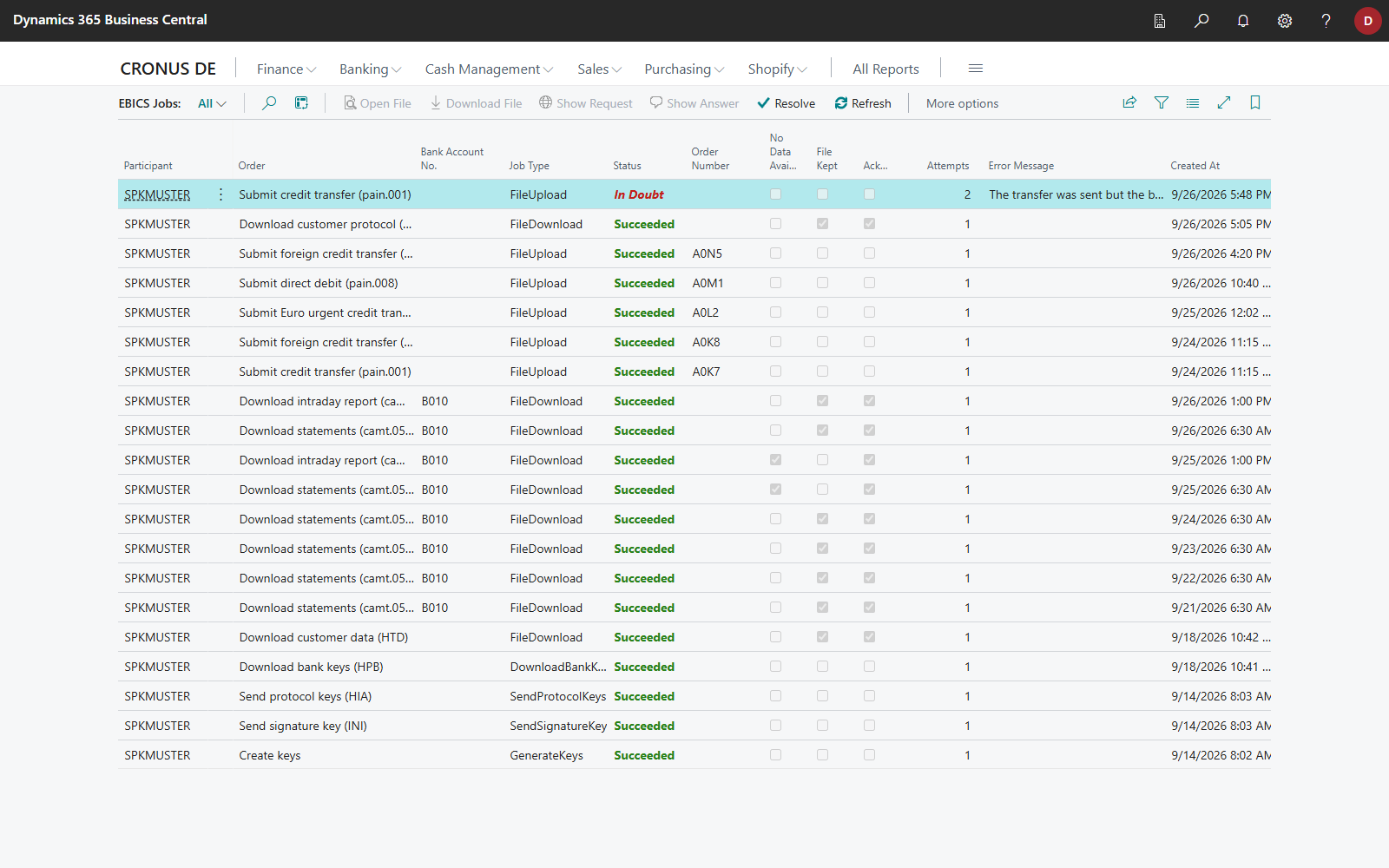
For retrievals, the columns Bank Account No., File Kept and Acknowledged are also shown. The reasons are explained in Bank statements via EBICS. Requested By Company indicates the company from which an order came: a participant's jobs are stored in its company, even when other companies retrieve through it. See One bank access for several companies.
| Status | Meaning |
|---|---|
| Running | The order is being carried out. |
| Accepted | The order has been accepted but not yet carried out. |
| Succeeded | The order is complete. |
| Failed | The order failed; the answer gives the reason. |
| In Doubt | It is not certain whether the bank received the file. The job is highlighted in red; resolve it with Resolve. |
| Cancelled | The order was cancelled. |
| Unknown | The service reported a status that is not known in this version. This is not an error. If in doubt, contact your partner. |
Actions:
| Action | Purpose |
|---|---|
| Refresh | requests the current state of a job without resolving it |
| Resolve | determines the actual outcome of a job in doubt, see Payments via EBICS |
| Show Request / Show Answer | shows what was sent to the bank and what came back; useful for support |
| Open File | shows the job's file, see Open a job's file |
| Download File | saves the job's file as the bank sent it; for a ZIP container, the whole container |
| Read Statement Again | reads a kept bank statement again without contacting your bank, for the accounts of the company you are working in |
| Show Jobs of Company | shows the jobs stored for your accounts in the company of another participant |
Open a job's file
Many banks deliver statements in a ZIP container, often one statement per account and day. Open File extracts the container:
- On the EBICS Jobs page, select the job and choose Open File.
- If the container contains several files, the Files in the Container page lists them with File Name and Size. Choose the file you want to see. If it contains only one file, that file opens directly.
- The EBICS File page shows the file indented for reading; its title shows the file name from the container. Download saves exactly this file under its name.
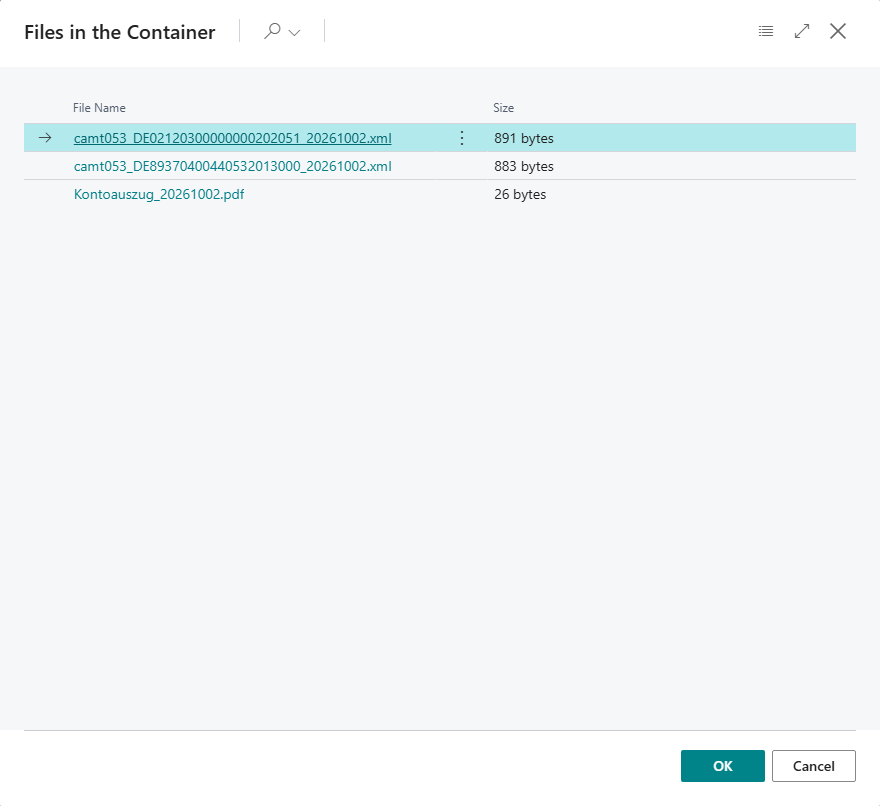
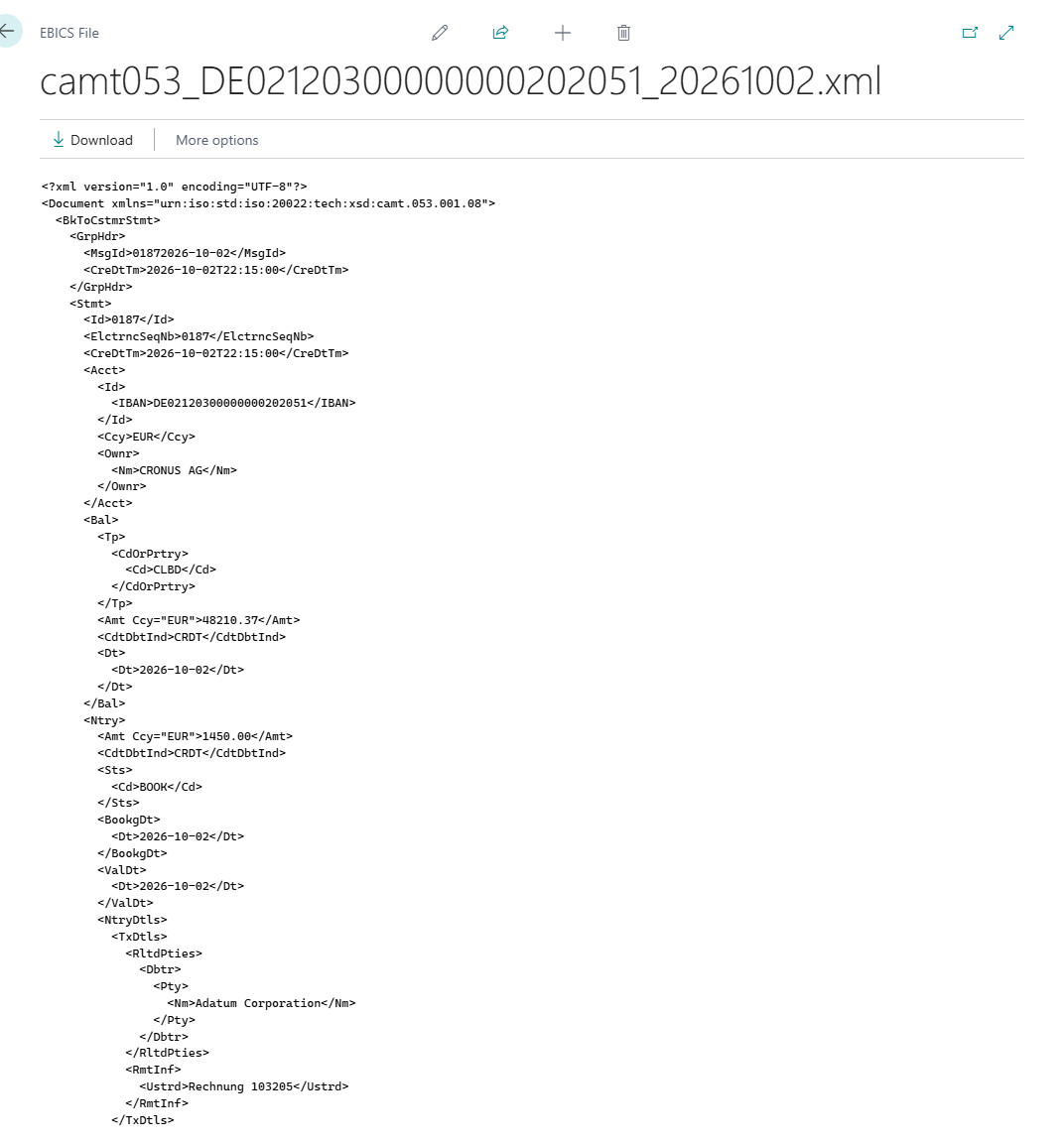
A file that does not contain text, for example a PDF that some banks add to the statement, is downloaded instead of shown. The same applies to such a file without a container. If a container cannot be opened, Business Central shows a message. In this case, download it with Download File and send it to your bank.
Retention
For the EBICS Job table, you can set a period under Retention Policies. Without a policy, the files are kept. Because they contain your account transactions, set a period that complies with your retention rules. A retrieval whose file still contains unread statements or status reports for other accounts or companies is kept until they have been read. See Retention policies.