SEPA credit transfer
SEPA credit transfer, instant, future-dated and collective transfer in 365 business Banking: which transfer types are available per bank connection and how to pay from the payment journal.
With the SEPA credit transfer you pay in euros to payees in the SEPA area. In Microsoft Dynamics 365 Business Central, you create the transfer in the Payment Journal: the payment method on the journal batch defines which kind of transfer is created from the lines, and Carry Out Payment hands the lines to your bank.
Which transfers there are
| Kind | How it is created | PSD2/XS2A via finAPI | EBICS | camt/pain file |
|---|---|---|---|---|
| SEPA credit transfer | payment method with banking Payment Method SEPA Credit Transfer | yes | yes | yes |
| SEPA instant credit transfer (with the payee within seconds) | payment method with SEPA Instant Credit Transfer | if the bank offers it for the account | if the EBICS contract includes it | no |
| Future-dated credit transfer (carried out on a later day) | Posting Date of the line in the future | if the bank offers it for the account | if the EBICS contract includes credit transfers | yes |
| SEPA collective credit transfer (several payments as one booking) | payment method with SEPA Collective Credit Transfer | if the bank offers it for the account | if the EBICS contract includes credit transfers | yes |
The Capabilities FactBox on the bank account card shows which functions your bank allows for an account, see Bank account capabilities. An instant credit transfer as a file is not provided, because a file that is uploaded manually minutes or hours later is not executed instantly.
With a collective transfer, the bank books all lines with the same execution date as one bank transaction. The lines therefore get the same base of the End-to-End Reference, each with its own ending (-1, -2 …), so that matching later recognizes the collective booking. See End-to-end reference and collective payments.
A future-dated transfer is not a separate payment method: you set the line's Posting Date to the day of execution. If the bank account does not allow future-dated transfers, Carry Out Payment reports "The bank account does not support future dated SEPA credit transfer. The posting date must be today." A posting date in the past is always rejected.
Payments outside the SEPA area or in foreign currency are international payments. Via EBICS, they can be in the same journal: 365 business Banking detects them per line and submits them as a separate order if your bank offers the foreign credit transfer. See International payments. For an urgent same-day payment in euros via EBICS, the euro urgent payment is available with a separate banking payment method.
Prerequisites
- A payment method with the banking payment method you need, see Payment methods.
- A payment journal batch with the bank account as balancing account and this payment method as Payment Method Code, see Journal batches for Banking. For instant or collective transfers, set up a separate batch.
- The bank account is connected to a payment initiation service, see Bank connections.
- For customers and vendors, the recipient's bank account is released for payments, see Recipient bank accounts.
Step by step
- Choose the Search icon, enter Payment Journals and open the list.
- Choose the journal batch for your bank account and the kind of transfer you want.
- Enter the lines or have them suggested with Suggest Payments or Suggest Vendor Payments.
- Check amounts, Message to Recipient, the recipient's bank account and the Posting Date.
- Choose Payment > Carry Out Payment and confirm the question. If a payment of more than EUR 12,500 goes to a recipient outside Germany, Business Central also points out that such payments to non-residents must be reported separately to the Deutsche Bundesbank under section 67 AWV. The app does not submit this report, see AWV reporting reminder.
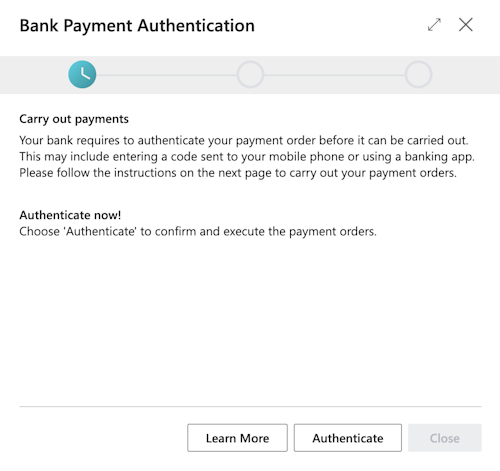
- Authorize the payment. The procedure depends on the bank connection (see below).
- Post the journal as soon as all lines have the Payment Status Completed.
Authorization per bank connection
PSD2/XS2A: TAN in the web form
Only with PSD2/XS2A do you authorize the transfer yourself with a TAN.
- The Authorize payment dialog shows the bank account, the No. of Payment Instructions and the amount under Review your payment details. Choose Next.
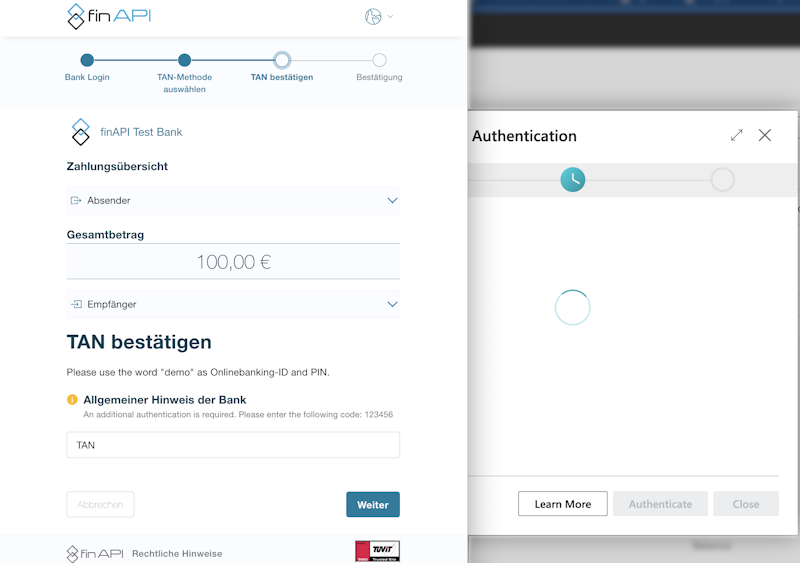
- Your bank's web form opens for each payment instruction. Sign in, choose the TAN method and authorize the payment with a TAN or in your bank's app.

- If no window opens, use the link Click here to open the webform in your browser or allow pop-ups for Business Central.
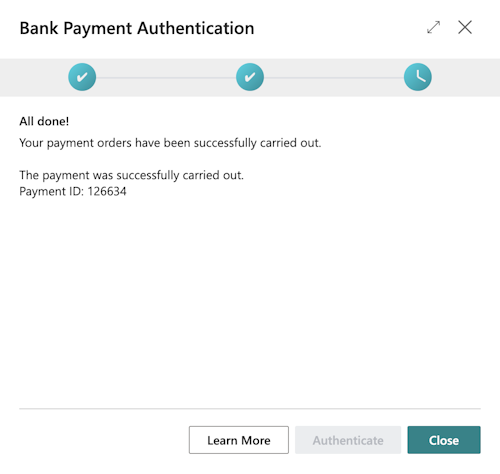
- Once all payments are authorized, the dialog shows All payments processed. Choose Close.

The lines then have the status Completed. With Carry Out Payment and Post, they are posted immediately.
EBICS: submission without a TAN
The Carry Out Payment page shows a summary with the bank account, the EBICS participant, the number of payments, the amount and the message ID. Choose Next. Business Central signs the file with the EBICS participant's key and submits it. The lines have the status Pending until the bank has accepted the payment. If your bank contract requires a second signature, authorize the payment in your banking program. Carry Out Payment and Post only posts lines that are already Completed. Pending lines remain in the journal with a notice until the bank reports them as carried out. See Payments via EBICS.
camt/pain file: upload in online banking
Business Central creates a pain.001 file for download, which you upload and authorize in your bank's online banking. Here, Completed only means that the file has been created. Carry Out Payment and Post therefore posts the lines immediately. Use this action only if it is certain that you will upload the file. See Export a payment file.
See also
- Carry out payment: process per bank connection
- Payment journal
- Verification of Payee (VoP)
- SEPA credit transfer (new feature)