
Carry out payment: process per bank connection
What happens after Carry Out Payment in 365 business Banking: checks, TAN approval, EBICS submission or file, and what the payment status means.
In the Payment Journal of Microsoft Dynamics 365 Business Central, Carry Out Payment works the same way for every bank account. What happens next is determined by the Payment Initiation Service of the bank account the payment is made from: with PSD2/XS2A you authorize the payment in your bank's web form, with EBICS Business Central submits a signed file, and with the file route you upload the file yourself. This page describes the steps that are the same for all connections (the checks, the payment status and posting) and refers to the page of each connection for the details.
Prerequisites
- The bank account is connected to a payment initiation service. See Bank connections.
- The journal batch of the payment journal has Bal. Account Type Bank Account, this bank account as Bal. Account No., and a Payment Method Code. See Journal batches for Banking.
- The payment method has the Payment Method (banking payment method) SEPA Credit Transfer, SEPA Instant Credit Transfer, SEPA Collective Credit Transfer or (via EBICS only) Euro Urgent Credit Transfer (see Payment methods), and the bank account supports it (Bank account capabilities).
- If an approval workflow is active for the journal, the approval has been granted. See Approvals.
Step by step
- Open the Payment Journal with the payments you want to make, for example after a Suggest Payments run.
- Check the amounts, Message to Recipient, the recipient's bank account and the Verification of Payee (VoP) Status column.
- Choose Payment > Carry Out Payment.
- Confirm the question "Do you want to carry out the payment for payment journal …?".
- Business Central checks the lines (see below). If payments of more than EUR 12,500 go to recipients outside Germany, the question about the reporting duty under section 67 AWV follows. Answer Yes to continue.
- Business Central passes the payment to the payment initiation service. The next steps are shown in the table What happens per connection.
- Post the lines as soon as their Payment Status is Completed.
All lines of the journal that are currently displayed are carried out. A filter therefore narrows the payment. Lines that are already Pending or Completed are always skipped. If a journal is processed in several runs, no payment is made twice.
What is checked before the payment
The checks are the same for every connection. A posting date in the past or a payee without an IBAN is not permitted, regardless of whether the file is sent via EBICS or through a web form.
For the journal:
- The balancing account of the journal batch is a bank account that is connected to a payment initiation service.
- The bank account supports the payment method of the journal batch.
- Any approval workflow set up for the journal batch or its lines is completed.
For each line:
- Payment Method Code is filled in and matches the journal batch; the balancing account is the bank account of the journal batch.
- Message to Recipient is filled in. The message and the recipient name are checked against the SEPA character set: Business Central replaces umlauts and ß automatically (ä → ae, ß → ss), as well as é, è, à, ç and ñ with the base letter and & with +. Any other character except a–z, A–Z, 0–9, / - ? : ( ) . , ' + and space stops the payment with the message "The field '…' contains invalid characters: …". A message longer than 140 characters or a name longer than 70 characters is rejected in the same way ("The field '…' must not exceed … characters. …"). The text is not truncated. The message names the field by its caption: Account Holder for the recipient's name, Message to Recipient for the message.
- The amount is positive.
- Customer and vendor lines specify a Recipient Bank Account, and it is released for payments. Business Central refuses a bank account with the status New. See Recipient bank accounts. For vendors, as for the payment itself, the bank account of the remit-to address applies if the line has one.
- The recipient's name and IBAN are present. For an international payment, the account number is sufficient instead of the IBAN; in this case, the BIC is mandatory. This applies if your bank account (the balancing account of the journal batch) pays under the international rules (SWIFT), and via EBICS to every line that is submitted as a foreign credit transfer (see Foreign and Euro urgent credit transfers via EBICS and International payment). A SEPA Instant Credit Transfer is not possible in either case, because instant credit transfers are only available in euro to an IBAN in the SEPA area. A Euro Urgent Credit Transfer requires the recipient's name and IBAN and must be in euro; the BIC is optional. The IBAN and the BIC are checked if they are specified:
- IBAN according to ISO 13616: letters and digits only, the letters of a country code in positions 1 and 2, two digits in positions 3 and 4, at least 15 characters, and correct modulo 97 check digits. For 72 countries, Business Central also checks the length the country prescribes; for other countries, the IBAN must be between 15 and 34 characters long.
- BIC according to ISO 9362: 8 or 11 characters, the first six of them letters, a valid country code in positions 5 and 6, and location and branch code in the permitted format.
- The Posting Date is not in the past. A future date is only allowed if the bank account supports future-dated credit transfers; otherwise it must be the current date.
Verification of Payee: If a bank account in the lines has a Verification of Payee (VoP) status other than 🟢 or ◯, that is 🟡, 🔴, ⚪ or no result, Business Central lists the affected payees with the name the bank reports and the status, and asks whether you still want to pay. Name differs slightly (🟡) is therefore also asked about. The payment is not blocked; the decision is yours. For employee lines, the status on the employee card applies. Lines to a G/L account or a bank account have no payee that can be verified and count as ◯ (not applicable).
What happens per connection
| Payment initiation service | What happens after Carry Out Payment | Payment status afterwards | Details |
|---|---|---|---|
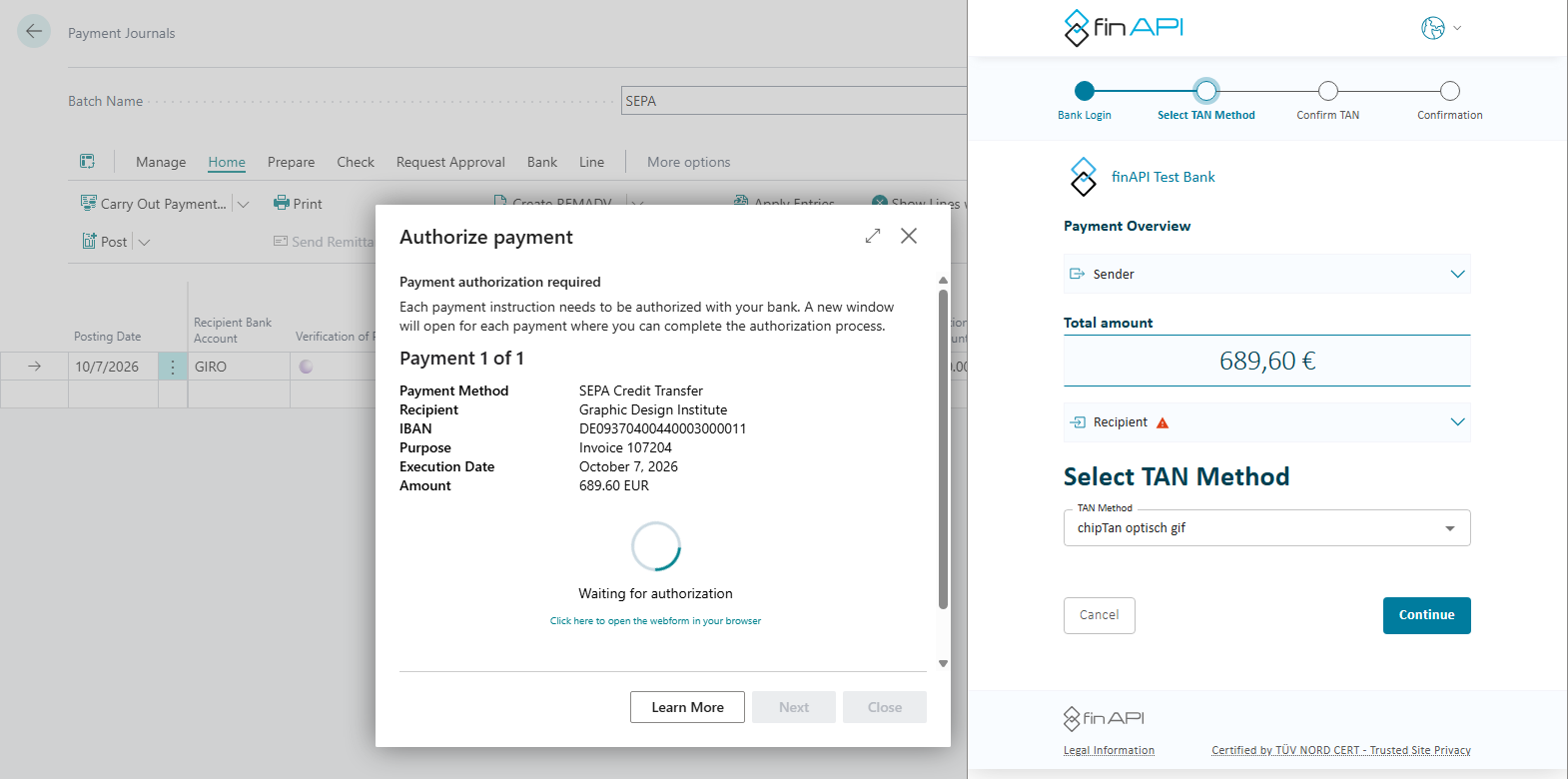
| SEPA Bank Account (PSD2/XS2A via finAPI) | The Authorize payment dialog shows the bank account, the number of payment instructions and the amount under Review your payment details. With Next, your bank's web form opens for each payment instruction. You authorize the payment there, usually with a TAN. | Completed once the bank has confirmed the authorization | Connect a bank account via PSD2/XS2A |
| SEPA Bank Account (EBICS) | A summary shows the bank account, the order, the number of payment instructions, the amount and the message ID. With Next, Business Central signs the payment file with the EBICS participant's key and submits it without a web form and without a TAN. If the journal contains SEPA and foreign payments, two orders are sent to the bank (see below). Business Central then requests the bank's status report. | Pending until the bank has answered; then Completed or Rejected | Payments via EBICS |
| Bank Account (pain File Export) | Business Central creates a pain.001 file and offers it for download. You upload it in your bank's online banking. | Completed as soon as the file is saved. This does not mean that the payment has been made. | Export a payment file |
With the file route, the upload decides
With the pain file export, Completed only means that the file was created. Business Central does not communicate with any bank and cannot determine whether you uploaded the file. Post only after the bank has accepted the file.
Foreign and Euro urgent credit transfers via EBICS
Applies to: EBICS
Via EBICS, 365 business Banking determines automatically for each line whether it is sent to the bank as a SEPA credit transfer or as a foreign credit transfer. You do not need to select anything. A SEPA payment is a payment in euro to an IBAN at a bank in the SEPA area. A payment in another currency, to a country outside SEPA or to a payee without an IBAN becomes a foreign credit transfer. This requires your bank to offer the foreign credit transfer (order type AXZ, XCT under EBICS 3.0) in your EBICS contract. 365 business Banking reads this from the bank's order overview. If the bank does not offer it, nothing is submitted and Business Central reports "The bank does not offer foreign credit transfers for this EBICS participant (XCT/AXZ). …"
Mixed journal: If a payment journal contains SEPA and foreign payments, Carry Out Payment creates two orders: the SEPA credit transfers as usual and the foreign credit transfers as a separate file. The summary before submission shows SEPA and foreign credit transfers (two orders) in the Order field and, under Orders, both orders with the number of payments, the totals per currency and the message ID. Afterwards, Business Central reports both order numbers. Both orders remain Pending until the bank has carried them out. If only the order with the foreign credit transfers fails, the message names the order number of the SEPA order already submitted. The foreign payments remain open in the journal, and you carry them out again once the cause is fixed.
A foreign credit transfer follows the international rules: IBAN or account number, plus the BIC. For a payment in a foreign currency or to a bank outside the EU/EEA, the recipient's town and country are also required. A separate payment block is created for each currency and execution date.
Euro urgent credit transfer: You choose the same-day urgent transfer in euro through a payment method with the banking payment method Euro Urgent Credit Transfer. The whole journal is then sent to the bank as one urgent order (CCU, XCT-URG under EBICS 3.0). The method is available only via EBICS and only if the bank offers the order; other bank connections refuse it. For details, see Euro urgent payment via EBICS.
AWV reporting reminder
Applies to: all bank connections
Under section 67 of the German Foreign Trade and Payments Ordinance (AWV), payments of more than EUR 12,500 to non-residents must be reported to the Deutsche Bundesbank. Neither a payment file nor a web form contains this report. Business Central therefore asks when you choose Carry Out Payment: "… of these payments go to a recipient outside Germany and amount to more than EUR 12,500. Payments to non-residents over EUR 12,500 must be reported to the Deutsche Bundesbank under section 67 of the German Foreign Trade and Payments Ordinance (AWV). The payment does not carry that report, so it has to be filed separately, for example through the reporting portal of the Bundesbank. Do you want to continue?"
- A recipient counts as outside Germany if their bank (by IBAN or BIC) or their address is not in Germany. This applies to SEPA payments as well as to international payments.
- Amounts in other currencies are converted into euro with the company's exchange rates. If an exchange rate is missing, the payment is included.
- With Yes, the payment continues. With No, Business Central cancels the whole run without submitting anything, including the payments that do not need to be reported.
- 365 business Banking does not file the report itself. File it separately, for example through the Bundesbank's reporting portal.
The reminder appears only for credit transfers from the payment journal, not for the SEPA payment import, and only in a dialog. It does not appear when a payment is carried out without a user.
Payment status
The Payment Status field of each journal line shows the processing state of a payment. It is the relevant indicator for all connections:
| Payment status | Meaning | Line editable | Can be posted | Occurs with |
|---|---|---|---|---|
| blank or Open | Not carried out yet, or carrying out was cancelled | yes | no | all connections |
| Pending | Submitted to the bank, the bank has not answered yet | no | no | EBICS |
| Rejected | The bank rejected the payment; the submission gives the reason | yes, can be carried out again | no | EBICS |
| Completed | Accepted by the bank; with the file route: file created | no | yes | all connections |
A line is set to Rejected regardless of whether the bank refused the whole file or only this one payment in its status report. The line remains Rejected so that you can see that the bank rejected the payment. Carry Out Payment treats it like an open line: fix the cause and carry out the payment again. A collective credit transfer is then sent to the bank under a new end-to-end reference, because the bank keeps the rejected submission under the previous reference.
Pending is protected like Completed because the file is already at the bank. If the line were changed or carried out again, Business Central would describe a different payment from the one submitted, or the payment would be made twice.
Update payment status
Applies to: EBICS
Business Central regularly requests the bank's status report in the background. To request the status immediately, choose Update Payment Status in the payment journal. The action requests the status of the payment files submitted from this journal batch from your bank and transfers the answer to the lines. The submitted files themselves are shown in EBICS Submissions. See EBICS jobs and EBICS submissions.
Both actions are only available in journals whose bank account pays via EBICS. With PSD2/XS2A and the file route, there is no submission that can be tracked.
| Message | Meaning |
|---|---|
| "No payment file from this journal batch is waiting for an answer from your bank." | There are no open requests. |
| "The bank data was fetched successfully." | The bank's answers are now on the lines. |
| "Your bank could not be asked about … payment file(s), so they stay pending and will be asked about again." | The request failed; the reason is in the message. The lines remain Pending. |
| "Your bank never reports what became of a file, …" | Your bank does not offer a status report. The payment is confirmed only by the next bank statement. |
| "This environment cannot run background tasks, …" | The hourly check does not run. Use this action to request the status manually. |
Posting
A payment journal with banking payments can only be posted once all lines have the payment status Completed. Otherwise, Business Central reports: "The bank transfer for the payments must be carried out before you can post the lines. …" The posting preview is available before that. Netting lines from Suggest Payments are the exception: they are never sent to the bank, Carry Out Payment skips them, and they are posted with the journal. Lines entered manually that are not paid through 365 business Banking and do not go to a customer, vendor or employee, such as a fee posted to a G/L account, are also exempt.
If there are lines with a remittance advice that has not been printed or sent yet, Business Central asks before posting. See Print and send remittance advice.
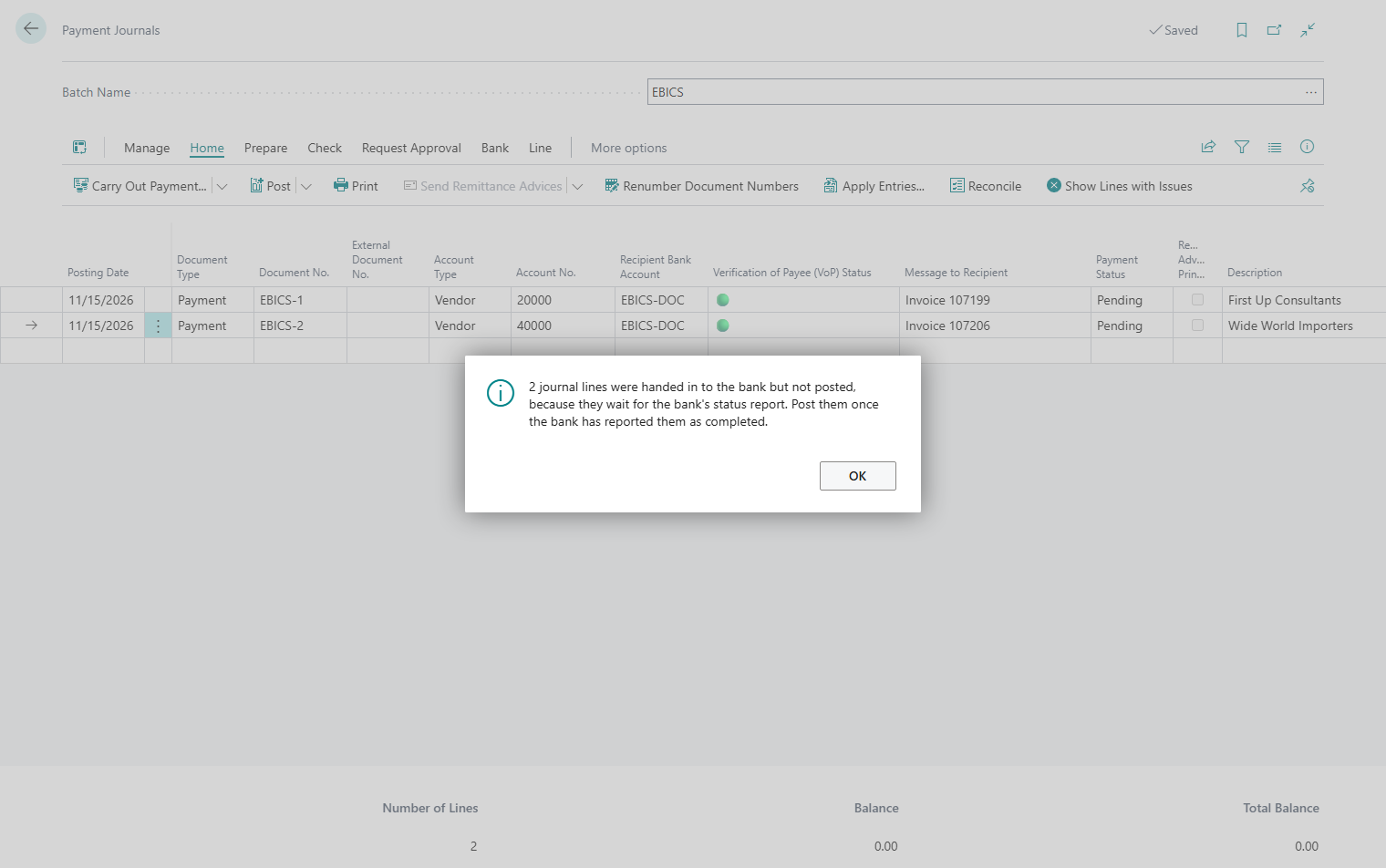
Carry Out Payment and Post combines both steps and works the same way for every payment initiation service. After carrying out, Business Central posts the lines of this payment that have the payment status Completed. Lines that are still Pending remain in the journal, and Business Central reports: "… journal lines were handed in to the bank but not posted, because they wait for the bank's status report. Post them once the bank has reported them as completed."
| Payment initiation service | Effect of Carry Out Payment and Post |
|---|---|
| PSD2/XS2A | The lines are posted after the authorization in the web form. |
| EBICS | The lines are Pending and are not posted; the message states their number. Post once the bank has accepted the payment. |
| pain file export | The lines are Completed as soon as the file is saved and are posted immediately, before you have uploaded the file at your bank. |
The payment is at the bank before anything is posted. If posting fails, for example because of a closed posting period, the payment therefore remains carried out: the lines are Completed, and you post them once the cause is fixed.
Carry Out Payment and Post with the file route
With the pain file export, Carry Out Payment and Post posts the payments as soon as the file is created. Business Central cannot determine whether the bank receives the file. Use the action on the file route only if you upload the file immediately afterwards. Otherwise, use Carry Out Payment and post after the upload.
What is locked after carrying out
Once a line has the payment status Pending or Completed, the fields that describe the payment can no longer be changed: among others Posting Date, Document No., Account Type, Account No., Recipient Bank Account, Message to Recipient, Currency Code, Payment Method Code, Payment Reference, Amount, Amount (LCY) and the remit-to code. Business Central then reports "You cannot change … because the payment has already been carried out."
The End-to-End Reference is not editable in the journal, because 365 business Banking assigns it (see below). The column is hidden and can be shown through personalization. Once the payment is carried out, it is the identifier under which the bank keeps the payment. If an extension or an interface tries to change it afterwards, Business Central stops with the same message "You cannot change … because the payment has already been carried out."
In the payment journal, Bal. Account Type and Bal. Account No. are also not editable, because they are taken from the journal batch.
End-to-end reference and collective payments
Every payment contains an End-to-End Reference. The bank reports it back on the bank statement, and matching uses it to recognize your own payments. See Recognize your own payments.
The following rule applies: a single payment has its own reference per payment instruction. A collective order has a shared base reference, which each of its lines contains with its own ending (-1, -2 and so on, in the order of the line numbers). With a SEPA Collective Credit Transfer and a SEPA Collective Direct Debit, the bank often books several lines as one bank transaction and then reports the base. Matching uses the base to find all lines of the group. If the bank rejects or cancels a single payment, however, it reports that payment's own reference with its ending. The rejection then affects only this one line and not the other payers of the order. Which lines form a collective order depends on the execution date and on the bank connection:
- Execution date: the Posting Date applies for a credit transfer, the Collection Date for a direct debit. Lines with different dates are different orders.
- EBICS and the file route: the shared reference applies per payment block of the file. For direct debits, each combination of collection date and sequence type (first, recurring or one-off collection) forms a separate block; for foreign credit transfers via EBICS, each currency forms a separate block, separate from the SEPA order.
- PSD2/XS2A: the shared reference applies per finAPI order, for collective direct debits per mandate and collection date. It is stored only after finAPI has accepted the order. It then also appears in the standard Transaction ID field of all entries of the order.
The group's reference is determined when the payment is carried out:
- If an open line of the group already contains a reference whose base is not used by any line outside the group and under which no payment has been submitted or posted yet, that base applies to the whole group.
- Otherwise, a new base is assigned.
- Every line of the group gets the base with its ending. If the group is carried out again before it is sent, the lines get the same endings.
Lines with the payment method SEPA Credit Transfer, SEPA Instant Credit Transfer, Euro Urgent Credit Transfer or Direct Debit are sent to the bank as single payments and keep their own reference. This also applies if they share the posting date and document number and are carried out together. Netting lines from the extended payment suggestion belong to no group, because they are never sent to the bank.
The reference is assigned from the End-to-End Reference Nos. in Banking Setup. If no number series is set, 365 business Banking creates a technical reference from E2E and a GUID without separators. It is unique across companies and sessions and, with 35 characters, uses exactly the length SEPA allows.
Whether a collective payment is booked as one collective transaction or as individual transactions is decided by the bank. Matching handles both variants. See Recognize your own payments: collective payments.
Payments in the background
365 business Banking itself does not offer a job queue entry for payments. If Carry Out Payment is nevertheless started without a user, for example by an extension, the following applies:
- PSD2/XS2A: An authorization in the web form requires user interaction. Business Central therefore stops immediately: "Payments from bank account … have to be authorized in a web form, which is not possible in a background session. …"
- EBICS: The file is signed with the participant's key; no confirmation is requested.
- Verification of Payee: If a Verification of Payee result needs to be confirmed, Business Central stops for every connection: "One or more payment journal lines have a Verification of Payee (VoP) result that needs to be confirmed before the payment is carried out, and no user is available to confirm it. …"
Troubleshooting
| Message | Cause and remedy |
|---|---|
| "There are no lines to create a payment for. …" | The journal (or the current filter) contains no line that still has to be paid. |
| "We're sorry, but you can only carry out payments to your bank account if it is an online connected bank account. …" | The balancing account of the journal batch has no payment initiation service. Connect the bank account. |
| "We're sorry, but payment method … is not supported by bank account …." | The bank account does not support this payment method, for example no collective or instant transfer. Check Bank account capabilities and use a journal with a suitable payment method. |
| "You must specify a payment method to create a payment." | The Payment Method Code is missing on the line. |
| "The amount must be positive to create a payment. …" | The line has an amount of zero or less. |
| "Payment journal line … has no recipient bank account. …" | A customer or vendor line has no Recipient Bank Account. Select a released bank account of the customer or vendor. |
| "The bank account … of … is not released for payments. …" | The recipient bank account has the status New. Check it and choose Release. See Recipient bank accounts. |
| "Recipient details are incomplete for payment journal line …. Please verify the recipient name, IBAN and BIC." | The recipient's name or IBAN is missing. |
| "Recipient details are incomplete for payment journal line …. An international credit transfer needs the recipient name, the IBAN or the account number, and the BIC." | The bank account pays under the international rules (SWIFT). Add the IBAN or the account number and the SWIFT Code on the recipient's bank account. |
| "The … of payment method … cannot be used for bank account …. Bank account … pays under the international (SWIFT) rules, and instant credit transfer exists only within SEPA. …" | An instant credit transfer is not possible from a bank account that pays under the international rules (SWIFT). Use a payment method with SEPA Credit Transfer or SEPA Collective Credit Transfer. |
| "The … of payment method … cannot be used for bank account …. Bank account … pays under the international (SWIFT) rules. A Euro urgent credit transfer is handed in over EBICS only, …" | A Euro urgent credit transfer is only possible via EBICS. Pay from an EBICS bank account or use another payment method. |
| "Payment journal line … cannot be carried out as an instant credit transfer. …" | Via EBICS, the line is an international payment (other currency, no SEPA country or no IBAN). Carry it out from a journal with SEPA Credit Transfer or SEPA Collective Credit Transfer; it is then sent to the bank as a foreign credit transfer. |
| "Payment journal line … cannot be carried out as a Euro urgent credit transfer. …" | The line is not in euro. Carry it out from a journal with SEPA Credit Transfer; it is then sent to the bank as a foreign credit transfer. |
| "Recipient details are incomplete for payment journal line …. A Euro urgent credit transfer needs the recipient name and the IBAN." | Add the IBAN and the account holder on the recipient's bank account. |
| "Line … has no recipient town and country. …" | A foreign credit transfer in a foreign currency or outside the EU/EEA, as well as a Euro urgent credit transfer to a bank outside the EU/EEA, requires the recipient's postal address. Add the town and country on the vendor or the remit-to address. |
| "The bank does not offer foreign credit transfers for this EBICS participant (XCT/AXZ). …" / "… does not offer Euro urgent credit transfers … (XCT/URG or CCU). …" / "… does not offer SEPA credit transfers … (SCT/CCT). …" | The EBICS contract does not include the order. Ask your bank to add it, and then read the customer data again on the participant card. Nothing was submitted. |
| "The SEPA credit transfers were handed in at your bank under order number …. … The foreign credit transfers could not be handed in, …" | The SEPA order is at the bank. Do not submit it again. Fix the cause named and carry out the open foreign payments again. |
| "… of these payments go to a recipient outside Germany and amount to more than EUR 12,500. … Do you want to continue?" | Not an error but the question about the reporting duty under section 67 AWV. With Yes, the payment continues; report the payments separately to the Bundesbank. No cancels the whole run. See AWV reporting reminder. |
| "You cannot change … because the payment has already been carried out." | The line is Pending or Completed; its payment fields and the end-to-end reference are locked. See What is locked after carrying out. |
| "The field '…' contains invalid characters: …" / "The field '…' must not exceed … characters. …" | The Account Holder of the recipient bank account or the Message to Recipient contains characters outside the SEPA character set or is too long. Correct the field named. |
| "The IBAN '…' is invalid. …" / "The IBAN '…' has an invalid length for …. …" / "The IBAN '…' has an invalid length. …" / "The IBAN '…' contains invalid characters. …" | The IBAN on the recipient's bank account is wrong, often because of a typo. Correct it on the customer or vendor bank account or on the employee card. |
| "The BIC '…' is invalid. A BIC must be 8 or 11 characters long." / "The BIC '…' does not match the valid format. …" / "The BIC '…' contains an invalid country code '…'. …" | The recipient's SWIFT Code is wrong. Correct it on the recipient's bank account. |
| "The posting date cannot be in the past." | Set the Posting Date to the current date or later. |
| "The bank account does not support future dated SEPA credit transfer. …" | The bank does not allow future-dated transfers on this account. Set the Posting Date to the current date. |
| "The Verification of Payee (VoP) check needs your attention for the following recipients before the payment is carried out: … Do you still want to proceed with the payment?" | A payee does not have the status 🟢 or ◯. Check it with Verification of Payee (VoP) before you pay. |
| "One or more payment journal lines have a Verification of Payee (VoP) result that needs to be confirmed before the payment is carried out, and no user is available to confirm it. …" | The payment was started without a user, and a payee needs to be confirmed. Carry out the payment in a dialog. |
| "The bank transfer for the payments must be carried out before you can post the lines. …" | At least one line is not Completed. |
More messages per connection are collected under Troubleshooting.
See also
- Outgoing payments
- Payment journal
- Payments via EBICS
- International payment
- Euro urgent payment via EBICS
- Export a payment file
- Verification of Payee (VoP)