
Approve payments
Approval workflows for payments in 365 business Banking: amount-based approval and the four-eyes principle with Required Approvers.
Microsoft Dynamics 365 Business Central includes workflows for approving journals and journal lines before they are posted. 365 business Banking uses them for outgoing payments: a payment journal that requires approval can only be carried out after the approval. The payment is therefore only sent to the bank once the authorized people have approved it.
Standard functionality in Business Central
In the standard, you set up approval workflows from templates, define conditions and approvers, and send approval requests from the journal. See Microsoft Learn: Use approval workflows.
What 365 business Banking adds
- Carry Out Payment checks whether an approval is still pending for the journal batch or its lines, and stops in that case.
- Amount-based conditions: the journal batch provides the fields Total Amount (LCY), Line Amount (LCY) Filter and Line Amount Exceeded for a workflow's filter details. See Journal batches for Banking.
- Required Approvers: a field on the workflow that lets you set up a four-eyes principle (see below).
- Print Approval: the payment journal printout can contain an area for signatures. See Print the payment journal.
The SEPA payment import has an approval workflow of its own. See Approval and verification of payee.
What approval blocks
If an approval workflow is set up for a journal or a journal line, the lines can neither be posted nor carried out before they are approved. The restriction applies to lines that are created or changed while the workflow is enabled. Lines that were already in the journal before the workflow was enabled are restricted only once you change them or request approval.
Note
The posting preview is available in the payment journal even with an active approval workflow. Posting and carrying out are only possible after approval.
Setup
Step by step
- Choose the Search icon, enter Workflows and open the list.
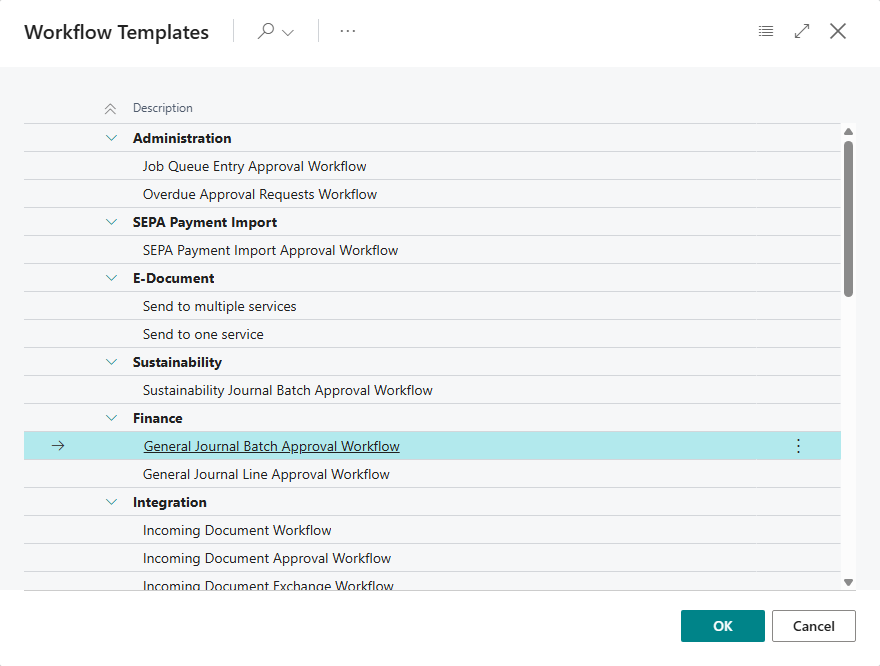
- Choose the New Workflow from Template action.
- Choose a template for approving general journals, for example "General Journal Batch Approval Workflow".
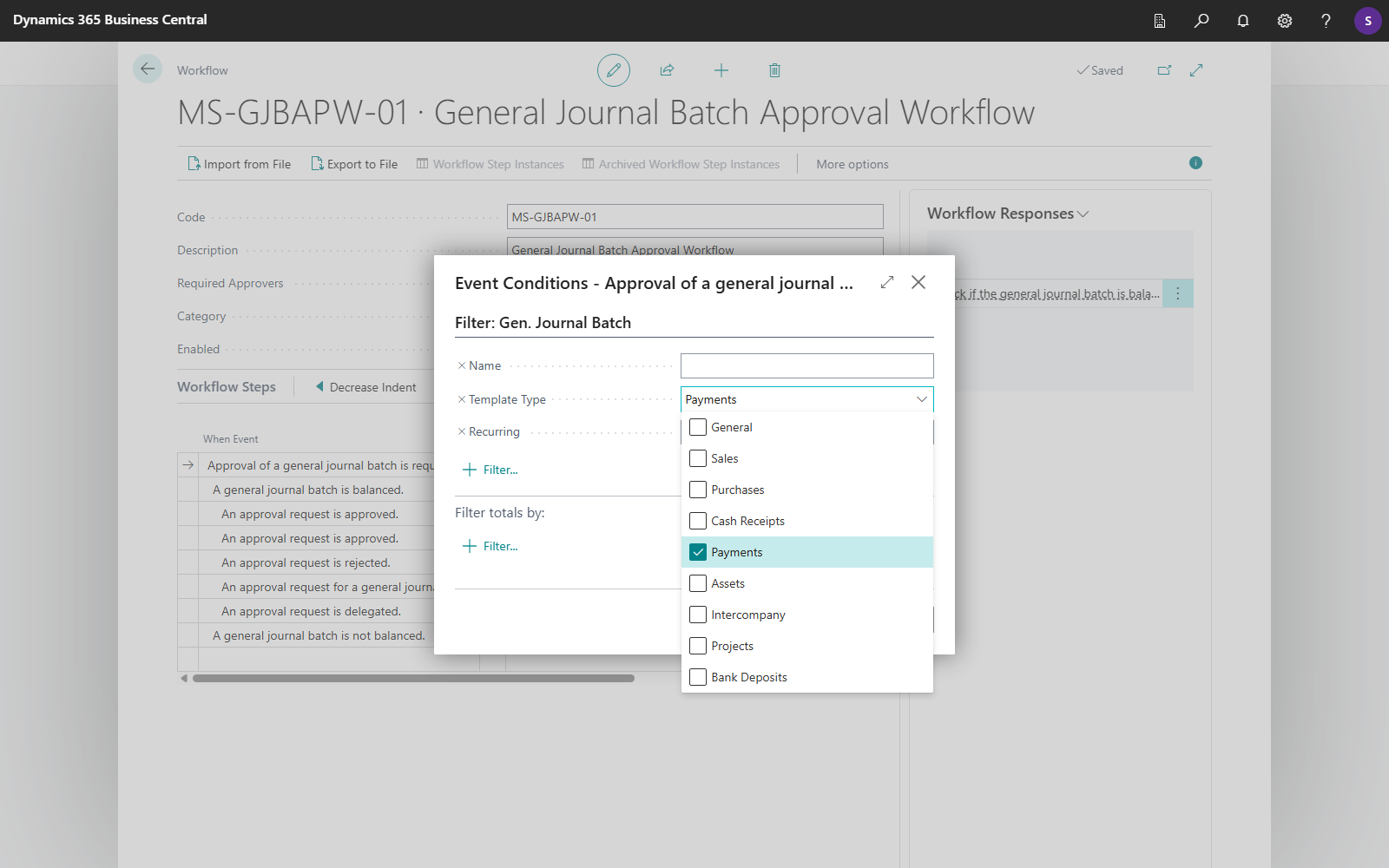
- Choose Show Filter Details for the workflow step Approval of a general journal batch is requested.
- Set the conditions and choose the Template Type Payments to set up the approval of outgoing payments.
- Turn on the Enabled toggle.
After that, all journals or journal lines that meet the conditions must be approved before they can be posted or carried out. The approvers receive notifications about pending approvals.
Filter details
With the filter details of the workflow step Approval of a general journal batch is requested., you define when an approval is needed. It is recommended to set up a separate workflow for each Template Type (for example Payments, General). This keeps the workflows clear.
Note
For approving payment journals, use the Template Type Payments.
You can also set up amount-based approvals so that payments above a certain amount must be approved. There are two kinds:
- Total amount: the total of all payments in a journal,
- Line amount: the amount of a single payment.
Amount-based approval by total amount
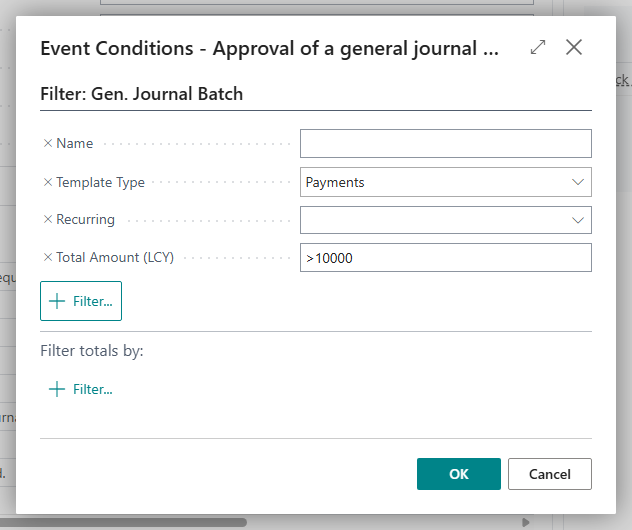
In the filter details, set a filter on the Total Amount (LCY) field to define the threshold.
Example
A filter of >10000 on Total Amount (LCY) requires approval for all journals whose payments together exceed 10,000 €.
Amount-based approval by line amount
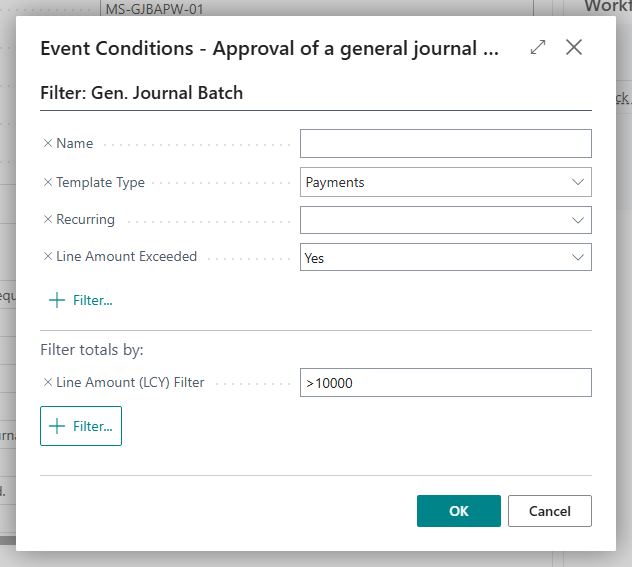
For an approval per payment, you need two filters:
- Line Amount (LCY) Filter: the threshold from which approval is needed. You set this filter in the Filter totals by area.
- Line Amount Exceeded: whether the threshold is exceeded on a journal line.
Example
A Line Amount (LCY) Filter of >10000 together with Line Amount Exceeded = Yes requires approval as soon as one payment in the journal exceeds 10,000 €.
Four-eyes principle with Required Approvers
The Required Approvers field on the workflow card defines how many people must agree before the approval counts as granted. The default is 1. With a value of 2 or more, you set up a four-eyes principle. The following applies:
- In the first approval stage, as many approvers as Required Approvers specifies must approve. The remaining open requests of this stage are then removed, and the next stage begins. In all further stages, one approval is sufficient.
- The field applies to every workflow, not only payments, including the standard journal approval and other documents.
- It is only visible and effective if 365 business Banking is licensed.
- Like all workflow settings, it can only be changed while the workflow is not enabled.
Important
The four-eyes principle requires Workflow User Groups instead of individual users as approvers. Only then do several people receive the request.
Step by step
- Choose the Search icon, enter Workflow User Groups and open the list.
- Create a new user group, for example "Payment approvers".
- Add the users who are to approve to the group. Give all users who approve together in the first stage the sequence number 1.
- Open Workflows and choose New Workflow from Template.
- Choose a template for approving general journals, for example "General Journal Batch Approval Workflow".
- Choose Show Filter Details for the workflow step Approval of a general journal batch is requested.
- Set the conditions and choose the Template Type Payments.
- Set Required Approvers to 2 or more.
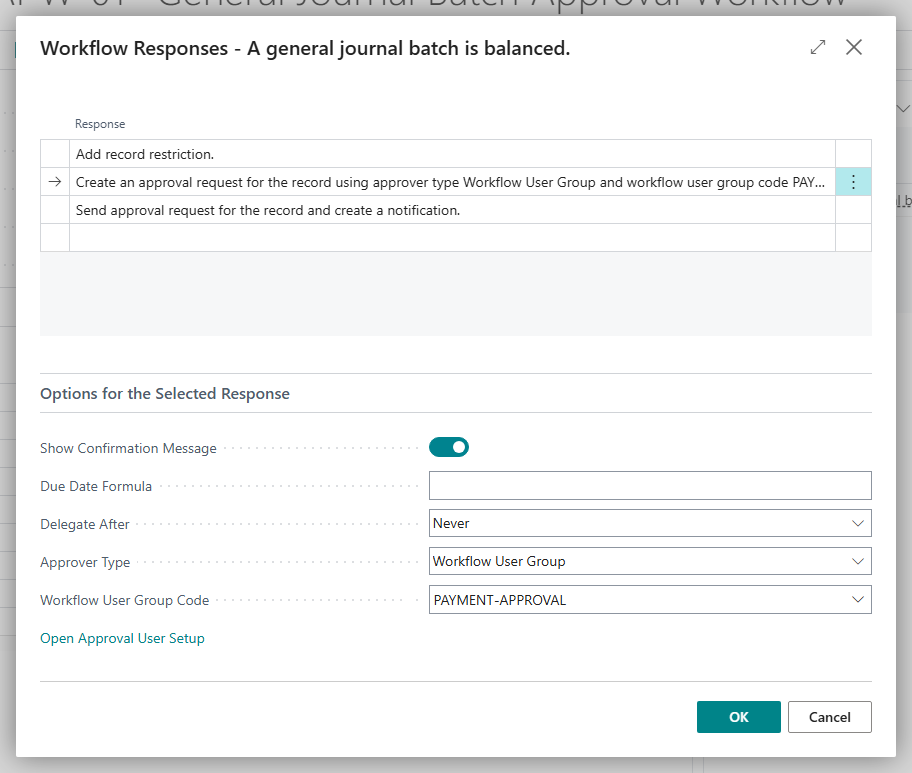
- In the workflow step A general journal batch is balanced., choose the entry (+) Add record restriction. in the Then Response column. The Workflow Responses page opens.
- Select the response Create an approval request for the record using approver type …. Under Options for the Selected Response, choose Workflow User Group as Approver Type and select the user group created before in the Workflow User Group Code field.
- Confirm with OK.
- Turn on the Enabled toggle.
See also
- Payment journal
- Journal batches for Banking
- Approval and verification of payee in the SEPA payment import
- Multi-level approval (new feature)