
SEPA payment import: carry out a payment file from another system
With SEPA payment import in 365 business Banking, you carry out a finished pain.001 file, such as a payroll run. The file is validated, optionally approved and documented with a proof.
Your payroll office, your tax advisor or an upstream system delivers a finished pain.001 file. It contains recipients, IBANs and amounts and only needs to be carried out. SEPA payment import in Microsoft Dynamics 365 Business Central stores the file in a separate, protected area, validates it there and carries it out from there. The file is not posted. No journal and no entries are created, only a payment.
Prerequisites
- A bank account with 365 business Banking whose Payment Initiation Service supports SEPA credit transfers. See Which bank accounts qualify.
- One of the permission sets Banking SEPA Import (with recipient details) or Banking SEPA Import (no recipient details). See Who may see the recipients.
- A pain.001 file (XML) in one of the supported versions.
Flow at a glance
| Step | Action | Status afterwards |
|---|---|---|
| 1. Read the file | Import Payment File | New |
| 2. Create the lines | Parse | Parsed |
| 3. Choose the bank account, check the lines | Validate | Validated or Error |
| 4. (optional) Have recipients verified | Verification of Payee (VoP) | unchanged |
| 5. (optional) Have it approved | Send Approval Request | Approval Status Pending Approval → Released; locked from then on until you choose Reopen |
| 6. Pay | Carry Out Payment | Completed |
| 7. Prove | Print Payment Proof | Payment Proof Printed At filled in |
Step by step
1. Import the file
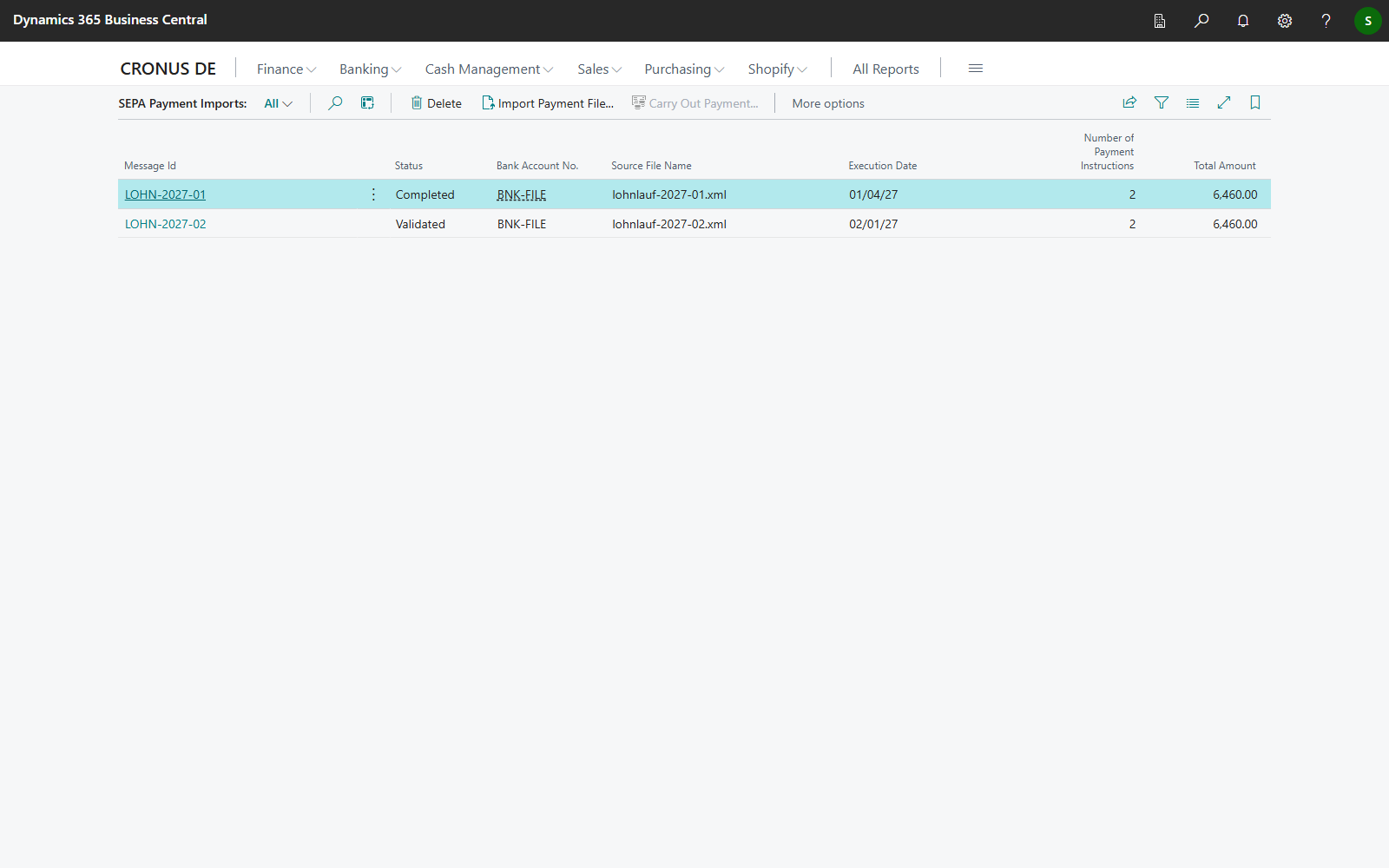
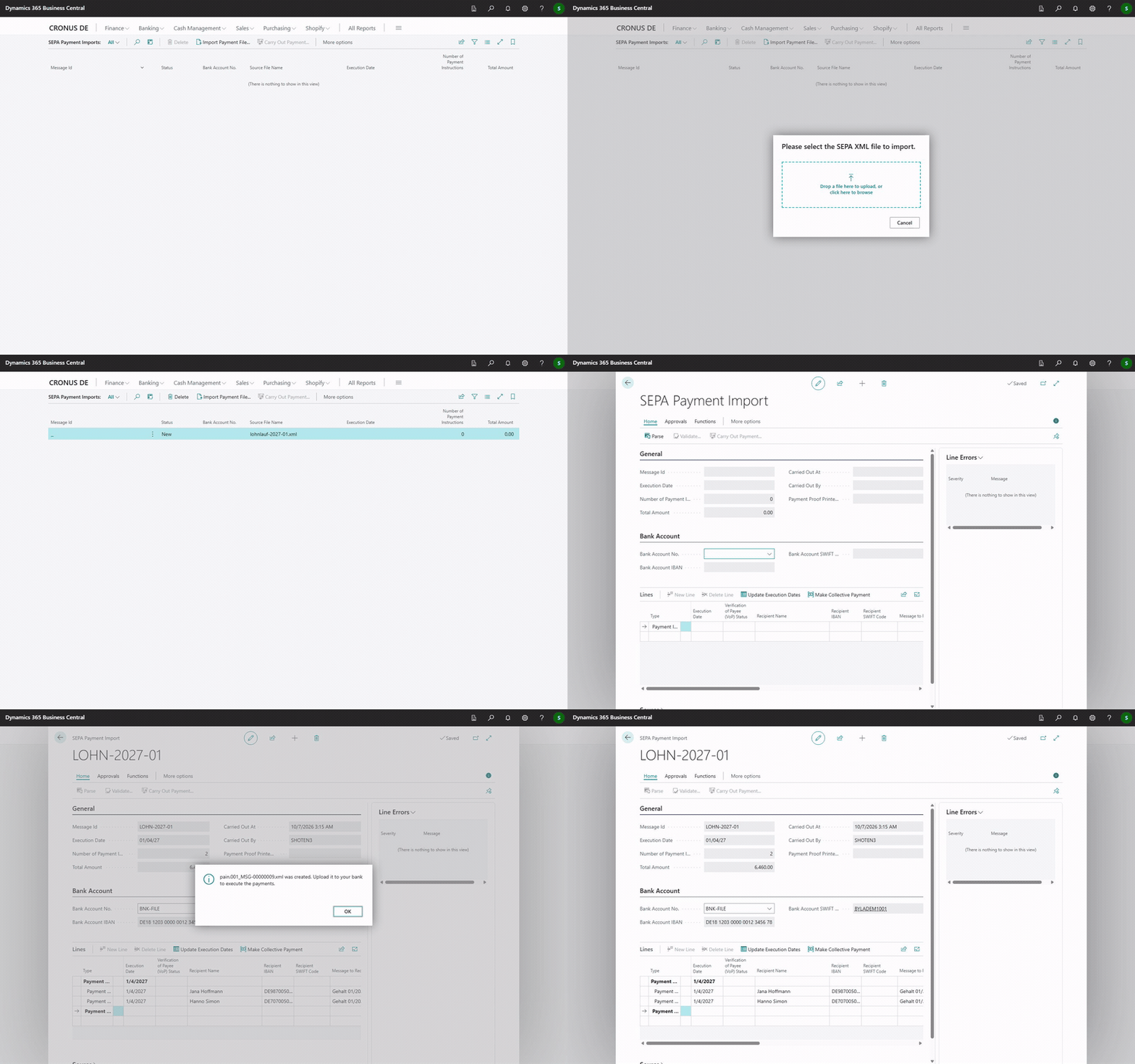
- Choose the Search icon, enter SEPA Payment Imports, and open the list. In the Role Center, the list is also available as SEPA Payment Import.
- Choose Import Payment File and select the XML file.
- Business Central asks: "Do you want to parse and validate the payment import?" With Yes, Parse and Validate run immediately and the SEPA Payment Import card opens. With No, the import keeps the status New and you run the steps one by one on the card.
Have the recipients verified before you pay
You can also choose Verification of Payee (VoP) when the import is already Validated. Carry Out Payment validates the file again before paying, and a deviation is shown as a warning on the line. However, a warning does not stop the payment. Therefore, check the Verification of Payee (VoP) Status column before you choose Carry Out Payment. See Approval and verification of payee.
2. Parse
Parse reads the file and creates one line per payment. Business Central detects the format automatically (Format Auto-Detect → pain.001 (Credit Transfer)). If the file is not a SEPA credit transfer file, Business Central reports "The selected file does not contain a valid SEPA payment message.", sets Format to Unknown and the status to Error.
Business Central also checks the file's control sum. If it differs from the total of all payment instructions, the file is not processed and all lines have Validation Error.
If a file with the same Message Id has already been imported, for example a payroll file that is uploaded twice, Business Central asks: "A payment import with message id … was already imported as entry no. … on … (status …). Do you still want to import this file?" With No, no lines are created and the import keeps the status Parsing. You can then delete it or choose Parse again. Without a user interface, the file is refused.
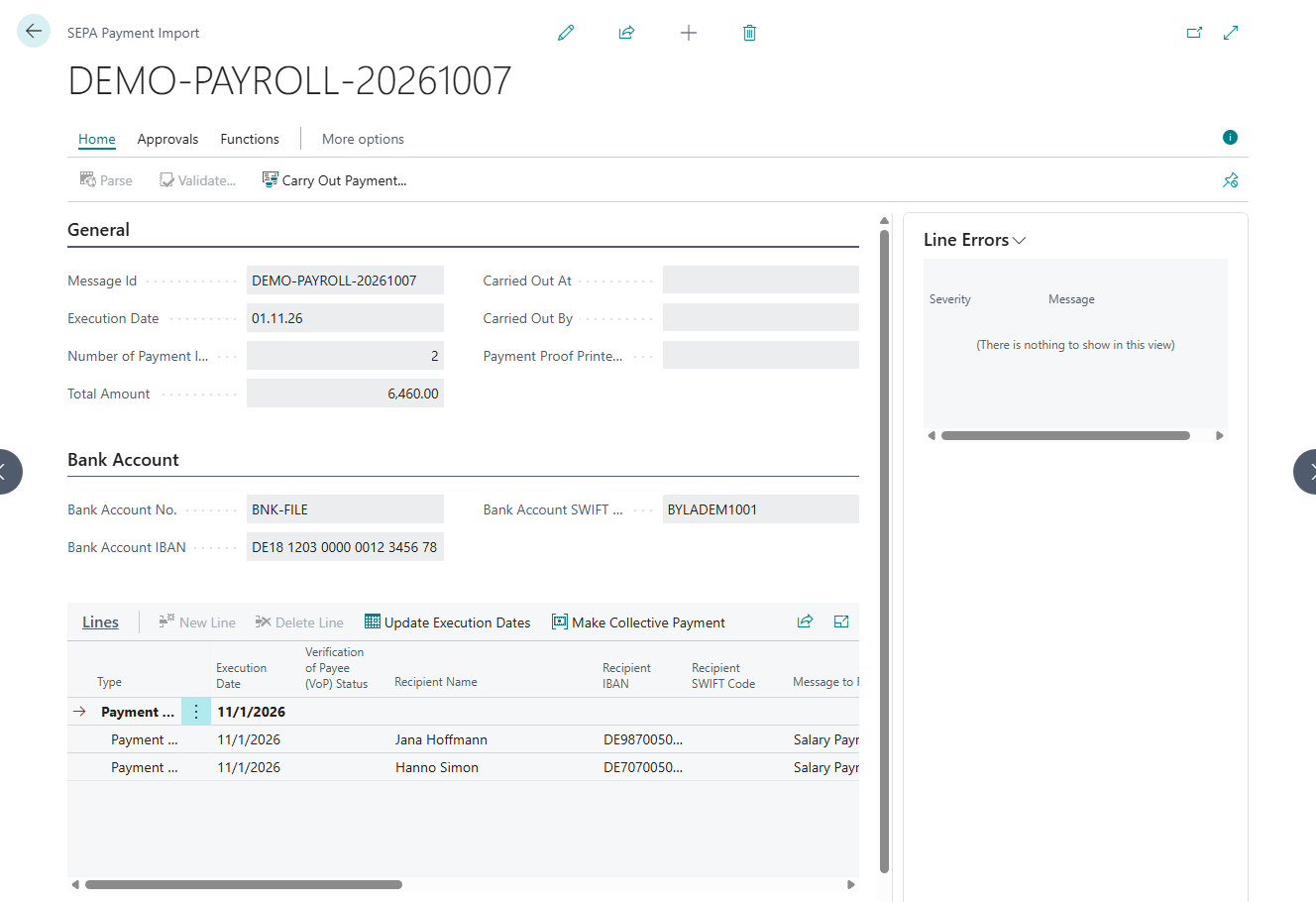
The header data is then shown on the General FastTab: Message Id, Execution Date (Multiple execution dates if they differ), Number of Payment Instructions and Total Amount. The Source FastTab shows Format, Status and Source File Name.
Parse reads two details per payment from the file:
- Execution date: every line gets the execution date of its payment information block (
PmtInf). If the file contains several blocks with different dates, each block is carried out on its own date. - Message to Recipient: Business Central takes the unstructured remittance information. If a payment only has structured remittance information, Business Central takes the creditor reference instead or, if that is missing, the additional remittance information.
3. Choose the bank account and validate
- On the Bank Account FastTab, check Bank Account No., which is the account to pay from. If only one bank account qualifies, it is already filled in on import. Otherwise, on Parse, Business Central fills in the bank account whose IBAN the file names as debtor account, provided that the file names only one debtor account and exactly one qualifying bank account has this IBAN. If no account is filled in after that, you choose it yourself. Business Central fills in Bank Account IBAN and Bank Account SWIFT Code automatically.
- Choose Validate. Business Central checks every line and the bank account (see What Validate checks).
- If the Status is then Validated, the file can be carried out. If it is Error, the Validation column shows the affected lines, Validation Message the number of messages, and the Line Errors FactBox the text for the selected line.
Validate is only available with status Parsed. After a correction with the line actions, the import has the status Parsed again and you validate it again.
4. Approval and verification of payee (optional)
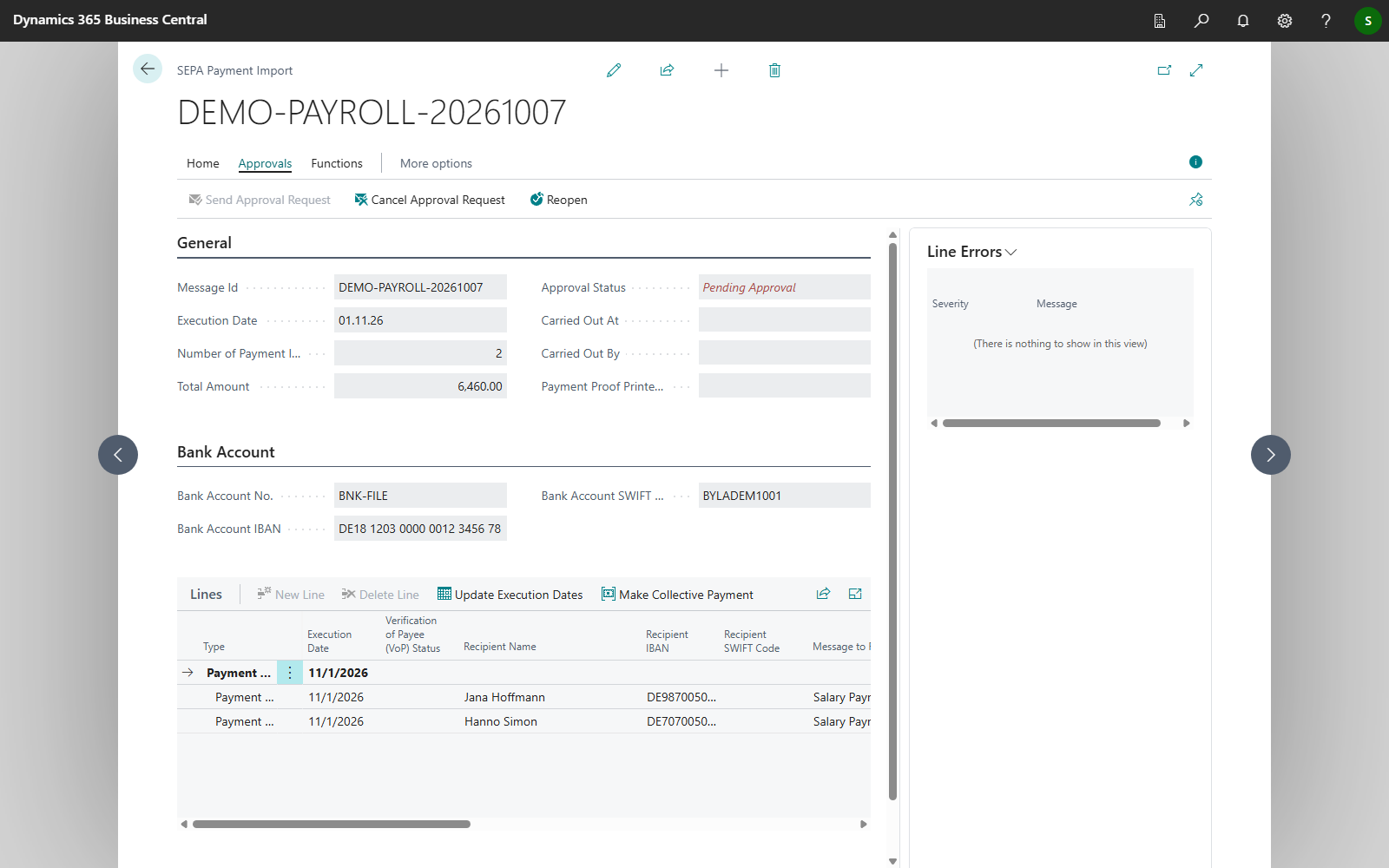
If an approval workflow for SEPA payment imports is enabled, the file can only be carried out once the Approval Status is Released. While the import is Pending Approval or Released, execution date, collective payments, bank account and lines are locked. Changes are only possible after Reopen, and the import must then be approved again. If the import is still Pending Approval, cancel the approval request first. Reopen points this out in that case. With Verification of Payee (VoP), you have the recipients' banks confirm that name and IBAN belong together. Both functions are described in Approval and verification of payee.
5. Carry out the payment
- Choose Carry Out Payment on the card or in the list. The action is only available with status Validated. With an enabled approval workflow, the Approval Status must also be Released.
- Business Central validates the file again before paying. Changes since Validate, for example a result of Verification of Payee (VoP) or an execution date that has passed in the meantime, are therefore taken into account. An error stops the payment and sets the import to Error; a warning does not.
- Business Central transfers the payment instructions to the bank account's payment initiation service. The next steps depend on the connection (see the table below).
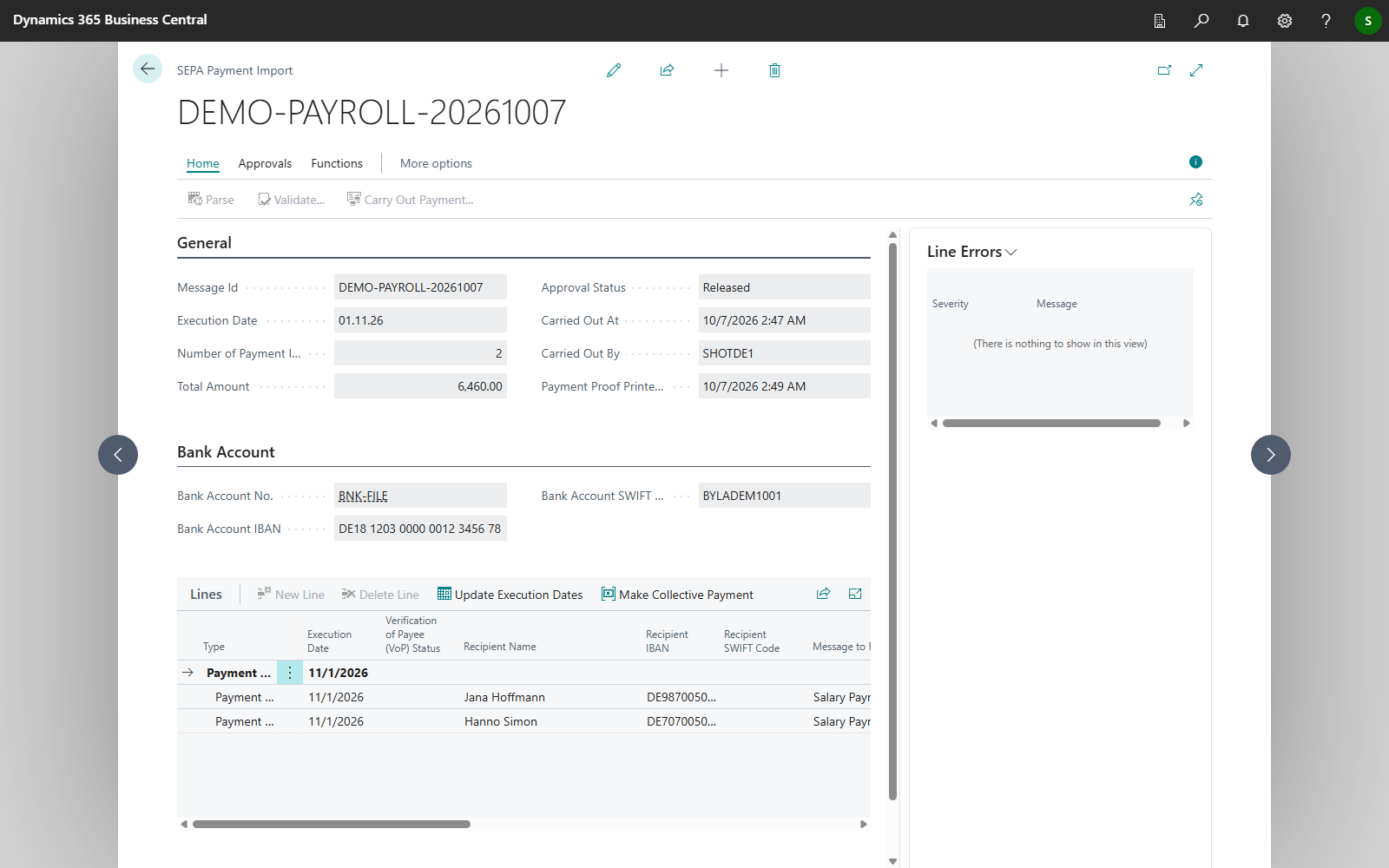
- As soon as all payment instructions have the Payment Status Completed or Pending, Business Central sets the import to Status Completed and records Carried Out At and Carried Out By. This applies to every payment initiation service, including Bank Account (pain File Export). The import can then no longer be changed.
| Payment initiation service | After Carry Out Payment |
|---|---|
| SEPA Bank Account (PSD2/XS2A via finAPI) | You authorize the payment in your bank's web form, for example with a TAN. See Connect a bank account via PSD2/XS2A |
| SEPA Bank Account (EBICS) | The file is submitted with your signature. The lines have the status Pending until the bank's status report is available. See Payments via EBICS |
| Bank Account (pain File Export) | Business Central writes a pain.001 file that you upload in online banking. See Export a payment file as a pain file |
The payment status per line is shown in the Payment Status column (Open, Pending, Rejected, Completed). If you carry out an import again, for example after part of it was rejected, only the lines with the status Open or Rejected are transferred to the bank. Payments that have already been transferred are not carried out again. If no payments are left, Business Central reports "All payments of this import have already been handed to the bank. There is nothing left to carry out." The meaning of the status per connection is explained in Carry out payment: process per bank connection.
On the file route, Completed means: file written
With Bank Account (pain File Export), the import has the status Completed as soon as the file has been saved, not when the bank has paid. You perform the upload in online banking yourself. If you cancel saving the file, the payments stay open and the import is not completed.
6. Print the payment proof
Choose Print Payment Proof. The proof documents the payment without naming individual recipients. It is the precondition for deleting the import later. See Payment proof and retention.
Which bank accounts qualify
Bank Account No. only offers bank accounts with 365 business Banking whose Payment Initiation Service supports SEPA credit transfers:
- SEPA Bank Account (PSD2/XS2A via finAPI)
- SEPA Bank Account (EBICS)
- Bank Account (pain File Export)
PayPal, Stripe and the other payment service providers are not offered here, because they are intended for collecting payments and not for paying out payroll runs. Business Central checks on Validate and again on Carry Out Payment whether the chosen account can actually carry out a SEPA credit transfer.
Supported SEPA payment files
365 business Banking reads SEPA credit transfer files in pain.001 XML format according to ISO 20022. The file is recognized by the root element Document and a namespace containing pain.001. The import is therefore compatible with all common versions:
| Version | Description | Supported |
|---|---|---|
| pain.001.001.03 | Classic SEPA Credit Transfer format (widely used, <BIC> tag) | |
| pain.001.001.04 | National extension / transition variant, rarely in use | |
| pain.001.001.05 | Extension with additional fields (e.g., Category Purpose) | |
| pain.001.001.06 | Updated SEPA version (2014 ff., standard in many banks) | |
| pain.001.001.07 | Minor revision with formal clarifications | |
| pain.001.001.08 | ISO update 2019, still with <BIC> tag | |
| pain.001.001.09 | ISO 20022 Release 2023, new tags (e.g., <BICFI>, <InstrPrty>) |
SEPA payment import does not import direct debit files (pain.008).
Supported payment types
- SEPA credit transfer: each payment instruction individually.
- SEPA collective credit transfer: a payment block with batch booking (
BtchBookg) and several payment instructions. It is shown as a line of Type Payment Order with the indented Payment Instructions below it. - SEPA scheduled transfer: a payment with an execution date in the future.
If the chosen bank account does not support collective credit transfers, the affected lines get the warning "Batch booking not supported by Bank Account" on Validate. The payments are then carried out as individual SEPA credit transfers.
What Validate checks
| Check | Result on the line |
|---|---|
| Execution Date is in the past | Error: "Execution date cannot be in the past." |
| Recipient Name, Recipient IBAN or Message to Recipient is missing | Error: "… missing." |
| Recipient IBAN or Recipient SWIFT Code is invalid | Error with the reason, e.g. a wrong check digit |
| Recipient Name or Message to Recipient contains characters outside the SEPA character set or is longer than 70 or 140 characters | Warning: "… contains characters outside the SEPA character set or is longer than … characters. It is adjusted (characters replaced, text shortened) when the payment is carried out." |
| Amount is zero or negative | Error: "Amount must be positive." |
| The recipient's bank reports a deviation (Verification of Payee (VoP)) | Warning; the payment is not blocked |
| The bank account does not support collective credit transfers | Warning on the lines of the collective credit transfer |
| The file names more than one debtor account | Warning: "The file names more than one debtor account. All payments of a payment import are sent from the one bank account selected on it." |
| No bank account that can send payments has the IBAN of the debtor account, and no bank account has been chosen yet | Warning: "No bank account that can send payment files has the IBAN … that the file names as debtor account. Select the bank account the payments are sent from." |
For the bank account itself, the following also applies:
- If its payment initiation service does not support SEPA credit transfers, Validate stops with "The selected bank account does not support SEPA Credit Transfers. …".
- If the bank requires IBAN and BIC and a line lacks the Recipient SWIFT Code, Validate stops with "The selected bank account only supports SEPA Credit Transfers with IBAN and SWIFT Code. …".
A Payment Order line takes the worst result of its payment instructions. If at least one line has Error, the entire import has the status Error. Warnings alone do not stop it.
These checks apply equally to every payment initiation service (PSD2/XS2A, EBICS and pain file export). An invalid IBAN or BIC is therefore always an error, already on Validate. Characters outside the SEPA character set or a text that is too long, on the other hand, only result in a warning. Business Central adjusts the text on Carry Out Payment, which means that the characters are replaced and the text is shortened. Check such warnings before paying, because the recipient receives the adjusted text.
You do not change the file itself
Recipient, IBAN, amount and message to recipient cannot be edited in the lines, because they come from a file for which another party is responsible. If details in the file are incorrect, request a corrected file and import it again.
Correcting lines
You can change two details on the lines, because they concern the execution and not the content. Both actions are in the Lines part. Afterwards, the import has the status Parsed again and you choose Validate again.
If the import is Pending Approval or Released, both actions are locked, because the approval applies to the file in its approved state. Withdraw an open request with Cancel Approval Request, choose Reopen, correct the lines, and send the import for approval again.
Update Execution Dates
If a file's execution date is already in the past, for example because the file was not processed for a few days, select the lines and choose Update Execution Dates. Business Central sets the date of the selected lines to the current date and reports the number of changed payment instructions.
For a collective credit transfer, select the Payment Order line. Its payment instructions take over the date. A single payment instruction inside a collective credit transfer cannot be set to another date ("Batch booking lines cannot have an execution date different from the payment order.").
Make Collective Payment
Select at least two payment instructions with the same execution date that do not yet belong to a collective credit transfer, and choose Make Collective Payment. Business Central creates a Payment Order line above them with the total amount and names the assigned Batch Booking ID.
- The Batch Booking ID has the form
BBK/<YYYYMMDD>/<n>: the execution date and a sequential number per import. Two collective transfers with the same execution date therefore remain separate. - If fewer than two suitable payment instructions are selected, Business Central reports "No payment instructions found, which can be grouped into a collective payment. …".
- If the selected lines have different execution dates, nothing is grouped ("All payment instructions that are grouped into a collective payment must have the same execution date.").
Status of a payment import
| Status | Meaning |
|---|---|
| New | The file is imported but not yet read |
| Parsing | The file is being read |
| Parsed | The lines have been created; next is Validate |
| Validated | All lines are free of errors; Carry Out Payment is possible |
| Error | The format does not match, the control sum is wrong, or at least one line has an error |
| Completed | The payments have been transferred to the bank; the import can no longer be changed |
Notes
- Nothing is posted. The payment later appears as a transaction on your bank statement and is reconciled there like any other transaction. See Bank account reconciliation.
- A carried-out import can only be deleted once its payment proof has been printed. An import that was never carried out can be deleted as long as its Approval Status is Open. An import that is Pending Approval or Released must be reopened first.
- No AWV reminder. On Carry Out Payment in the payment journal, Business Central points out the reporting obligation for payments to non-residents over EUR 12,500 under section 67 AWV. The SEPA payment import does not show this reminder. The reporting obligation for such payments still applies. Therefore, check imported files yourself.
- The retention period of imports is defined with a retention policy. See Payment proof and retention.
Troubleshooting
| Message | Cause and remedy |
|---|---|
| "The selected file does not contain a valid SEPA payment message." | The file is not a pain.001 file, but for example a direct debit file (pain.008) or a file in a bank-specific format. Request a pain.001 file |
| "The control sum does not match the total amount of all payment instructions. …" | The file is incomplete or was changed after it was created. Have the file created again |
| "The payment import does not contain any payment lines." | The file contains no payment instructions |
| "The payment import contains payment lines with validation errors. …" | At least one line has Validation Error. The Line Errors FactBox shows the reason |
| "A valid bank account must be specified for carrying out the payment import." | No account is chosen on the Bank Account FastTab |
| "The selected bank account does not support SEPA Credit Transfers. …" | The account's payment initiation service does not support SEPA credit transfers. Choose another account |
| "The selected bank account only supports SEPA Credit Transfers with IBAN and SWIFT Code. …" | At least one line lacks the BIC. Have the file created with BIC, or choose another account |
| "The payment import is pending approval and cannot be carried out yet." | Approval is outstanding. See Approval and verification of payee |
| "The payment import has to be approved before it can be carried out." | An approval workflow is enabled, but no approval has been requested |
| "You cannot change payment import … while its approval status is …. …" | The import is Pending Approval or Released. Cancel the request or choose Reopen, change the import, and send it for approval again |
| "The payment import is pending approval. Cancel the approval request to reopen it." | You chose Reopen while the import is Pending Approval. Choose Cancel Approval Request first |
| "You cannot modify the payment import anymore, as it is already completed." | The import has been carried out. A paid file remains in the state in which it was paid |
| "Print the payment proof for this payment import before you delete it. …" | See Payment proof and retention |
See also
- Who may see the recipients
- Approval and verification of payee
- Payment proof and retention
- Carry out payment: process per bank connection
- Permissions and licenses
- SEPA payment import (new feature)