
SEPA direct debit in the cash receipt journal
This page describes how to suggest, prenotify, carry out and post SEPA direct debits in the cash receipt journal with 365 business Banking, and how to collect through PayPal, Stripe or Adyen in the same journal.
In Microsoft Dynamics 365 Business Central, you enter incoming payments in the Cash Receipt Journal and apply them to open customer entries. 365 business Banking extends the journal with SEPA direct debit collection. You suggest the due invoices, announce the collection, submit it to the bank and post the receipt in the same journal.
Applies to: PSD2/XS2A via finAPI (depending on the bank) · EBICS · camt/pain file · payment service providers (PayPal, Stripe, Adyen)
Prerequisites
- A bank account with 365 business Banking whose payment initiation service can collect direct debits, with a Creditor No. filled in.
- A payment method whose Payment Method (Banking) is Direct Debit or SEPA Collective Direct Debit. See Payment method setup.
- A cash receipt journal batch with Bal. Account Type Bank Account, this bank account as balancing account and this payment method as Payment Method Code. See Journal batches for Banking.
- Valid SEPA direct debit mandates for the customers (see SEPA direct debit mandates) and a Partner Type (Company or Person) on every customer.
- The invoices to be collected have the same payment method.
Different prerequisites apply to collection through a payment service provider. See Collection via a payment service provider.
When the direct debit functions appear
The direct debit columns are only shown and the direct debit actions are only enabled when the journal batch meets the conditions above, or for a payment service provider the conditions under Collection via a payment service provider. In all other cash receipt journals, direct debits cannot be suggested or carried out.
Standard functionality in Business Central
The standard application supports SEPA direct debit mandates and collects direct debits through the direct debit collections page: create a collection, export an XML file, upload it at the bank, post the payment receipt. See Collect payments with SEPA direct debit on Microsoft Learn. This route is also available. See Direct debit collections on the standard pages.
What 365 business Banking adds
- Suggest Direct Debits: journal lines from due invoices, with mandate and collection date.
- The Collection Date in bank working days, calculated from due date and lead time. See Bank working days and lead times.
- Prenotifications, printed or sent by email. See Direct debit prenotification.
- Verification of payee (VoP) for the payer's bank account.
- Carry Out Direct Debit through the bank account's connection (PSD2/XS2A, EBICS or a pain.008 file).
- Handling of returned direct debits in bank reconciliation.
Step by step
1. Suggest direct debits
-
Open the Cash Receipt Journal with the direct debit journal batch.
-
Choose Direct Debit > Suggest Direct Debits.
-
Fill in the options:
Option Meaning Last Due Date Only invoices due up to this date. Empty: all Collection Date If you leave the field empty, the date of each line is calculated from the due date and the bank's lead time, on a bank working day. However, it is never earlier than the current date plus the Prenotification Lead Time (Days) from the Banking Setup, moved to the next bank working day. This leaves time to send the payer the prenotification. A fixed date is moved to the next bank working day and must not be earlier than the bank allows. It is not checked against the prenotification lead time Partner Type Company for B2B direct debit, Person for CORE direct debit, empty for both. Via EBICS and pain file, CORE and B2B direct debits cannot be carried out in one run. In this case, suggest them separately Only Invoices With Valid Mandate Only invoices that have a mandate themselves. Without this option, the customer's default mandate is sufficient Summarize per Customer One line per customer, mandate, collection date and currency instead of one line per invoice New Document No. per Line Every line gets its own document number. Otherwise, all lines of a run get the same document number With the filters above, you can also select customers, currency or dimensions.
-
Choose OK. Business Central reports how many journal lines were created and how many entries were skipped because no active direct debit mandate was found or because they are already being collected.
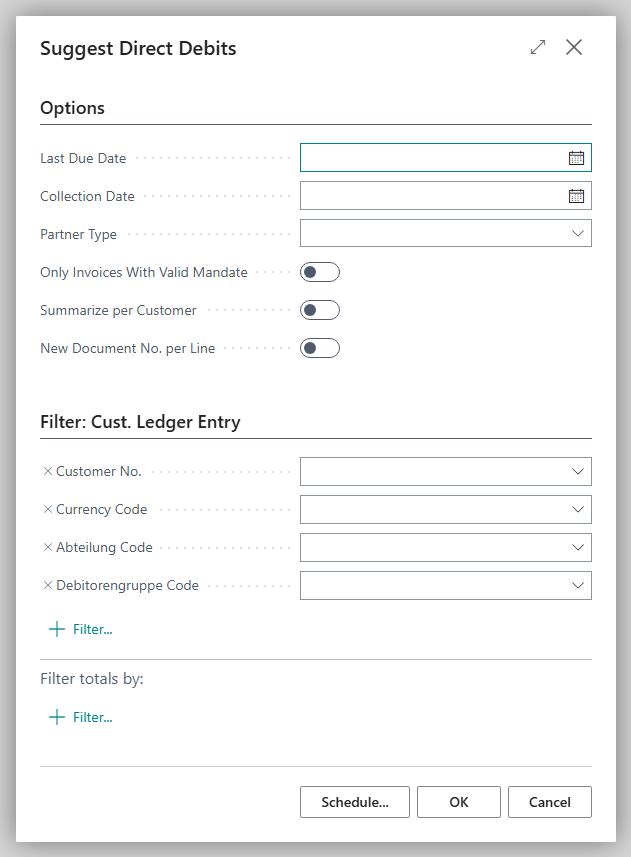
Suggested entries: open invoices with a positive remaining amount whose payment method matches the journal batch's and whose currency matches the bank account's. Entries that are On Hold or already marked for application in another journal, entries of customers that are fully blocked (Blocked All) or blocked for privacy, and entries already being collected through a journal line or a direct debit collection are not suggested. The mandate must be valid on the due date. The posting date of each line is its collection date.
2. Review the lines
The following additional fields are available on the lines. These fields and the Message to Recipient column are only shown in a direct debit journal (see above). For a payment service provider, Verification of Payee (VoP) Status and Prenotification Sent are hidden, and Collection Error is only shown there:
| Field | Meaning |
|---|---|
| Payer Bank Account | The payer's debited account. For a SEPA direct debit, it is taken from the mandate; a mandate authorizes collection from this account only. For a payment service provider, the suggestion enters the customer bank account of the provider, see Collection via a payment service provider |
| Verification of Payee (VoP) Status | Result of the check on the payer bank account |
| Collection Date | The date the amount is collected from the payer. If you enter a date that is not a bank working day, Business Central asks: "… is not a bank working day. Do you want to move the collection date to the next bank working day, …?" Yes moves the date, No cancels the entry. Without a user interface, for example via the API or for a suggestion in the background, Business Central moves the date automatically. For a payment service provider, Business Central does not ask about bank working days; there, the Posting Date decides when the line is collected |
| Message to Recipient | The purpose shown on the payer's bank statement (mandatory). The … button builds it again, see below |
| Payment Status | Open, Pending, Rejected or Completed |
| Prenotification Sent | Specifies whether the prenotification has been printed or sent |
| Collection Error | Only for a payment service provider: why the provider did not collect the line, or why the outcome is still open. After a successful collection, the field is empty |
Build the message to recipient again: If you entered a line manually or changed what it applies to, choose the … button in the Message to Recipient field. Business Central then builds the purpose like the direct debit suggestion from the entries the line collects, for example Invoice 103001 for one document and Invoices 103001, 103002 for several documents. If a text already exists, Business Central first asks: "Do you want to update the message to recipient?" This function is only available in direct debit journals and only if the line applies to open entries with Applies-to Doc. No. or Apply Entries.
Use the Verification of Payee (VoP) line action to check account holder name and IBAN of the selected lines. For a direct debit, this check is not mandatory. It validates the payer's account and avoids returned direct debits.
3. Send prenotifications
Choose Prenotifications > Print Prenotifications or Send Prenotifications for the entire journal, or Print Prenotification or Send Prenotification for the selected line. Setup, content and email are described in Direct debit prenotification.
4. Carry out the direct debit
- Choose Direct Debit > Carry Out Direct Debit and confirm the question whether to collect the direct debits for the journal.
- Business Central checks every line (see What is checked when carrying out) and transfers the direct debits to the bank account's payment initiation service.
- Alternatively, choose Carry Out Direct Debit and Post to post the journal immediately afterwards. This applies to every service: the lines that are Completed afterwards are posted. Lines that are still waiting for the bank's status report via EBICS (Pending) remain in the journal, and Business Central reports their number. If the bank account is a payment service, lines whose outcome the payment service has not reported yet also remain in the journal. You ask for their outcome with Check Status at Payment Service. See Pending collections.
After carrying out, Business Central updates the counter of each mandate for every service. Via EBICS, the mandate is counted as soon as the file is submitted. If the bank rejects the direct debit, the count is reversed. With the file route, the mandate is counted when the file is saved, because a file does not return any feedback. See Export a payment file as a pain file.
5. Post
Posting posts the incoming payments and closes the applied customer entries. Lines can only be posted once their Payment Status is Completed.
Behavior per bank connection
| Payment initiation service | After Carry Out Direct Debit | When Completed |
|---|---|---|
| SEPA Bank Account (PSD2/XS2A via finAPI) | Authorization in your bank's web form, for example with a TAN, if your bank offers direct debits via PSD2 | when the service has accepted the direct debit |
| SEPA Bank Account (EBICS) | Business Central submits a pain.008 file with your signature. The lines have the status Pending | when the bank's status report accepts it (see Payments via EBICS) |
| Bank Account (pain File Export) | Business Central writes a file pain.008_<message ID>.xml that you upload in online banking | immediately once the file is saved. The status does not indicate whether the bank has collected. See Export a payment file as a pain file |
| Payment service provider (PayPal, Stripe, Adyen) | Business Central collects every line whose posting date is reached individually through the customer's stored payment method. Lines with a later posting date remain in the journal | when the provider confirms the collection. If it has not reported an outcome yet, the line is Pending; see Pending collections |
For EBICS, the journal also offers Update Payment Status and EBICS Submissions. Whether your bank account supports CORE or B2B direct debits and collective direct debits is shown in the Bank Account Capability FactBox.
Collective direct debit
For a SEPA collective direct debit via EBICS or pain file, all lines of a payment block (same collection date and same sequence type) receive a shared base of the end-to-end reference, each with its own ending (-1, -2 …). Via PSD2/XS2A, one collective direct debit with its own reference is submitted per mandate and collection date. As a result, the collective direct debit, which the bank reports back as a single transaction, can be assigned unambiguously. See End-to-end reference and collective payments.
What is checked when carrying out
Business Central stops at the first problem and names the affected line. Among other things, it checks the following:
- The bank account is connected with 365 business Banking and has a Creditor No.
- Every line has Account Type Customer, the journal batch's bank account as balancing account, a Message to Recipient and the journal batch's payment method. The amount is negative.
- The currency is euro, unless the General Ledger Setup allows SEPA export in other currencies.
- The customer has a name and a Partner Type and is not blocked. The bank account can collect this type of direct debit from this payer.
- The mandate belongs to the customer, has a Date of Signature, is neither blocked nor closed, is valid on the Collection Date and belongs to the Payer Bank Account. That account has an account holder (at most 70 characters), an IBAN and a SWIFT code.
- The Collection Date is a bank working day and not earlier than the lead time allows.
- If Prenotification Mandatory is set, the prenotification has been sent.
- For a collection via a payment service provider, checks of their own apply instead of mandate, creditor ID, euro currency, partner type, lead time, prenotification and verification of payee (VoP). See Collection via a payment service provider.
- With a license, for a SEPA direct debit only: if a payer bank account has a VoP status other than 🟢 (Recipient confirmed) or ◯ (Check not applicable), including 🟡 (Name differs slightly), Business Central asks once for the entire run whether to proceed. Without a user, for example in the job queue, Carry Out Direct Debit stops in this case.
Collection via a payment service provider
If the bank account of the journal batch is the account of a payment service provider (PayPal, Stripe or Adyen), Carry Out Direct Debit collects the lines through the customer's stored payment method. Suggesting, carrying out and posting work as described above, with the following differences. The step-by-step procedure is described in Collect payments via payment service providers.
Prerequisites:
- The provider's account is connected and fully set up. A Creditor No. is not required.
- A payment method with the Payment Method (Banking) Payment Service whose balancing account is the provider's bank account. Business Central sets this type automatically if the field is empty. Existing payment methods with the type Direct Debit keep working. The invoices to be collected carry this payment method.
- A journal batch with Bal. Account Type Bank Account, the provider's bank account as balancing account and this payment method as Payment Method Code.
- Instead of a mandate: a customer bank account with the provider's Payment Service Type and a successful payment authorization or a manually entered payment method. See Collect payments via payment service providers.
| SEPA direct debit | Payment service provider | |
|---|---|---|
| Permission to collect | mandate | payment authorization on the customer bank account |
| Payer Bank Account | from the mandate | the customer's preferred bank account if its Payment Service Type is the provider of the bank account, otherwise the customer bank account with this payment service type |
| Collection Date in the suggestion | from due date and lead time, on a bank working day | a date you enter applies unchanged to all lines; empty: the due date, but not earlier than the work date. The date becomes the Posting Date of the line |
| Time of collection | the bank collects on the collection date | when carrying out, only for lines whose Posting Date is not after today. Later lines remain in the journal with a notice |
| Summarize per Customer | one line per customer, mandate, collection date and currency | not applied: one line per invoice |
| Application of the line | Applies-to Doc. No. or Applies-to ID | exactly one invoice through Applies-to Doc. No., no Applies-to ID |
| Amount | remaining amount of the invoice | full remaining amount of the invoice; no payment discount is granted on posting, not even within the payment discount period |
| Currency | euro, unless the General Ledger Setup allows otherwise | currency of the bank account |
| Partner Type | required; the filter in the suggestion selects B2B or CORE | not required; the filter in the suggestion is not applied |
| Lead time and bank working day | checked | not checked; a collection date you enter is not moved to a bank working day |
| Prenotification | required if Prenotification Mandatory is set | does not apply; the actions and the Prenotification Sent column are hidden |
| Verification of payee (VoP) | question for a result that is not confirmed | does not apply; column and action are hidden |
| Protection against collecting twice | entries in a journal line or a direct debit collection are not suggested | in addition, the Payment Transaction Log: invoices that are collected when posting, with Collect Payment or with the Collect Payments report are not suggested and are refused when carrying out |
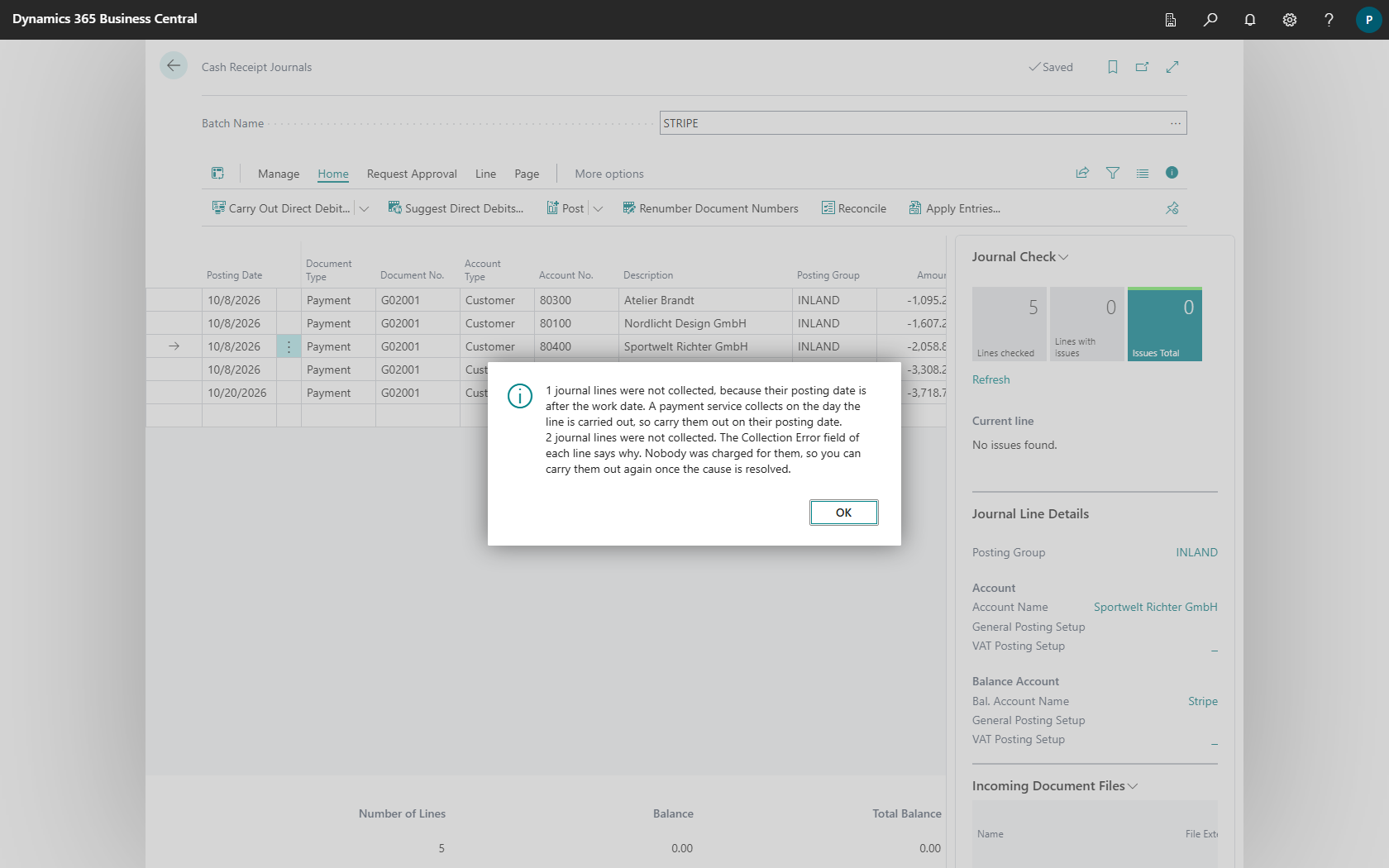
| Refusal when collecting | see Behavior per bank connection | If the provider refuses a line or an error occurs before the request is sent to the provider, the line remains with the reason under Collection Error and can be carried out again. The other lines are collected |
| Outcome still open | via EBICS: Update Payment Status | Check Status at Payment Service or Mark as Not Charged |
Errors of the check when carrying out, for example a missing payment authorization, stop Carry Out Direct Debit as for a SEPA direct debit, before any line is collected.
After the collection, the line carries the identifier under which the provider keeps the collection. On posting, it is passed on to the entries as Banking Transaction ID. The line is posted with its posting date. Every collection appears in the Payment Transaction Log and in the Payment Transactions FactBox of the posted invoice.
Mark as not charged
If a line has the Payment Status Pending and its outcome cannot be checked with Check Status at Payment Service, for example with Adyen, check the collection in the provider's dashboard. If the payer was not charged, choose Line > Mark as Not Charged and confirm the question. The line gets the Payment Status Rejected and can be carried out again. For details, see Pending collections.
Handling returned direct debits
When a returned direct debit appears on the bank statement and automatic application does not assign it to its collection:
- Retrieve the bank transactions into a Payment Reconciliation Journal.
- Open manual application for the line (Apply Manually).
- Select the original direct debit collection and choose Assign Returned Direct Debit.
- When the journal is posted, the application of that collection is undone, the affected invoices are open again, and the returned amount settles the collection.
Further handling of the invoices and of the return fee depends on Direct Debit Return Invoice Action and Direct Debit Return Fee Action in the Banking Setup. For details, see Returned direct debits.
Troubleshooting
| Message | Cause and remedy |
|---|---|
| "The cash receipt journal batch … must have a bank account as its balancing account to collect direct debits." | Set Bal. Account Type Bank Account and the bank account on the journal batch |
| "The cash receipt journal batch … must have a direct debit payment method to collect direct debits." | The journal batch's Payment Method Code is missing, or its payment method is not a direct debit |
| "… entry/entries were skipped because no active direct debit mandate was found." | There is no mandate valid on the due date for these invoices. See SEPA direct debit mandates |
| "… entry/entries were skipped because they are already being collected." | The entries are already included in a journal line or a direct debit collection. This prevents an entry from being collected twice |
| "The collection date … is too early. The bank needs a lead time, so the earliest possible collection date is …." | Choose a later collection date, or leave the field empty. The lead times are on the bank account card. See Bank working days and lead times |
| "The collection date … of cash receipt journal line … is not a bank working day. The next bank working day is …." | Set the collection date to the specified day |
| "The prenotification for cash receipt journal line … has not been sent or printed yet. …" | Send or print the prenotification, or turn off Prenotification Mandatory |
| "Mandate … is not active on the collection date …." | The mandate has expired or starts later. Check Valid From and Valid To on the mandate |
| "We're sorry, but bank account … cannot collect a … direct debit from a payer of type …. …" | Your bank does not offer this type of direct debit for the account, for example B2B or collective. See Bank Account Capability |
| "Only direct debits in euro (EUR) are allowed. …" | SEPA direct debits are only possible in euro |
| "CORE and B2B direct debits cannot be sent in one file. Carry them out separately." | Via EBICS and pain file, a file may contain only CORE or only B2B direct debits. Create separate suggestions with Partner Type Person and Company, and carry out both runs one after the other |
| "We're sorry, but you can only collect direct debits into your bank account if it is an online connected bank account. …" | Connect the bank account first. See Connect a bank account |
| "Bank account … follows the International rulebook, and there is no cross border direct debit. …" | Direct debits are only possible in the SEPA payment scheme. Collect from a SEPA account |
| "… entry/entries were skipped because the customer has not authorized a payment method that the payment service of the bank account can collect from." | Payment service provider: the customer has no customer bank account of this provider with a successful payment authorization or a manually entered payment method. Obtain the payment authorization |
| "Cash receipt journal line … has no payer bank account of customer …. …" | Payment service provider: the Payer Bank Account field is empty or does not name a customer bank account of the customer. Run Suggest Direct Debits again, or enter the customer bank account the provider collects from |
| "Customer … has not authorized a payment method that can be collected from. The bank account … of the customer needs a successful payment authorization." | Payment service provider: the customer bank account in the Payer Bank Account field has a pending or failed payment authorization. Obtain it again |
| "The bank account … of customer … is set up for …, but bank account … collects through …. …" | Payment service provider: the Payer Bank Account field contains a customer bank account of another provider. Choose a customer bank account of the provider the journal batch collects through |
| "Cash receipt journal line … must be applied to one invoice by Applies-to Doc. No. to be collected through a payment service, …" | Payment service provider: apply the line to exactly one invoice through Applies-to Doc. No., without Applies-to ID |
| "The currency of cash receipt journal line … must be the currency of bank account …, which collects it." | Payment service provider: a provider collects in the currency of its bank account. Enter the line in this currency |
| "… journal lines were not collected, because their posting date is in the future. …" | Payment service provider: these lines are not due yet. Carry them out on their posting date |
| "… journal lines were not collected. The Collection Error field of each line says why. …" | Payment service provider: the payer was not charged for these lines. Resolve the cause from Collection Error and carry out the lines again |
| "Customer bank account … of customer … has no … payment method yet. Ask the customer to authorize the payment first." | Payment service provider, in Collection Error: no payment method of the payment service is stored on the customer bank account yet. The connection of the payment service is set up. Obtain the payment authorization of the customer and carry out the line again |
| "The payment service did not confirm whether the payment was collected. Use Check Status at Payment Service, or Mark as Not Charged once you know it was not collected. Server response: …" | Payment service provider, in Collection Error of a line with the Payment Status Pending: the payment service neither confirmed nor refused the collection, so the payer may have been charged. See Pending collections |
See also
- Direct debit and payment collection
- Bank working days and lead times
- Direct debit prenotification
- SEPA direct debit mandates
- Carry out payment: process per bank connection
- Payment journal
- Collect payments via payment service providers
- SEPA direct debit in the cash receipt journal (new feature)