Print, send and manage SEPA direct debit mandates
In 365 business Banking you print and send SEPA direct debit mandates, archive the form on the mandate and keep mandates valid automatically.
A SEPA direct debit mandate is your customer's permission to collect direct debits from a specific bank account. Without a valid mandate, 365 business Banking does not collect any direct debits: Suggest Direct Debits skips invoices without a mandate, and Carry Out Direct Debit checks the mandate of every line.
Standard functionality in Business Central
Mandates are a standard feature. You create them on the Customer Bank Account Card (action Direct Debit Mandates) and maintain, among other things, Valid From, Valid To, Date of Signature, Type of Payment (Recurrent or OneOff), Expected Number of Debits and Debit Counter. When you create a sales invoice, the customer's default mandate is filled in. See Collect payments with SEPA direct debit on Microsoft Learn.
What 365 business Banking adds
- On the Direct Debit Mandates page, the Mandate action group with Print, Send by Email and Attachments, and the Collecting Bank Account field.
- The mandate form as the SEPA Direct Debit Mandate report with its own email layout.
- Automatic extension of recurring mandates after every collection (Direct Debit Mandate Validity).
- Advancing the counter, so that every direct debit goes to the bank with the right sequence type (one-off, first or recurring).
Print or send the mandate form
- Open the customer, choose Bank Accounts, select the customer bank account and open Direct Debit Mandates.
- Select the mandate and choose Mandate > Print to print the form for signing. To send it to the payer, choose Mandate > Send by Email. When printing, the request page shows the Collecting Bank Account under Options, filled in with the mandate's collecting bank account (see below).
- When sending, the email editor opens with the subject "‹name from Company Information› - SEPA direct debit mandate ‹mandate reference›" and the form attached as a PDF. Text and form are created in the payer's language.
- Obtain the signed mandate from the payer and enter the Date of Signature. Without this date, no direct debit is collected.


The form contains the mandate reference, Valid From and Valid To, the date of signature, the type of payment, your company with Creditor Identifier, the payer with address, IBAN, BIC and partner type, the authorization text with the notice of the right to a refund within eight weeks, and fields for place, date and signature.
Creditor identifier on the form
The payer signs the mandate for a specific creditor. For this reason, the form prints the Creditor Identifier of the bank account through which you collect under this mandate (the Collecting Bank Account). You can choose from bank accounts with 365 business Banking that have a creditor identifier.
- On the mandate: the Collecting Bank Account field on the Direct Debit Mandates page sets the account per mandate. When you create a mandate, it is filled in if exactly one such bank account exists.
- When printing: the request page takes the collecting bank account of the printed mandates if they all have the same one; otherwise the first bank account with a creditor identifier if all accounts share the same identifier. You can change it here for this print run.
- Send by Email shows no request page and uses the mandate's collecting bank account. If it is empty, Business Central uses the account if all bank accounts share the same creditor identifier.
If your bank accounts have different creditor identifiers and the mandate has no collecting bank account, the identifier cannot be determined. A form with the wrong identifier would result in a returned direct debit for every collection. In this case, printing and Send by Email stop with the following message: "The bank accounts with online banking have different creditor identifiers, so the creditor identifier of mandate … cannot be determined. Fill in the Collecting Bank Account field on the mandate, or choose the collecting bank account on the request page when printing." Enter the Collecting Bank Account on the mandate. Printing, PDF and email then work without further selection.
The email goes to the address set up for the customer under Document Layouts for SEPA Direct Debit Mandate, otherwise to the customer's Email. If the customer has none, Business Central reports "Customer … has no email address, so the mandate cannot be sent." It is sent through the SEPA Direct Debit Mandate email scenario.
Archive on the mandate
As the creditor, you must be able to prove the mandate years later. For this reason, Send by Email stores the sent form as a PDF with the file name "Mandate ‹mandate reference› sent ‹date›" on the mandate. This only happens if you actually send the email in the editor. If you only save the email as a draft or discard it, no form is stored. One copy is stored per mandate and day, even if you send several times.
With Mandate > Attachments you see all stored forms and can attach further documents, such as the scanned, signed mandate.
Direct Debit Mandate Validity
A SEPA mandate lapses if it is not used for 36 months. So that an active mandate does not expire unintentionally, 365 business Banking extends it after every collection:
- The Direct Debit Mandate Validity field in the Banking Setup, Direct Debit FastTab, is a date formula. Installation sets 36M.
- After a collection, Valid To is set to the collection date plus this period, provided that the result is later than the previous date. The date is never shortened.
- One-off mandates and mandates without Valid To (open-ended) stay unchanged.
- If you leave the field empty, automatic extension is turned off.
Counter and sequence type
Whether a direct debit goes to the bank as one-off, first or recurring is derived from the mandate. The lead time depends on it as well. 365 business Banking therefore advances the mandate's Debit Counter after carrying out and extends Valid To. This applies to every bank connection and happens once per mandate and collection date, not per line. Several invoices of the same payer on the same day are one collection for the bank. Blocked and closed mandates stay unchanged.
When it counts depends on the bank connection:
| Bank connection | Counted | Rolled back |
|---|---|---|
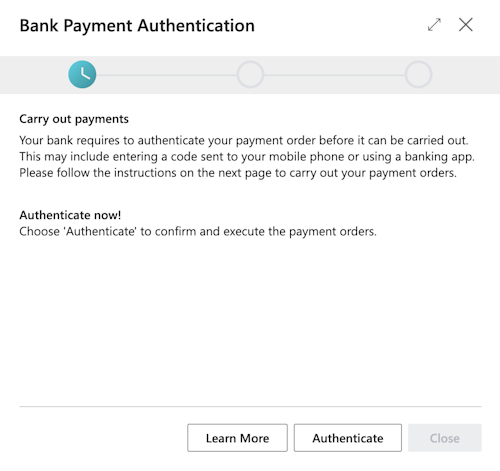
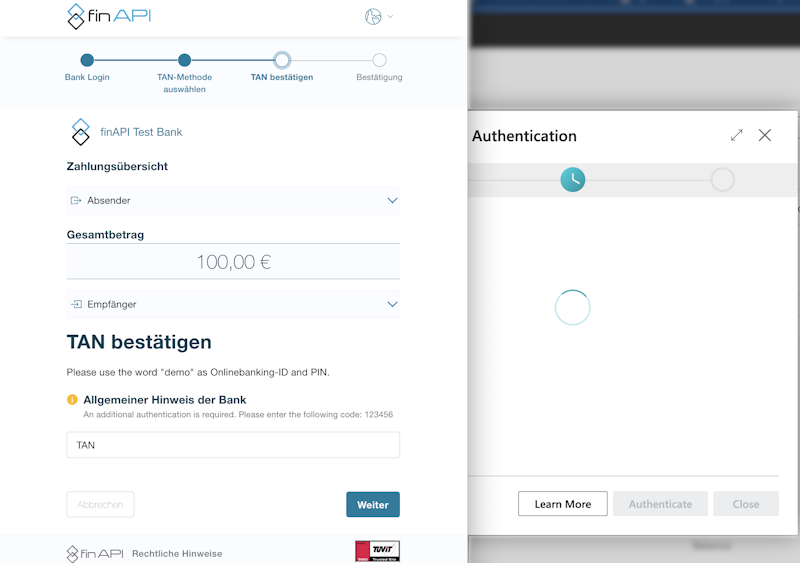
| PSD2/XS2A via finAPI | as soon as the collection has been handed over or authorized in your bank's web form | on a returned direct debit |
| EBICS | already on submission, while the line is still Pending | when the bank refuses the collection (status Rejected), once per mandate and collection date, as soon as no other line of that collection still counts; also on a returned direct debit |
| pain File Export | as soon as the file has been written | only on a returned direct debit |
File accounts: no feedback from the bank
With the pain file export, Business Central receives no information about whether you uploaded the file and whether the bank accepted it. If you do not upload a file or the bank refuses it, the collection still counts. The counter is only corrected by a returned direct debit or if you correct the Debit Counter on the mandate manually.
If a direct debit is returned, 365 business Banking rolls the counter back when processing the returned direct debit. Otherwise, the next collection would be sent as recurring although the first collection was not executed.
Sequence type and scheme in the pain.008 file
Via EBICS and the pain file export, 365 business Banking writes direct debits as a pain.008 file following the rules of the EPC and the German Banking Industry Committee:
| Mandate or customer | In the file |
|---|---|
| Type of Payment OneOff | sequence type OOFF |
| Type of Payment Recurrent, first collection | sequence type FRST |
| Type of Payment Recurrent, every further collection (per Debit Counter) | sequence type RCUR |
| customer with Partner Type Company | scheme B2B (business direct debit) |
| all other customers | scheme CORE (core direct debit) |
365 business Banking does not use the sequence type FNAL (final collection). A final collection is sent as RCUR.
- The file contains a separate payment block per collection date and sequence type, each with its own count and total. If a collection is split this way, the payment information ID gets the suffix
-1,-2… - CORE and B2B direct debits cannot be sent in the same file. If a collection via EBICS or file contains both schemes, Carry Out Direct Debit stops with the following message: "CORE and B2B direct debits cannot be sent in one file. Carry them out separately." In this case, carry out business and core direct debits in separate journals or separately with a filter. This does not apply to PSD2/XS2A via finAPI.
- In a collective direct debit, the direct debits of a payment block share one base of the end-to-end reference, each with an ending of its own (
-1,-2…). See SEPA direct debit in the cash receipt journal.
Mandate requirements when collecting
| When | Requirement for the mandate |
|---|---|
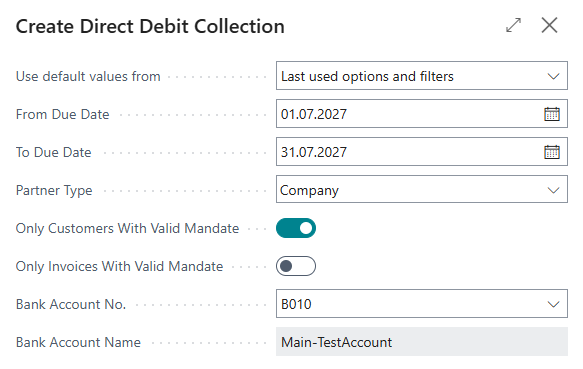
| Suggest Direct Debits | A mandate on the invoice or (if Only Invoices With Valid Mandate is not selected) the customer's default mandate; valid on the due date |
| Carry Out Direct Debit | belongs to the customer, has a Date of Signature, is neither blocked nor closed, is valid on the Collection Date and belongs to the line's Payer Bank Account |
| Carry Out Direct Debit via a payment service provider | no mandate and no creditor identifier needed. Instead, the customer bank account in the Payer Bank Account field, a customer bank account with the provider's payment service type, needs a successful payment authorization or a manually entered payment method. See Collection via a payment service provider |
Layout and report selection
The SEPA Direct Debit Mandate report has two layouts: SEPA Direct Debit Mandate for the form and SEPA Direct Debit Mandate Email for the email text. Report Selection - Sales has the usage SEPA Direct Debit Mandate for it; per customer you choose your own report, layout or email address under Document Layouts. See Report selection and email for Banking documents.
Collecting direct debits
How you collect with the mandates is described on separate pages:
- SEPA direct debit in the cash receipt journal: the recommended route with suggestion, prenotification and bank working days.
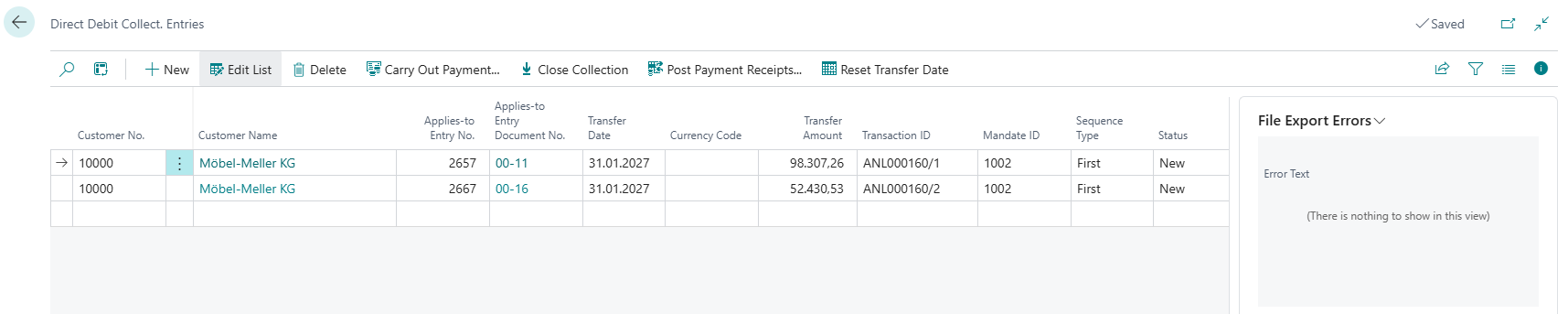
- Direct debit collections on the standard pages: the standard direct debit collections page, which is still supported.
See also
- Direct debit and payment collection
- Direct debit prenotification
- Bank working days and lead times
- Returned direct debits