
Collect payments via payment service providers
How to collect invoice amounts via PayPal, Stripe or Adyen in 365 business Banking: when posting, individually from the invoice, in batches or in the cash receipt journal.
If your customer has stored a payment method at PayPal, Stripe or Adyen and allowed you to collect, 365 business Banking collects due invoices through this provider. There are four ways to do this: posting the invoice, the Collect Payment action on the posted invoice, the Collect Payments report, also automatically through the job queue, and the Cash Receipt Journal with Suggest Direct Debits and Carry Out Direct Debit. The same rules apply to every way, and every way writes to the same Payment Transaction Log. As a result, no invoice is collected twice.
Applies to: PayPal, Stripe, Adyen
Prerequisites
- The provider's account is connected (PayPal, Stripe or Adyen).
- A payment method whose Bal. Account Type is Bank Account, pointing to the provider's bank account.
- A customer bank account with Payment Service Type PayPal, Stripe or Adyen and a granted payment authorization. A preferred bank account is not required. See Which customer bank account is collected from.
- For collection in the cash receipt journal, in addition: a journal batch collects through the provider's bank account. The payment method has the Payment Method (Banking) Payment Service. See In the cash receipt journal.
Set up
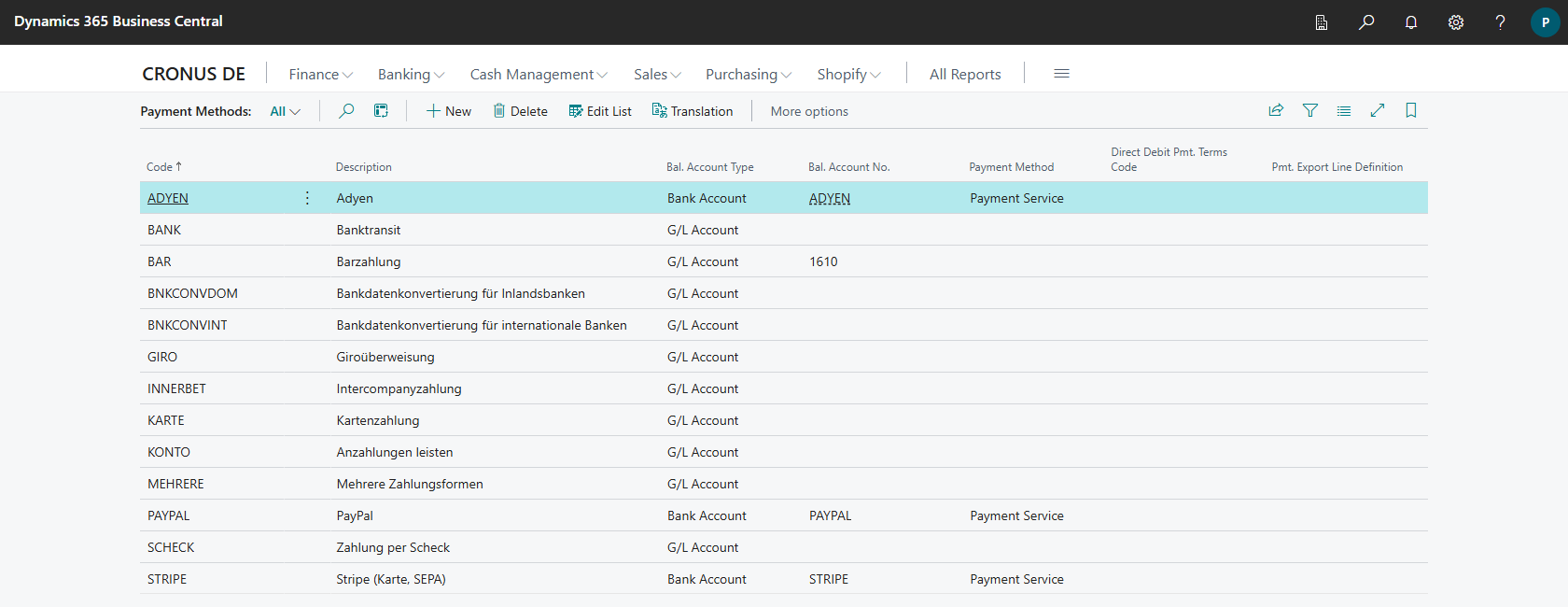
1. Set up the payment method
- Choose the Search icon, enter Payment Methods and open the list.
- Create a payment method, for example
STRIPE. - Set Bal. Account Type to Bank Account and choose the provider's bank account as Bal. Account No..
- If the Payment Method (Banking) is empty, Business Central sets it to Payment Service as soon as the balancing account is the bank account of a payment service provider. Use this payment method type for payment service providers. Existing payment methods with the type Direct Debit whose balancing account is the bank account of a payment service provider keep working. For a bank account that is not a payment service provider, the type Payment Service is not allowed.
2. Payment service type on the customer bank account
- Open the customer and choose Bank Accounts.
- Create a customer bank account and set Payment Service Type to the provider. The bank fields are then hidden; the provider's fields appear instead.
- Choose Request Payment Authorization. Business Central opens the email editor with an email to your customer. Through the link in this email, the customer stores their payment method at the provider. It is sent through the email account of the Payment Authorization email scenario. You set a report or email layout of your own in Report Selection - Sales under the Payment Authorization usage. For more information, see Report selection and email for banking documents.
- Business Central checks in the background whether the authorization has been granted. While the authorization is pending, you can query the status immediately with Check Payment Authorization Status. Once the authorization is granted, the payment method is entered on the customer bank account, for example as Stripe Payment Method ID or Adyen Stored Payment Method ID.
Do not enter the payment method manually
The provider assigns the payment method identifier. Only enter it if you copy it from the provider's portal; Business Central asks for confirmation and resets the Payment Authorization Status.
3. Journal batch for collection in the cash receipt journal (optional)
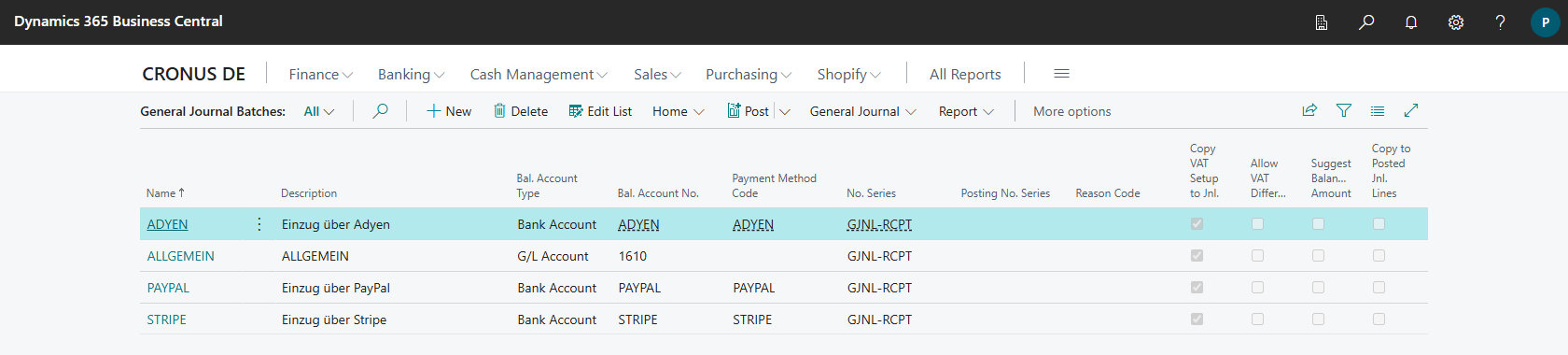
In the Cash Receipt Journal, create a journal batch with Bal. Account Type Bank Account, the provider's bank account as balancing account and the payment method from step 1 as Payment Method Code. See Journal batches for Banking.
Collect payments
When posting
- Create a sales invoice with the provider's payment method.
- Post the invoice. If it is due, 365 business Banking collects the amount immediately and applies the invoice. The payment gets the posting date of the invoice. An invoice that is not yet due stays open and is collected later through one of the other ways, for example with the Collect Payments report.
Business Central leaves the balancing entry of the payment method to the collection only if the collection is possible: the balancing account of the payment method is the bank account of a fully set up payment service provider, and a customer bank account of this provider is found for the customer. Otherwise, the invoice is applied as in standard Business Central through the balancing account of the payment method, and nothing is collected.
Nothing is collected in the posting preview.
Individually for a posted invoice
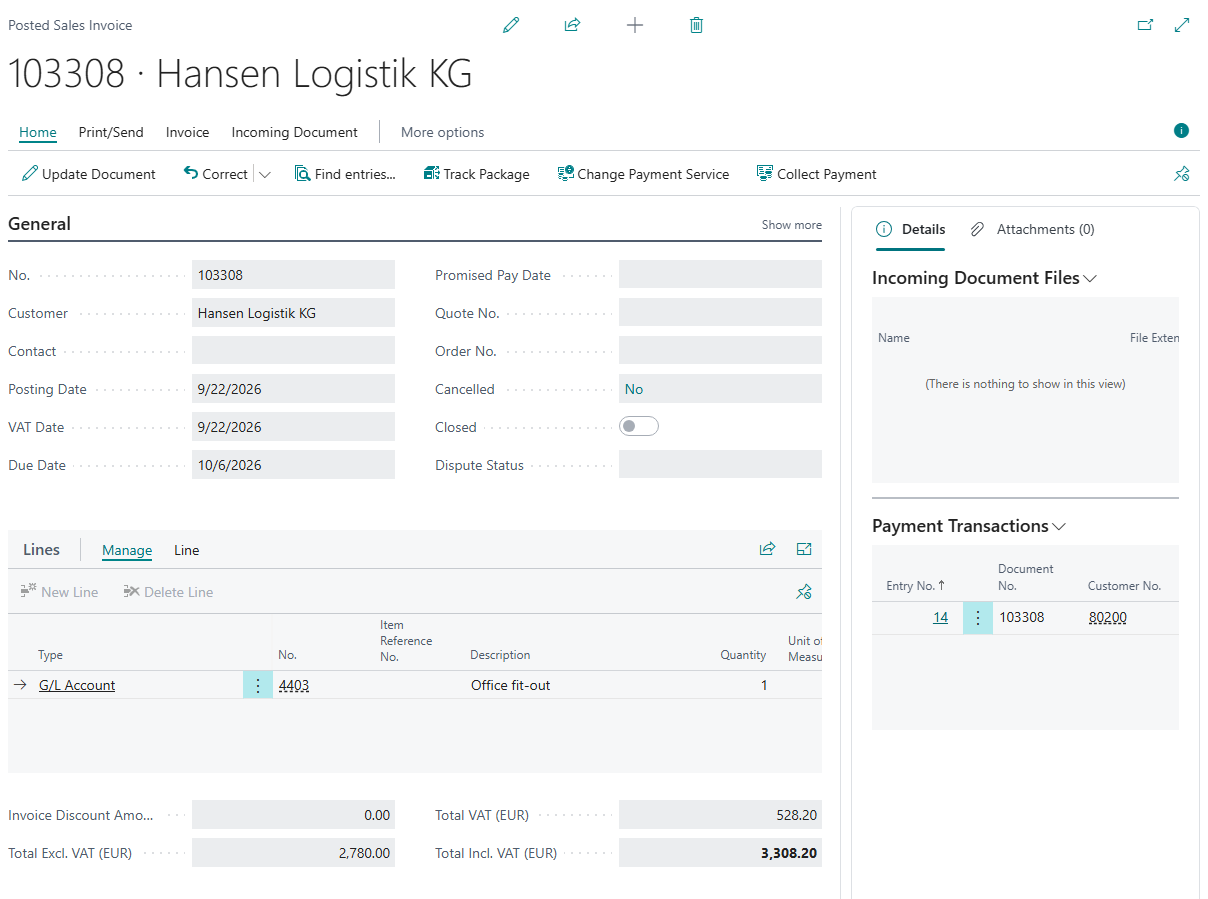
- Open the Posted Sales Invoice.
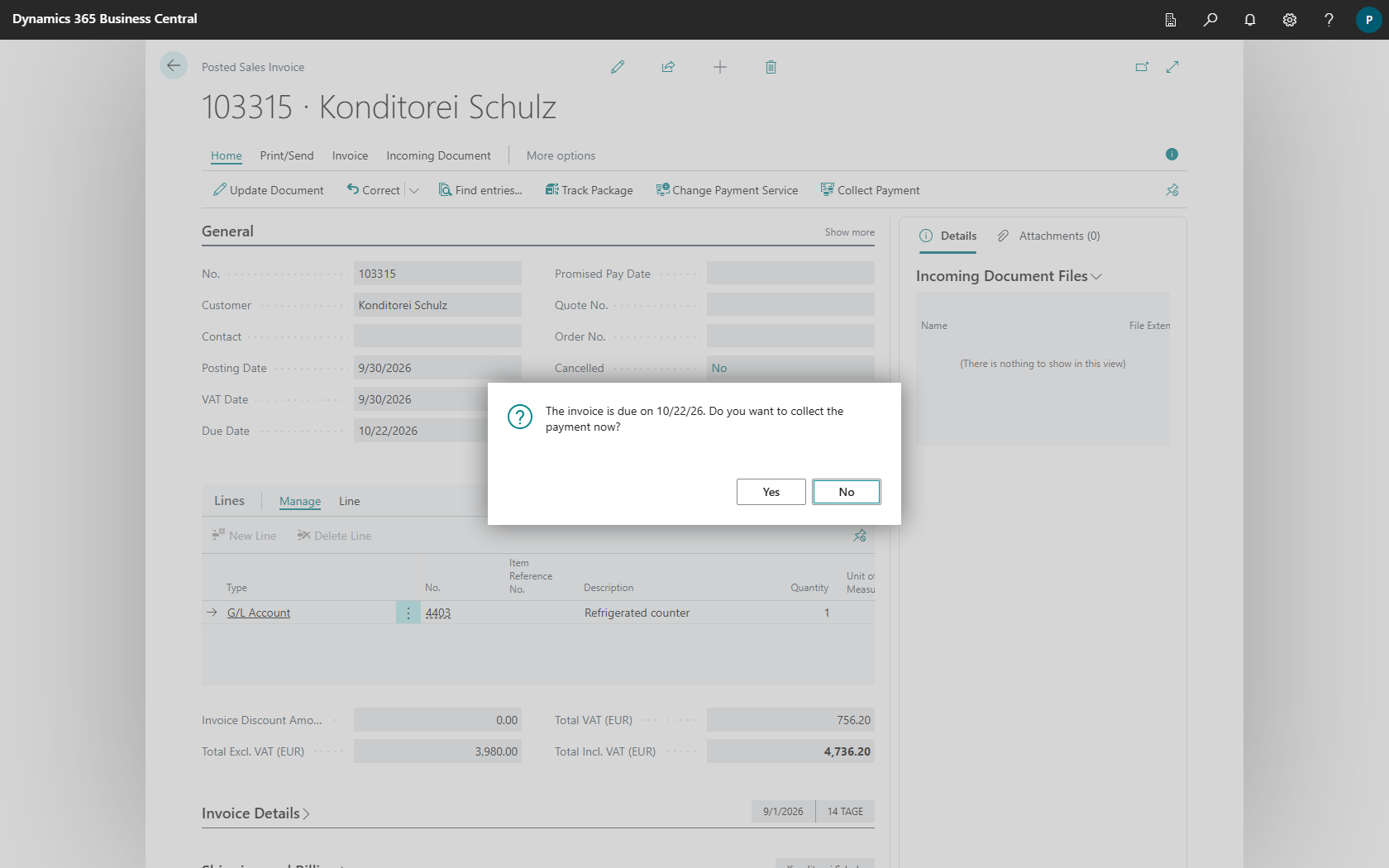
- Choose Collect Payment.
- If the invoice is not due yet, Business Central asks: "The invoice is due on …. Do you want to collect the payment now?" With No, nothing is collected.
Business Central then reports the result:
| Message | Meaning |
|---|---|
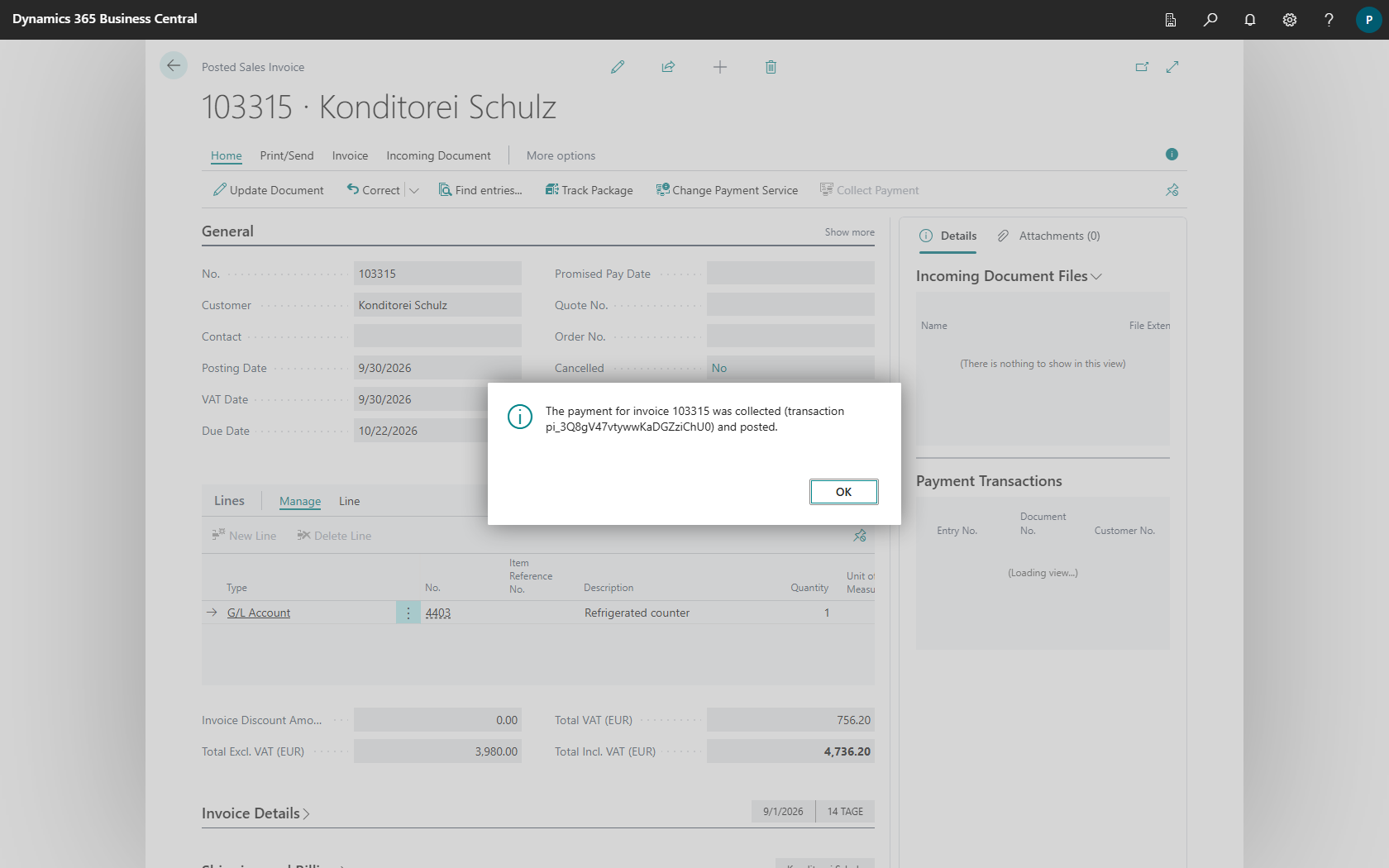
| "The payment for invoice … was collected (transaction …) and posted." | The amount is collected and the payment is posted. |
| "The payment for invoice … was collected (transaction …). It is posted with the next posting of collected payments." | The amount is collected. The Post Collected Payments batch job posts the payment. |
| "The payment service has not confirmed the collection for invoice … yet, so it stays pending. …" | See Pending collections. |
| "The payment for invoice … was not collected: …" | The provider refused, or an error occurred before the request was sent to the provider. The message states the reason. The payer was not charged. |
| "Invoice … has no open amount to collect." | The invoice is already applied. |
| "Invoice … was not collected, because it is already being collected in a cash receipt journal (…)." | A line in the cash receipt journal is collecting the invoice or is applied to it. |
The Collect Payment action is shown if the balancing account of the invoice, or else that of the payment method, is the bank account of a payment service provider and the customer has a customer bank account of this provider. It is available as long as the invoice is not closed. The payment gets the work date on which it was collected.
The Payment Transactions FactBox and the Payment Log action show every attempt for this invoice, including collections from the cash receipt journal.
In batches with the Collect Payments report
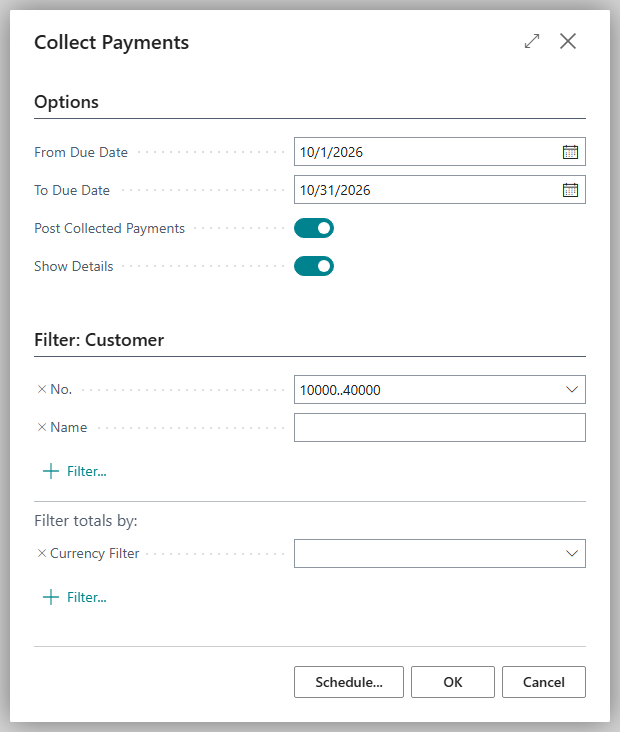
- Choose the Search icon, enter Collect Payments and open the report.
- Filter by customer if needed and set From Due Date and To Due Date. Only invoices that are due on the work date are collected, even if To Due Date is later. With Show Details, you get a separate message for each collected or failed invoice.
- Leave Post Collected Payments turned on (default) so that the collected payments are posted after the run. All collected payments of the company that are not posted yet are posted, not only those of this run. Collections held by a line in the cash receipt journal are posted by the journal itself.
- Choose OK. Business Central reports how many invoices were collected, skipped or failed and, if posting is turned on, how many payments were posted.
The payment gets the work date of the run that collected it, even if it is posted later. The report skips invoices that are already being collected or have been collected, invoices that a line in the cash receipt journal is collecting or that a journal line is applied to, and invoices whose entry carries an Applies-to ID.
You can schedule the report as a job queue entry. The collections then run automatically, for example every night. For collection runs that run in parallel, turn off Post Collected Payments and schedule the Post Collected Payments batch job once instead, so that the runs do not wait for each other when posting.
In the cash receipt journal
In the Cash Receipt Journal, you collect invoices through a payment service provider like a SEPA direct debit: you suggest the due invoices, review the lines, carry out the collection and post. The customer's payment authorization takes the place of the mandate.
- Open the Cash Receipt Journal with the provider's journal batch (see Set up).
- Choose Direct Debit > Suggest Direct Debits.
- Last Due Date determines which invoices are suggested.
- Collection Date becomes the Posting Date of every line, without lead time and without moving to a bank working day. If the field is empty, each line gets the due date of its invoice, but not earlier than the work date.
- Summarize per Customer does not apply to payment service providers: every line collects exactly one invoice.
- Partner Type is not applied. The customer does not need a partner type.
- Choose OK. Invoices for which the customer has authorized a payment method are suggested. Business Central reports the others: "… entry/entries were skipped because the customer has not authorized a payment method that the payment service of the bank account can collect from." Invoices that are already being collected through one of the other ways are skipped as well. Every line gets the full remaining amount of the invoice and, in the Payer Bank Account field, the customer bank account that is collected from.
- Choose Direct Debit > Carry Out Direct Debit or Carry Out Direct Debit and Post. Only lines whose Posting Date is not after today are collected. The other lines remain in the journal, and Business Central reports: "… journal lines were not collected, because their posting date is in the future. …" Carry out these lines on their posting date. After carrying out, Business Central summarizes the result, for example "… journal lines were collected through the payment service." Lines whose outcome the provider has not confirmed yet are named separately in the message.
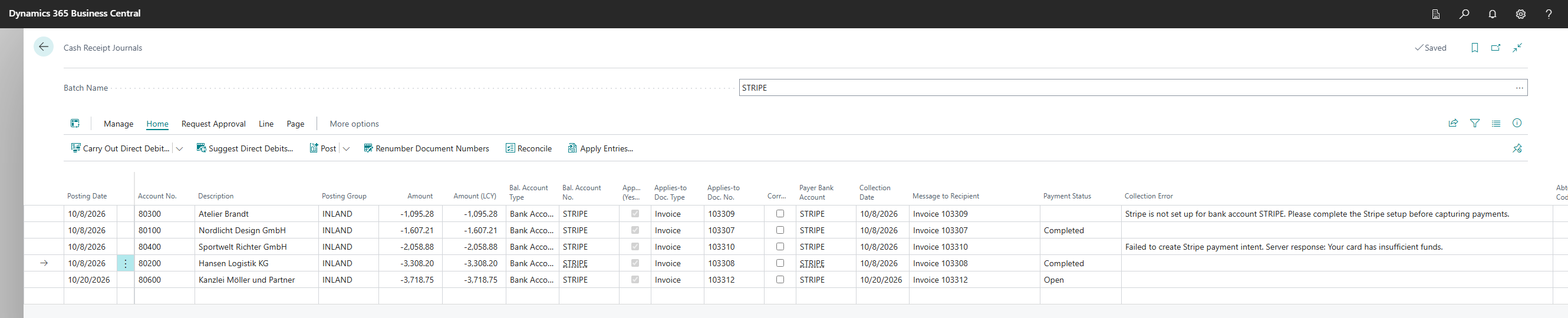
- After the collection, the line has the Payment Status Completed and carries the identifier under which the provider keeps the collection. This Banking Transaction ID is passed on to the entries when posting. The payment is posted with the posting date of the line.
If the provider has not reported an outcome yet, the line gets the Payment Status Pending. See Pending collections.
If a collection was refused before the payer was charged, for example because the provider refused it or because an error occurred before the request was sent to the provider, the Collection Error column states the reason. Business Central reports: "… journal lines were not collected. The Collection Error field of each line says why. …" Resolve the cause and carry out the line again. After a successful collection, the field is empty again.
What is different in the cash receipt journal for payment service providers compared to a SEPA direct debit is described in Collection via a payment service provider.
Rules for every way
One log for every way
Every collection is recorded in the Payment Transaction Log, whichever way it runs. Before a way collects an invoice at the provider, it checks the log. If the invoice is already being collected, its collection is pending, or it has been collected and not posted yet, no other way collects it:
- The Collect Payments report skips the invoice.
- Collect Payment reports that the invoice is already being collected.
- Suggest Direct Debits does not suggest the invoice.
- Carry Out Direct Debit refuses a line whose invoice is already being collected through another way. The reason is shown under Collection Error.
The report and the action also skip invoices that a journal line is applied to or whose entry carries an Applies-to ID.
Which customer bank account is collected from
The collection goes through the bank account the invoice carries as its balancing account. If the invoice has no balancing account of its own, the balancing account of the payment method applies. In the cash receipt journal, it is the balancing account of the journal batch. An invoice without a payment method, or with a payment method whose balancing account is not a bank account, is not collected. This is not an error, because the invoice is not intended for a payment service provider.
Business Central determines the customer bank account that is collected from by the same rule on every way:
- The customer's preferred bank account (Preferred Bank Account Code), if its Payment Service Type is the payment service provider of the bank account.
- Otherwise, the customer bank account of the customer whose Payment Service Type is the payment service provider of the bank account.
A customer who keeps an IBAN bank account as preferred bank account and has also authorized a payment method at PayPal is therefore collected through PayPal. If the customer has no customer bank account of the provider, nothing is collected. If the payment service provider is not fully set up on the bank account, Business Central refuses the collection before any amount is collected.
In the cash receipt journal, the suggestion enters the account found in this way as Payer Bank Account. If you enter a customer bank account of another provider there, Carry Out Direct Debit refuses the line.
Date of the payment
| Way | Posting date of the payment |
|---|---|
| when posting | posting date of the invoice |
| Collect Payment | work date on which it was collected |
| Collect Payments report | work date of the run that collected it, even if the payment is posted later |
| cash receipt journal | posting date of the line |
If, for Collect Payment or the Collect Payments report, the date is outside the allowed posting period, Business Central refuses the collection before any amount is collected.
Amount without payment discount
The full remaining amount of the invoice is always collected. No payment discount is granted on any way, not even when the payment is posted within the payment discount period. The invoice is then fully applied, and no credit remains for the customer.
Description at the provider
The description with which the collection appears at the provider names the number of the collected invoice, also for collections from the cash receipt journal.
Payment transaction log
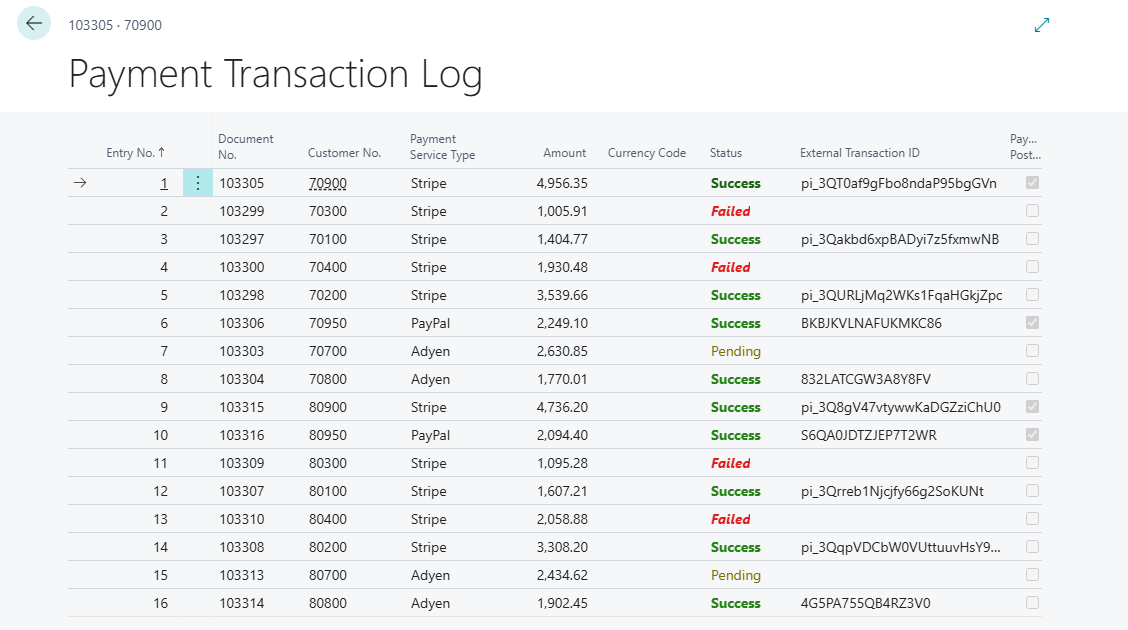
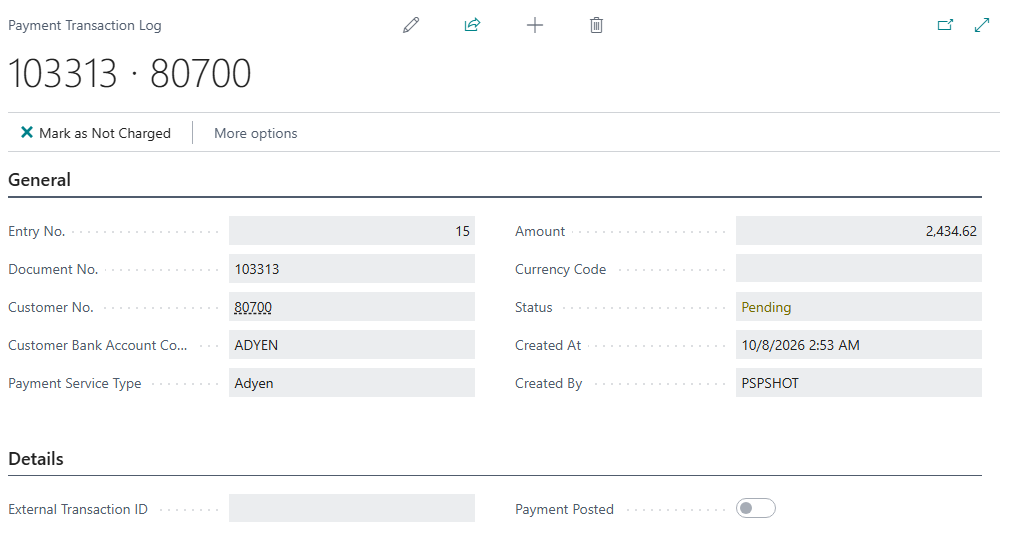
The Payment Transaction Log records every collection attempt, including those from the cash receipt journal: Document No., Customer No., Customer Bank Account Code, Payment Service Type, Amount, Currency Code, Status (Pending, Success, Failed, Cancelled), External Transaction ID, Payment Posted and Error Message. If a collected payment could not be posted, the reason is shown under Posting Error; the next run of the Post Collected Payments batch job posts it again.
If an error occurred before the request was sent to the provider, the entry is Failed. The payer was not charged, and the invoice can be collected again.
Pending collections
A collection is only posted when the payment service reports it as completed. If it is still being processed there or the payment service did not answer, the entry stays Pending, Error Message shows "The payment service did not confirm whether the payment was collected. Server response: …", and the invoice stays open; if the payment service refuses it, the entry becomes Failed.
This also applies to collections from the Cash Receipt Journal with Carry Out Direct Debit. If the payment service does not report an outcome yet, the line gets the Payment Status Pending, and Collection Error shows "The payment service did not confirm whether the payment was collected. Use Check Status at Payment Service, or Mark as Not Charged once you know it was not collected. Server response: …" It is not posted, and the next Carry Out Direct Debit does not collect it again. Carry Out Direct Debit and Post points this out: "… journal lines were collected but not posted, because the payment service has not reported their outcome yet. …" Business Central also refuses to post such a line: "Journal line … was collected, but the payment service has not reported its outcome yet. …"
To ask for the outcome of a pending collection:
- In the Cash Receipt Journal, select the line with the Payment Status Pending.
- Choose Line > Check Status at Payment Service.
- Business Central takes over the answer of the payment service:
- Completed: "The payment service reports the collection as completed. You can now post the line." Post the line.
- Rejected: The collection was not carried out. The line can be collected again.
- Not decided yet: The line stays Pending. Check the status again later.
The action is available in direct debit journals whose bank account is a payment service. Stripe and PayPal support the check. Adyen does not offer a check for single payments. Business Central then reports "Adyen does not offer a way to ask for the outcome of a single payment. …". In this case, check the collection in the Adyen Customer Area. The same applies if the payment service did not return a reference for the collection: "The payment service did not return a reference for the collection on journal line …, so its outcome cannot be checked. …"
If the outcome cannot be checked and the provider's dashboard shows that the payer was not charged, release the line:
- Select the line with the Payment Status Pending.
- Choose Line > Mark as Not Charged.
- Confirm the question "Did you check in the dashboard of the payment service that the collection on journal line … did not charge the payer? …".
The line gets the Payment Status Rejected, Collection Error reads "Marked as not charged by … after checking with the payment service.", and the entry in the Payment Transaction Log becomes Failed. The line can be carried out again. If the payer was charged after all, do not mark the line. Collecting again would charge the payer twice.

If you collect an invoice with a pending collection again, Business Central sends the request to the payment service with the same key. The payer is not charged twice. This is only possible within 24 hours. After that, the payment service no longer recognizes a repeated request, and Business Central refuses to collect again with the following message: "The collection of document … was started on … and its outcome is still unknown. …"
-
Check the payment in the dashboard of the payment service.
-
If the payer was not charged, open the entry in the Payment Transaction Log and choose Mark as Not Charged.
-
Confirm the question "Did you check in the dashboard of the payment service that document … was not charged? …".
The entry becomes Failed, Error Message reads "Marked as not charged by … after checking with the payment service.", and the invoice can be collected again. If a pending line in the cash receipt journal holds the collection, it gets the Payment Status Rejected and can be carried out again. If the payer was charged after all, do not mark the entry. Collecting again would charge the payer twice.
Troubleshooting
- If collection fails, the invoice stays open. The cause is shown in the Payment Transaction Log under Error Message and, for collections from the cash receipt journal, also under Collection Error on the line.
- First check the status of the payment authorization and the invoice's payment method. Trigger collection again only after correcting it.
- If the payment service provider limits the number of requests (HTTP 429), Business Central waits and repeats the request with the same idempotency key, so the payer is not charged twice. If the request stays limited, the collection stays open and is tried again in the next run.
- "Customer Bank Account from Type … could not be found for customer ….": The customer has no customer bank account with the payment service type of this provider. Create one and obtain the payment authorization.
- "Customer bank account … of customer … has no … payment method yet. Ask the customer to authorize the payment first.": no payment method of the payment service is stored on the customer bank account yet, while the connection of the payment service is set up. Obtain the payment authorization of the customer and trigger the collection again. The payer was not charged.
- "Payment service is not set up for bank account ….": The provider's bank account is not fully connected. Check the connection on the bank account card and the Payment Service Type on the customer bank account.
- "Invoice … cannot be collected, because its bill-to customer … does not exist.": The invoice's bill-to customer has been deleted.
- "Customer … has not authorized a payment method that can be collected from. The bank account … of the customer needs a successful payment authorization.": The customer bank account in the Payer Bank Account field of the journal line has a pending or failed payment authorization. Obtain it again.
- "The bank account … of customer … is set up for …, but bank account … collects through …. …": The Payer Bank Account field contains a customer bank account of another provider. Choose a customer bank account of the provider the journal batch collects through.
- Further messages for collections from the cash receipt journal are described in Collection via a payment service provider.
- Without a valid 365 business Banking license, Business Central collects nothing on posting. The invoice is then applied as in standard Business Central, through the balancing account of the payment method, and does not stay open.
Per payment service provider
| Specifics | |
|---|---|
| PayPal | app permissions for collection, redirect pages: Collect payments via PayPal |
| Stripe | restricted key permissions, redirect pages: Collect payments via Stripe |
| Adyen | payment link, Adyen stored payment method ID, no status check for single payments: Collect payments via Adyen |
See also
- Payment service providers
- Direct debit and payment collection
- SEPA direct debit in the cash receipt journal
- Collect payment (what's new)