
Set up Universal
How to describe a CSV transaction file in 365 business Banking: format, numbers and dates, column mappings, check with a test file.
Universal reads transactions from a CSV file that a payment service provider, a POS system or another upstream system supplies. After you have described the file once, you import every further file with Retrieve Bank Transactions.
Applies to: Universal (CSV transaction file)
Step by step
- Choose the Search icon, enter Bank Accounts and choose the Connect Bank Accounts action. The Connect Bank Account wizard opens.
- Choose Next.
- On the Choose your banking provider page, set Provider to Universal and choose Next.
- On the Choose the bank account page, choose Create a new bank account or Use an existing bank account.
- On the Describe your statement file page, choose Configure and set the settings described below on the Universal Banking Provider Setup page.
- Choose Finish.
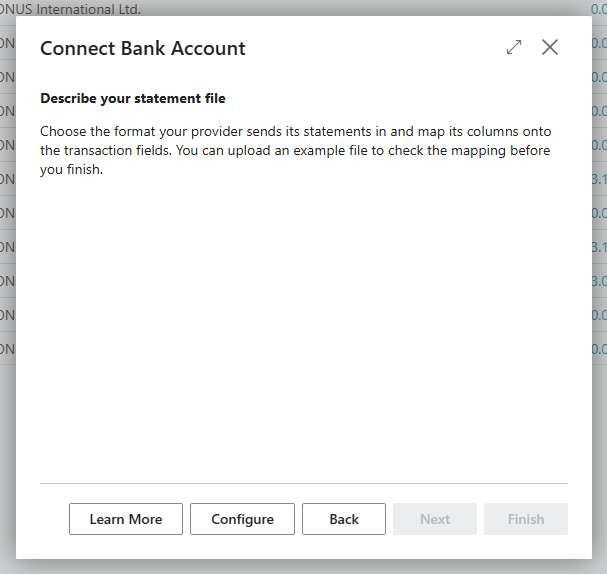
Universal only sets the Account Information Service; the Payment Initiation Service stays blank. A statement file is read for transactions, but no payments are sent.
You change the settings later on the Universal Banking Provider Setup page. You open the page on the bank account card via Banking Provider > Configuration.
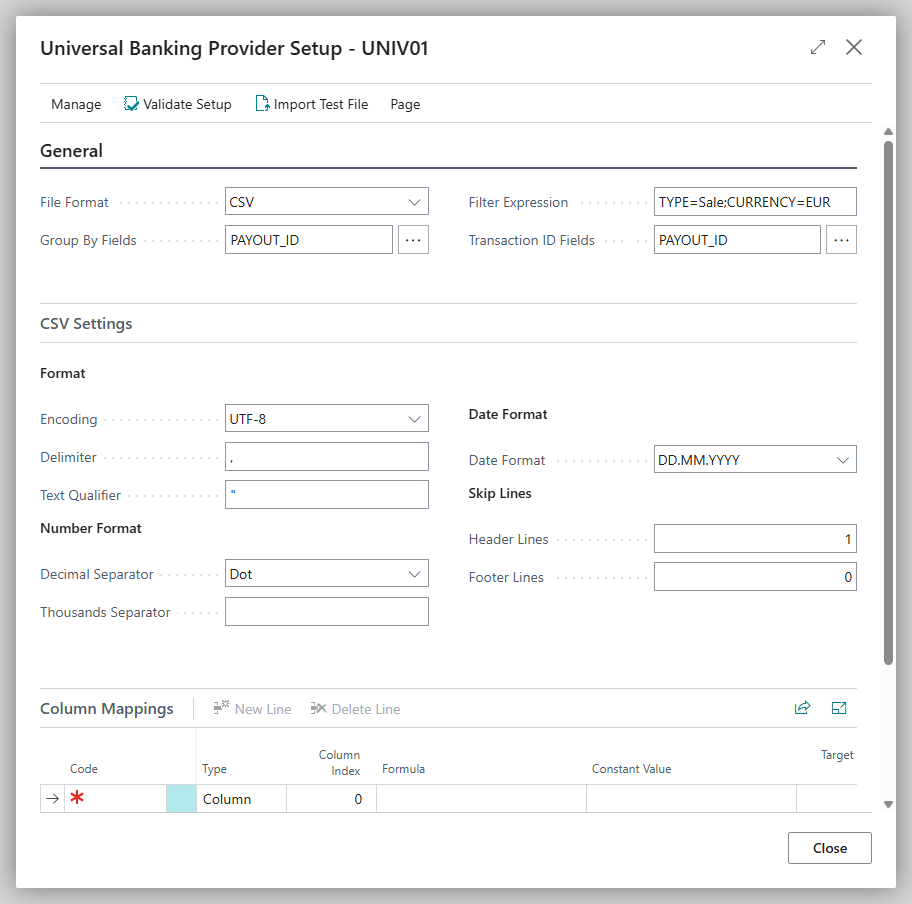
General
| Field | Description |
|---|---|
| File Format | Currently CSV. |
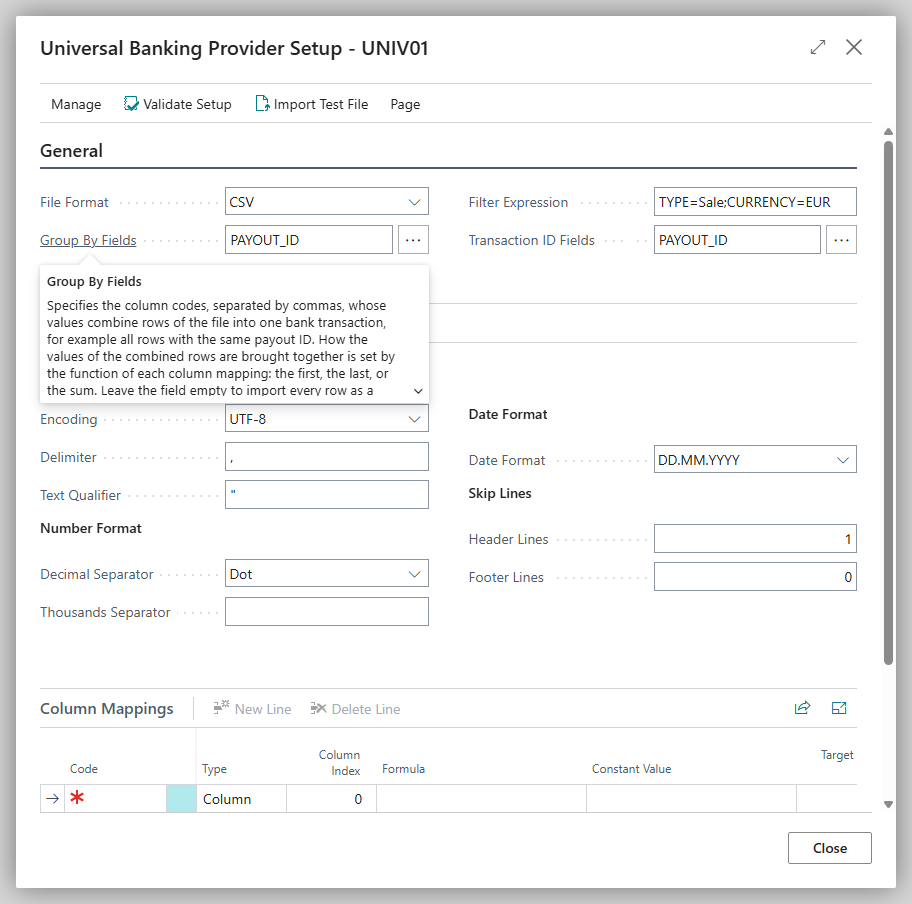
| Group By Fields | Column codes, separated by commas, whose values combine several rows of the file into one bank transaction, for example all rows with the same payout ID. How the values of the combined rows are brought together is set by the Function of each column mapping (first or last value, sum, concatenate). Blank: every row becomes a transaction of its own. |
| Filter Expression | Conditions, separated by semicolons, that a row must meet to be imported, each written as column code=value, for example TYPE=Sale;CURRENCY=EUR. The value must match exactly. Rows that do not meet every condition are skipped, so a file can also contain rows of other record types with a different column layout. Blank: every row is imported. |
| Transaction ID Fields | Field or fields that identify a transaction uniquely. If the same transaction ID occurs twice in a file, the import stops with an error. In this case, add a column that distinguishes the rows, or combine the rows with the Group By Fields. |
Keep credits and debits apart
If the file contains payments and refunds with the same identifier, add the column with the transaction type to the Group By Fields. Otherwise the import combines both into one bank transaction. If the amount column has the Function Sum, the amounts cancel each other out, and no matching amount is left for the individual documents in Business Central.
CSV settings
| Field | Description |
|---|---|
| Encoding | Text encoding of the file: MS-DOS, UTF-8, UTF-16 or Windows. A byte order mark (BOM) at the start of the file is skipped. |
| Delimiter | Character separating the columns, for example comma, semicolon or tab. |
| Text Qualifier | Character enclosing text values, for example quotation marks. An enclosed value may contain separators and line breaks. |
| Decimal Separator | Dot or Comma. |
| Thousands Separator | Character separating thousands. |
| Date Format | DD.MM.YYYY, DD/MM/YYYY, MM/DD/YYYY, YYYY-MM-DD, ISO 8601 (Date/Time) or Custom. |
| Custom Date Regex | Only with Custom: a regular expression with the named groups day, month and year. |
| Header Lines / Footer Lines | Number of lines at the start or end of the file that are skipped. |
With ISO 8601 (Date/Time), Business Central reads the date part of a timestamp such as 2026-03-24T13:49:46+00:00; time and time zone offset are ignored. For a format that is not in the list, choose Custom and enter a regular expression, for example:
Code
Migrating existing setups
If an existing setup has a value in the Custom Date Pattern field, 365 business Banking converts this value into a regular expression in Custom Date Regex during the update. For example, DD.MM.YYYY becomes ^(?<day>\d{2})\.(?<month>\d{2})\.(?<year>\d{4})$. Day (D, DD), month (M, MM), a four-digit year (YYYY) and separators are converted. If a format cannot be converted (for example, one with a two-digit year), Custom Date Regex stays blank and the setup counts as incomplete. In this case, enter the regular expression yourself and check it with Validate Setup and Import Test File.
Column mappings
The column mappings define which column of the file goes into which field of the bank transaction. You can also calculate values or set fixed ones.
| Field | Description |
|---|---|
| Code | Unique identifier of the mapping; formulas refer to the column by it. |
| Type | Column (value from the file), Calculated (formula) or Constant (fixed value). |
| Column Index | Position of the column in the file, starting at 0; only for Column. |
| Formula | Calculation from other mappings by their Code; only for Calculated. |
| Constant Value | Fixed value; only for Constant. |
| Target Field No. / Target Field Name | Field of the bank transaction to which the value is written. |
| Function | Processing of several values: None, Sum, First, Last or Concatenate. |
| Negate | Reverses the sign, for example if the file shows payouts as positive. |
| Text Separator | Separator when concatenating. |
| Split Transaction | Creates a separate transaction from this column, for example for a fee in the same line. |
| Split Suffix / Split Description | Suffix to the transaction ID and description of the split-off transaction. |
Validate setup and import a test file
Before importing the first real file, check your description:
- On the Universal Banking Provider Setup page, choose Validate Setup. Business Central reports missing or contradictory settings.
- Choose Import Test File and pick a sample file. The Transaction Preview (First 50) shows the first 50 transactions as they would be imported. No data is created.
If the preview is correct, import further files with Retrieve Bank Transactions: Retrieve Universal transactions.
Disconnect
On the Bank Account Card, choose Actions > Banking Provider > Disconnect and confirm the question "Do you really want to disconnect this bank account from the … banking service?". Transactions that are already imported are kept. Business Central deletes the bank account's whole file description: the Universal Banking Provider Setup with the settings on the General FastTab (File Format, Group By Fields, Filter Expression, Transaction ID Fields) as well as the CSV Settings and Column Mappings. The same applies if you cancel the wizard before Finish. If you connect the account to Universal again later, the setup starts empty. Enter all settings in the wizard again and check them with Validate Setup.