
Connect a bank account via EBICS
This page describes how to connect a bank account via EBICS in 365 business Banking, from a configured EBICS participant to the first bank statement.
Applies to: EBICS
Prerequisites
- An EBICS participant with the status Ready.
- The bank account is included in your EBICS contract.
Step by step
-
Choose the Search icon, enter Bank Accounts and choose the Connect Bank Accounts action. The Connect Bank Account wizard opens.
-
Choose Next.
-
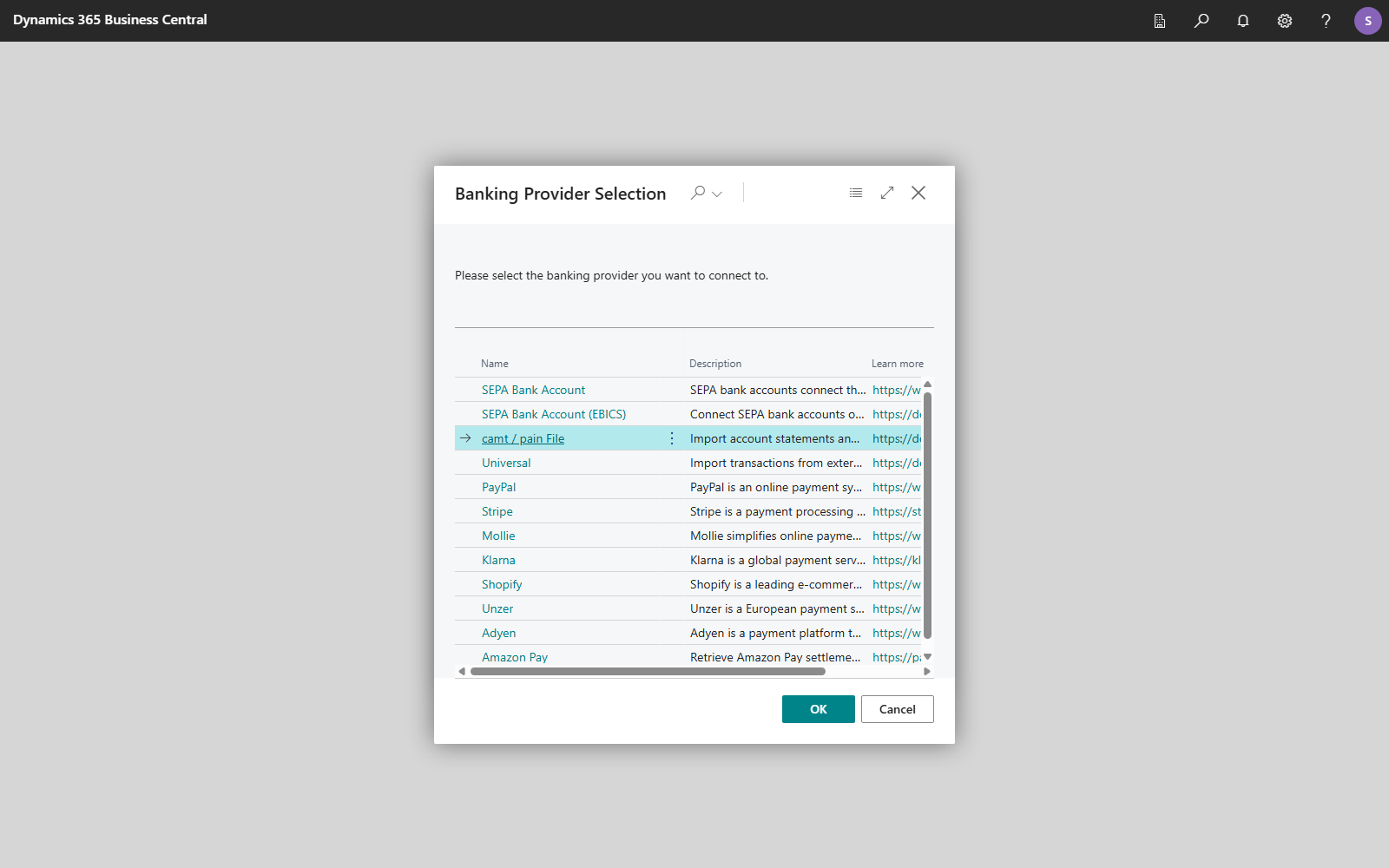
Choose your banking provider: set Provider to SEPA Bank Account (EBICS) and choose Next.
-
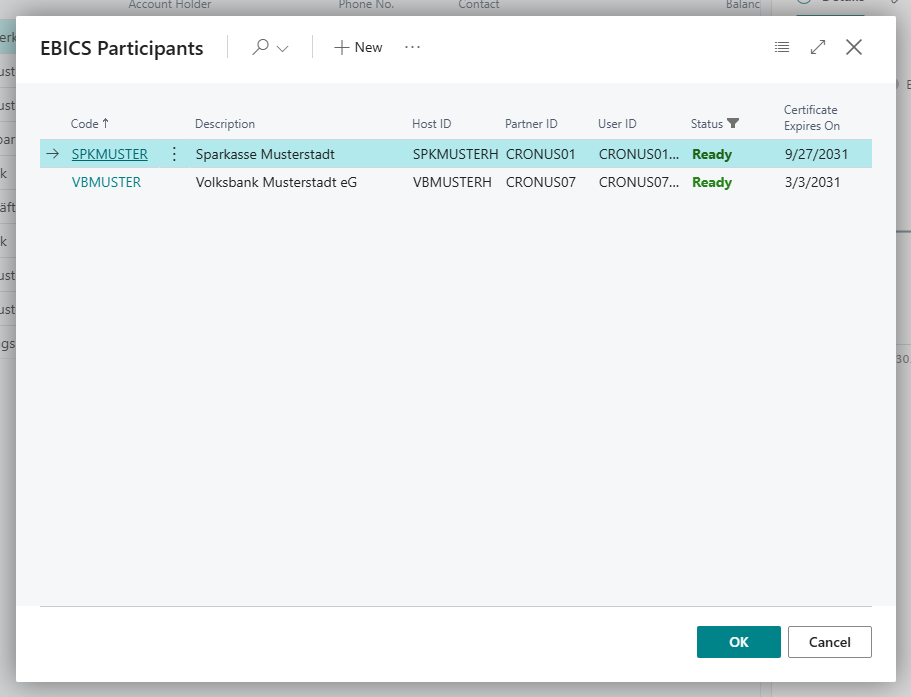
The EBICS Participants list opens. Choose the participant whose accounts you want to connect. If exactly one participant has the status Ready, this selection is skipped.
-
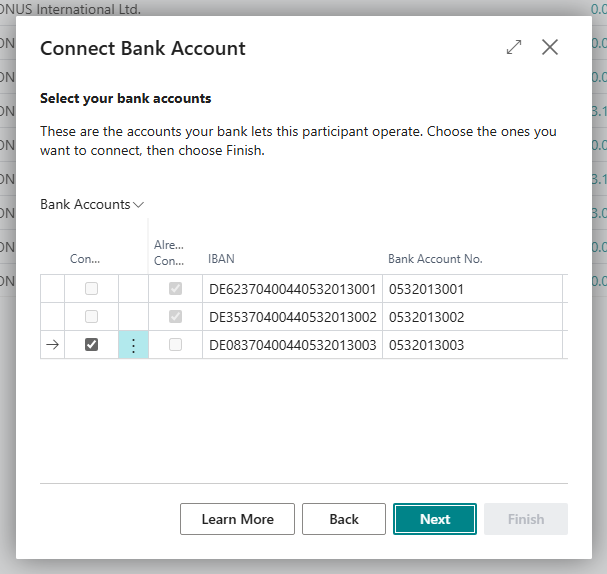
Select your bank accounts: Business Central asks your bank which accounts this participant may use and lists them. Clear the check mark for accounts that you do not want to take over.
-
Choose Next. The summary announces how many bank accounts are connected: "When you choose Finish, … bank accounts are connected over EBICS participant …."
-
Choose Finish.
What you see afterwards
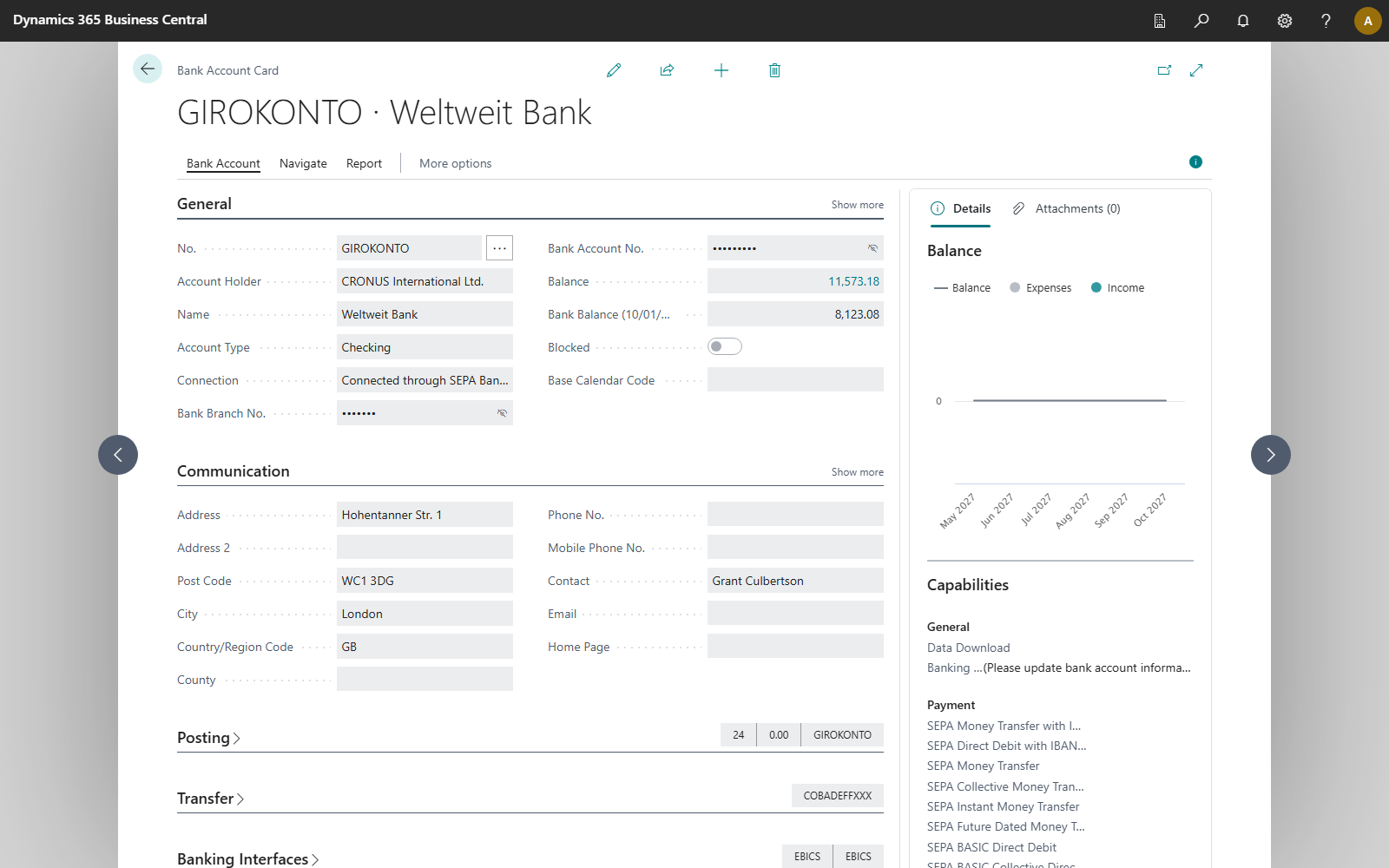
On the Bank Account Card:
- Account Information Service and Payment Initiation Service = SEPA Bank Account (EBICS).
- EBICS Participant: the participant whose keys reach this account.
- FastTab Banking Interfaces: Statements read over and Payments sent over both show EBICS.
- Capabilities FactBox: the functions that your bank allows this participant for the account. See Bank account capabilities.
- The participant's image, see Image.
The account depends on the participant
If you suspend the participant with Suspend Access (SPR), no bank account connected through it can be used either, until you have set up a new participant and your bank has activated it.
Connect more accounts later
The list of accounts is requested again from your bank on every run. If your bank has added an account to the contract, start the wizard again. The new account is offered, and accounts already connected are not created twice.
Without the wizard, choose Get Additional Bank Accounts on an account of the EBICS participant, in the Bank Accounts list or on the bank account card. The page only shows the accounts that do not exist in Business Central yet. Get Bank Accounts takes over changed permissions and the current balance for every account of the participant. Both actions are described in Get bank accounts and get additional bank accounts.
If no account is found, Business Central shows a corresponding message. In this case, contact your bank to clarify the activation of the expected accounts.
A bank account that is already connected, for example one connected via finAPI, is switched to EBICS with Change Banking Services instead. See Combine banking services.
Troubleshooting
| Message or symptom | Cause and remedy |
|---|---|
| SEPA Bank Account (EBICS) is not offered | The EBICS Connection license is missing. |
| The participant you want is missing from the selection | Its initialization is not complete. Check the status, see Set up an EBICS participant. |
| "No EBICS participant has been released by its bank yet. Do you want to set one up now?" | No participant has the status Ready. Choosing Yes opens the EBICS Participants list. Complete the initialization, see Set up an EBICS participant. |
| "Your bank named no accounts for EBICS participant …, so there is nothing to connect. …" | The bank has not yet activated the participant for any account. Clarify the activation with your bank. |
| "Bank account … is not connected to an EBICS participant." | Assign a participant via Change Banking Services. |