
One bank access for several companies
This page describes, for groups of companies with a shared bank access, how 365 business Banking distributes bank accounts to the companies they belong to while connecting.
Applies to: PSD2/XS2A via finAPI, EBICS
Use cases
Groups of companies often keep their accounts under one access at the bank, although each account belongs to a different legal entity. This is common, for example, for renewable energy operators, where each plant is a separate entity and therefore a separate company in Business Central.
In this case, you run the wizard once in one company, and the accounts are created in the companies they belong to. There they are posted and reconciled as usual. Access continues to take place through the access of the company in which you established the connection.
This function is not required for the file route, because there is no access to share.
Turn it on
- Open the access you connect through:
- via finAPI: Banking Setup > Company Bank Access, FastTab Technical details;
- via a personal bank access: its card under Personal Bank Accesses, FastTab Connection.
- Turn on Enable Multi-Company Connection. Bank data is then shared across several companies.
- Confirm the question "Enabling Multi-Company Connection allows bank accounts to be connected once and then created in other companies. … Do you want to enable Multi-Company Connection?" with Yes. With No, the switch stays off. Turning it off does not ask.
Only for users who set up banking
The Technical details FastTab is visible only to users with the SUPER permission set or with 365 Banking - Setup (bdev.BNK SETUP). Sharing bank data across companies is a setup decision. Assign the permission set to the person who sets up banking but does not have the SUPER permission set. See Permissions and licenses.
Distribute the accounts
-
Start Connect Bank Account as usual, via PSD2/XS2A or EBICS.
-
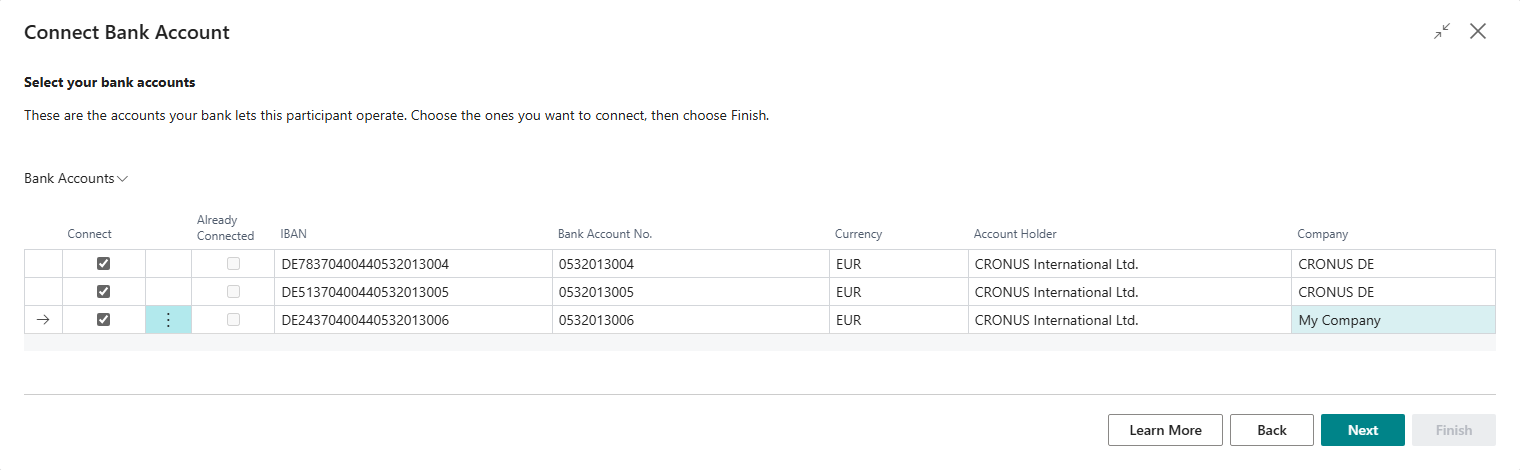
The account selection also shows the Company column.
-
For each account, enter the company in which the bank account is to be created.
Business Central prefills the company if it can be identified: if the account holder reported by the bank matches the name in a company's Company Information, that company is already entered. Otherwise, the current company is prefilled.
-
Choose Next, and complete the wizard on the summary with Finish.
Check the hand-over status
Creation in another company runs in the background. The result is shown on the Bank Account Hand-over page:
| Column | Meaning |
|---|---|
| IBAN, Currency Code, Account Holder | the account concerned |
| Target Company | the company to which the account was handed over |
| Status | New, In Progress, Created or Failed |
| Bank Account No. | the number that the account received in its company |
| Error Message | the message of the last attempt |
| Attempts / Last Attempt At | number and time of the attempts |
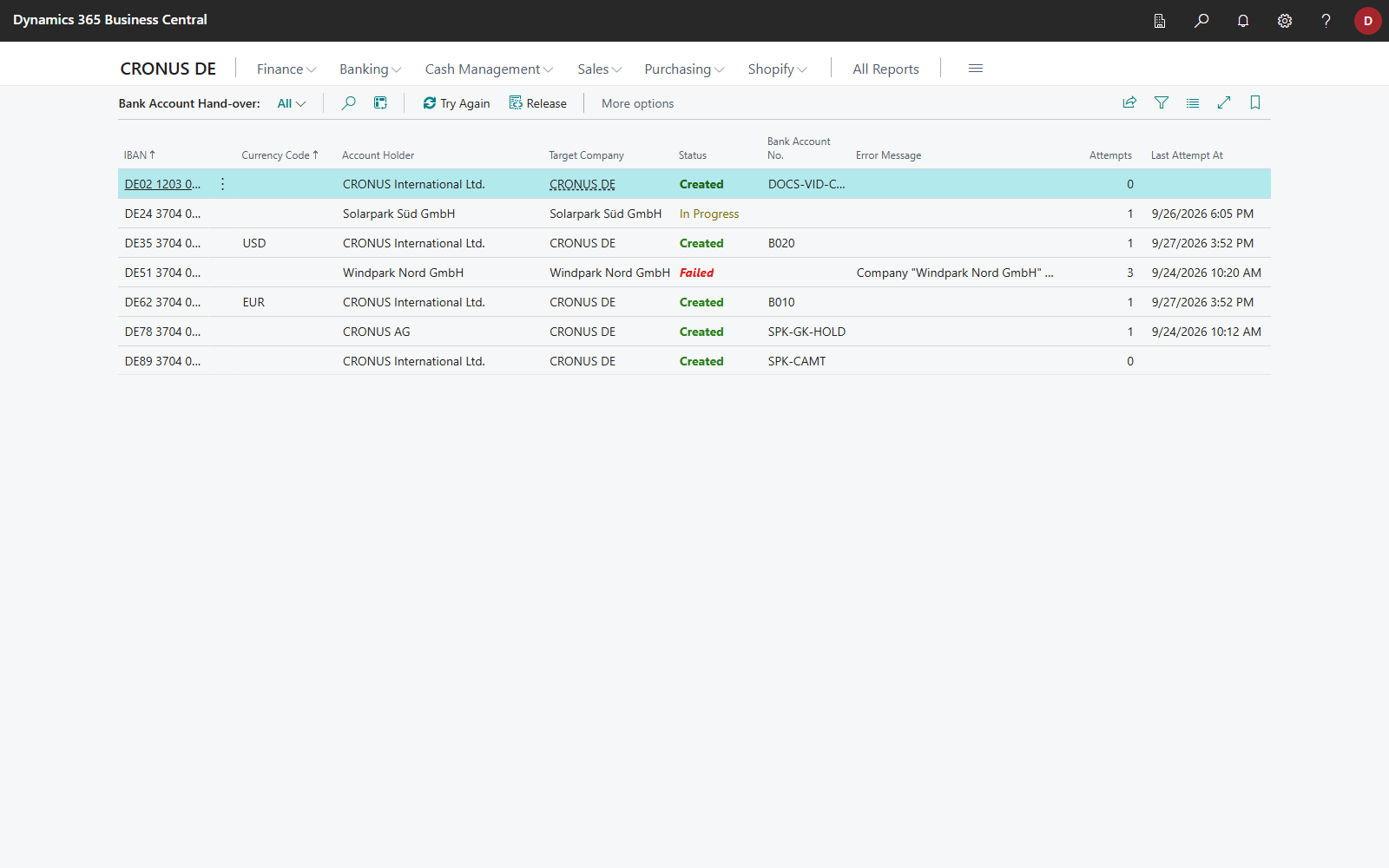
Created means that the bank account exists in its company. All other statuses mean that the hand-over is still pending. If accounts are still being created, the summary of the wizard points this out: "… bank accounts of an earlier connection are still being created. Open Bank Account Hand-over to see how far they got."
Resolve failed hand-overs
The cause of a failure is usually in the target company, for example a missing number series for bank accounts, a currency that does not exist there or a missing permission. The Error Message states the cause.
- Fix the cause in the company concerned.
- Select the line on Bank Account Hand-over and choose Try Again.
Trying again has no unwanted effects: if the bank account exists by now, it is taken over instead of being created a second time. Business Central automatically retries a failed hand-over until three attempts have been made. After that, the next attempt must be started manually with Try Again, which resets the number of attempts.
EBICS: retrievals for several companies
An EBICS participant belongs to the company in which you established the connection. All of its EBICS jobs are stored there as well, including those that another company places through it, for example when Retrieve Bank Transactions is chosen there.
Your bank delivers bank statements and status reports per participant, not per account. A retrieval therefore often also contains data for accounts in other companies. To ensure that none of this data is lost, the following applies:
- Each company reads its own part. If a retrieval contains statements of accounts in other companies, the file is kept. Those companies read their statements from the kept file into their own payment reconciliation journal on their next retrieval. No retrieval writes into another company's journals.
- The same applies to status reports. If a submission through the same participant is still waiting for its status in another company, that company reads the status report on its next payment status check and updates its own journal lines.
- Acknowledgement takes place only after all companies have read their part. As long as a company has not read its part, Business Central does not acknowledge the retrieval to the bank.
- The retention policy takes pending reads into account. A job whose file has not been read by every company yet is not deleted by the retention policy for the EBICS Job table.
The accounts that exist at the time of the retrieval are taken into account. An account created afterwards reads statements from the next retrieval onwards.
See the jobs from another company
In the participant's company, EBICS Jobs shows all jobs. The Requested By Company column indicates the company from which an order came. In another company, the page shows the jobs that this company requested or whose file contains statements of its accounts. If your accounts are connected through participants of several companies, switch with Show Jobs of Company.

Open File, Download File and Read Statement Again are also available there. Read Statement Again imports the statements of the accounts of the company you are working in.
Permissions in the participant's company
Users who retrieve bank transactions or submit payments in another company need no Banking permission set in the participant's company, because the app performs the required steps there. However, Business Central requires that they have access to that company. Assign them at least one permission set there, such as D365 BASIC. To see that company's jobs on EBICS Jobs, they also need read permission for Banking there.
Notes
- An account already distributed is not offered again. If you start the wizard a second time, it is shown with the note Already Connected and the company in which it was created. This prevents the same account from being created in two companies. If you delete the bank account in the target company, it becomes available again. You can also manually remove a line whose bank account no longer exists on Bank Account Hand-over with Release. As long as the bank account still exists in the target company, Release is rejected.
- You change the banking services in the target company, on the bank account card there with Banking Provider > Change Banking Services. Business Central automatically uses the bank access or EBICS participant of the connecting company.
- The access remains in the connecting company. A distributed bank account contains the connecting company in the Banking Source Company field. If the bank access or EBICS participant there is deleted or blocked, the accounts in the other companies can no longer be used either.
- In the target company, Banking Setup shows the action Accesses from Other Companies once accounts have been handed over to it. It opens the accesses of the connecting company that belong to these accounts.