
Set up a bank account for camt/pain files
This page describes how to set up a bank account in 365 business Banking that reads statements as camt files and writes payments as pain files.
Applies to: camt/pain file
Prerequisites
- A bank account with the IBAN filled in, or the details for a new bank account.
- The message versions that your bank accepts. They are usually listed in the data format specifications on your bank's website.
Step by step
-
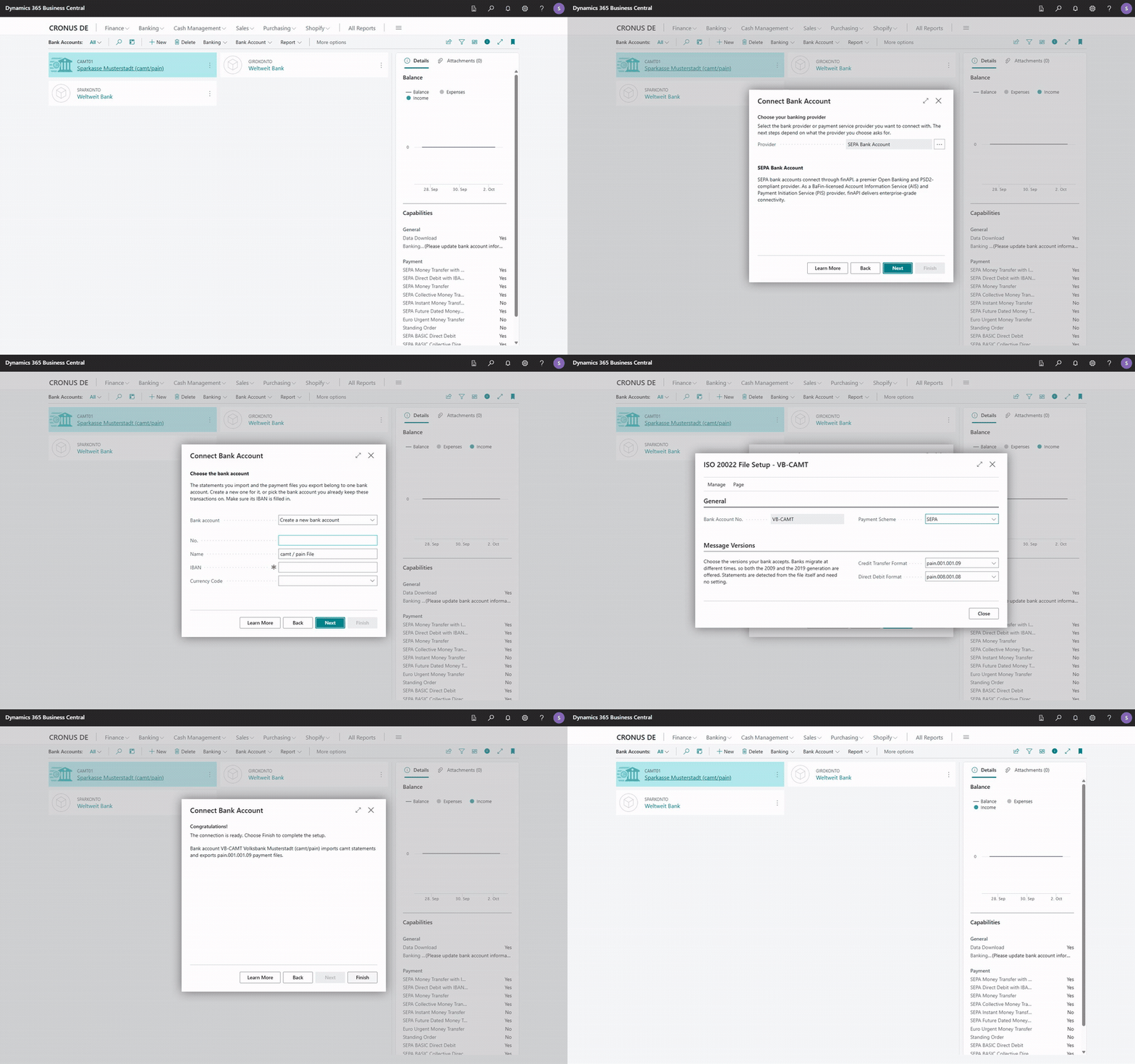
Choose the Search icon, enter Bank Accounts and choose the Connect Bank Accounts action. The Connect Bank Account wizard opens.
-
Choose Next.
-
Choose your banking provider: set Provider to camt / pain File and choose Next.
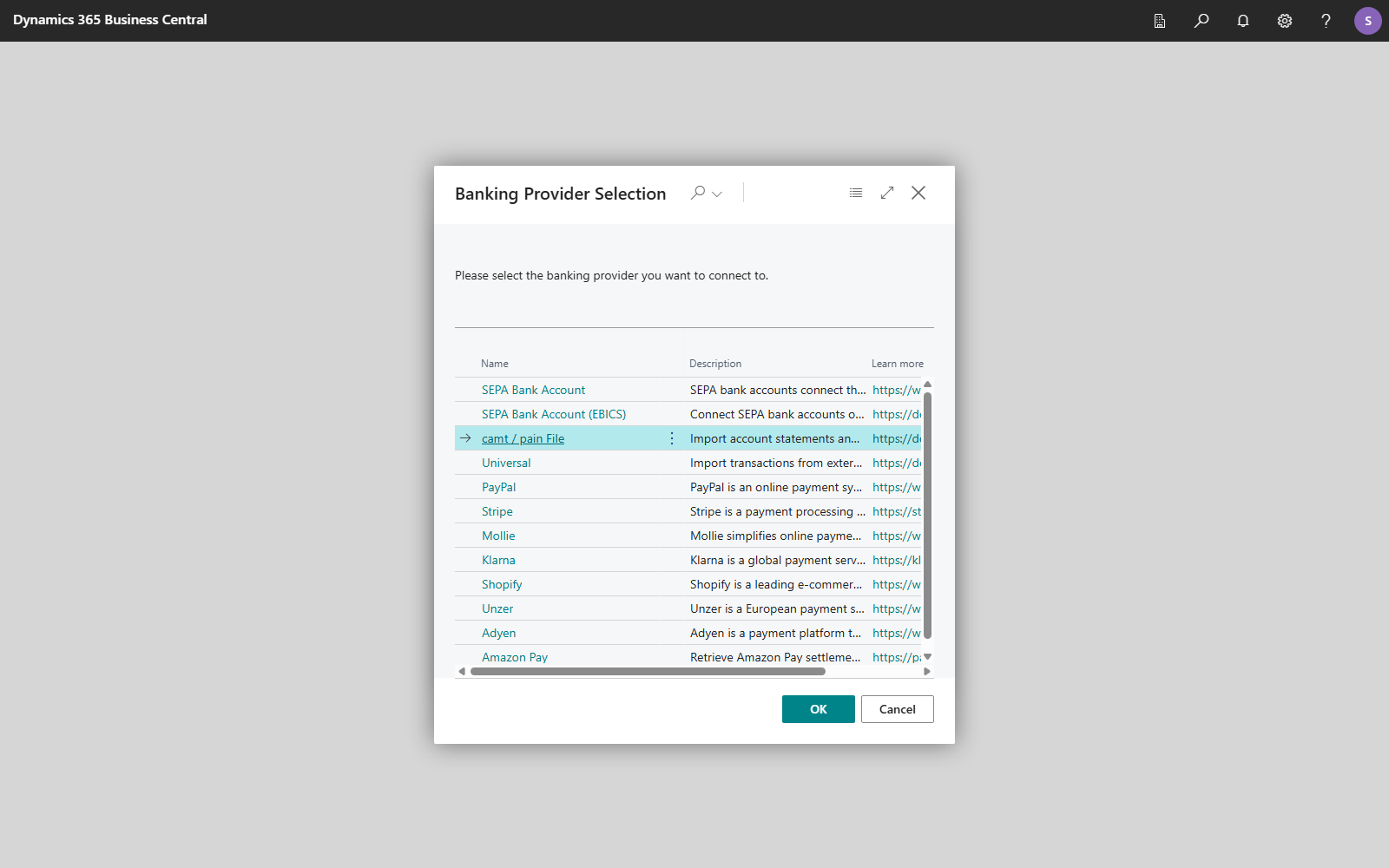
-
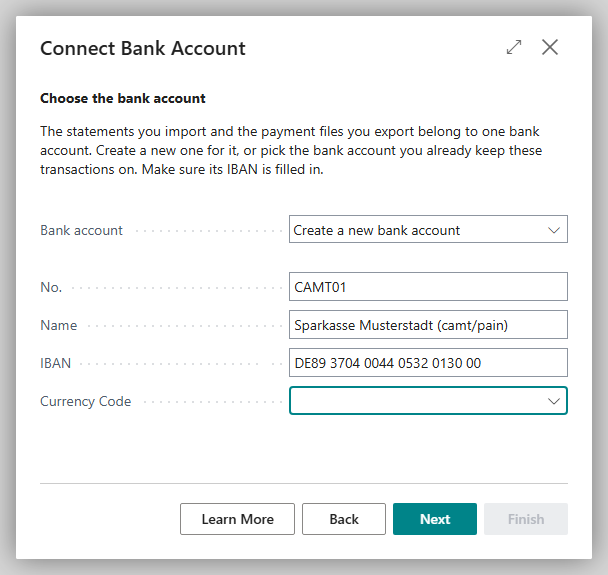
Choose the bank account: the statements that you import and the payment files that you export belong to a bank account. Choose Create a new bank account and enter the IBAN next to No., Name and Currency Code, or choose Use an existing bank account, for example the account on which you have kept these transactions so far. The IBAN is mandatory because the files identify the account by its IBAN. Without an IBAN, you cannot continue.
-
Choose your message versions: when you reach this step, the ISO 20022 File Setup page for the bank account opens automatically; choose Configure to open it again. There, specify which formats Business Central writes:
- Payment Scheme: SEPA for euro payments in the SEPA area, International for international payments. With International, any currency is allowed, a BIC is required and the recipient account does not have to be an IBAN.
- Credit Transfer Format: generation 2009 (
pain.001.001.03) or generation 2019 (pain.001.001.09). - Direct Debit Format: correspondingly
pain.008.001.02orpain.008.001.08. With International, there is no direct debit, because it is a SEPA-only procedure.
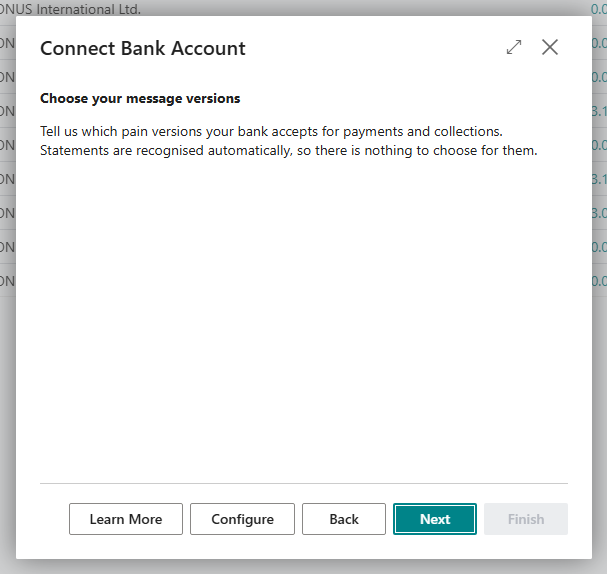
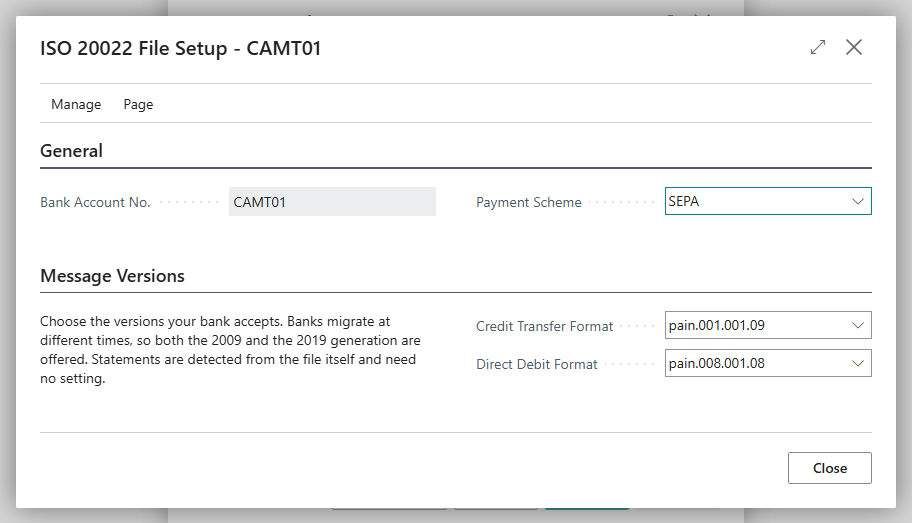
Close the page and choose Next.
-
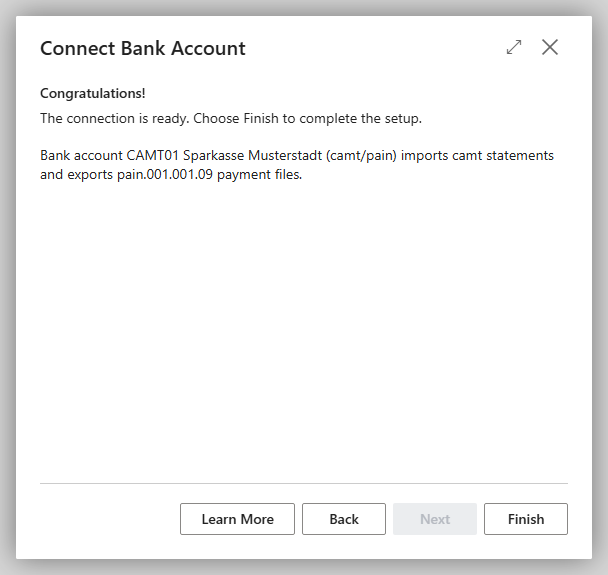
The wizard shows Congratulations! and confirms that the bank account imports camt statements and exports payment files in the chosen format. Choose Finish.
What the account can do afterwards
With files, no bank reports which functions are permitted for the account. Therefore, Business Central enters the bank account capabilities itself, derived from the Payment Scheme:
| Payment scheme | Capabilities |
|---|---|
| SEPA | SEPA Money Transfer and SEPA Collective Money Transfer, SEPA Future Dated Money Transfer (posting date in the future), SEPA BASIC and SEPA B2B Direct Debit, each also as a collective direct debit |
| International | SWIFT Money Transfer and SWIFT Collective Money Transfer, also with an execution date in the future; no direct debit |
Instant credit transfers and standing orders are not possible this way. If you change the Payment Scheme later, Business Central rewrites the capabilities. If only the payments are processed as files and the statements come via finAPI, only the payment capabilities come from the file setup.
A bank account that names no bank from which a logo can be taken shows the universal placeholder, unless it already has an image, for example from an earlier bank connection.

Your bank can tell you which version is right
Banks switch at different times, which is why both generations are offered. For bank statements, no setting is required: Business Central detects the camt version automatically from the file.
Message versions
| Field | Values | Purpose |
|---|---|---|
| Payment Scheme | SEPA, International | scheme of the payments; also determines which services the account can be combined with |
| Credit Transfer Format | pain.001.001.03, pain.001.001.09 | credit transfers |
| Direct Debit Format | pain.008.001.02, pain.008.001.08 | direct debits, SEPA only |
ISO 20022 File Setup
You can find the settings at any time on the ISO 20022 File Setup page, on the bank account card via Banking Provider > Configuration. This is also where you change the message versions when your bank switches.
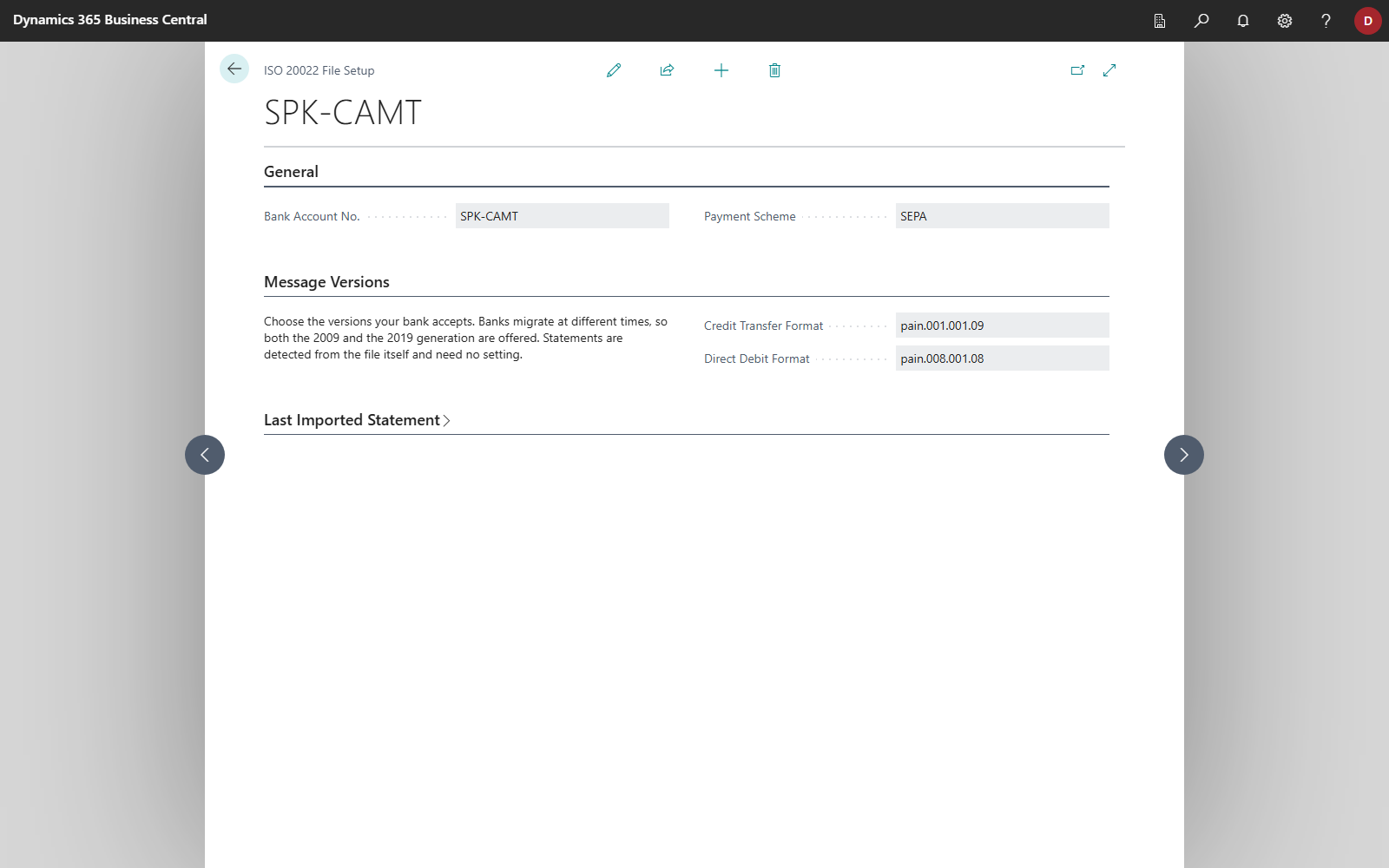
The Last Imported Statement FastTab shows Last Statement Balance, Last Statement Date and Last Statement ID, that is, the closing balance that your bank reported in the most recently imported file. For a file account, the balance cannot be requested from a bank; it comes from the statement.
Switch an existing bank account to files
If the bank account is already connected via PSD2/XS2A or EBICS and only payments or only statements are to be processed as files in the future, switch the relevant service with Change Banking Services. See Combine banking services.
Troubleshooting
| Message | Cause and remedy |
|---|---|
| "Bank account … has no IBAN. The provider you chose names the account by its IBAN, so it has to be filled in." | For a new bank account: enter the IBAN on the Choose the bank account step. For an existing bank account: enter the IBAN on the bank account card or choose another account. |
| "Bank account … has no ISO 20022 file setup yet." | Open ISO 20022 File Setup and choose the message versions. |