
Connect Adyen
How to connect Adyen to 365 business Banking: API key, merchant account and access to settlement reports in the Connect Bank Account wizard.
Applies to: Adyen
Prerequisites
- An API key from the Adyen Customer Area under Developers > API credentials.
- The name of your merchant account.
- For transaction retrieval: user and password of an Adyen API credential with the Merchant Report Download role for downloading the settlement reports. If your contract includes the Adyen Balance Platform, you need the Balance Account ID instead.
Step by step
- Choose the Search icon, enter Bank Accounts and choose the Connect Bank Accounts action. The Connect Bank Account wizard opens.
- Choose Next.
- On the Choose your banking provider page, set Provider to Adyen and choose Next.
- On the Choose the bank account page, choose Create a new bank account or Use an existing bank account.
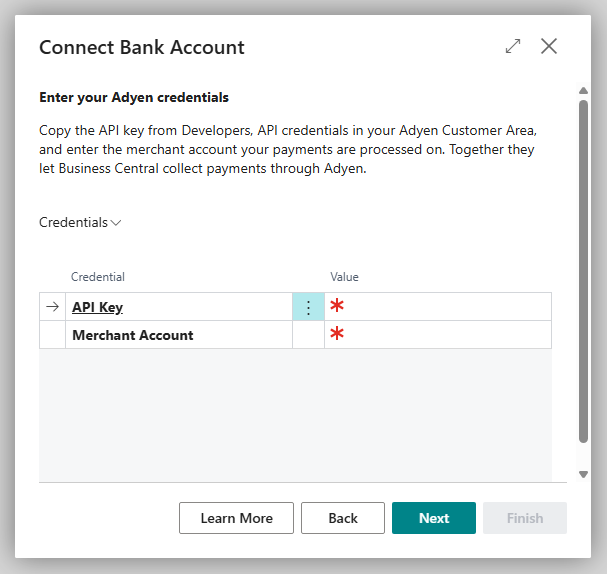
- On the Enter your Adyen credentials page, enter the API Key and your Merchant Account and choose Next. Business Central checks them with Adyen immediately.
- Choose Finish.
Transaction retrieval needs one more step
The wizard only asks for the details needed for collection. So that Business Central can also retrieve settlements, complete the Transaction Retrieval FastTab in the Adyen Connection Setup afterwards (see below). Without these details, retrieval reports that no Adyen report credentials are set up for the bank account.
Adyen Connection Setup
Open the page on the bank account card via Banking Provider > Configuration.
| FastTab | Field | Description |
|---|---|---|
| Authentication | API Key | key from the Customer Area (masked) |
| Merchant Account | your Adyen merchant account | |
| Live URL Prefix | prefix of your live endpoints from the Customer Area; empty = the Adyen test environment | |
| Transaction Retrieval | Report Download URL | address where Adyen provides the settlement reports |
| Report User / Report Password | access for downloading the reports (password masked) | |
| Last Settlement Batch Number | number of the batch last retrieved; the next retrieval continues with the following one | |
| Balance Account ID | only with the Adyen Balance Platform: retrieval via the balance account instead of the settlement reports | |
| Payment Authorization | Success Redirect URL / Cancel Redirect URL | pages after payment authorization; empty = the standard pages of 365 business Banking |
| Status | Is Authenticated, Environment | whether the connection is established and whether it uses the test or the live environment |
After a change, choose Authenticate.
Start of retrieval
Via the settlement reports, Business Central retrieves Adyen by payout batch, not by date. If you want to start with a particular batch, enter the number of the batch before it in Last Settlement Batch Number. With a Balance Account ID, Business Central retrieves by date instead: from 30 days before the Last Statement Date, but not earlier than Retrieve Transactions From on the bank account card. If neither field is filled in, the last two years are retrieved.
Disconnect
On the Bank Account Card, choose Actions > Banking Provider > Disconnect and confirm the question "Do you really want to disconnect this bank account from the … banking service?". Business Central deletes the payment service provider's setup for this bank account, including the credentials; transactions that are already imported are kept. To connect the account again later, enter the credentials in the wizard again.