
Connect Amazon Pay
How to connect Amazon Pay to 365 business Banking: region, public key ID and private key in the Connect Bank Account wizard.
Applies to: Amazon Pay
Prerequisites
- An Amazon Pay merchant account with access to Amazon Pay Integration Central.
- An RSA 2048 key pair: generate it, upload the public key in Integration Central, note the Public Key ID shown there and keep the private key file (.pem, PKCS#1 or PKCS#8, unencrypted). How to generate the key pair is explained in Amazon's guide. You can also open the guide with the Click here to learn more on how to generate your key pairs. link on the connection setup.
Step by step
-
Choose the Search icon, enter Bank Accounts and choose the Connect Bank Accounts action. The Connect Bank Account wizard opens.
-
Choose Next.
-
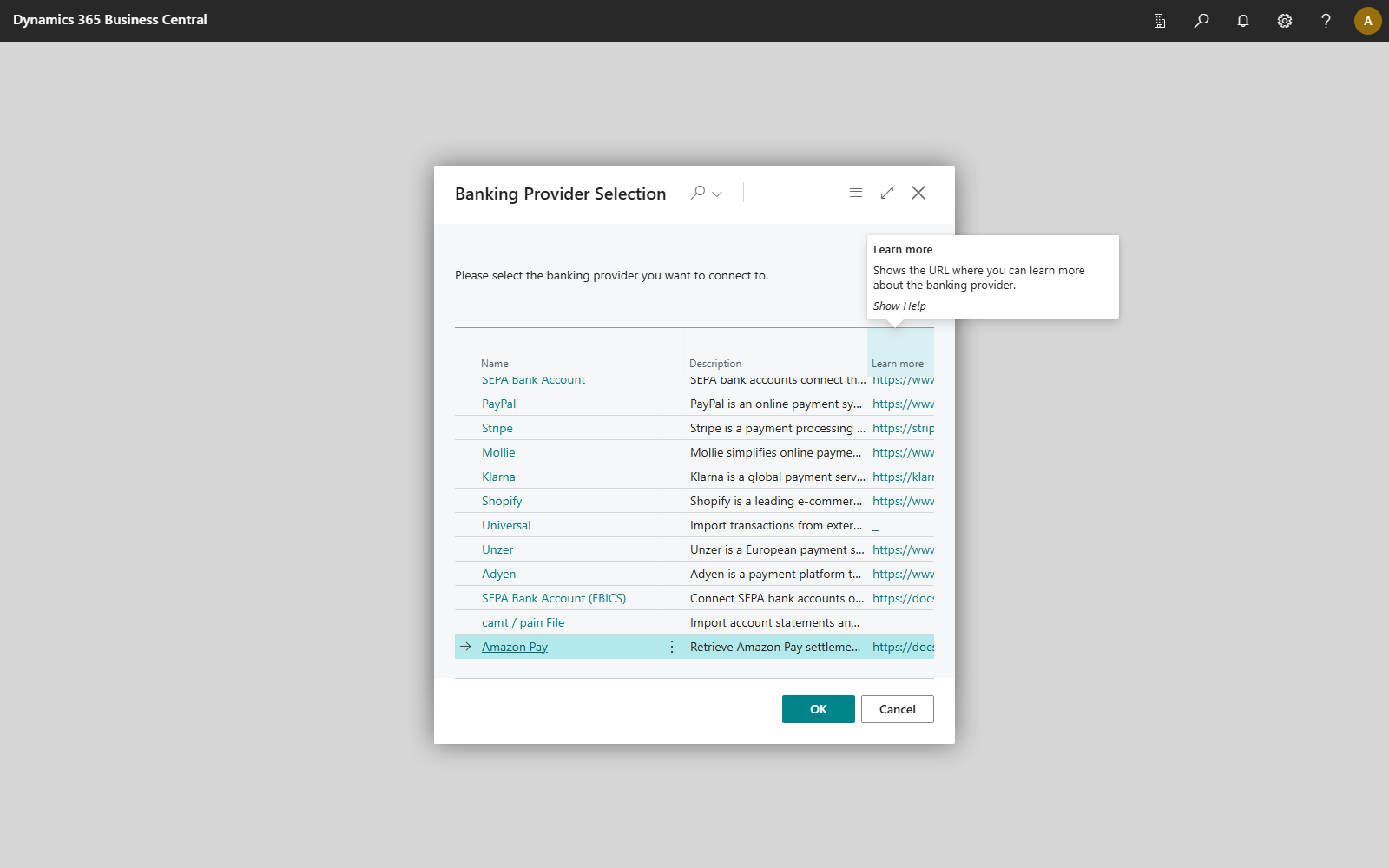
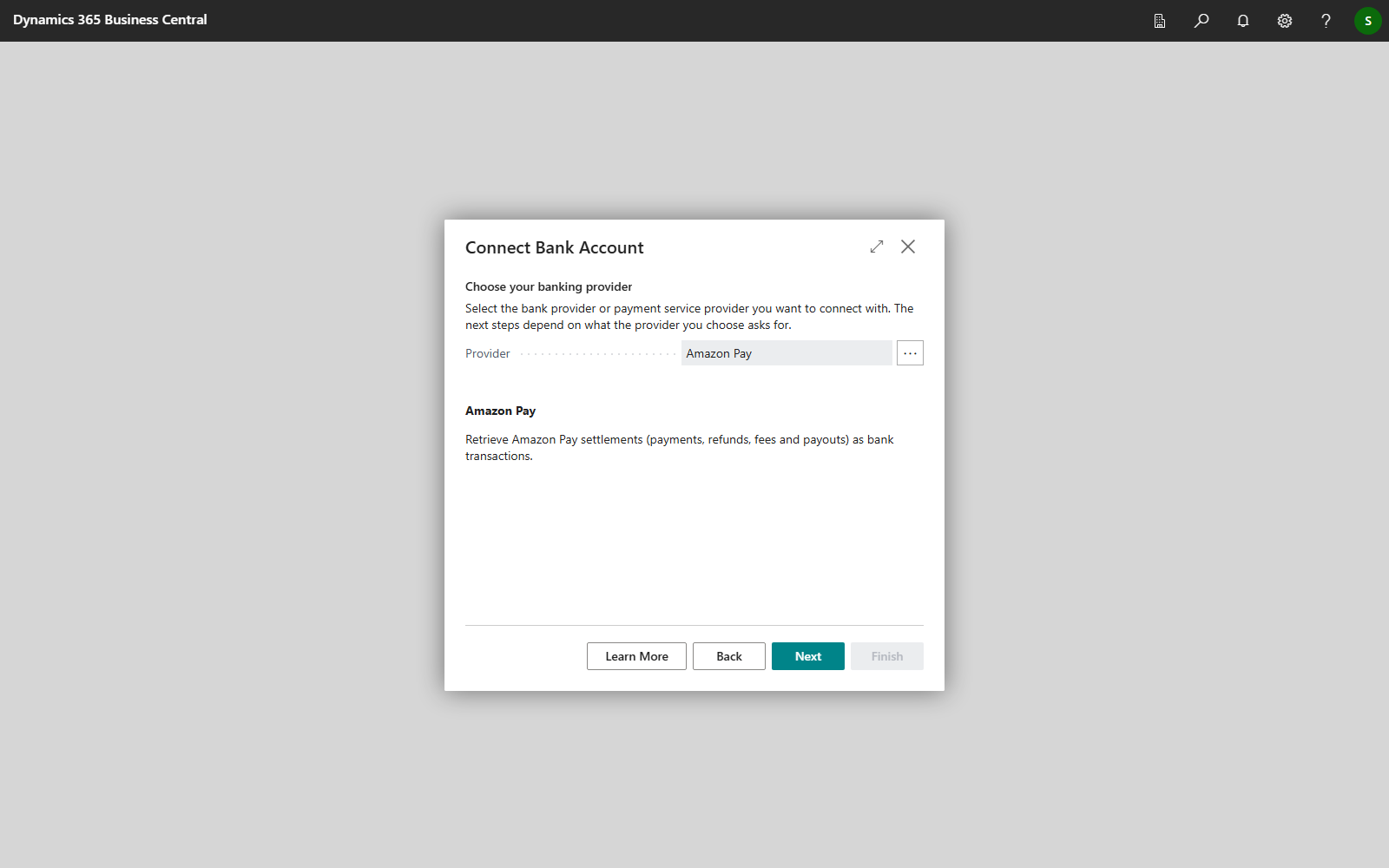
On the Choose your banking provider page, set Provider to Amazon Pay and choose Next. The … button next to the field opens the Banking Provider Selection list, with Amazon Pay at the end of the list.
-
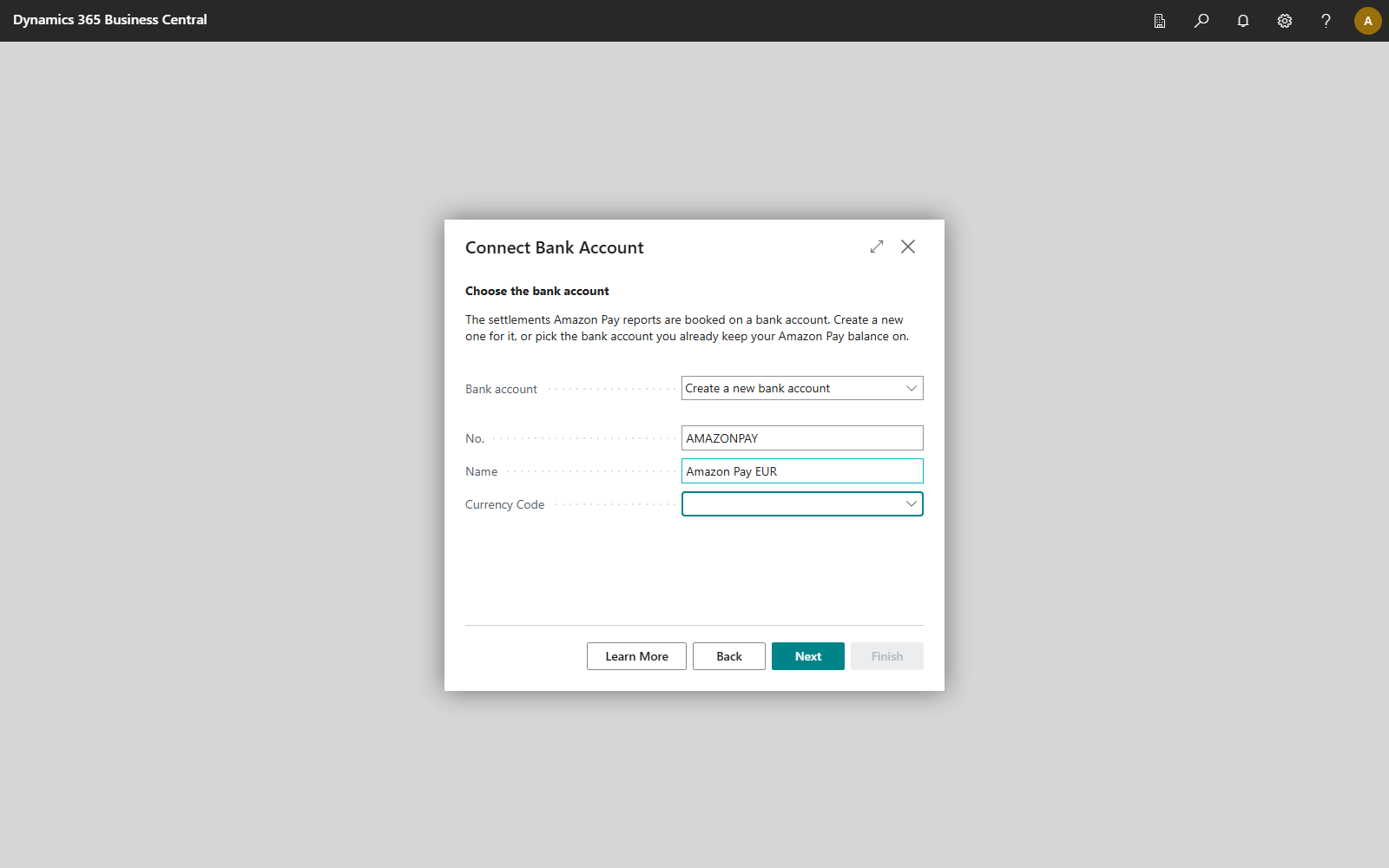
On the Choose the bank account page, choose Create a new bank account or Use an existing bank account and choose Next.
-
On the Connect your Amazon Pay merchant account page, choose Configure. The Amazon Pay Connection Setup card opens (see below). Enter the region, public key ID and private key there and test the connection.
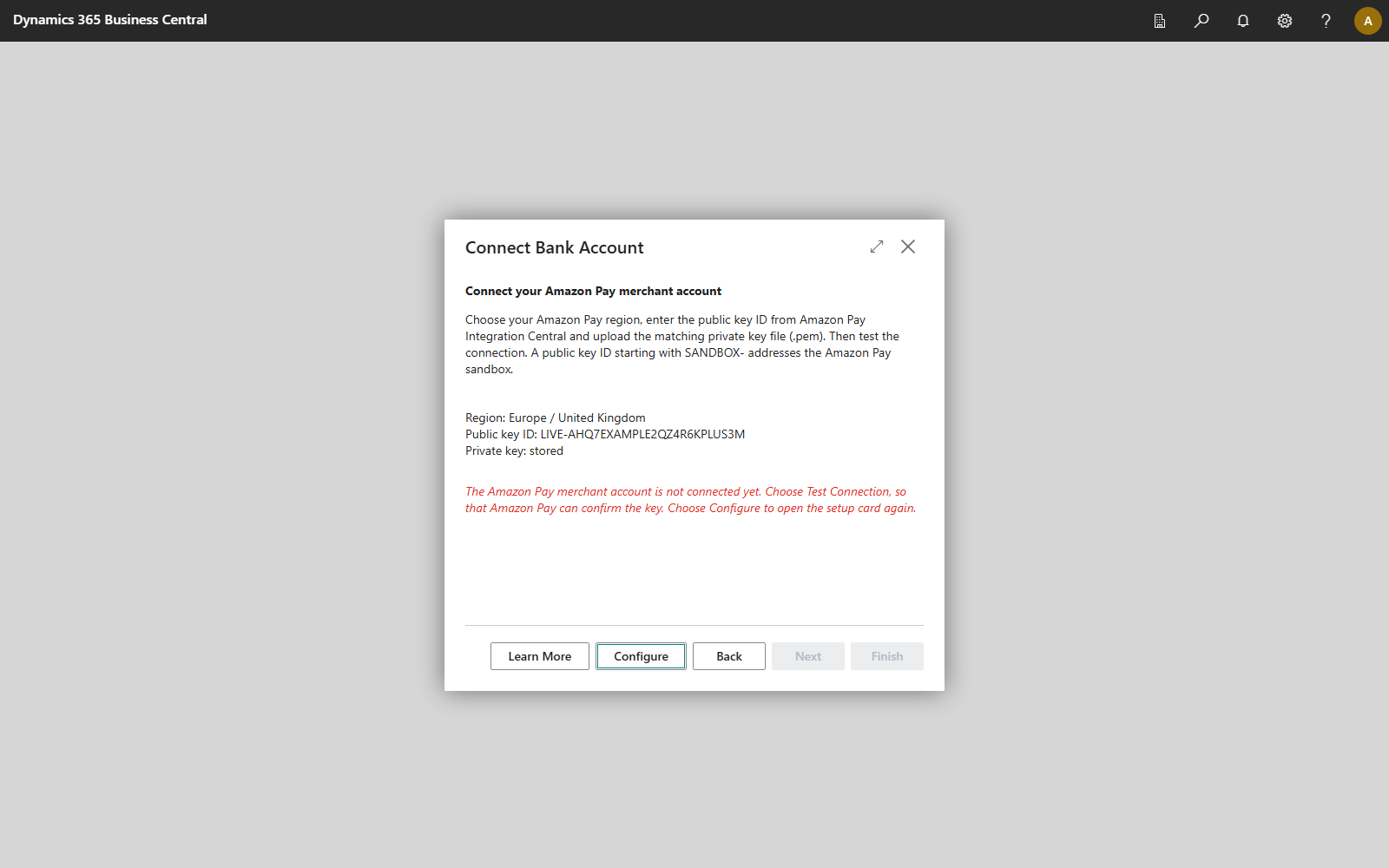
After you close the card, the step shows the details that are set up (region, public key ID and whether the private key is stored) and, in red, the next required step, such as Test Connection. While the merchant account is not connected, Next is not available. If you choose the summary or Configure, the card opens again. When all details are complete, the step states in green that the setup is complete.
-
Choose Next and then Finish.
Amazon Pay Connection Setup
Open the page on the Bank Account Card via Actions > Banking Provider > Configuration.
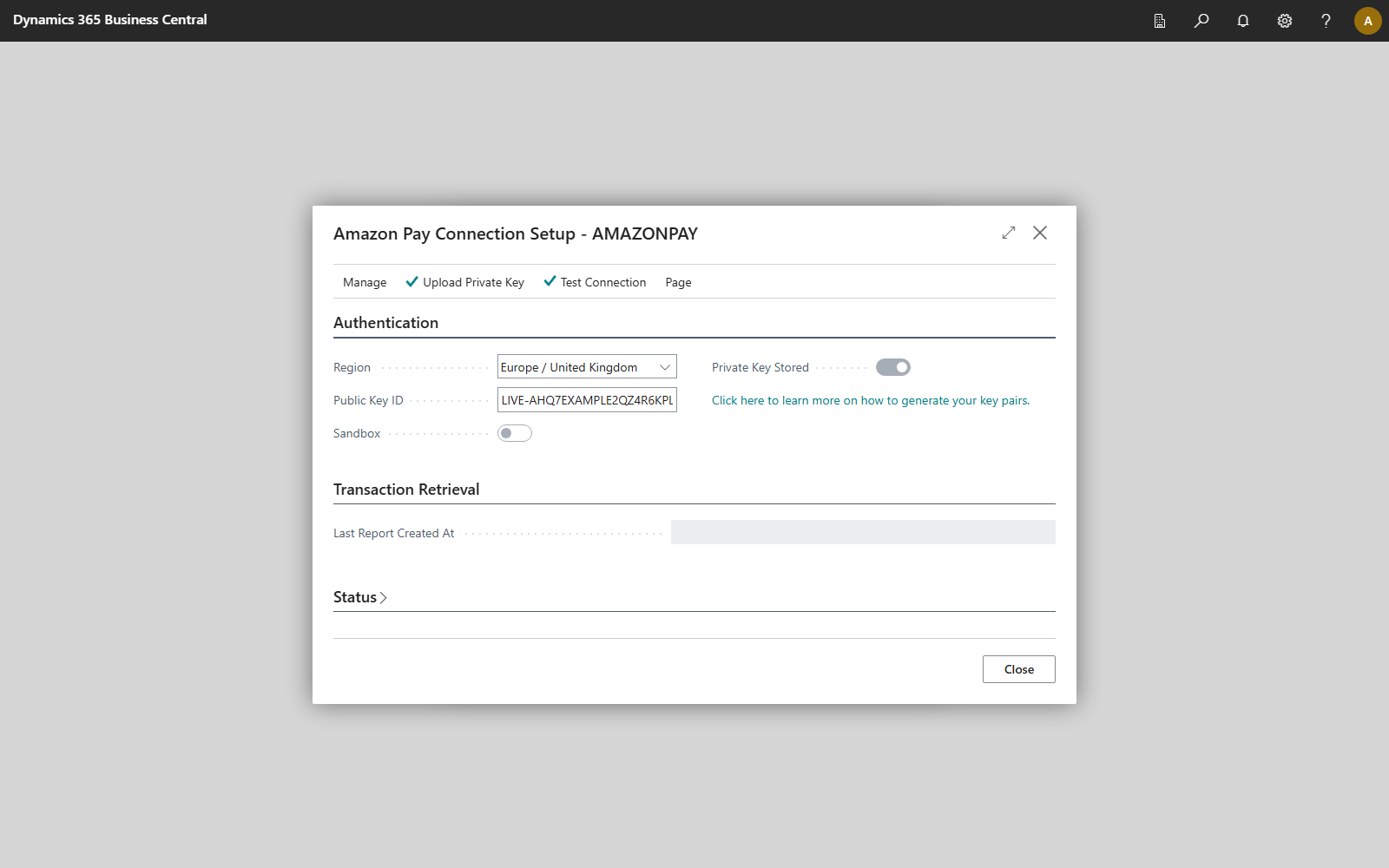
| FastTab | Field | Description |
|---|---|---|
| Authentication | Region | Europe / United Kingdom, North America or Japan |
| Public Key ID | your key pair's ID from Amazon Pay Integration Central | |
| Private Key Stored | whether a private key is uploaded; the key itself is not shown again | |
| Sandbox | addresses the Amazon Pay sandbox instead of the live environment (see below) | |
| Transaction Retrieval | Last Report Created At | creation time of the settlement report that was retrieved last (see Retrieve Amazon Pay transactions) |
| Status | Is Authenticated | whether the connection is established |
| Seller ID | your Amazon Pay seller ID; filled in with the first settlement report |
Actions: Upload Private Key opens the file dialog "Upload the Amazon Pay private key (.pem)"; Test Connection checks the region, public key ID and key with Amazon Pay.
How the environment is determined
A public key ID starting with LIVE- or SANDBOX- determines the environment itself. In this case, the Sandbox switch has no effect and cannot be edited. Only for an older public key ID without this prefix does Sandbox determine the environment.
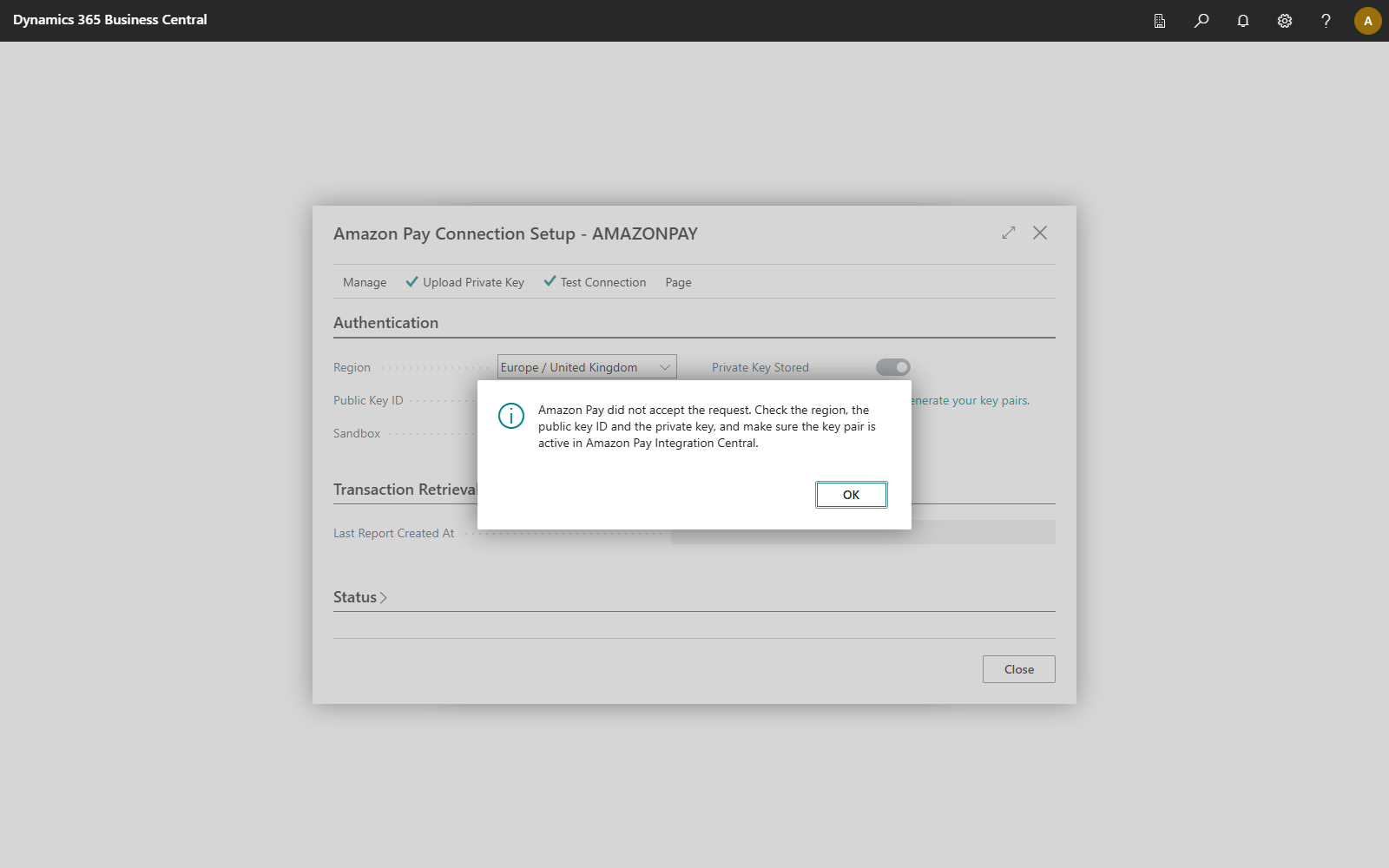
After a change, choose Test Connection. If the key is not accepted, Business Central reports "Amazon Pay did not accept the request. Check the region, the public key ID and the private key, and make sure the key pair is active in Amazon Pay Integration Central." If it is accepted, the message is "Congratulations! The Amazon Pay account has been successfully authenticated."
Disconnect
On the Bank Account Card, choose Actions > Banking Provider > Disconnect and confirm the question "Do you really want to disconnect this bank account from the … banking service?". Business Central deletes the payment service provider's setup for this bank account, including the stored private key; transactions that are already imported are kept. The key pair at Amazon Pay is not affected and remains valid. Revoke it in Integration Central if you no longer need it.