
Collect payments via Adyen
How to collect invoice amounts via Adyen in 365 business Banking: with the customer's stored payment method, individually or in batches.
Applies to: Adyen
The process is the same for all payment service providers with collection and is described in detail under Collect payment via payment service providers. This page describes the specifics of Adyen.
Prerequisites
- The Adyen account is connected (Connect Adyen).
- A payment method whose Bal. Account Type is Bank Account, pointing to the Adyen bank account.
- A customer bank account with Payment Service Type Adyen and a granted payment authorization.
- A preferred bank account is not required. The customer's preferred bank account is collected from if its Payment Service Type is Adyen, otherwise the customer bank account with the Payment Service Type Adyen. See Which customer bank account is collected from.
- For collection in the cash receipt journal, in addition: a journal batch collects through the Adyen bank account. The payment method has the Payment Method (Banking) Payment Service, which Business Central sets automatically if the field is empty. Existing payment methods with the type Direct Debit keep working. See Collection via a payment service provider.
Payment authorization
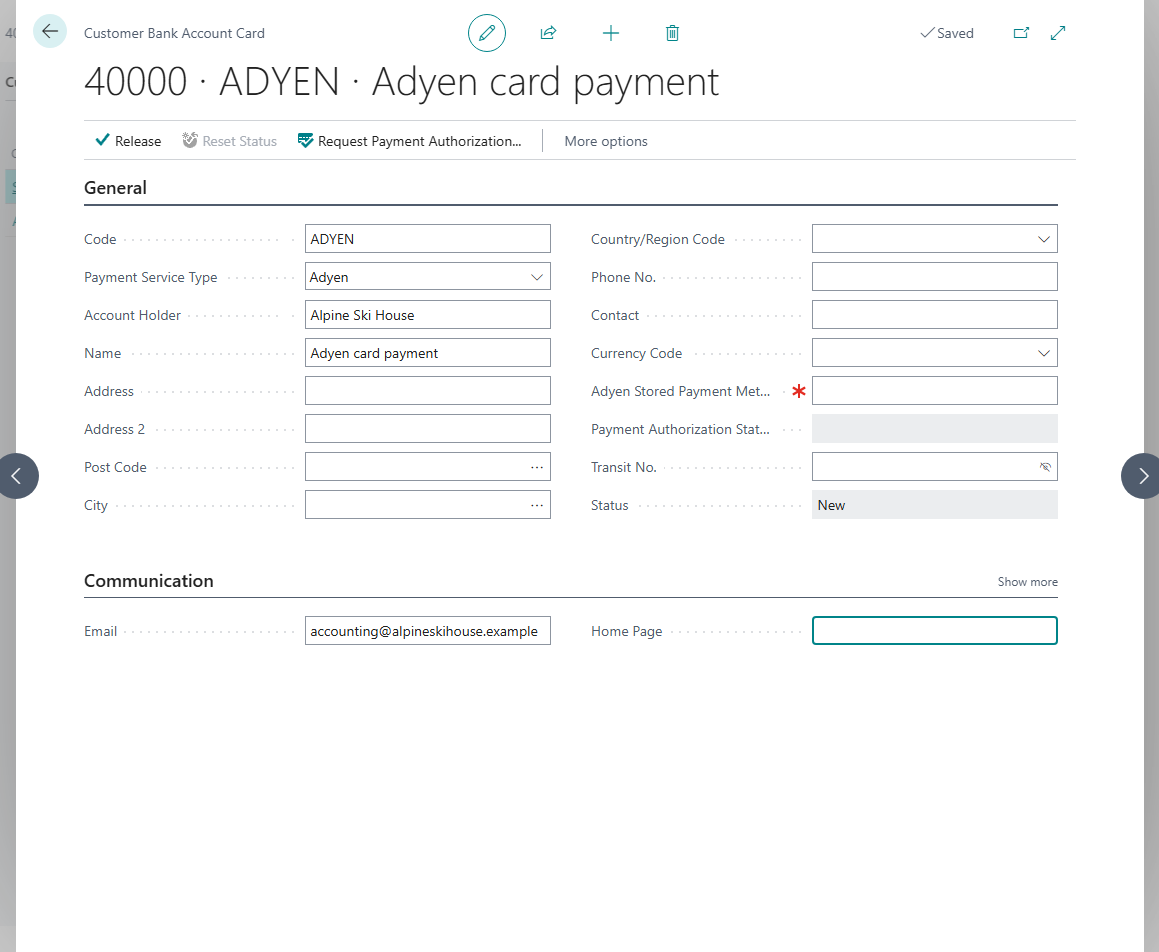
- Open the customer's Bank Accounts, create a customer bank account and set Payment Service Type to Adyen.
- Choose Request Payment Authorization. Business Central creates an Adyen payment link and opens an email with the link to your customer in the email editor. Send the email from there.
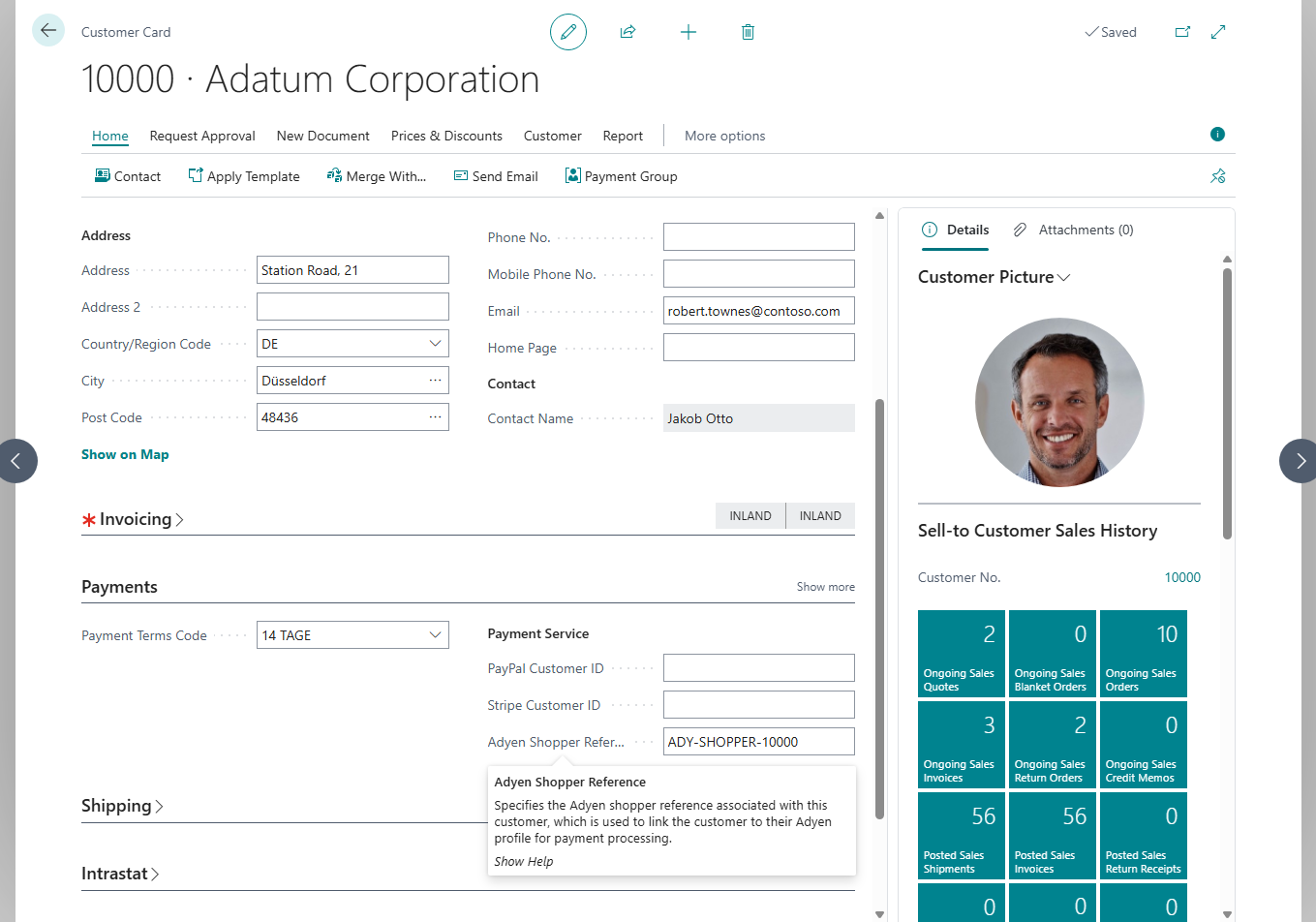
- Using the link, the customer stores a payment method at Adyen. Business Central checks in the background whether the authorization has been granted and fills in the Adyen Stored Payment Method ID. With Check Payment Authorization Status you query the status immediately. The Adyen Shopper Reference under which Adyen identifies the customer is also shown on the customer card on the Payments FastTab in the Payment Service group, next to PayPal Customer ID and Stripe Customer ID.
The pages your customer sees after the authorization are set in the Adyen Connection Setup with Success Redirect URL and Cancel Redirect URL; without them, the standard pages of 365 business Banking appear.
Collect payments
| Route | Procedure |
|---|---|
| when posting | post a sales invoice with the Adyen payment method; if it is due, it is collected immediately and the invoice is applied. The payment gets the posting date of the invoice |
| individually | on the Posted Sales Invoice, Collect Payment; before the due date with a question. Business Central reports the result |
| in batches | report Collect Payments, also as a job queue entry |
| in the cash receipt journal | Suggest Direct Debits and Carry Out Direct Debit in a journal batch that collects through the Adyen bank account; check the outcome of a pending collection in the Adyen Customer Area and, if needed, release the line with Mark as Not Charged |
Every attempt appears in the Payment Transaction Log, whichever way is used. As a result, no invoice is collected twice. The full remaining amount of the invoice is always collected, without payment discount. The rules for every way are described in Collect payments via payment service providers.
See also
- Collect payment via payment service providers
- SEPA direct debit in the cash receipt journal
- Adyen
- Retrieve Adyen transactions