
Direct debit collections on the standard pages
Direct debit collections remain available in 365 business Banking. The recommended route is the cash receipt journal. This page describes the differences.
With 365 business Banking, you can continue to collect direct debits through the standard direct debit collections, so that collections already started can be completed on this route. Carry out new collections through the cash receipt journal.
Standard functionality in Business Central
In the standard application you create a collection for due invoices on the direct debit collections page, export a SEPA XML file from it, upload it at the bank and then post the payment receipts. You reject entries manually. See Collect payments with SEPA direct debit on Microsoft Learn.
What 365 business Banking adds
- Its own Create Direct Debit Collection report, which replaces the standard report.
- On the direct debit collection entries page, the Direct Debit Collection part with the Payment Method (Direct Debit or SEPA Collective Direct Debit).
- The Carry Out Payment action, which replaces Export and Reject for a bank account with 365 business Banking: the collection is transmitted through the account's bank connection instead of as a file from the standard application.
- The mandate counter, which is advanced once per mandate and collection date with every bank connection. See SEPA direct debit mandates.
- The status Carried-Out/File Created on every collection entry handed over, with every bank connection.
- An end-to-end reference on every collection entry, which is transferred to the bank account ledger entry when you post. Matching uses it to find the bank's credit (see below).
- A notification pointing to the cash receipt journal.
Step by step
-
Choose the Search icon, enter Direct Debit Collections and open the page.
-
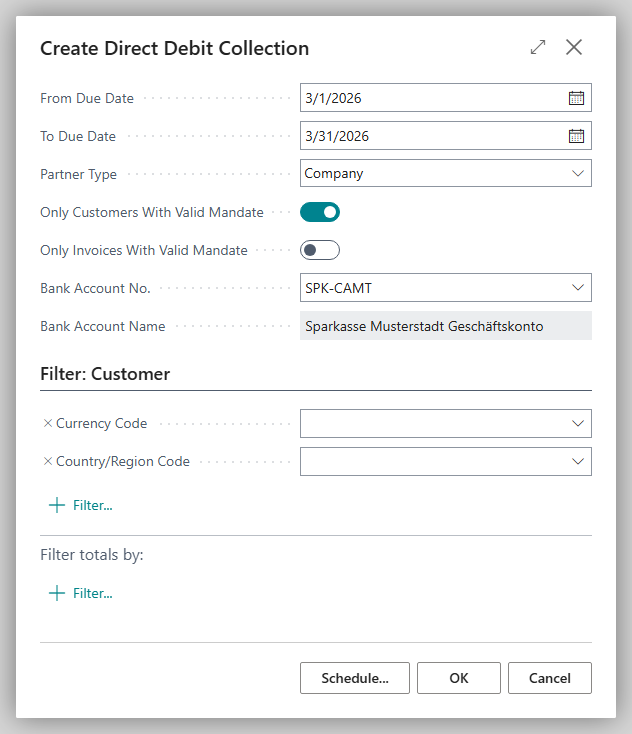
Choose Create Direct Debit Collection and fill in the options:
Option Meaning From Due Date / To Due Date Due date range of the invoices to be collected Partner Type Company (B2B) or Person (CORE) Only Customers With Valid Mandate Only customers that have a valid mandate Only Invoices With Valid Mandate Only invoices that carry a valid mandate Bank Account No. The bank account to collect into; Bank Account Name is shown -
Choose OK. Business Central reports how many entries were created.
-
Open the collection's direct debit collection entries and review them. In the Direct Debit Collection part, choose the Payment Method: Direct Debit for individual direct debits, SEPA Collective Direct Debit for a collective one.
-
Choose Carry Out Payment and confirm the question whether to create direct debit payments for the lines. Business Central checks every entry with the standard check and stops at the first entry with an error.
-
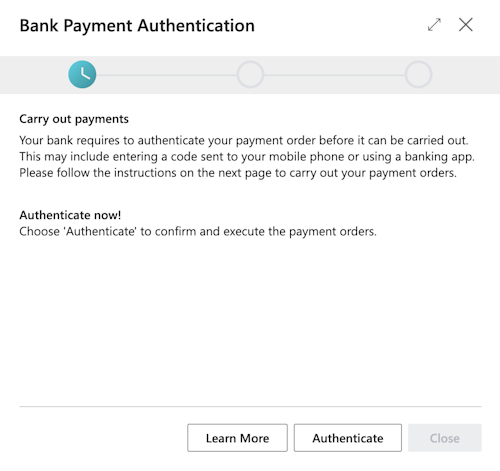
For an account via PSD2/XS2A, authorize the direct debit in your bank's web form, for example with a TAN. With EBICS the file is submitted with your signature; with the pain file export you upload the file in online banking. See Behavior per bank connection.
-
Post the payment receipts as in the standard application with the Post Direct Debit Collection report.
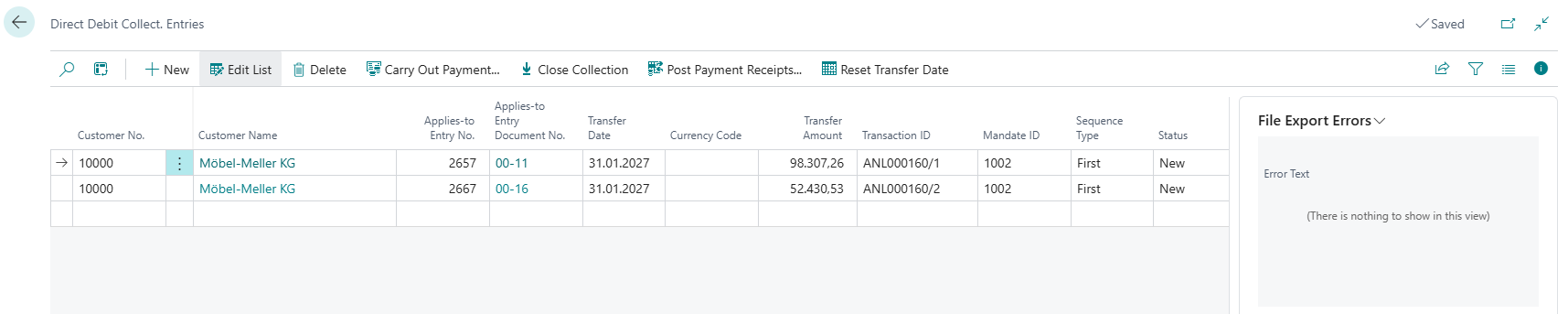
After Carry Out Payment, all entries handed to the bank or the payment service have Status Carried-Out/File Created, regardless of whether PSD2/XS2A, EBICS or the pain file export is used. When the collection has no more entries with status New, Business Central also marks the collection itself as carried out. Carry Out Payment only processes entries with status New, so an entry that has already been handed over is not collected a second time.
End-to-end reference of the collection entries
The end-to-end reference identifies your direct debits on the bank statement. Which reference a collection entry gets depends on the payment method and the bank connection:
- Direct Debit (single): a reference of its own per collection entry.
- SEPA Collective Direct Debit via EBICS or the pain file export: one shared reference for all entries of a payment block, that is, per collection date and sequence type. The bank books the block as one credit.
- SEPA Collective Direct Debit via PSD2/XS2A: one shared reference per finAPI order (mandate and date). It is stored only after finAPI has accepted the order and then appears in the Transaction ID field of all entries of the order.
After carrying out, the reference can no longer be changed. When you post the collection with Post Direct Debit Collection, Business Central carries the reference into the journal line and into the bank account ledger entry. This enables automatic matching in the payment reconciliation journal to find the posting.
Notification about the cash receipt journal
When you open the direct debit collections page or its entries, this notification appears: "Direct debits can now be collected from the cash receipt journal, with a suggestion, prenotifications and bank working days. This page keeps working as before."
- Open cash receipt journal takes you there.
- Don't show again turns the notification off for you permanently. You can turn it back on under My Notifications as Direct debit via cash receipt journal.
The notification does not block any actions.
What differs from the cash receipt journal
| Direct debit collections | Cash receipt journal | |
|---|---|---|
| Suggestion | Create Direct Debit Collection | Suggest Direct Debits |
| Collection date in bank working days, lead time | no | yes, see Bank working days and lead times |
| Prenotification | no | yes, see Direct debit prenotification |
| Verification of payee (VoP) of the payer | no | yes |
| Posting | a separate step from the collection | in the same journal, also Carry Out Direct Debit and Post |
| Double collection | prevented: an entry that is already being collected on one route is not suggested on the other |
Notes
Status of the collection entries
The Status column of the direct debit collection entries shows New, Carried-Out/File Created, Rejected and Posted in 365 business Banking. In the standard application, the second value is File Created; 365 business Banking adds "Carried-Out" because the collection is handed over through the bank connection and not necessarily as a file. Posted means the receipt has been posted.
Troubleshooting
| Message | Cause and remedy |
|---|---|
| "No entries have been created." | No invoice in the selected range meets the options |
| "To Date must be equal to or greater than From Date." | Correct From Due Date and To Due Date |
| "The bank account … is not set up for direct debit collections. It needs a number series for direct debit files. …" | Fill in Direct Debit Msg. Nos. on the bank account card |
| "There are no lines to create a payment for. …" | The collection has no entries with status New |
| "There are errors in the direct debit payment for transaction ID …. …" | The standard check found an error. Open the entry's errors, correct mandate or bank account and carry out again |
See also
- SEPA direct debit in the cash receipt journal
- SEPA direct debit mandates
- Direct debit and payment collection
- Carry out SEPA direct debits (new feature)