
Message to recipient with placeholders
How to define with placeholders in 365 business Banking which message to recipient the payment suggestion writes for customers, vendors and employees.
The Message to Recipient is the payment reference of the transfer. Your vendor sees it on their bank statement and uses it to match the payment to their invoice. Without any setting, the extended payment suggestion writes the document type and the external document number, for example Invoice 2026257. If your vendor requires other details, for example their invoice number together with your customer number or an amount, you define them in the template with placeholders.
Step by step
- Open the extended payment suggestion template.
- In the Messages to Recipient part, choose the field for Customer, Vendor or Employee.
- Enter the text. For a placeholder, put the cursor at the required position and choose Insert Placeholder; choose the placeholder in the list and OK. The list groups the placeholders into Document, Dates, Account and Amount and shows a sample value for each.
- Check the result in the Preview: with sample values.
- Leave a field blank if the standard text is sufficient for this account type ("Empty → document type + external document no.").
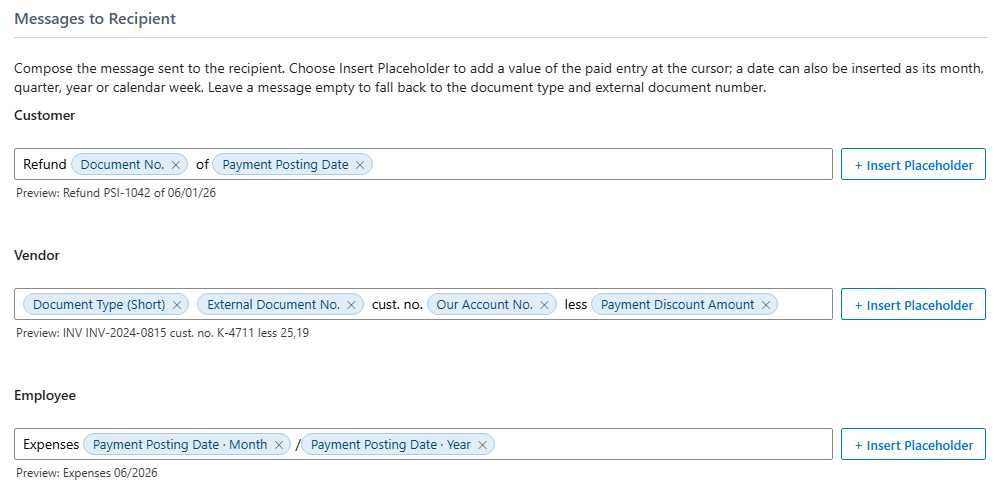
In the field, a placeholder is shown with its caption, such as Due Date · Month; ✕ removes it. You can also enter placeholders in curly brackets.
Placeholders
Placeholders are stored in English so that a template works in every language. The field and the list show the caption in your language.
Document
| Placeholder | Replaced by | Example |
|---|---|---|
{Document No.} | Document No. of the entry (your number) | PSI-1042 |
{External Document No.} | External Document No., for vendors usually the vendor's invoice number. Not available for employees. | INV-2024-0815 |
{Document Type} | Document type, for example Invoice or Credit Memo | Invoice |
{Document Type Short} | Short form of the document type: the first three letters in capitals; in German RG for Rechnung and GS for Gutschrift | INV |
{Document Date} | Document Date of the entry, for vendors usually the vendor's invoice date. Not available for employees. | 05/15/26 |
Dates
| Placeholder | Replaced by | Example |
|---|---|---|
{Posting Date} | Posting date of the payment, that is, the date of the line in the payment journal | 06/01/26 |
{Due Date} | Due Date of the entry. Not available for employees. | 06/14/26 |
{Pmt. Discount Date} | Pmt. Discount Date of the entry. Only available for vendors. | 05/25/26 |
Account
| Placeholder | Replaced by | Example |
|---|---|---|
{Account No.} | Number of the vendor, customer or employee | V00010 |
{Account Name} | Name of the vendor or customer, or the employee's full name | Fabrikam, Inc. |
{Our Account No.} | Our Account No. from the vendor or customer card, such as your customer number at the vendor. Not available for employees. | K-4711 |
Amount
| Placeholder | Replaced by | Example |
|---|---|---|
{Applied Amount} | Amount the payment transfers for the entry, with two decimals. For vendors, this is the remaining amount less the payment discount granted. | 1,234.56 |
{Discount Amount} | Payment discount granted on the entry (shown in the field and the list as Payment Discount Amount), 0.00 without a discount. Only available for vendors. | 25.19 |
{Remaining Amount} | Remaining Amount of the entry before payment discount | 1,259.75 |
{Original Amount} | Original Amount of the entry | 1,259.75 |
{Currency Code} | Currency of the entry; for local currency its code, such as EUR | EUR |
Amounts are written without a sign.
You can also insert any date as one of its parts (day, month, month name, quarter, year or calendar week), such as {Due Date:Month}/{Due Date:Year} for 06/2026. The list shows the parts below the date; the formats are described under Date parts.
Example: {Document Type Short} {External Document No.} of {Document Date} cust. no. {Our Account No.} results in INV INV-2024-0815 of 05/15/26 cust. no. K-4711.
Show the payment discount in the payment reference
If the suggestion deducts a payment discount, {Applied Amount} shows the transferred amount. If your vendor also needs to see the discount, add {Discount Amount}, for example {External Document No.} less discount {Discount Amount}.
The document type and its short form are written in the language in which you are currently using Business Central.
Collective payments
If a line combines several entries, the messages of the individual entries are joined with commas. If the field is blank, the external document numbers are listed grouped by document type, for example Credit Memo EGU-1051, Invoice 2026257, 2026345. What happens if the text exceeds 140 characters is described under Summarize payments.
Length
The result is cut off after 140 characters, because a SEPA credit transfer does not allow more characters. When the payment is carried out, the text is also checked against the SEPA character set. See Carry out payment.
Different message on a purchase invoice
The purchase invoice has a Diff. Message to Recipient field. It is transferred to the vendor ledger entry on posting and takes precedence over the template: if a vendor ledger entry has its own message, the payment suggestion uses it instead of the template text. If a line combines several entries, the entry's message takes its place in the list, instead of the document type and external document number. For more information, see Diff. Message to Recipient.
Manual entry
For a line you enter manually in the payment journal, build the message with the … button on the Message to Recipient field. The rules without a template apply. See Determine the message to recipient again.
See also
- Set up extended payment suggestion templates
- Summarize payments and build the payment reference
- Extended payment suggestion