
Set up extended payment suggestion templates
An extended payment suggestion template in 365 business Banking defines whom the payment suggestion includes and how it builds the lines.
When you run the extended payment suggestion, it asks for the template and the last due date; you can also filter the entries there. All other settings are stored in the Extended Payment Suggestion Template: which account types are included, whether payment discounts are taken, whether lines are summarized and which message is sent to the recipient. You can create as many templates as required, for example one for the weekly vendor run and one for employee reimbursements.
Step by step
- Choose the Search icon, enter Extended Payment Suggestion Templates and open the list. In the Role Center, you also find it under Banking > Setup > Payment Suggestion Templates.
- Choose New and enter Code and Description.
- On the Account Types FastTab, define who is paid.
- On the Options FastTab, define how the lines are created.
- In the Messages to Recipient part, write the message per account type, or leave the fields blank.
- Close the card. The next time you run Suggest Payments, choose the template in the Template Code field.
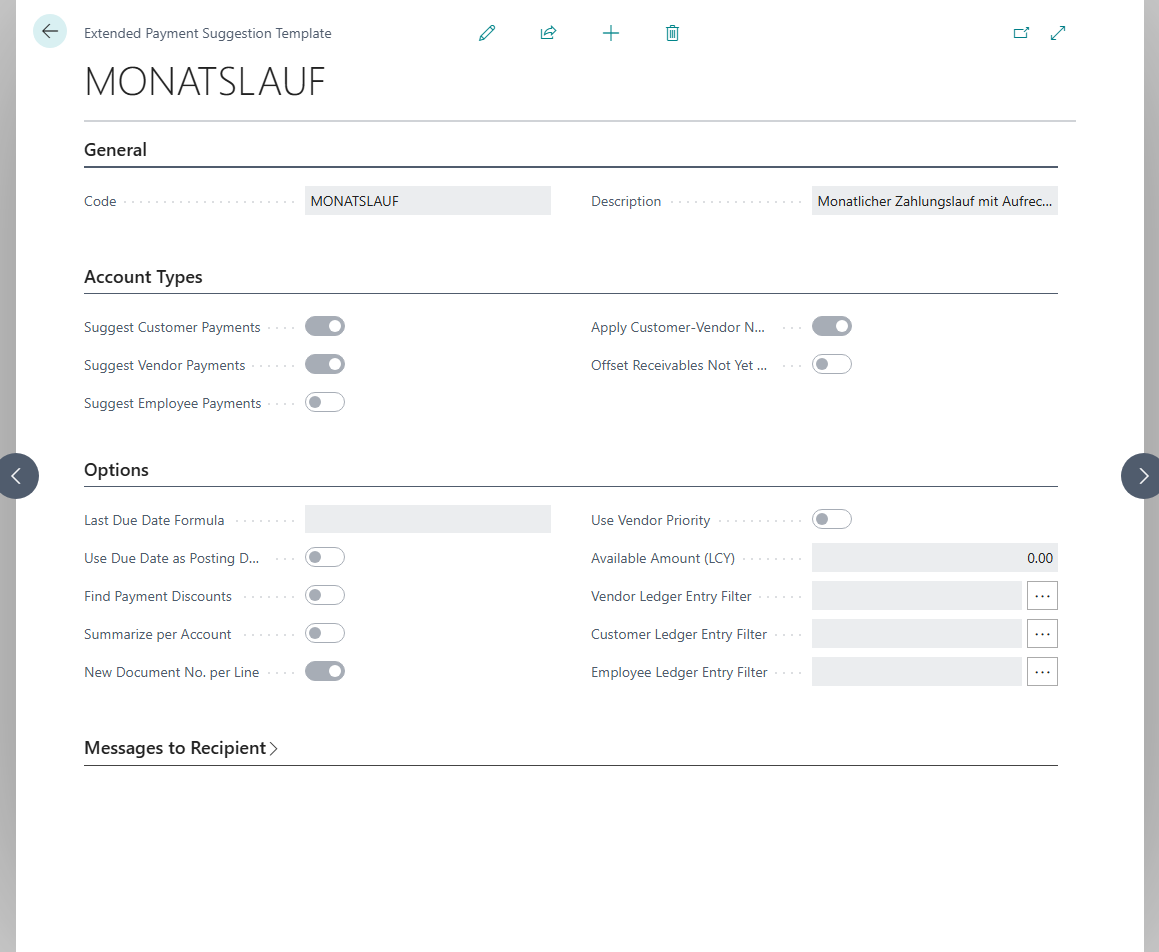
Account types
| Field | Meaning |
|---|---|
| Suggest Vendor Payments | Open vendor ledger entries are paid. Turned on for a new template. |
| Suggest Customer Payments | Customer credit balances are refunded, only for entries where you owe the customer an amount. |
| Suggest Employee Payments | Open employee ledger entries are paid. See Employee payments. |
| Apply Customer-Vendor Netting | Receivables and payables of the same business partner are netted. See Customer-vendor netting. |
| Offset Receivables Not Yet Due | Netting also includes receivables that are not due yet. If the option is turned off (default), only receivables that are due by the last due date (without a date, by the work date) and that meet the customer ledger entry filters are netted. |
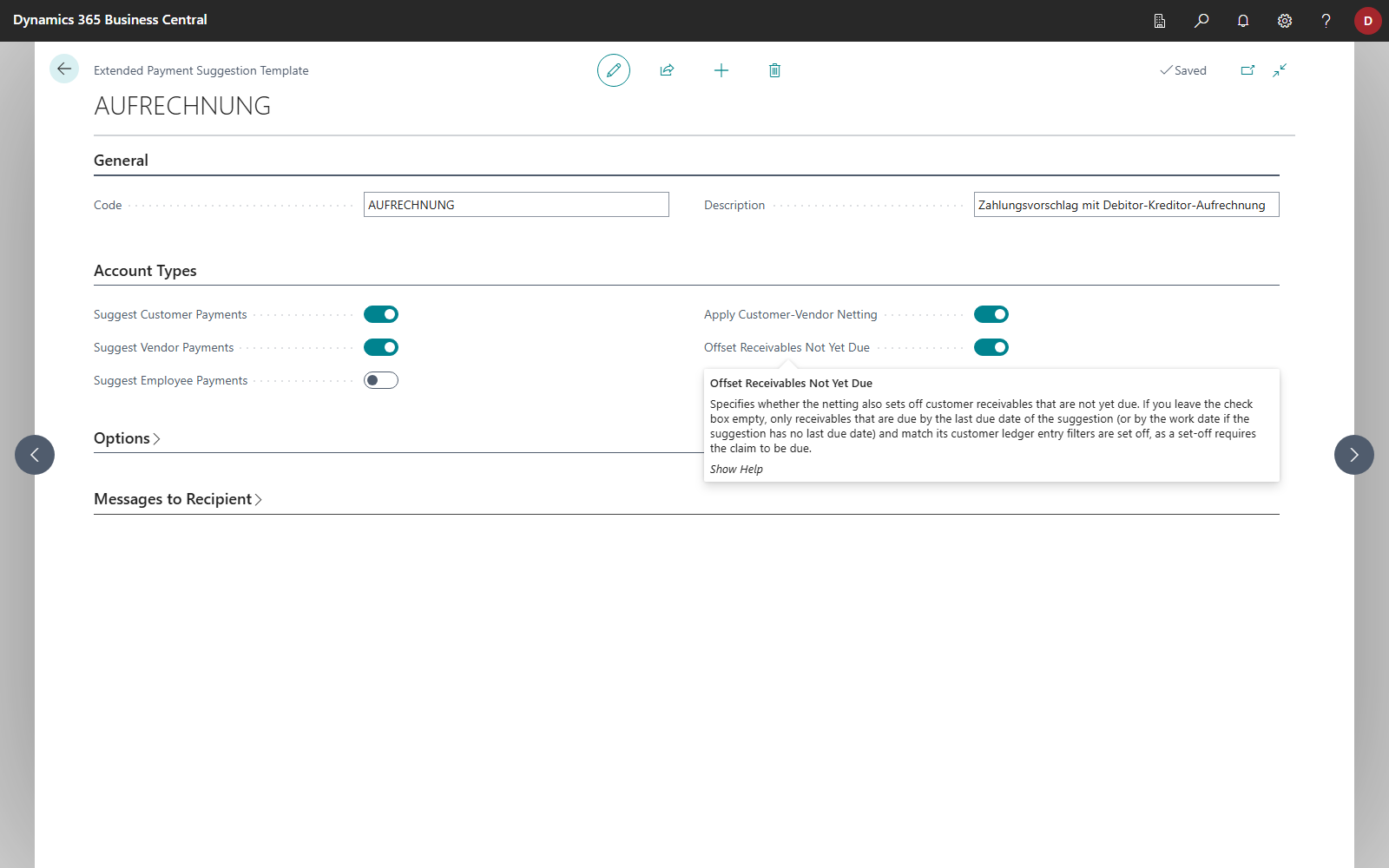
Netting requires both sides. If you turn on Apply Customer-Vendor Netting, Suggest Customer Payments and Suggest Vendor Payments are also turned on. If you turn off either of them, netting is also turned off.
Options
| Field | Meaning | More |
|---|---|---|
| Last Due Date Formula | Prefills Last Due Date with the work date plus the formula when you run the suggestion, for example 7D for all entries that fall due within the next week. | Which entries are suggested |
| Use Due Date as Posting Date | Each line gets the due date of its entry as posting date instead of the work date. Together with Find Payment Discounts, an entry with a discount is posted on its payment discount date instead (on the work date if that date is before the work date, as long as the discount is still granted then), so that the discount does not lapse. | Payment discount |
| Find Payment Discounts | Deducts the possible payment discount if the payment's posting date is still within the discount period, and also suggests entries due later whose payment discount date falls within the period. | Payment discount in the extended payment suggestion |
| Summarize per Account | One line per account and currency instead of per entry. | Summarizing and payment reference |
| New Document No. per Line | Each line gets its own document number from the journal batch's number series; otherwise, all lines of a run share one number. Turned on for a new template. | Which entries are suggested |
| Use Vendor Priority | With a limited amount, vendors are paid in the order of their Priority. | Available amount and vendor priority |
| Available Amount (LCY) | Upper limit for the whole run in local currency. Blank or 0 means: no limit. | Available amount and vendor priority |
| Vendor Ledger Entry Filter, Customer Ledger Entry Filter, Employee Ledger Entry Filter | Stored filters on the entries, for example only one vendor posting group. | below |
Entry filters
You cannot enter values in the three filter fields directly. Choose the … (three dots) button in the field: a filter page for the entries opens, where you can filter on any field. When you close it, the filter is stored in the template and applied to every run.
Messages to recipient
In the Messages to Recipient part, you define for Customer, Vendor and Employee what is included in the payment reference, with placeholders such as {Document No.} or {External Document No.} and a preview. If a field is left blank, the suggestion writes the document type and the external document number. See Message to recipient with placeholders.