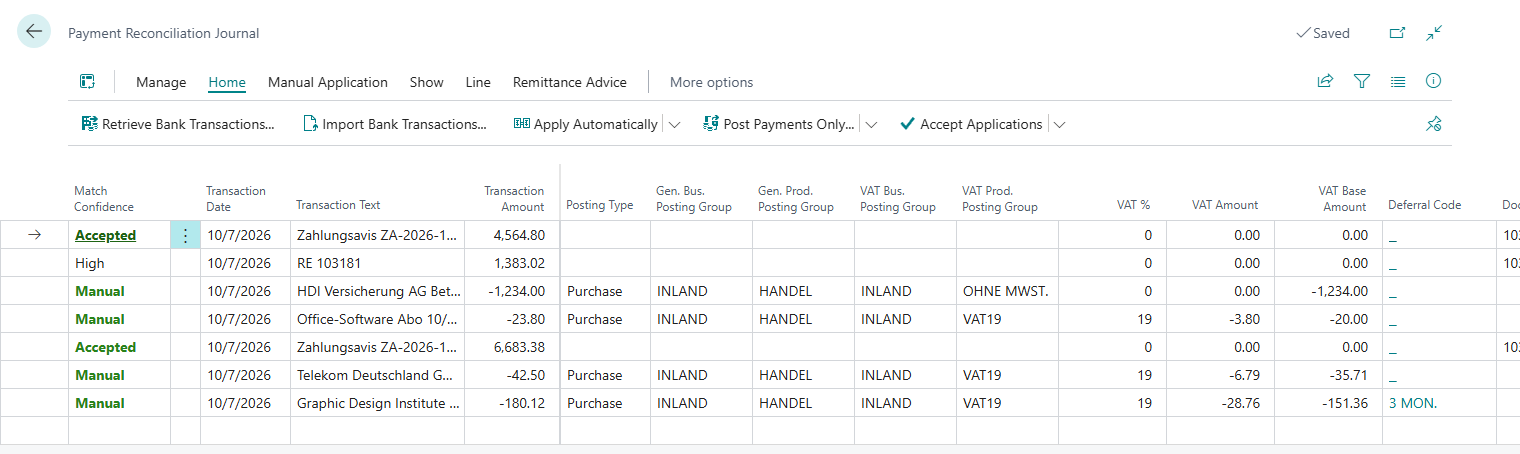
VAT Display in Payment Reconciliation Journal
Business Value
During payment reconciliation, bank transactions are often posted to G/L accounts with value-added tax. Previously, users had to manually calculate the VAT amount and tax base, or verify these values only after posting in the ledger entries. This led to additional effort and potential errors, especially with different VAT rates or more complex posting scenarios.
With VAT Display in Payment Reconciliation Journal, 365 business Banking shows VAT information directly in the journal lines. Once the posting type, posting groups, and VAT posting groups are set, the VAT percentage, VAT amount, and tax base are automatically calculated and displayed. This enables immediate control of tax implications before posting and reduces manual calculations.
Feature Description
The payment reconciliation journal displays three new fields in each line:
| Field | Description |
|---|---|
| VAT % | VAT percentage from the VAT posting matrix, based on the set VAT posting groups |
| VAT Amount | Calculated VAT amount that will be incurred when posting |
| VAT Base Amount | Net amount (statement amount minus VAT) |
The values are automatically updated when:
- The Statement Amount is changed
- The VAT Business Posting Group is set or changed
- The VAT Product Posting Group is set or changed
Good to know
The fields show a preview of the tax implications. The actual calculation and posting of value-added tax is still performed by Microsoft Dynamics 365 Business Central when posting the journal according to the settings stored in the VAT posting matrix.
Prerequisites
For the VAT fields to be populated, the following values must be set in the journal line:
- Account Type = G/L Account
- Posting Type (Sale or Purchase)
- VAT Business Posting Group
- VAT Product Posting Group
When these values are set, 365 business Banking retrieves the VAT percentage from the VAT Posting Setup and automatically calculates the VAT amount and tax base from the statement amount.
Note
If no VAT posting groups are set yet or the posting type is blank, the VAT fields remain empty. This indicates that no value-added tax will be posted for this line.
Usage
Step-by-Step Guide
- Open the Payment Reconciliation Journal in Microsoft Dynamics 365 Business Central.
- Retrieve bank transactions or create a line manually.
- Select a G/L Account as the account type in the journal line.
- Set the Posting Type (e.g., "Sale" or "Purchase").
- Select the appropriate VAT Business Posting Group and VAT Product Posting Group.
The three VAT fields are automatically filled:
- VAT % shows the tax rate from the VAT posting matrix (e.g., 19.00)
- VAT Amount shows the calculated VAT portion of the statement amount
- VAT Base Amount shows the net amount
Good to know
If you change the statement amount afterwards, the VAT fields are automatically recalculated. This keeps the preview always up to date.
Application Example
Situation: You have received a bank transaction for €119.00 and want to post it to a G/L account with 19% VAT.
Procedure:
- Set the posting type to "Sale"
- Select the corresponding VAT posting groups
Result:
- VAT %: 19.00
- VAT Amount: €19.00
- VAT Base Amount: €100.00
You can immediately verify that the tax split is correct before posting the journal.
Benefits at a Glance
- ✅ Immediate VAT control directly in the journal – no manual calculation needed
- ✅ Automatic update when amounts or posting groups change
- ✅ Error reduction through preview before posting
- ✅ Time savings during payment reconciliation with VAT-liable G/L accounts
See Also
- Bank Account Reconciliation
- Payment Reconciliation Journal
- Set up VAT Posting Matrix (Microsoft Docs)