Bank Account Reconciliation
With 365 business Banking, you can retrieve bank transactions and use them in the payment reconciliation in Microsoft Dynamics 365 Business Central. This enables efficient management of your bank accounts and seamless integration into your financial processes.
Prerequisites
To retrieve bank transactions, you must first set up a banking user in Microsoft Dynamics 365 Business Central. This user is used to connect to your bank and has access to the banking features. Additionally, a connection to your bank or banks must be established. For more information, see the Step-by-Step Guide to Bank Account Connection.
Step-by-Step Guide
Follow these steps to retrieve bank transactions in 365 business Banking:
- Select Payment Reconciliation Journals in the search bar of Microsoft Dynamics 365 Business Central.
- Select the action Retrieve Bank Transactions.
- Select the bank account for which you want to retrieve transactions.
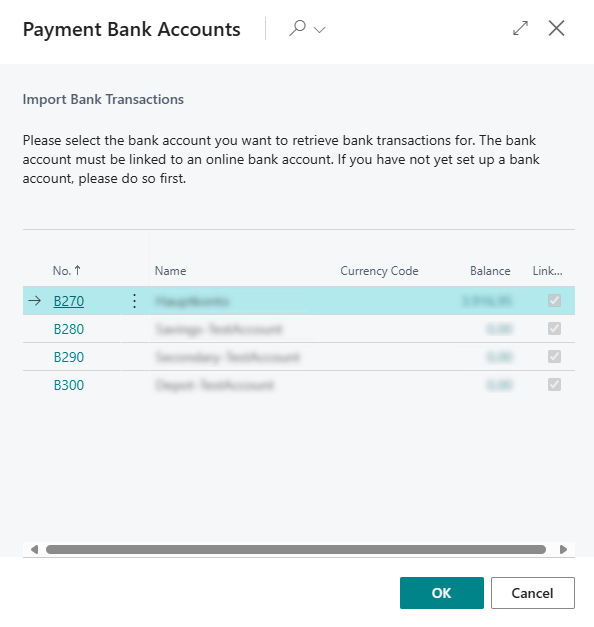
- Select OK to start retrieving bank transactions.
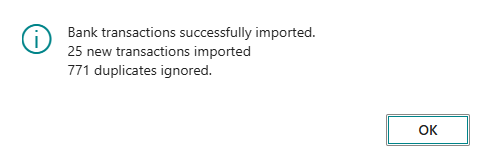
- Confirm the message that the bank transactions have been retrieved.
Splitting Bank Transaction Lines
In some cases, it may be necessary to split bank transaction lines to allocate them to multiple general ledger accounts. This can be the case, for example, with direct debits from the tax authority, where multiple taxes are included in a single transaction.

Follow these steps to split bank transaction lines:
- Select the bank transaction line you want to split.
- Select the action Split Lines in the Line group.
- Split the bank transaction line into multiple lines by adjusting the respective amounts and, if necessary, changing the transaction text.
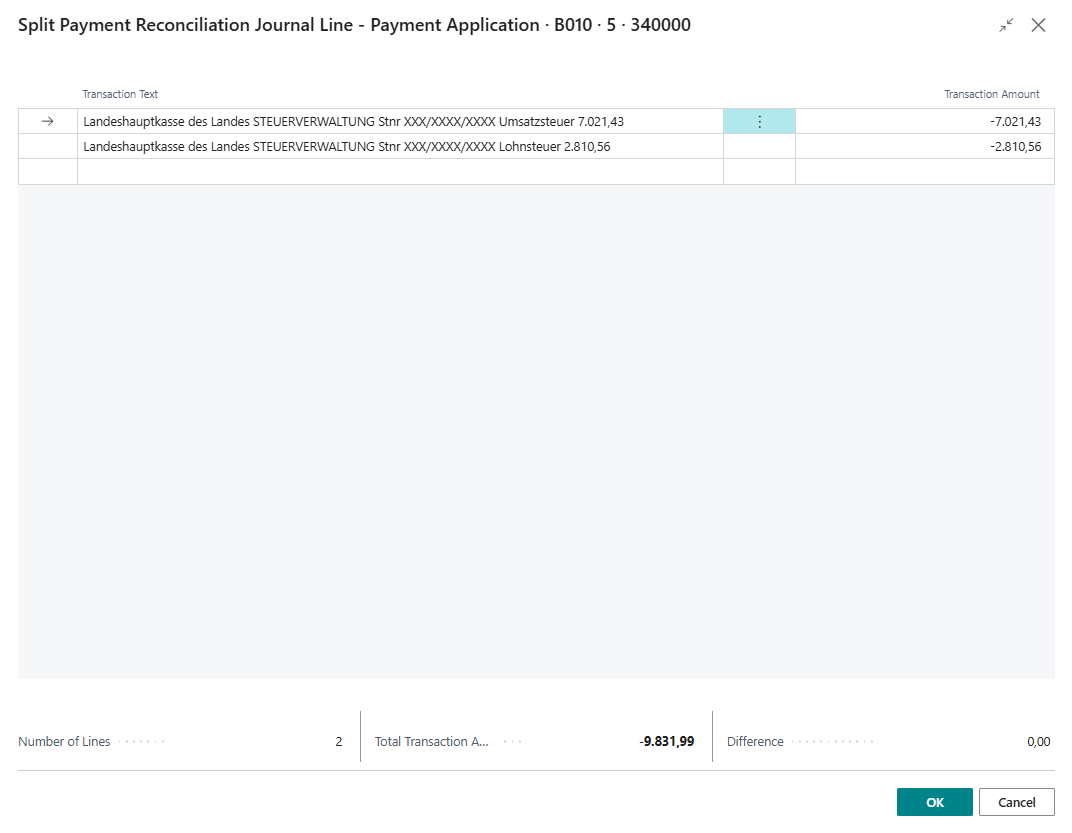
- Select OK to save the changes.
Payment Reconciliation
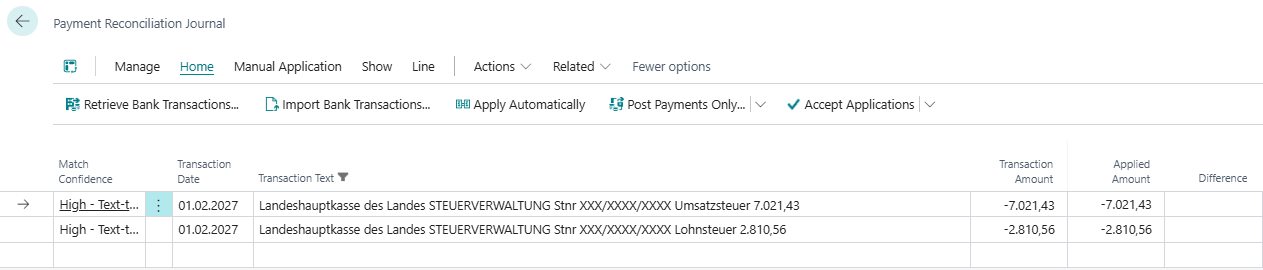
After retrieving bank transactions, you can use them in payment reconciliation. The bank transactions are automatically matched to the open entries in Microsoft Dynamics 365 Business Central to enable efficient reconciliation. The Microsoft Dynamics 365 Business Central bank reconciliation (see Managing and Reconciling Your Bank Accounts) is used and enhanced with additional features to achieve better results when matching bank transactions.
Sender Identification
In addition to the Microsoft standard, the IBAN of the bank account from the bank transaction is used for sender identification during payment reconciliation. This allows for more accurate allocation of transactions to the respective accounts and improves the efficiency of reconciliation.
If the reconciliation is accepted and the bank reconciliation is posted, the master data (e.g., customer bank account) of the reconciled accounts (e.g., customer, vendor) is updated or supplemented to enable faster and more accurate allocation in future reconciliations.
Example
You receive a payment from a customer to your bank account. The payment is allocated to the customer based on the purpose of the bank transaction. When you post the payment, it is checked whether the customer bank account already exists. If not, it is automatically created, and the bank account information (e.g., IBAN, BIC/SWIFT code) is taken from the bank transaction.
Advanced Document No. and Purpose Identification
In addition to sender identification, the document number and purpose of the bank transaction are also used during payment reconciliation to improve the allocation to open entries. This allows for more accurate allocation of transactions to the respective accounts and improves the efficiency of reconciliation.
Beyond the Microsoft standard, the purpose is analyzed, and document numbers are extracted during payment reconciliation to optimize the allocation to open entries. Partial document numbers, up to four characters, are also considered to allow for more accurate allocation in batch payments.
To optimize the allocation of partial document numbers, you can define common context words that are considered during the analysis of the purpose and increase the weighting of a partial document number.
For more information, see the documentation on Context Words.
Example
Your document numbers are 25002019 and 25002021. In the purpose of the bank transaction, the sender specifies Invoice 25002019, 2021. The document number 25002019 is automatically recognized as it matches the document number exactly. The partial document number 2021 is also recognized as a "weak" match and offered for reconciliation. By using context words, such as Invoice, the partial document number 2021 is recognized as a "strong" match and prioritized for reconciliation.
Payment Application Fields
As part of payment reconciliation, various fields are available to you to optimize the reconciliation of bank transactions. These fields help you improve the allocation of transactions to open entries and simplify the reconciliation process.
By default, the Document No. and External Document No. of the open entries are used for reconciliation. Additionally, the Payment Application Settings page offers you the option to specify additional fields from the Customer Ledger Entry and Vendor Ledger Entry tables for reconciliation.
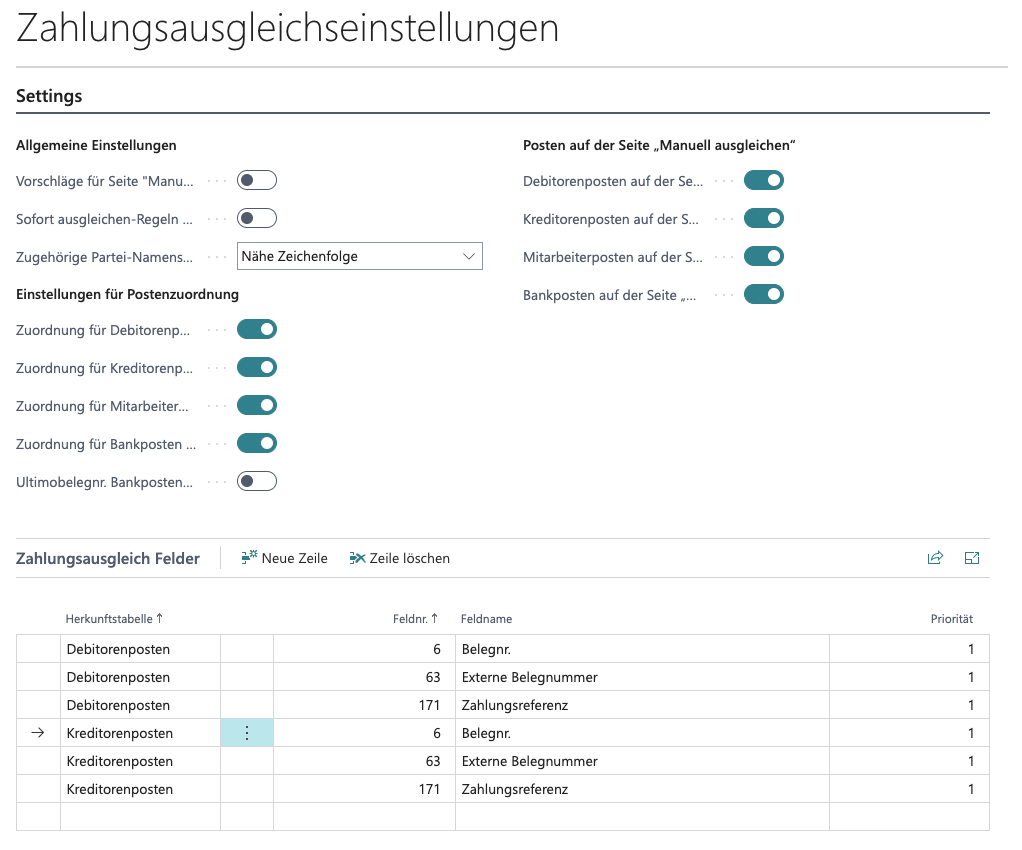
The fields defined in Payment Application Fields are considered when analyzing bank transactions to improve the allocation to open entries. This allows for more accurate allocation of transactions to the respective accounts and improves the efficiency of reconciliation. Any field can be used, regardless of origin (e.g., Microsoft Base Application).
Payment Code Mapping
As part of a SEPA payment, additional payment codes are transmitted alongside the purpose, which are used to identify the payment. These codes can be used during payment reconciliation to improve the allocation of bank transactions to open entries or general ledger accounts.
The following payment codes are supported:
ZKA Code: The ZKA code, also known as the business transaction code, is used to identify the business transaction of the bank transaction. This code is usually provided by the bank and can be used to identify the type of transaction. For more information, see ZKA Code.
SEPA Purpose Code: The SEPA purpose code is used to identify the purpose of the SEPA transfer. This code is optional and can be used to specify the purpose of the payment. For more information, see SEPA Purpose Code.
On the Payment Code Mapping page, you can map payment codes to account type and account number. This allows for more accurate allocation of bank transactions to the respective accounts and improves the efficiency of reconciliation.
For more information, see the documentation on Payment Code Mapping.
As part of the automatic reconciliation of bank transactions, the payment code mapping is automatically considered. If a payment code is mapped, it is used when allocating the bank transaction to open entries or general ledger accounts. This improves the efficiency of reconciliation and reduces the manual effort required for allocating bank transactions.
