Posting setup
This section explains how to perform the posting setup in the bank reconciliation process to determine how bank transactions should be posted in Microsoft Dynamics 365 Business Central.
The posting setup includes the definition of:
- Posting type
- General Business Posting Group
- VAT Business Posting Group
- General Product Posting Group
- VAT Product Posting Group
- Deferral Code

These settings help ensure that bank transactions are posted correctly and comply with accounting and tax regulations. The posting setup can be applied individually per bank transaction or based on predefined Reconciliation Rules.
What can the posting setup be used for?
The posting setup is used to ensure that bank transactions are posted correctly in Microsoft Dynamics 365 Business Central. By defining the parameters listed above, you can:
- Set the posting type to determine how the transaction is posted (e.g., purchase, sale).
- Assign the Business Posting Group and VAT Business Posting Group to use the correct accounts for the posting.
- Define the Product Posting Group and VAT Product Posting Group to ensure the correct tax rates and accounts are used for the products or services related to the bank transaction.
Correct posting setup can improve the accuracy of your financial data and help ensure compliance with legal requirements.

Bank Reconciliation Line Posting
The Bank Reconciliation Line Posting setting in the General Ledger Setup determines how G/L accounts are posted in the bank reconciliation worksheet when a posting setup is defined.
You can choose between the following options:
Use Clearing Account (default)
With this method, the system creates an additional posting (technically an “invoice” entry) alongside the payment.
This posting records the expense or revenue using the defined posting setup and then clears it through a designated clearing account.
Advantages:
- Highest transparency
- Clear separation between payment and expense/revenue
- Correct VAT handling in all scenarios
- Ideal for bank fees, VAT-relevant transactions, and reconciliation processes
This option is recommended for most companies.
Direct Posting
With this method, the payment is posted directly to the G/L account.
The posting setup is applied directly to the payment entry, meaning that expense/revenue and VAT entries are created in a single step.
Advantages:
- Fewer G/L entries
- Faster and simpler posting process
Comparison of Options
| Option | Advantages | Disadvantages | Typical Use Cases |
|---|---|---|---|
| Use Clearing Account (default) | Maximum traceability; clean separation of payment and expense/revenue; clear VAT mapping; best foundation for reconciliation & corrections | More posting lines | Recommended for most scenarios, especially with VAT; bank fees; recurring transactions |
| Direct Posting | Fewer entries; fast processing | Less transparent; VAT logic applies directly to the payment; potential conflicts if the G/L account has its own VAT setup | Small businesses; simple G/L postings; scenarios without deferrals |
Deferral Schedule
In addition to the posting setup mentioned above, you can also specify a deferral schedule. The deferral schedule allows you to determine whether the expense arising from the bank transaction should be allocated over several months.
This is particularly useful for payments that cover multiple future periods – for example:
- Annual insurance
- Software or license fees
- Maintenance invoices
- Advance payments for services
When a Deferral Code is entered in the payment reconciliation journal line, 365 business Banking automatically creates a deferral schedule for the selected line. This deferral schedule can then be individually adjusted via the AssistEdit or the Deferral Schedule action.

The subsequent deferral is carried out completely by the Microsoft Dynamics 365 Business Central standard, as part of the posting via the above-mentioned posting settings.
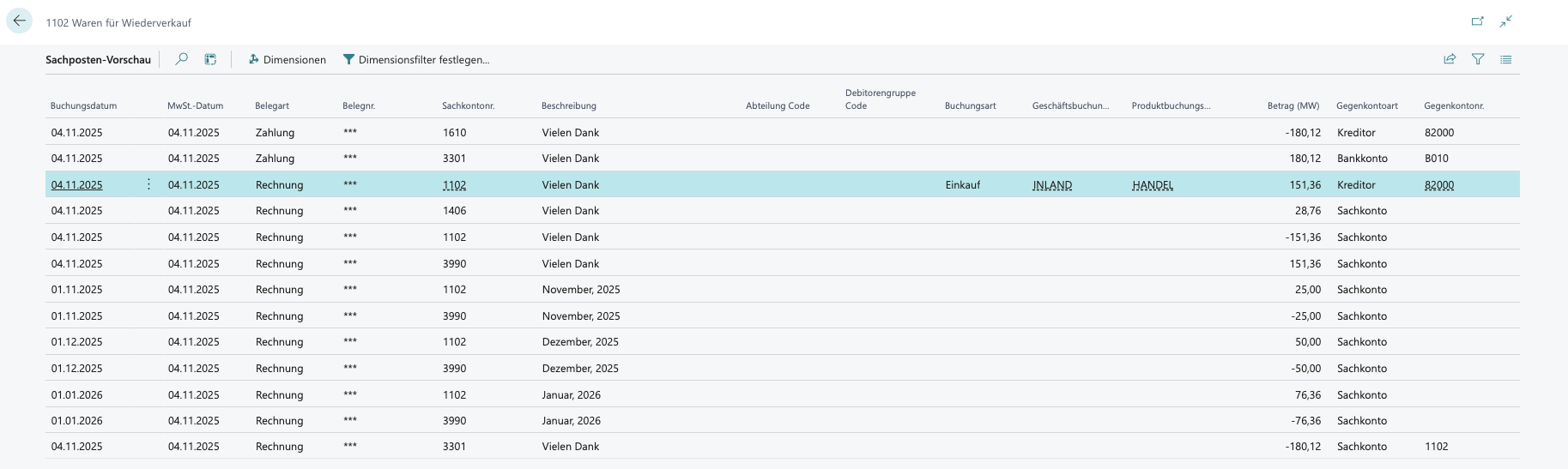
A pure payment without an expense posting cannot be deferred.
Step-by-step guide
In the following section, we describe the posting of a direct debit with posting setup and deferral plan. We assume the following scenario:
- A direct debit of €1,200 for an annually billed software subscription is debited from your bank account.
- The software subscription should be deferred over 12 months.
- The posting is done via the vendor.
- Open the Bank Reconciliation Posting Sheet in 365 Business Banking.
- Select the bank transaction for the software subscription.
- In the Account Type field, select Vendor.
- In the Account No. field, enter the vendor number or select the vendor providing the software subscription.
- In the Posting Type field, select Purchase.Info The Business Posting Group and VAT Business Posting Group are automatically taken from the vendor master.
Adjust these if necessary. - In the Product Posting Group field, select the appropriate product posting group for the software subscription.
- Review the VAT Product Posting Group field and adjust if necessary.
- In the Deferral Code field, select the appropriate deferral plan that defines the distribution of costs over 12 months.
- Optional Use the AssistEdit in the Deferral Code field or the Deferral Schedule action to review or customize the deferral plan.
- Select the Post Payments and Reconcile Bank Account... action to perform the posting and reconcile the bank transaction.