


Automating Bank Account Reconciliation
Retrieving bank transactions and automatic reconciliation can be automated with 365 business Banking. This enables regular updates of bank transactions and seamless integration into your financial processes. For each bank account, a job queue entry is created that regularly retrieves bank transactions, updates the payment reconciliation journal, and automatically reconciles the bank transactions.
Good to know
If the bank requires multi-factor authentication, the job queue entry will automatically pause to allow manual authentication. After successful authentication, the job queue entry can be resumed to continue automatically retrieving and reconciling bank transactions.
Depending on the bank, the frequency of multi-factor authentication may vary, but it is generally between 130 and 190 days.
Step-by-Step Guide
Follow these steps to set up automation for retrieving bank transactions:
- Select Bank Accounts in the search bar of Microsoft Dynamics 365 Business Central.
- Select the bank account for which you want to set up automation.
- Under Actions, select the action Automate Bank Transaction Retrieval.
- Specify the desired filters and the option for automatic reconciliation.
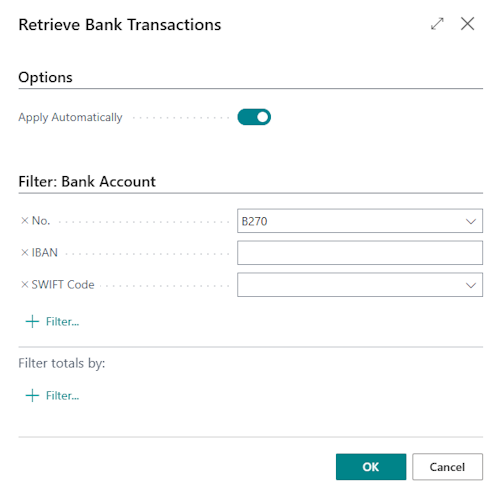
- Select OK to confirm the settings.
- Select Yes to view the created job queue entry.

- Review the job queue entry and ensure the settings are correct.
- Select Set Status to 'Ready' to activate the automation.
Note
The job queue entry is set to daily retrieval by default. However, you can adjust the retrieval frequency by changing the settings in the job queue entry.
See Also
- Bank Account Reconciliation
- Setting Up Banking Users
- Using Job Queues to Schedule Tasks (Microsoft Learn)