Setting Up Banking Users
Authentication with the bank is done via finAPI. To use 365 business Banking with the finAPI integration, you must first set up a finAPI user in Microsoft Dynamics 365 Business Central. This finAPI user is used to connect to your bank and has exclusive access to the banking functions.
Warning
The user information is stored exclusively in Microsoft Dynamics 365 Business Central. The password is encrypted and cannot be viewed after it is set. Please ensure that you store the credentials securely.
It is not possible for us to change or reset the user information or password. If you forget the password, you must delete and recreate the user.
It is not possible for us to change or reset the user information or password. If you forget the password, you must delete and recreate the user.
Step-by-Step Guide
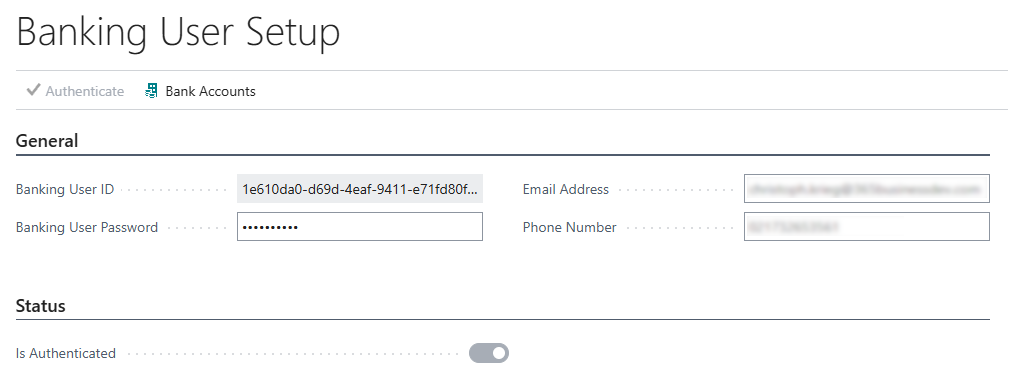
Follow these steps to set up a banking user in Microsoft Dynamics 365 Business Central:
- Select Banking User Setup in the search bar of Microsoft Dynamics 365 Business Central.
- Set a secure password and store it in a safe place outside of Microsoft Dynamics 365 Business Central.
- Enter the email address of the user.
- Enter the phone number of the user.
- Select the action Authenticate to create the banking user.
Note
The Banking User ID is automatically generated and corresponds to the Microsoft Entra ID Tenant ID. This ID cannot be changed.
You can manage one or more bank accounts with a single Banking User ID. The Banking User ID is used for authentication with the bank and is required for the finAPI integration.
You can manage one or more bank accounts with a single Banking User ID. The Banking User ID is used for authentication with the bank and is required for the finAPI integration.
Good to know
The email address and phone number are used for communication with finAPI and are utilized in case of inquiries or unusual events.