


Establishing Bank Account Connections
To retrieve bank transactions or account statements and initiate payments, you must first establish a connection to your bank. This connection is made via finAPI, which acts as an interface between Microsoft Dynamics 365 Business Central and your bank.
The bank account connection is a one-time process that allows you to integrate your bank accounts into 365 business Banking. After a successful connection, you can automate the retrieval of bank transactions and initiate payments directly from Microsoft Dynamics 365 Business Central.
Prerequisites
Before starting the bank account connection, ensure that you have set up a banking user in Microsoft Dynamics 365 Business Central. If the user setup has not yet been completed, the setup will automatically appear when you attempt to establish the bank account connection.
Warning
Bank communication may require multi-factor authentication, such as via a mobile app or SMS TAN, or direct bank interaction. In this case, a corresponding window will appear, opening a pop-up for your bank.
Please ensure that pop-ups are not blocked in your browser and allow pop-ups from your Microsoft Dynamics 365 Business Central URL (e.g., https://businesscentral.dynamics.com).
Step-by-Step Guide
Follow these steps to establish your bank account connection in 365 business Banking:
- Select Bank Accounts in the search bar of Microsoft Dynamics 365 Business Central.
- Select the action Connect Bank Accounts in the Banking group.
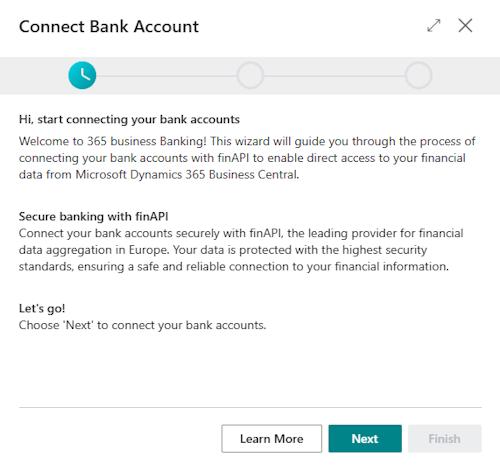
- Select Next to start the connection process.
- Enter the bank name, BIC/SWIFT code, or IBAN of your bank account to select your bank.
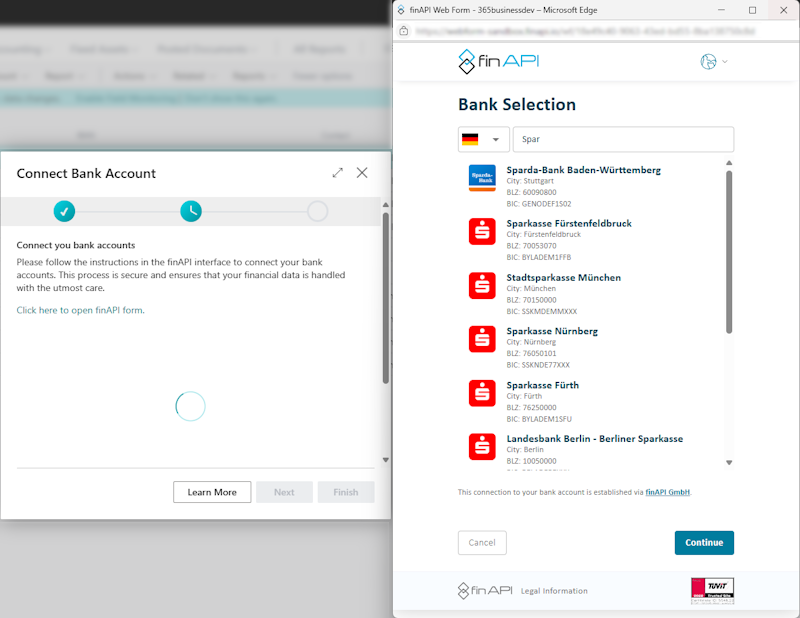
- Log in with your bank credentials. This may vary depending on the bank, but typically requires your account number and PIN.
- Follow the on-screen instructions to establish the connection to your bank. This may include confirming security questions or entering a TAN code.
- Select the accounts you want to connect and confirm your selection.
- After a successful connection, the number of connected accounts will be displayed.
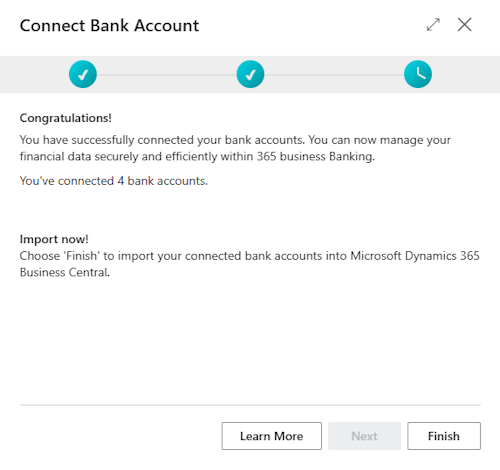
- Select Finish to import the bank accounts and complete the connection.
Good to know
The bank account connection can be executed as often as needed to connect additional bank accounts. When reconnecting, no data is deleted; only new accounts are added. Existing accounts are updated if their information has changed.
Importing Bank Accounts
After successfully connecting to your bank, the bank accounts are automatically imported into Microsoft Dynamics 365 Business Central.
If you have already set up bank accounts in Microsoft Dynamics 365 Business Central, you can connect these accounts with finAPI to take advantage of 365 business Banking. Follow the steps below. During the import of bank accounts, a match is performed using the IBAN to avoid duplicate entries. If a bank account already exists in Microsoft Dynamics 365 Business Central, it will be updated instead of creating a new account.
Note
Please note that for existing bank accounts in Microsoft Dynamics 365 Business Central, the bank account reconciliation must be performed to ensure that account statements are correct and no duplicate entries are imported.
Alternatively, you can use the Last Statement Date field in the bank account card to specify from which date new account statements should be retrieved.
As part of the bank account import, the following information is retrieved:
- Account Name: The name of the bank account.
- IBAN: The International Bank Account Number used to identify the account.
- BIC/SWIFT Code: The Bank Identifier Code used to identify the bank.
- Account Currency: The currency in which the bank account is maintained.
- Bank Account Number: The number assigned to the bank account by the bank.
- Account Type: The type of bank account (e.g., checking account, savings account).
Additionally, the bank's information (e.g., address) is retrieved and stored in the bank account card.
Updating Bank Accounts
If the information for an already connected bank account changes, you can update the connection to retrieve the latest data. Follow these steps:
- Select Bank Accounts in the search bar of Microsoft Dynamics 365 Business Central.
- Select the action Retrieve Bank Accounts in the Banking group.
Removing Bank Account Connections
If you want to remove a bank account connection, follow these steps:
- Select Bank Accounts in the search bar of Microsoft Dynamics 365 Business Central.
- Select the bank account you want to remove.
- Select the action Delete.