
Initialize address data
The address data initialization reads existing address data into the address data dictionary in batches, without validating any address.
The initialization applies only to 365 business Address Validation in Microsoft Dynamics 365 Business Central.
Source tables
The initialization reads address data in this order from the following source tables: Contact, Customer, Vendor, Sales Documents, Purchase Documents, Resource, Employee, Ship-To Address, and Order Address. Alternative Addresses are not read.
No automatic validation
The initialization only updates the address data dictionary and usage tracking. No address is validated. Address data already marked as Validated or Manually Checked remains unchanged.
Configure the batch size
The number of records read from a source table within a single batch is set on the Address Validation Setup, in the Initialization Batch Size field.
- Default value: 1,000 records per batch.
- Range: 0 to 100,000. A value of 0 or lower is not treated as "no batching" but falls back to the default value of 1,000.
Open Address Data Initialization
- Choose the Search icon, enter Address Data Initialization, and open the page, or on the Address Validation Setup, choose the Address Data Initialization action.
- At the top of the page, the Progress area shows the overall state:
| Field | Description |
|---|---|
| Progress | Overall completion of the initialization, in percent. |
| Batch Size | Number of records read from a source table within a single batch. Changeable on the Address Validation Setup. |
| Scheduled in Background | Specifies whether the continuation is scheduled in a background session. |
- Below it, the list shows for each source table:
| Field | Description |
|---|---|
| Source Table | Name of the table being processed. |
| State | Current processing state, see below. |
| Pct. Completed | Percentage progress of the source table. |
| No. of Records Processed | Number of records processed so far. |
| No. of Records | Total number of records to process. |
| No. of Addresses Added | Number of addresses added to the address data dictionary. |
| Last Batch Run at | When the last batch was processed. |
| Last Error Message | Error message of the last failed batch, only for state Failed. |
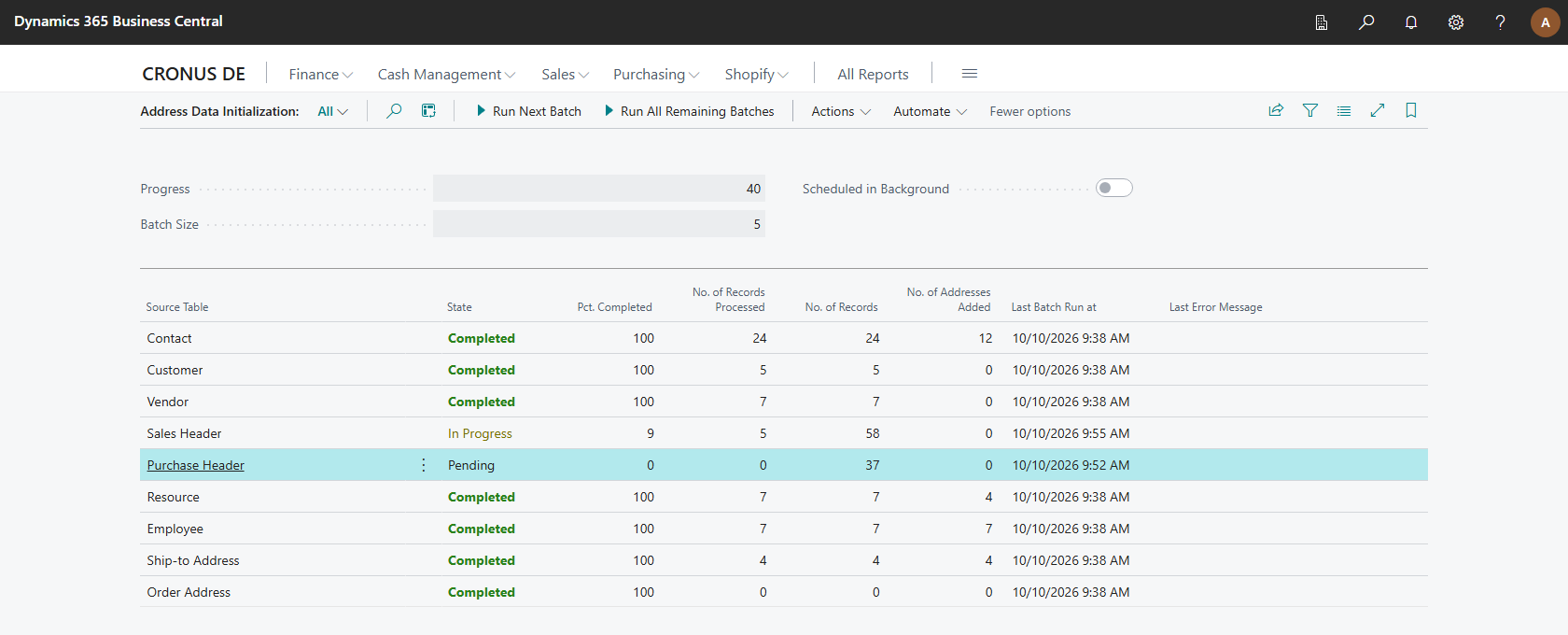
State overview
| State | Description |
|---|---|
| Pending | The source table is waiting for processing. |
| In Progress | The source table is currently being processed. |
| Completed | Processing was completed successfully. |
| Skipped | The source table was skipped, for example due to a missing read permission. |
| Failed | Processing failed. The message is shown in the Last Error Message field. |
Errors in one table do not block others
A failed batch of one source table does not block processing of the remaining source tables. You can re-run a failed batch after resolving the cause.
Start, resume, and run in the background
In the Initialization action group:
| Action | Description |
|---|---|
| Run Next Batch | Reads the next batch of address data from the source tables. Only the configured number of records is processed, so the action can be repeated until the initialization is completed. |
| Run Next Batch for Selected Source Table | Reads the next batch of address data from the selected source table. |
| Run All Remaining Batches | Reads all remaining address data from the source tables. Every batch is saved separately, so the initialization continues where it stopped if the session is interrupted. |
| Continue in Background | Continues the initialization in a background session. The session processes the remaining batches and schedules itself again until the initialization is completed. |
Background session with a fixed duration
A background session processes batches for at most 5 minutes and then, if work remains, schedules itself again after a 1 minute delay. The session runs through the Task Scheduler.
In the Manage action group:
| Action | Description |
|---|---|
| Reset Selected Source Table | Processes the selected source table from the beginning with the next batch. Existing address data is not deleted. |
| Skip Selected Source Table | Excludes the selected source table from the initialization. Its addresses are added to the address data dictionary as soon as they are used. |
| Restart Initialization | Processes all source tables from the beginning again. Existing address data and the validation status of the addresses are not deleted. |
| Remove Unused Address Data | Removes address data which is not validated and no longer used by any record. Removed addresses are added to the address data dictionary again as soon as they are used. |
In the Related action group:
| Action | Description |
|---|---|
| Address Data | Opens the address data dictionary filled by the initialization. |
| Address Validation Setup | Opens the Address Validation Setup to change the batch size. |
No duplicate processing
The initialization does not process records twice. A restart resumes processing from the last saved position.
Cleaning up orphaned records
When the page is opened, the initialization automatically cleans up orphaned records in the address data usage and address data hash tables. Since version 18.11, the initialization itself no longer deletes address data; validated or manually checked statuses are kept across a restart.