
Setup
By installing 365 business Sanction Screen, the basic setup is already completed, and you are ready to perform the sanctions list check in Microsoft Dynamics 365 Business Central. However, this is a standard setup that should be customized according to the individual requirements of your company.
Before you start
Before you begin with the sanctions list check, you should review the following points:
- Data Catalogs: Review the data catalogs to be used for the sanctions list check. 365 business Sanction Screen offers comprehensive coverage of over 450 data sources that can be used for the sanctions list check. For more information, click here.
- Intervals: Review the intervals at which the sanctions list check should be performed. 365 business Sanction Screen enables fully automated sanctions checks with configurable intervals for each entity.
Check Intervals
The check intervals determine how often the sanctions list check is performed. You can configure the check intervals for each entity individually, with the following recommendations:
- Small businesses: Annually. Small businesses with low risk and few business partners can perform an annual review.
- Medium-sized businesses: Semi-annually. Medium-sized businesses should review their trading partners and employees every six months to ensure they are not doing business with sanctioned individuals or organizations.
- Large businesses: Quarterly. Large businesses with extensive international business relationships should perform a sanctions list check at least every three months.
- High-risk businesses: Monthly. Businesses operating in high-risk industries or conducting many international transactions should consider monthly reviews.
- Businesses with critical business areas: Weekly. Businesses operating in particularly sensitive or regulated areas, such as financial services or the defense industry, should perform weekly checks.
Setup
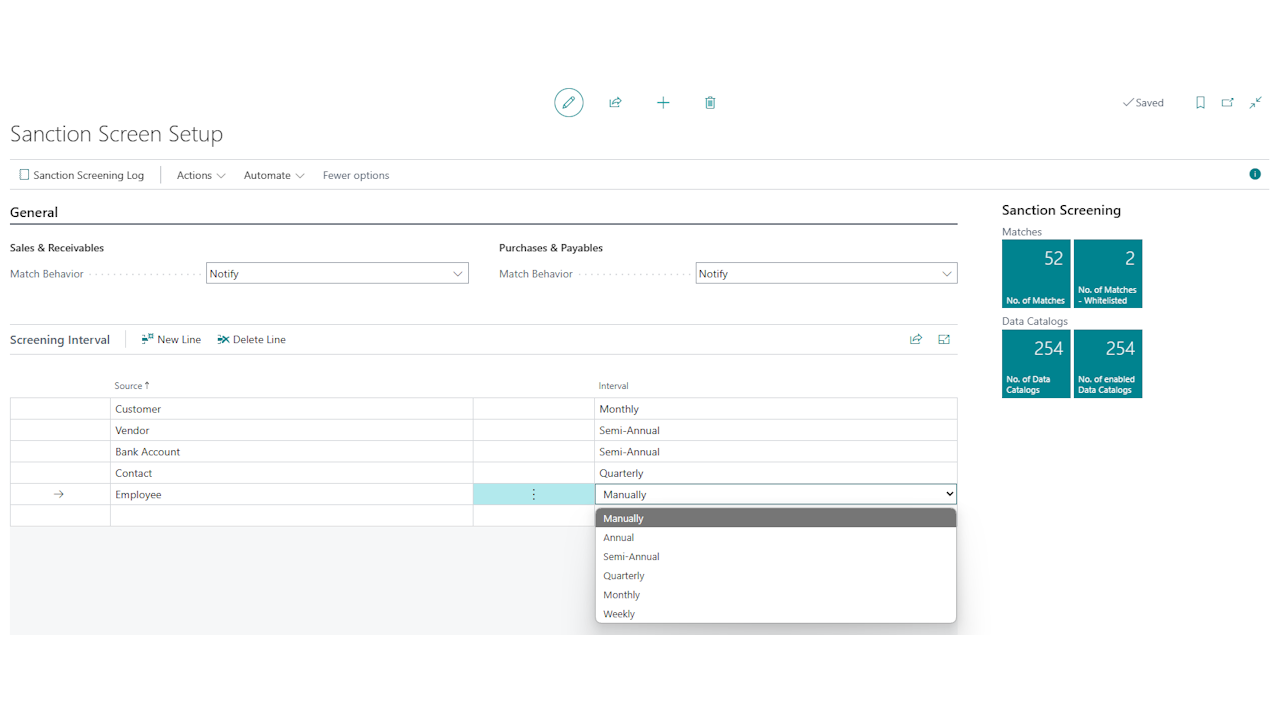
The Sanction Screen Setup can be used as a central point for configuring the sanctions list check in Microsoft Dynamics 365 Business Central. Here you can set the check intervals for each entity, select the data catalogs to be checked, and configure notifications. Additionally, you will find useful information about the current configuration and the checks performed.
Unscreened Entity Status
Using the Unscreened Entity Status setting, you can define how Microsoft Dynamics 365 Business Central should handle records that have not yet been checked. This primarily concerns new entities that have not yet been screened against sanctions lists.

Option - No Data Available
In this setting, the status of a record that has not yet been checked is displayed as No Data Available. This means that the record has not yet been screened against sanctions lists, and no information about potential matches is available.
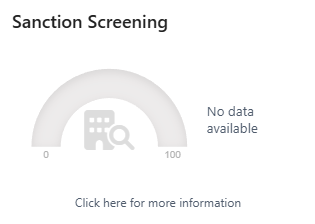
When used, for example, in sales documents, the user is informed based on the selection in Match Behavior and must confirm that the record can be processed further without screening.
Option - Blocked
In this setting, the status of a record that has not yet been checked is displayed as Blocked. This means that the record cannot be processed further until it has been screened against sanctions lists.
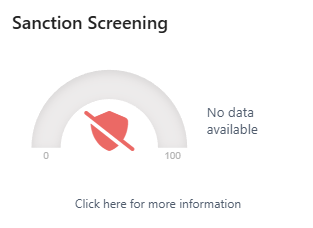
When used, for example, in sales documents, the user receives an error message stating that the record has not yet been checked and cannot be processed further. The match must first be reviewed before continuing.
Sales & Receivables
In the Sales & Receivables group, you can specify how Microsoft Dynamics 365 Business Central should handle potential matches and hits in the sanctions list check within sales documents and customers.
| Field | Description | Default |
|---|---|---|
| Match Behavior | Specifies how Microsoft Dynamics 365 Business Central should handle potential matches in the sanctions list check. | Notify |
For more options, see Match Behavior.
Purchase & Payables
In the Purchase & Payables group, you can specify how Microsoft Dynamics 365 Business Central should handle potential matches and hits in the sanctions list check within purchase documents and vendors.
| Field | Description | Default |
|---|---|---|
| Match Behavior | Specifies how Microsoft Dynamics 365 Business Central should handle potential matches in the sanctions list check. | Notify |
For more options, see Match Behavior.
Match Behavior
The Match Behavior determines how Microsoft Dynamics 365 Business Central should handle potential matches in the sanctions list check. You can set the behavior individually for the areas of Customers & Sales and Vendors & Purchasing.
Notifications are displayed in the documents of the respective areas (e.g., sales quote, sales order, purchase order) and inform the user about possible matches.
| Behavior | Description |
|---|---|
| None | The user does not receive any additional notifications or warnings. |
| Notify | The user is informed about possible matches but can continue to work with the entity. |
| Warn | The user is informed about possible matches and receives a confirmation prompt but can continue to work with the entity. |
| Block | The user is informed about possible matches and cannot continue to work with the entity. The match must be reviewed and possibly added to the whitelist to continue working. |
Additionally, it is checked whether the entity has already been checked (e.g., new customer). If a notification option has been selected, the user is informed that the entity has not yet been checked and must confirm this.
Match Threshold
The Match Threshold % defines the probability from which a similarity is reported as a hit. The value is passed to the data source, so anything below it is not returned in the first place.
The default is 70 %. It is the value that was built in before version 18.3, so an existing setup behaves exactly as it did before the update.
The threshold is recorded with every screening
Every screening log entry records the threshold that was in force when it ran. A score cannot be assessed later without the threshold it was measured against, and changing the setup afterwards does not alter evidence that has already been written.
A threshold below 50 % reports a large number of weak similarities that all have to be assessed by hand, so it is only accepted after a confirmation. Supervisory practice expects a company to justify its threshold on a risk basis and to be able to show it - the audit report prints it in the section on the settings in force.
Reason for an Override
With Override Reason Required switched on, the user has to state a reason when releasing a document despite a hit, or without a screening. The reason is recorded together with the person who decided, the point in time and the document, and is presented in the audit report.
The reason is required after updating to 18.3
The setting is switched on in existing databases as well after the update, so releasing despite a hit asks for a reason. This is deliberate: an override without a reason is worthless in an audit. If you do not want it, switch the setting off in the Sanction Screen Setup.
If the user closes the reason dialog instead of stating a reason, the release does not happen - but the abandoned decision is recorded. The decision to proceed had already been taken at that point, and that is what an audit asks about.
Screening Interval
The Screening Interval determines how often the sanctions list check is performed. You can set the interval for each entity individually.
| Interval | Description |
|---|---|
| Annually | The check is performed within a year after the last check. |
| Semi-annually | The check is performed within six months after the last check. |
| Quarterly | The check is performed within three months after the last check. |
| Monthly | The check is performed within a month after the last check. |
| Weekly | The check is performed within a week after the last check. |
| Manually | The check is performed manually by the user only. |
Good to know
In the automated task queue entry Sanctions Check, the setting can be overridden to perform special checks deviating from the standard.
Entity Risk Tags
The data source marks every match with one or more risk tags (topics). They describe why a person or a company is listed - for example as sanctioned, sanction-linked, export controlled or as a politically exposed person.
The Entity Risk Tags page gives you an overview of all known risk tags. You can open it from the search or from the Sanction Screen Setup using the Entity Risk Tags action.
| Field | Description | Default |
|---|---|---|
| Code | The risk tag as the data source provides it. It is defined by the data source and cannot be changed. | |
| Name | The name of the risk tag. It is defined by the data source and cannot be changed. | |
| Risk Relevant | Specifies whether the risk tag implies a counterparty risk. Risk tags that are not risk relevant only describe the entity, for example as a government body or as a bank. | |
| Severity | The weight of the risk tag in the evaluation of a match. This is the only field you can adjust. | 0 for descriptive, 1 for risk bearing, 2 for particularly severe risk tags |
| Description | A detailed explanation of the risk tag, where the data source provides one. |
The Severity affects how a match is evaluated: the higher the severity, the more weight a match with this risk tag carries.
| Severity | Meaning | Examples |
|---|---|---|
| 0 | Purely descriptive risk tags. They only say what an entity is and do not increase the evaluation of a match. | National government, Bank, Judge, Political party |
| 1 | Risk tags that imply a counterparty risk. | PEP, Close Associate, Debarred, Fraud, Human trafficking |
| 2 | Risk tags that indicate a legal prohibition or an enforcement action. | see the following table |
By default, severity 2 is assigned to the following risk tags:
| Risk tag | Meaning |
|---|---|
| Sanctioned | Designated by a government in order to prohibit specific interactions. |
| Sanction-linked | Direct relationship with a sanctioned entity. |
| Sanction ownership or control | Direct or indirect subsidiary of a sanctioned entity. |
| Export controlled | Subject to export control. |
| Export control-linked | Linked to an export controlled entity. |
| Investment ban | Investments are prohibited. |
| Regulator action | Subject of an enforcement action by an industry regulatory body. |
| Terrorism | Related to terrorism. |
| War crimes | Related to war crimes. |
| Wanted | Wanted by law enforcement. |
Good to know
An adjusted severity is kept when the app is updated. Name, description and risk relevance, on the other hand, are refreshed from the data source with every update.
Note
The data source keeps extending the list of risk tags. If a screening returns a risk tag that is not known yet, it is weighted with severity 1 and stored with the match, so a new risk tag is never lost.
Permissions
365 business Sanction Screen provides three permission sets required for the sanctions list check:
| Permission Set | Name | Description |
|---|---|---|
BDEV.OS.BASIC | Sanctions Check - BASIC | Provides the basic permissions to work with 365 business Sanction Screen. This permission set should be assigned to all users. |
BDEV.OS.WHITELIST | Sanctions Check - Whitelist | Authorizes the user to add sanction hit entries to the whitelist. |
BDEV.OS.AUDIT | Sanctions Check - Audit | Authorizes the user to produce the audit report. The report collects personal sanction and PEP hits together with the people who decided on them, which is why it is deliberately not granted to everyone. |