
Audit Report
The Sanction Screening Audit Report is the evidence document you hand to an auditor. It proves two things: what was screened and how the system was configured while doing so.
The report is laid out so that an auditor can answer the questions that usually come first:
- Was the business partner screened at all, and when?
- Which data was it screened against, and how current was that data?
- From which score on was a result reported as a match?
- Who decided about a match, and on what grounds?
- Which screenings are still missing?
Before you start
Producing the report requires the bdev.OS.AUDIT permission set. It is deliberately not part of the basic permissions: the report condenses personal data from sanction and PEP lists together with the people who decided about it.
Produce the report
- Open the Sanction Screen Setup page through the Microsoft Dynamics 365 Business Central search.
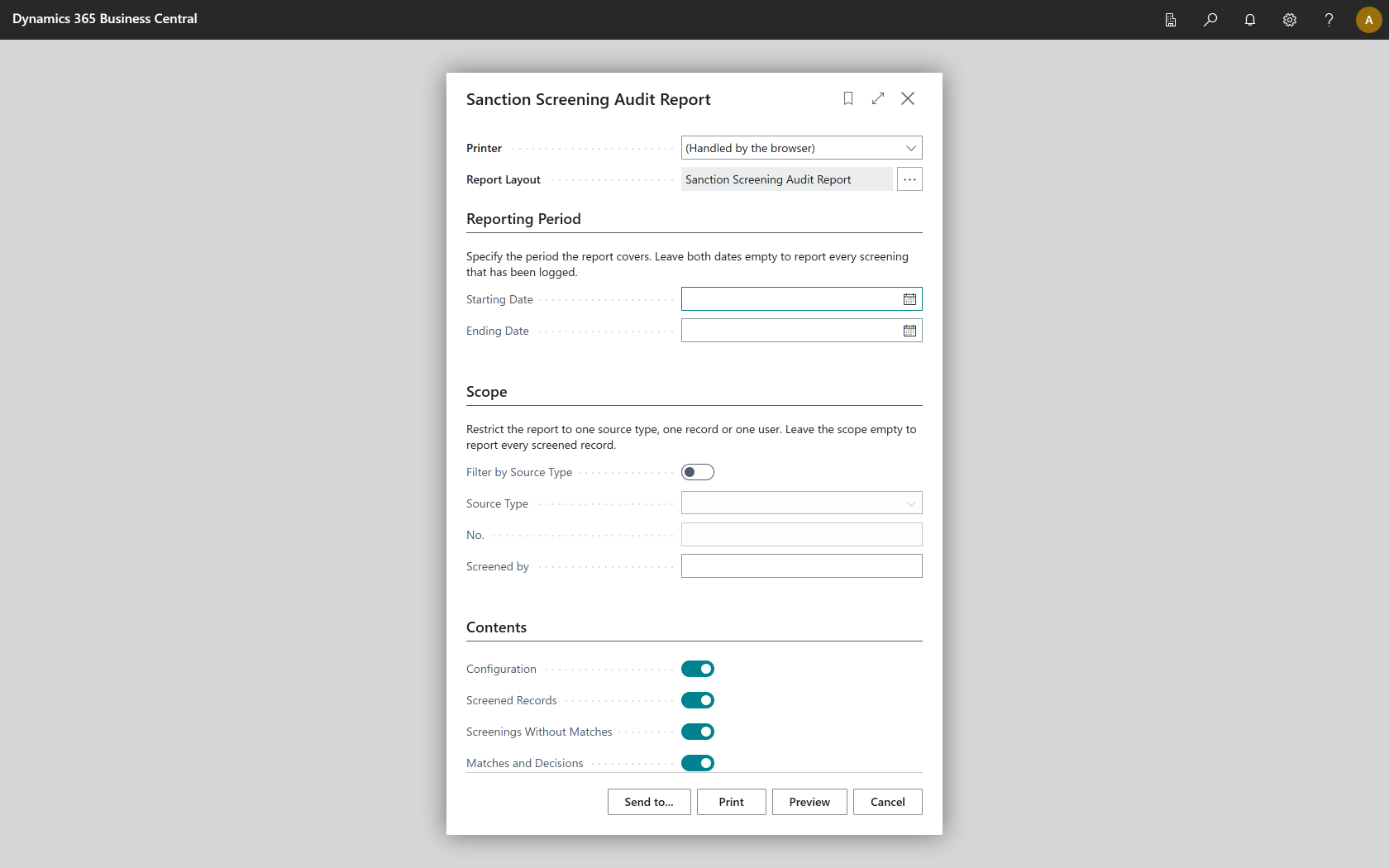
- Choose the Audit Report action.
- Specify the Reporting Period. Leave both dates empty to report every screening that has been logged.
- Narrow the Scope down to one source type, a single record or one user if you need to.
- Under Contents, select the sections the report should contain.
- Choose Print or Preview.
Alternatively, start the report from the Sanction Screening Log Entries page using the Audit Report action. It then opens prepared for the source type of the selected log entry. Because you can reach that page directly from a customer or vendor card, this gives you the dossier for a single business partner in a few clicks.
The four sections
The first page sums up what the report covers and states how current the sanction list data was.
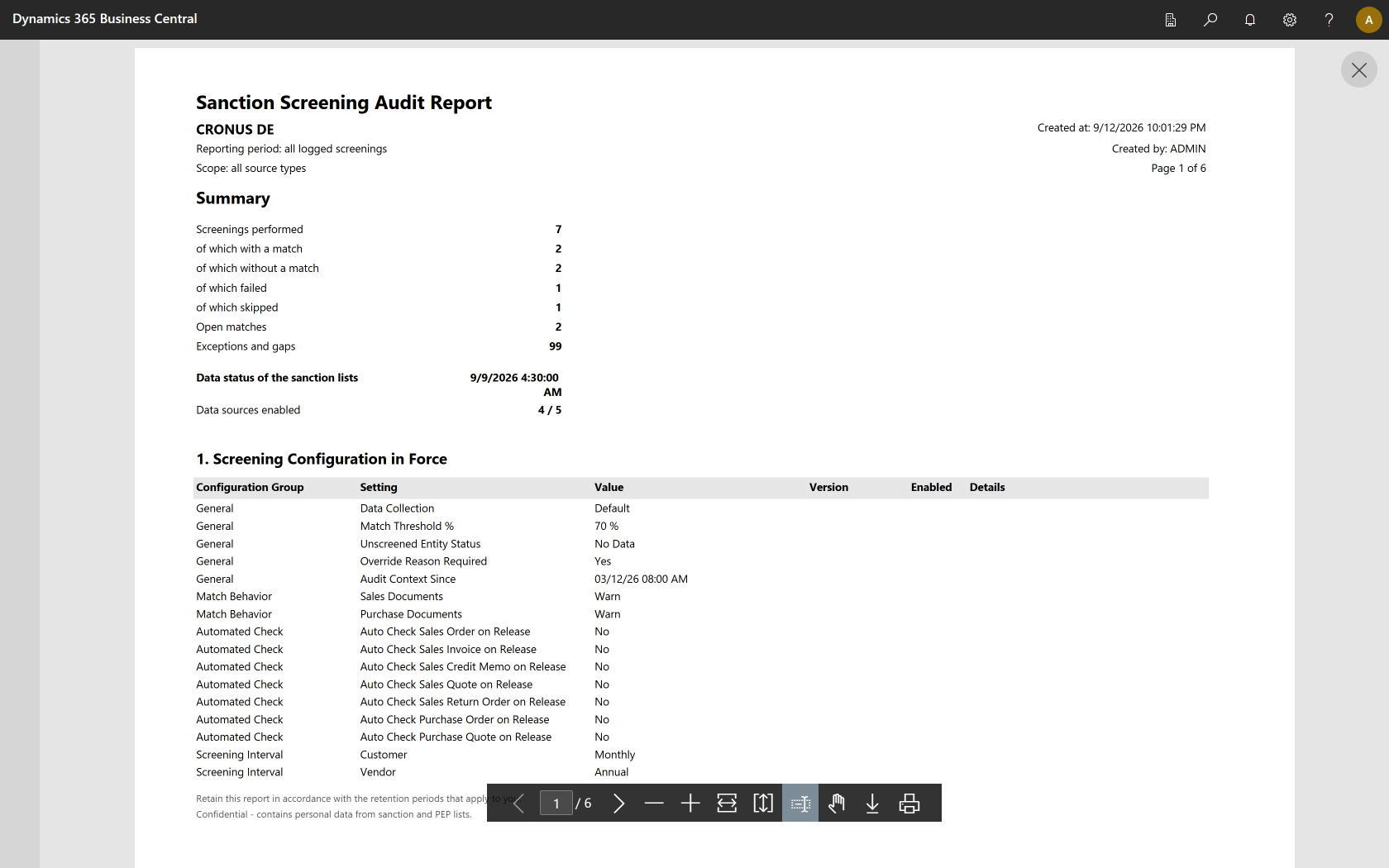
1. Screening configuration in force
Documents the configuration the screenings ran under: data collection, match threshold, behavior on matches, automated checks on document release, screening intervals per entity, the enabled data sources with their version and data status, and the retention periods that are set up.
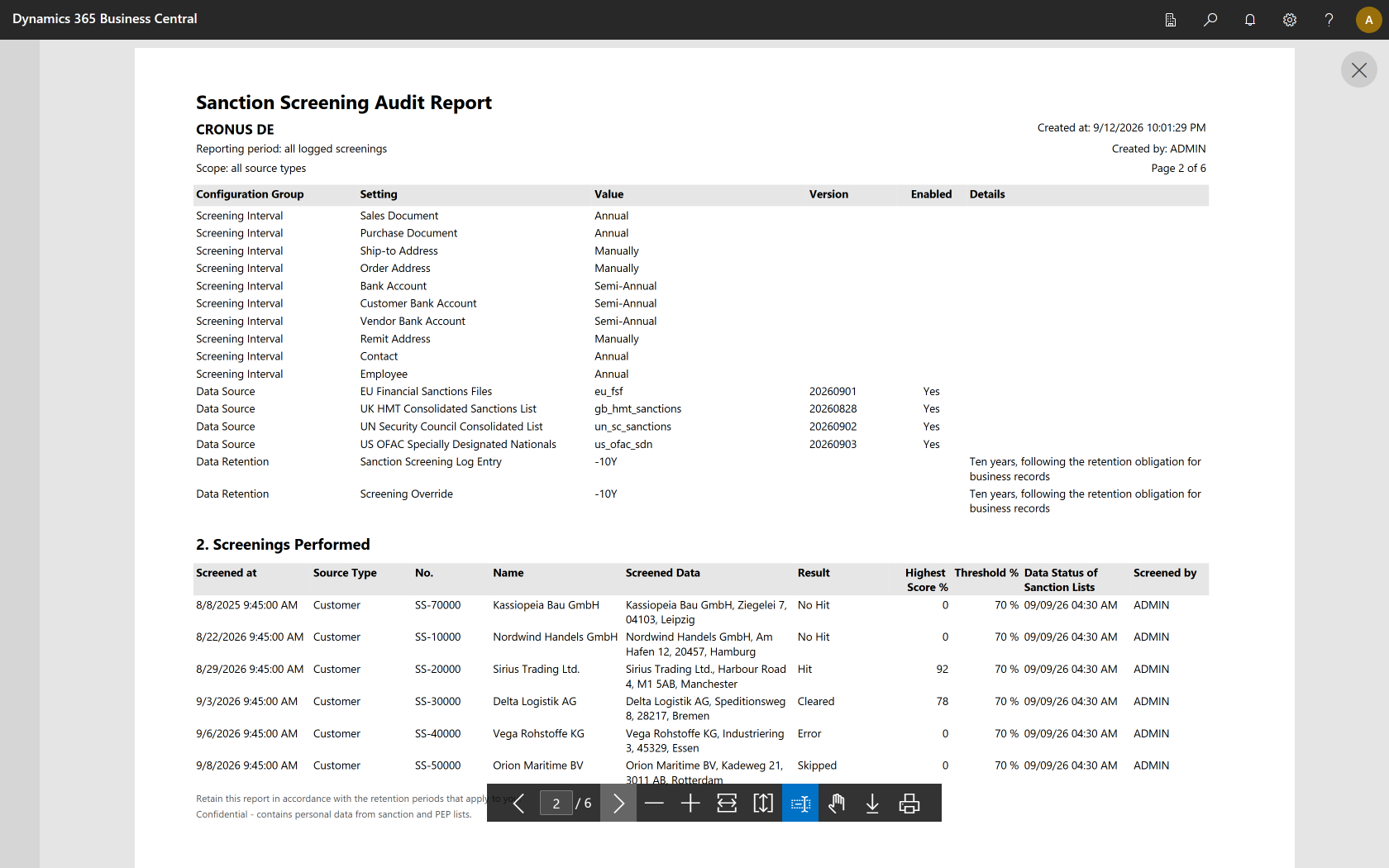
2. Screenings performed
Lists every screening in the period, with the point in time, the user, the screened data, the checksum, the result, the highest score and the threshold that applied.
Screenings without matches are the point
Screenings that found no match are included on purpose. They are the evidence that the check took place. A report that shows matches only does not prove that the remaining business partners were screened at all.
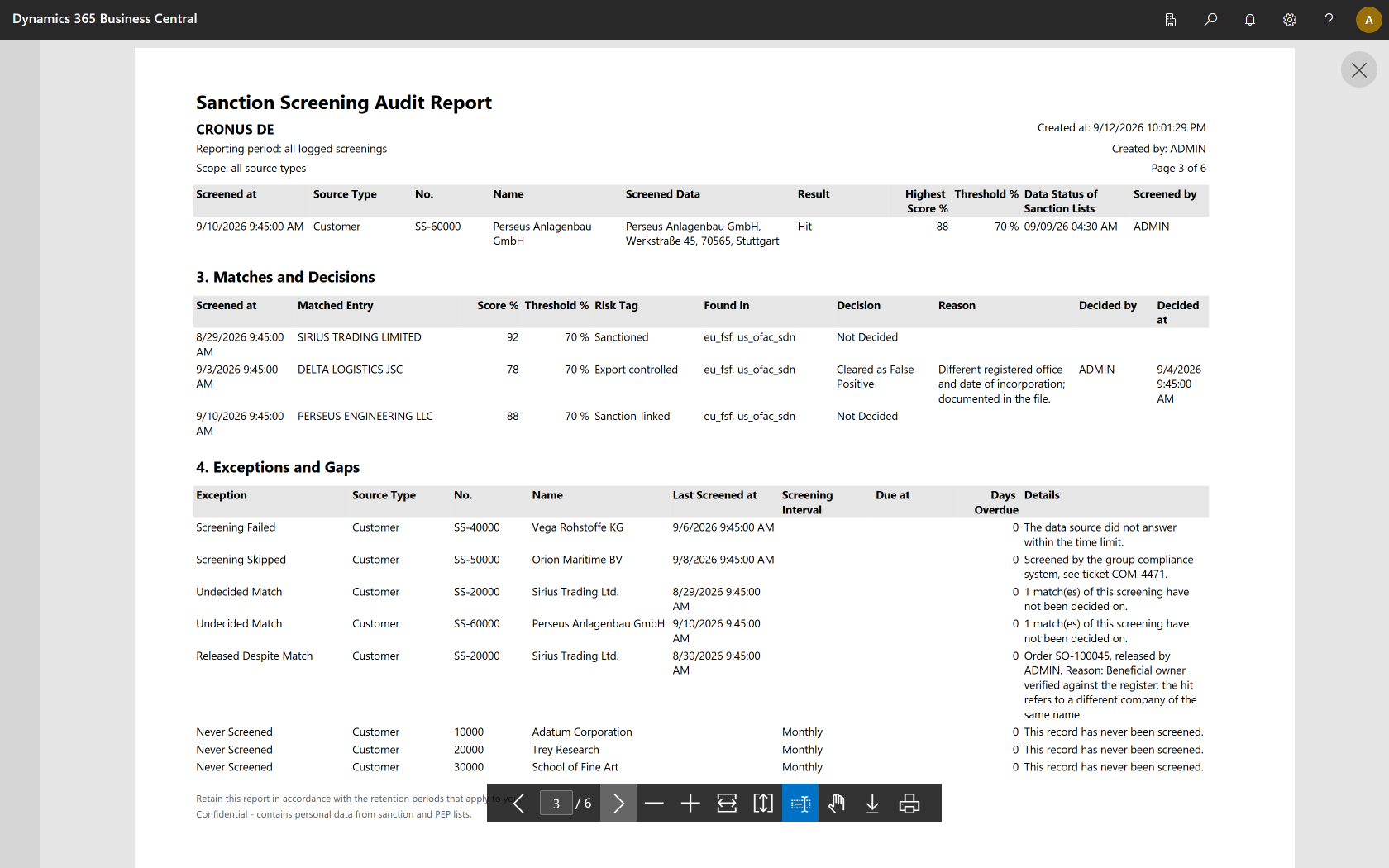
3. Matches and decisions
Lists the matches with their score, risk tags and the data source they were found in, together with the decision: cleared as a false positive, with the reason, the user who decided and the point in time.
Matches nobody has decided on appear as Not Decided and additionally in section 4. So far the data model only knows clearing as a false positive as an explicit decision, and the report states that rather than implying a decision that does not exist.
4. Exceptions and gaps
The section auditors open first:
- Never screened – records that were never checked
- Overdue – elapsed screening intervals together with the due date
- Screening skipped – screenings an extension skipped, with the reason
- Screening failed – screenings that did not complete, with the cause
- Undecided match – open matches
- Released despite match and Released without screening – overridden decisions, with the reason
- Not fully listed – appears only where there are very many gaps, see below
Blocked customers and vendors do not appear as never screened, because the product does not screen blocked records. Sales and purchase documents are not checked for missing screenings either.
Very many gaps are counted, but not all of them are printed
Per kind of entity the report lists at most 1,000 records that were never screened or are overdue. When you have only just started using the product every customer is a gap at first, and a report of several thousand pages would be of no use. The counting is complete nonetheless: a Not fully listed line states the true total. Narrow the report down by period or entity to see the gaps in full.
The two timestamps
Screening time and data status are two different things
The report carries both separately: the point in time the screening was performed, and the data status of the sanction lists it was performed against. A screening done today against a data status three months old is not the same as one done today against the current status. The data status also appears prominently on the first page.
Screenings from earlier versions
Older entries show "not recorded"
The screening context — threshold, algorithm, data collection, data sources screened and data status — is only recorded from version 18.3 on. For screenings from earlier versions the report shows not recorded in those columns. That is intentional: presenting a value that did not apply at the time would be worse in an evidence document than stating that it was never captured. The number of matches and the highest score are reconstructed for older entries, because those two values have demonstrably not changed since.