Get Started
This quick guide explains how to activate 365 business Print Agent and set up a printer.
In addition, there is a free 30-day trial period for real and On-Premises environments without functional restrictions.
Prerequisites
- Microsoft Dynamics 365 Business Central 2021 release wave 1 (18.0) or newer.
- A Microsoft Windows system (Windows Server 2016 or higher recommended) to run 365 business Print Agent Service
- An internet connection
For setting up the direct connection, please visit the documentation.
Step 1: Installation of 365 business Print Agent
Open the Extension Marketplace in Microsoft Dynamics 365 Business Central and search for 365 business Print Agent. Install the app from Microsoft AppSource and wait until the installation is complete.
Alternatively, use the following link to install 365 business Print Agent directly from Microsoft AppSource:
Install 365 business Print Agent | Microsoft AppSource
Step 1.1: Print Agent Setup
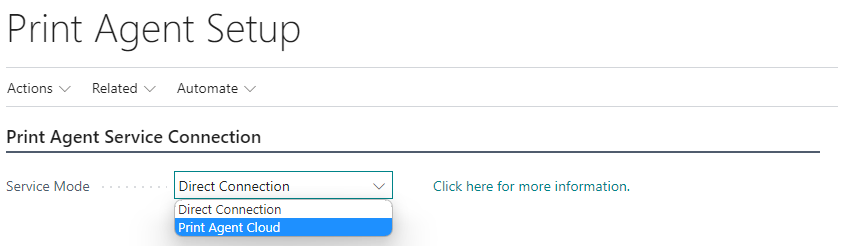
Open the Print Agent Setup page in Microsoft Dynamics 365 Business Central:
Select Print Agent Cloud as Service Mode.
Learn more
Select Authenticate Print Agent.
Copy the Tenant-ID value by clicking on the field value.
Info The Tenant-ID links the Print Agent Service to your Microsoft Dynamics 365 Business Central environment.
You will need the Tenant-ID later when setting up the Print Agent Service.Select Download software... to download the 365 business Print Agent Service.
Step 1.2: Install 365 business Print Agent service
- Save the downloaded ZIP file on the Windows system that you want to use as print server with 365 business Print Agent
- Unzip the ZIP file (e.g.
C:\install) - Run the setup file.
learn more
Step 1.3: Print Agent Service Setup
- Start the 365 business Print Agent application.
- Select Configure.
- Select 365 business Print Agent Cloud (recommended).
- Insert the Tentant ID from step 1.1.
- Specify a Name to identify the client.
- Select Apply to complete the setup.
Step 2: Set up Printers
To be able to use printers directly in Microsoft Dynamics 365 Business Central, they must be activated.
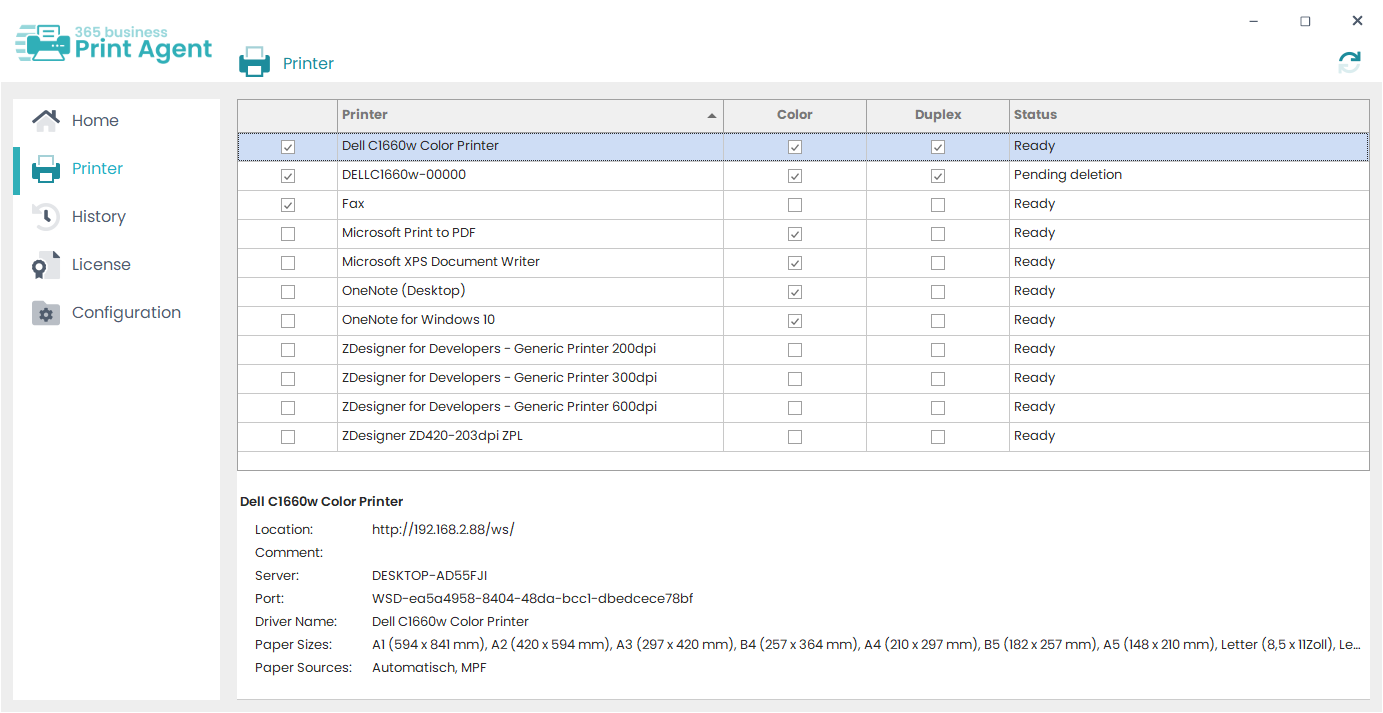
- Open the 365 business Print Agent application.
- Select Printer to display all available printers.
- Activate all printers that you want to share with Microsoft Dynamics 365 Business Central.
Step 2.1: Get shared Printers
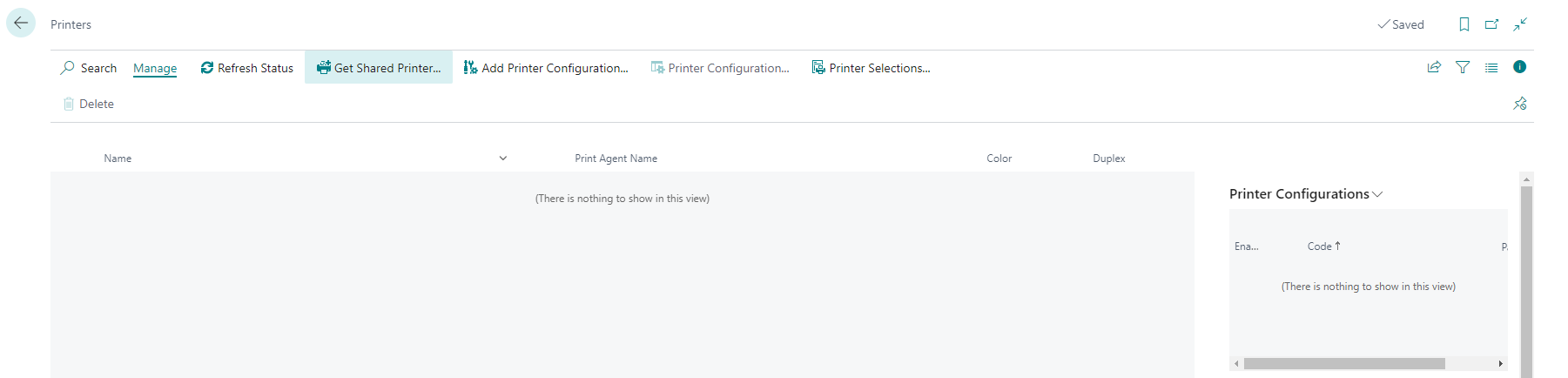
- Open the Printers in Microsoft Dynamics 365 Business Central.
- Select Get Shared Printers... to retrieve the shared printers.
Step 2.2: Enable Printer Configuration
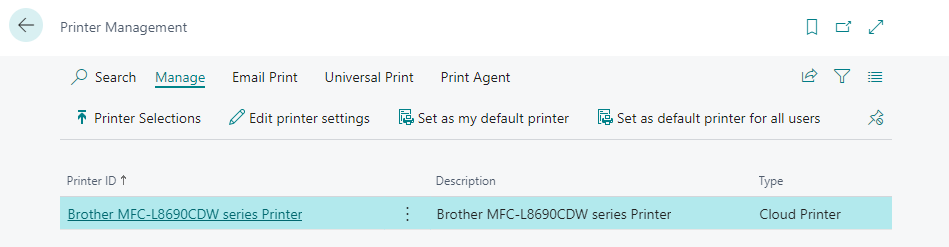
Instead, you must create Printer Configurations, which can then be selected in the Printer Selection or in the Report Request Page.
A Printer Configuration is created by the system automatically for each printer, based on the available features of the printer.
- Select Printer Configurations.
- Select Edit.
- Verify the system-created configuration.
- Select Enabled to enable the printer setting.
Step 3: Assign Printer Configuration
To make optimal use of the printers, we recommend setting up a printer (configuration) for specific reports or users. The configuration is done in Microsoft Dynamics 365 Business Central on the standard Printer Selection page.
- Open Printer selection.
- Select a User ID or leave the field empty (for all users).
- Enter a Report ID or leave it blank (for all reports).
- Select the Printer Name.
From here you can open printer configuration or set a printer (configuration) as default.