


Printers
On the Printers page in Microsoft Dynamics 365 Business Central you will find all shared printers of the 365 business Print Agent Services.
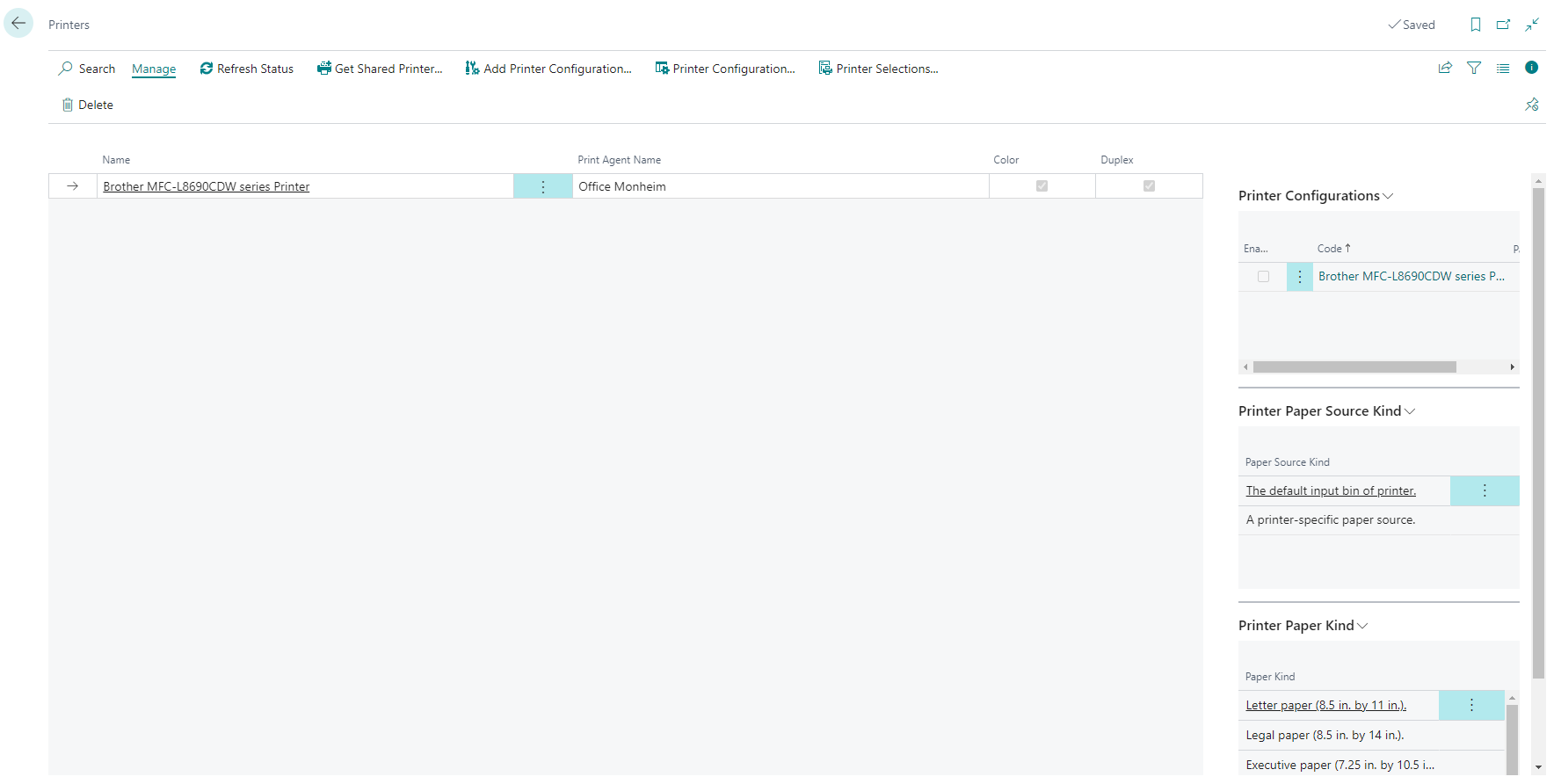
Shared printers cannot be used directly by users in Microsoft Dynamics 365 Business Central. Instead, it is necessary to create Printer Configurations that can be assigned or selected in the Printer Selection or on the Report Request Page. You can create any number of printer configurations based on the functions of your printer in order to map different printing scenarios (e.g. duplex printing).
When you create a printer using the Get Shared Printers... action, a printer setting is automatically generated by the system which contains all the available functions of your printer.
Which printers are supported?
365 business Print Agent supports all Windows-compatible printers.
In addition, 365 business Print Agent supports native communication through Zebra (ZPL) and SATO (SBPL) emulation. PDF files are translated into native control characters before being sent to the printer, which can speed up processing.
Good to know
When sharing network printers in 365 business Print Agent, timeouts may occur as the response from the actual printer may take longer.
This is a known issue with Windows printer management and may not be resolved by 365 business Print Agent.
Recommendation: Install 365 business Print Agent directly on print servers and share locally installed printers instead of using printers from a remote print server.
How is the ZPL / SBPL emulation for printers activated?
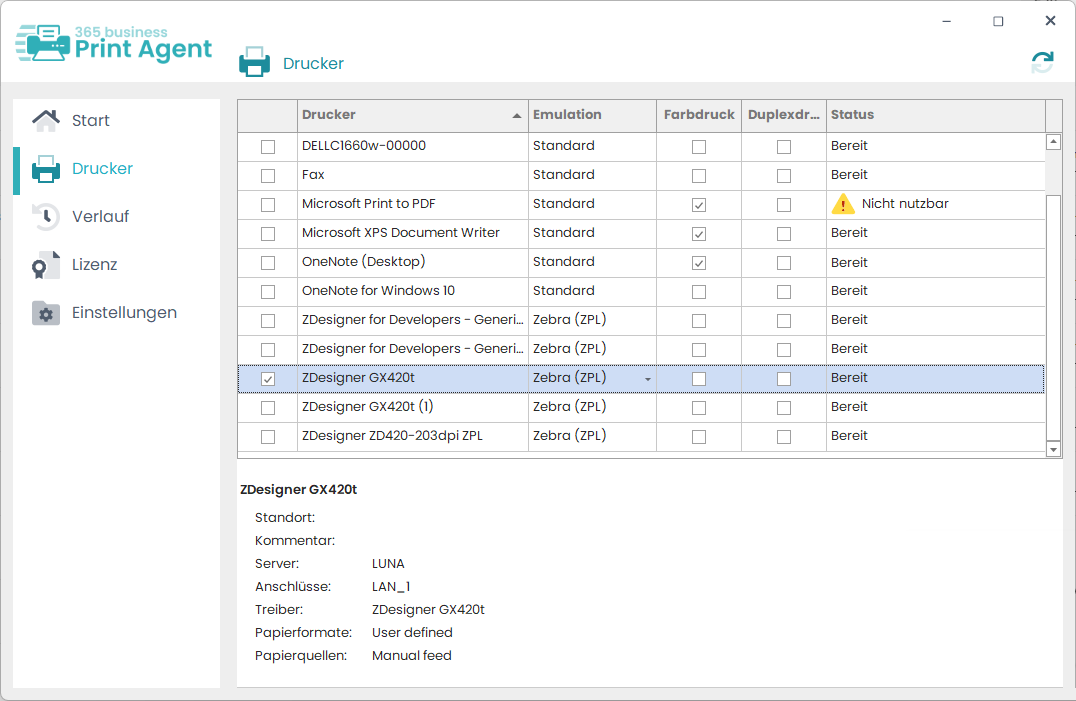
In the 365 business Print Agent application, you will find the list of currently installed printers and can enable them for use via 365 business Print Agent.
In the Emulation column, you can activate the Zebra (ZPL) or SATO (SBPL) option - in contrast to the Standard - in order to use emulation (PDF conversion) and direct communication via ZPL/SBPL control characters.
Info
Printing via ZPL / SBPL emulation is usually significantly faster than PDF printing and delivers better print results.
Recommendation: Activate the corresponding emulation when using Zebra or SATO printers.
How do I know if printers are not available or if there are faults?
Due to maintenance work, software updates or malfunctions, shared printers may not be available under certain circumstances.
On the Printer page, unavailable printers (e.g. Offline) and printers with faults (e.g. Paper jam) are highlighted. The last known status of the printer is displayed in the Status column.

Attention
The printer status is determined by the Windows print service. This status may not always be up-to-date, as the Windows Print Service only checks the status when necessary.
If problems are detected during a print job, the status is updated immediately.
If changes are made to the printer without an active print job, the displayed status may differ from the actual status.
You can also find an overview of the known Print Agent Services (Instances) and their online status on the Print Agents page in Microsoft Dynamics 365 Business Central.