
Support
Logging Print Jobs in the Event Viewer
By default, print jobs are not logged in the Windows or Windows Server Event Viewer.
However, enabling logging can be useful in certain scenarios — for example, for troubleshooting or monitoring the status of print jobs.
This article shows how to enable print job logging in the Event Viewer.
Step 1: Open the Event Viewer
- Press
Windows+Ron your keyboard to open the Run dialog. - Type
eventvwr.mscand pressEnter.
→ This will open the Event Viewer.
Step 2: Enable Print Job Logging
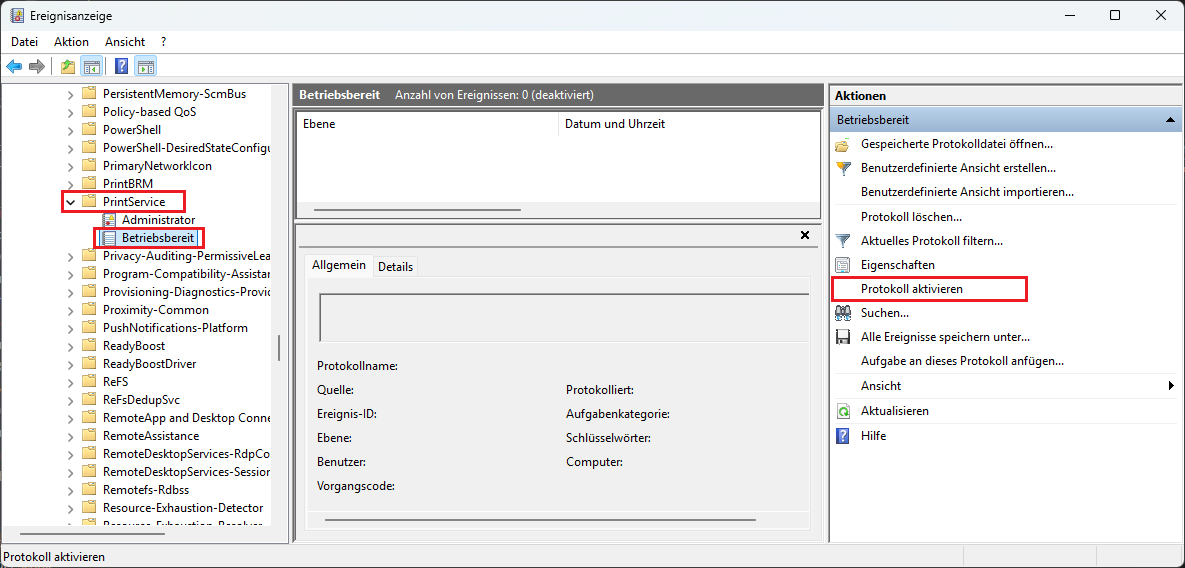
- In the Event Viewer, navigate to the following path:
Applications and Services Logs>Microsoft>Windows>PrintService>Operational - Select the Operational log.
- In the Action menu, click Enable Log.
Last modified on