
Address Data Initialization
The Address Data Initialization enables step-by-step processing of existing address data in Business Central to build the internal address dictionary and track usage.
Business Value
The batch-based initialization provides the following benefits:
- Uninterrupted Processing: Initialization occurs in configurable batches, allowing large data volumes to be processed reliably
- Error Tolerance: Errors in individual batches do not block processing of other source tables
- Progress Transparency: The current processing status is visible at all times and can be seamlessly resumed after interruptions
- Data Integrity: Already validated address data remains unchanged during initialization
Feature Description
The Address Data Initialization reads all relevant address data from the following source tables:
- Contacts
- Customers
- Vendors
- Employees
- Resources
- Sales Documents (Orders, Quotes, Invoices)
- Purchase Documents (Orders, Quotes, Invoices)
- Ship-To Addresses
- Order Addresses
- Alternative Addresses
Processing occurs in configurable batches. After each batch, progress is saved, allowing initialization to resume at the last position after interruptions (e.g., session end, task abort, errors).
Info
The initialization updates the internal address dictionary and usage tracking. No automatic address validations are performed. Address data already marked as "Validated" or "Manually Checked" remains unchanged.
Usage
1. Configure Batch Size
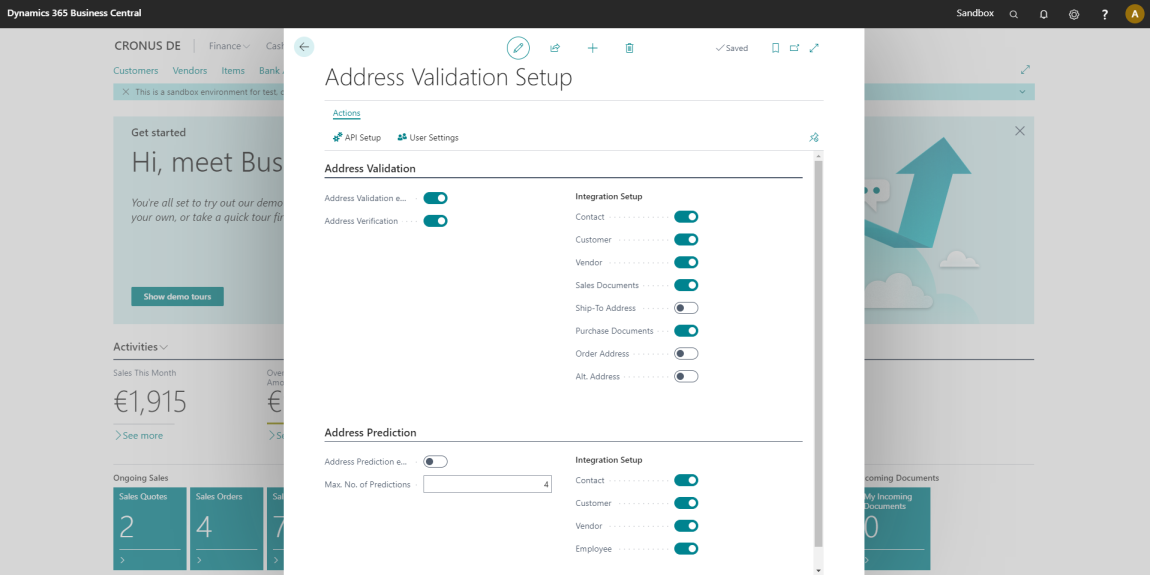
Open the Address Validation Setup and set the desired Initialization Batch Size:
- Default Value: 1,000 records per batch
- Range: 0 to 100,000 records
- Recommendation: For large data volumes (> 100,000 address records), we recommend batch sizes between 500 and 2,000
2. Start Initialization
- Open the Address Data Initialization page via search or from the Address Data Initialization action in setup
- The page displays the current progress for each source table
- Click Run Next Batch to start processing
3. Monitor Progress
Above the list of source tables, the page shows the overall state:
| Field | Description |
|---|---|
| Progress | Overall completion of the initialization, in percent |
| Batch Size | Number of records read from a source table within a single batch |
| Scheduled in Background | Whether the initialization is scheduled to continue in a background session |
The list displays the following information for each source table:
| Field | Description |
|---|---|
| Source Table | Name of the table being processed (e.g., "Customer", "Vendor") |
| State | Current processing state (see below) |
| Pct. Completed | Percentage progress of the source table |
| No. of Records Processed | Number of records processed so far |
| No. of Records | Total number of records to process |
| No. of Addresses Added | Number of addresses added to the address data dictionary |
| Last Batch Run at | When the last batch of the source table was processed |
| Last Error Message | Error message if any (only for state "Failed") |
4. Pause or Resume Processing
- Pause: Close the page or end the session. Current progress is automatically saved
- Resume: Reopen the page and click Run Next Batch. Processing continues from the last saved position
Important
Initialization does not process records twice. A restart resumes processing from the last saved position.
Actions
| Action | Description |
|---|---|
| Run Next Batch | Reads the next batch of address data from the source tables. Only the configured number of records is processed, so the action can be repeated until the initialization is completed. |
| Run Next Batch for Selected Source Table | Reads the next batch of address data from the selected source table. |
| Run All Remaining Batches | Reads all remaining address data from the source tables. Every batch is saved separately, so the initialization continues where it stopped if the session is interrupted. |
| Continue in Background | Continues the initialization in a background session. The session processes the remaining batches and schedules itself again until the initialization is completed. |
| Reset Selected Source Table | Processes the selected source table from the beginning with the next batch. Existing address data is not deleted. |
| Skip Selected Source Table | Excludes the selected source table from the initialization. Its addresses are added to the address data dictionary as soon as they are used. |
| Restart Initialization | Processes all source tables from the beginning again. Existing address data and the validation status of the addresses are kept. |
| Remove Unused Address Data | Removes address data which is not validated and no longer used by any record. Removed addresses are added again as soon as they are used. |
| Address Data | Opens the address data dictionary filled by the initialization. |
| Address Validation Setup | Opens the Address Validation Setup to change the batch size. |
State Overview
| State | Description |
|---|---|
| Pending | The source table is waiting for processing |
| In Progress | The source table is currently being processed |
| Completed | Processing was completed successfully |
| Skipped | The source table was skipped (e.g., no read permission) |
| Failed | Processing failed. The error message is displayed in the "Last Error Message" field |
Info
Errors in individual source tables do not block processing of other tables. You can re-run failed batches after resolving the cause.
Background Information
The initialization also cleans up orphaned records in the "Address Data Usage" and "Address Data Hash" tables that may have been created by earlier versions.