


SEPA Payment Import
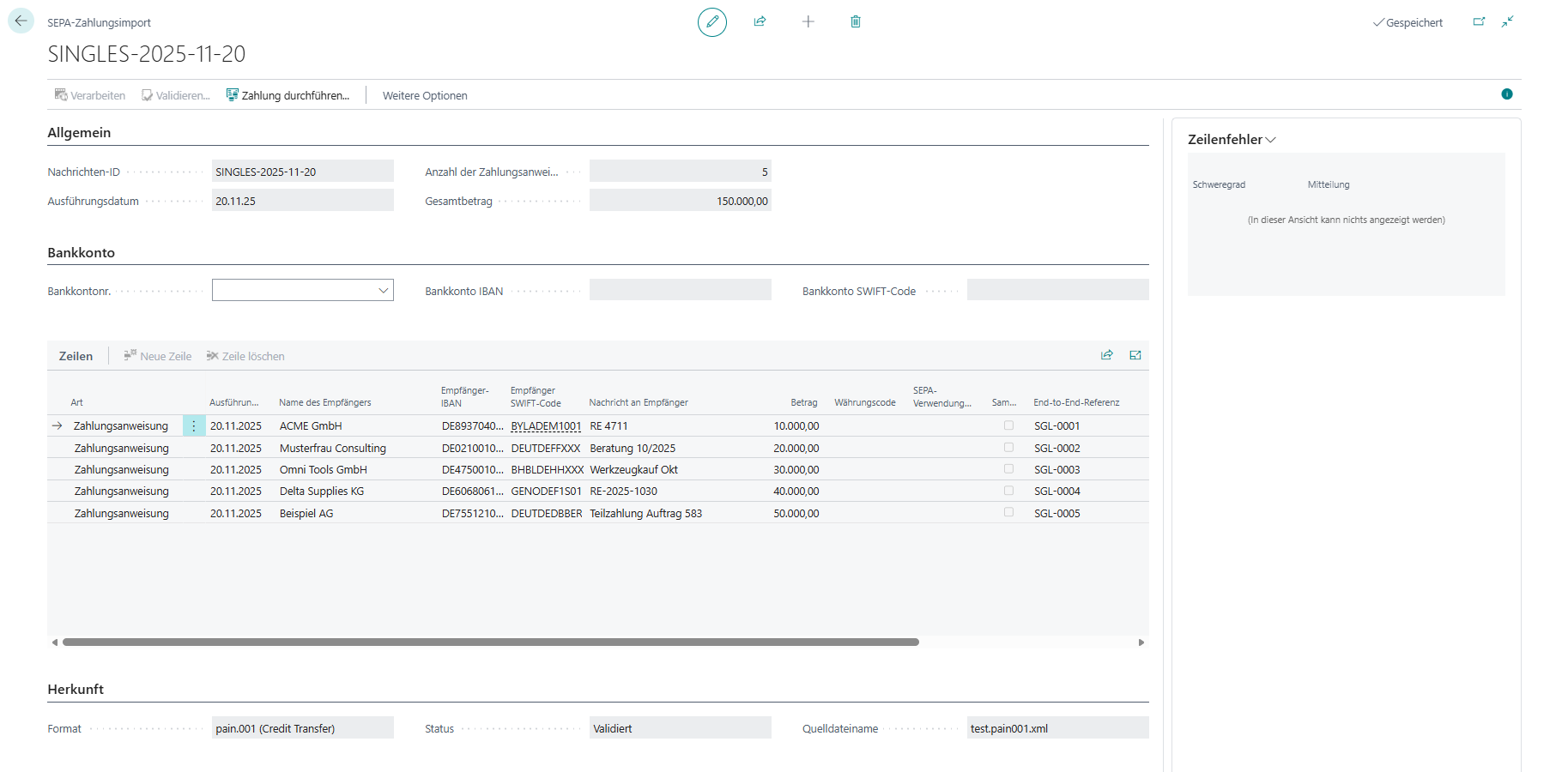
With the SEPA payment import feature, you can import SEPA payment files in SEPA pain.001 XML format (ISO 20022) into Microsoft Dynamics 365 Business Central and execute the payments. This feature facilitates the processing of SEPA transfers generated by external systems (e.g., payroll systems).
Which SEPA Payment Files Are Supported?
365 business Banking supports SEPA payment files in pain.001 XML format that comply with ISO 20022 standards. The import checks the SEPA version based on the namespace (pain.001.*) and is therefore generically compatible with all common SEPA Credit Transfer formats. The following versions are supported:
| Version | Description | Supported |
|---|---|---|
| pain.001.001.03 | Classic SEPA Credit Transfer format (widely used, <BIC> tag) | |
| pain.001.001.04 | National extension / transition variant, rarely in use | |
| pain.001.001.05 | Extension with additional fields (e.g., Category Purpose) | |
| pain.001.001.06 | Updated SEPA version (2014 ff., standard in many banks) | |
| pain.001.001.07 | Minor revision with formal clarifications | |
| pain.001.001.08 | ISO update 2019, still with <BIC> tag | |
| pain.001.001.09 | ISO 20022 Release 2023, new tags (e.g., <BICFI>, <InstrPrty>) |
Which Payment Types Are Supported?
The SEPA payment import supports the following payment types:
SEPA transfer
SEPA bulk transfer
SEPA scheduled transfer
Good to know
If the selected bank account does not support SEPA bulk transfers, these will automatically be executed as individual SEPA transfers.
Step-by-Step Guide
Follow these steps to import a SEPA payment file and execute the payments:
- Select SEPA Payment Imports in the search of Microsoft Dynamics 365 Business Central.
- Select the Import Payment File action.

- Select the SEPA payment file (pain.001 XML file) from your computer.
- Confirm the processing and validation of the file by clicking Yes.
- Review the imported payments in the SEPA payment imports list.
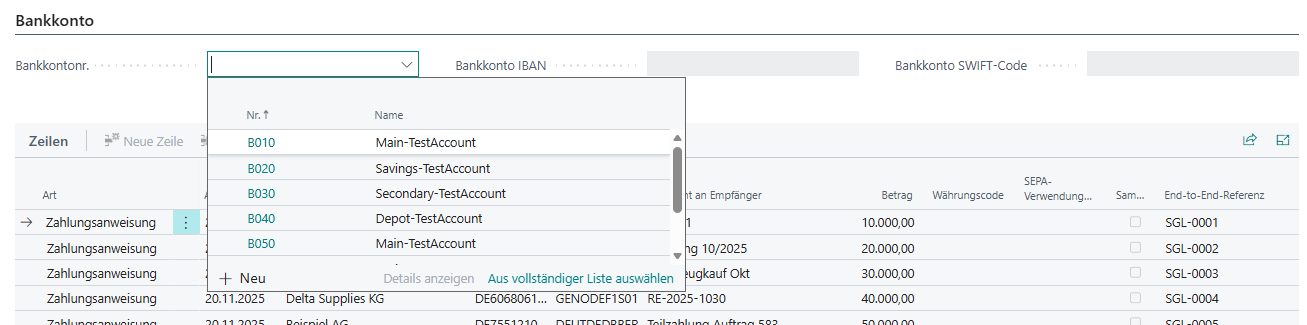
- Select the corresponding bank account for the payments if this is not done automatically.
- Select the Carry-out Payment action to execute the payments.
- Confirm the execution of the payments.
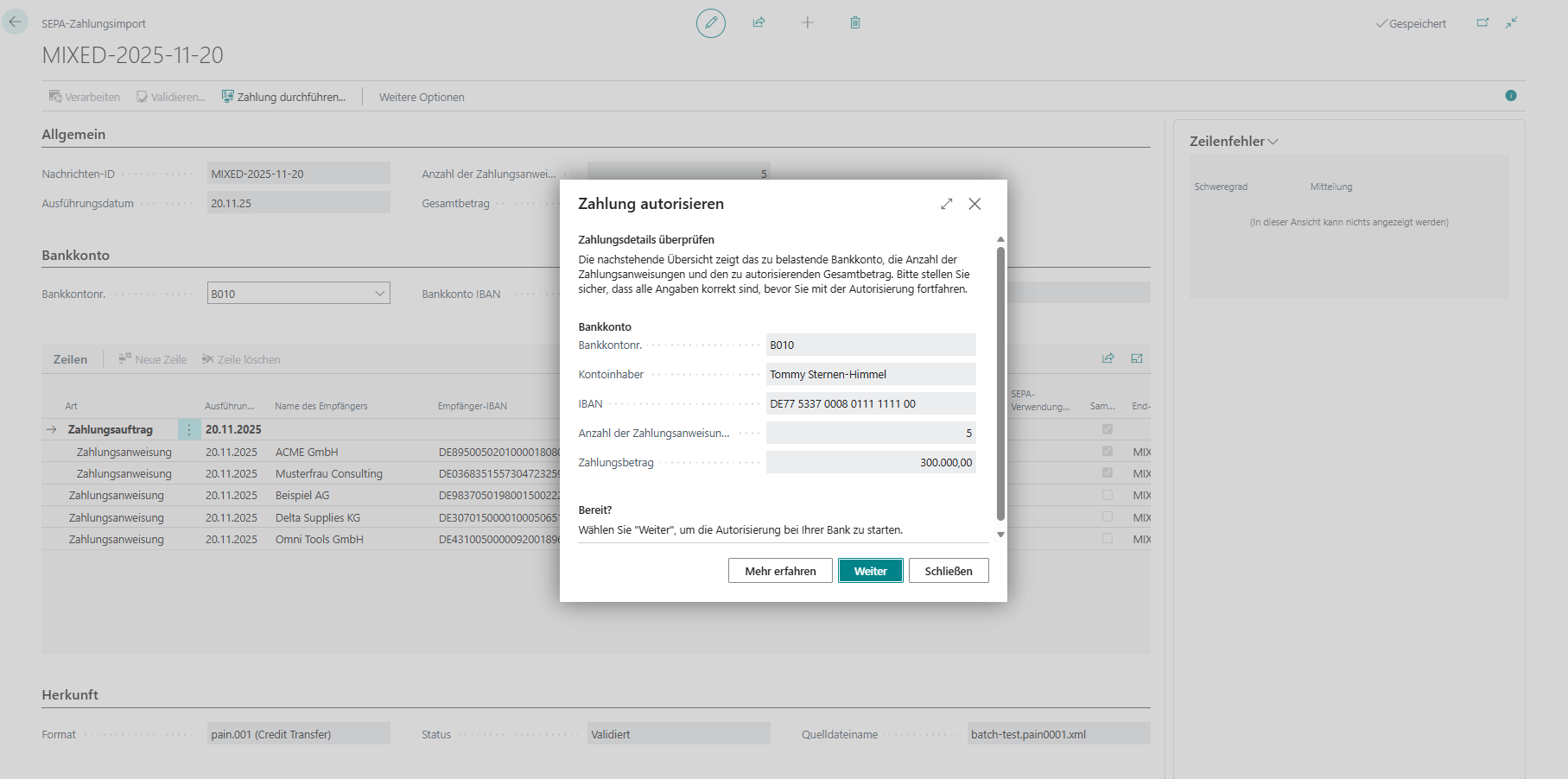
- Follow the instructions to complete the payment process.