
Find & Replace
In the dialog window Find & Replace you can specify the parameters for the execution of the Find & Replace function. The dialog is called up via the function of the same name, e.g. in the Customers page.
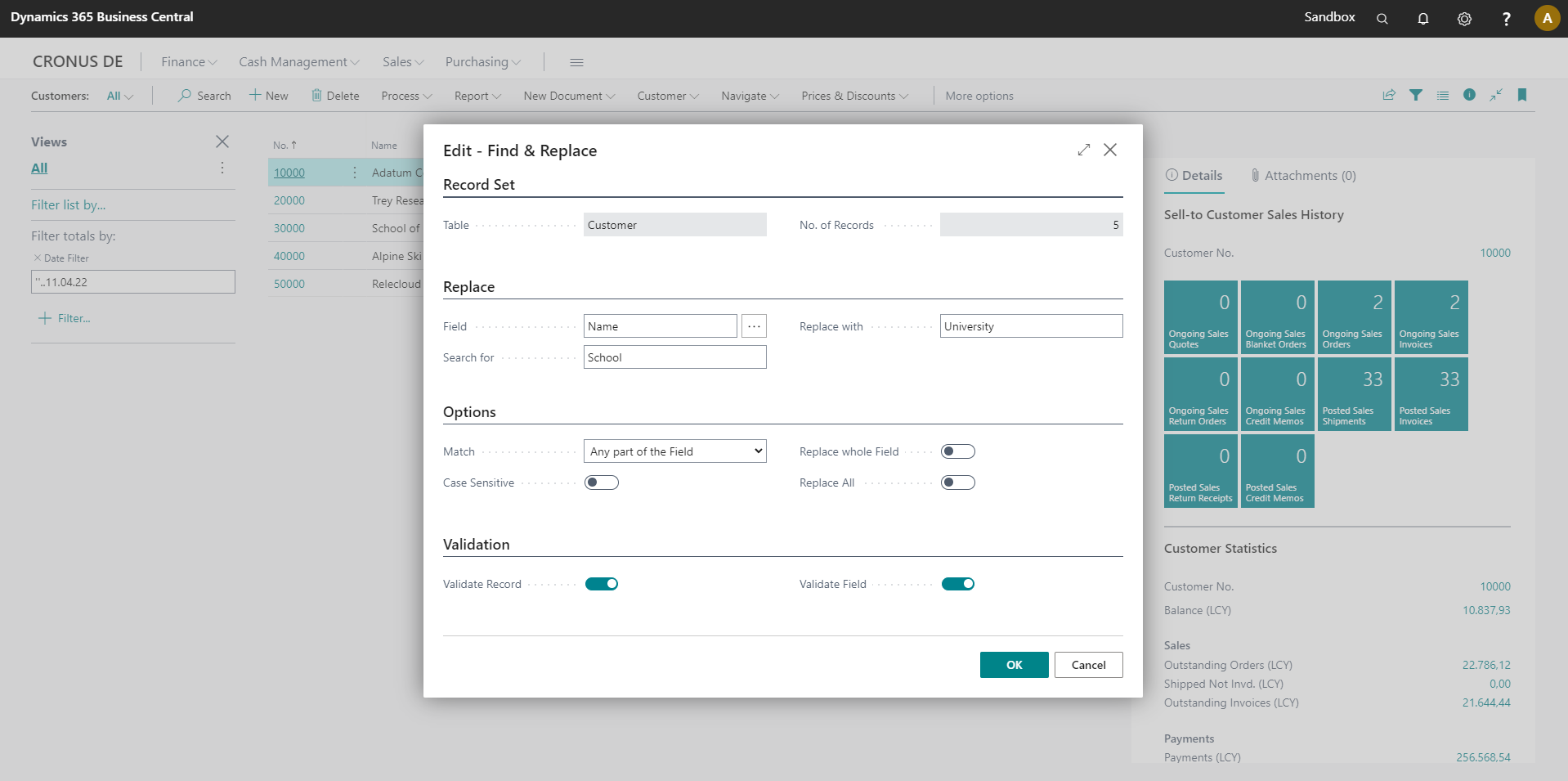
Record Information
In the Record Set area, the table (e.g. Customer) and the pre-filtered number of records are displayed.
Info
Currently set filters in the calling view (e.g. customer overview) are taken into account when calling Search & Replace. Thus you can already make a preselection for the data records to be processed.
Replace
In the Replace area, select the Field in which the search term (Search for) should be replaced (Replace with).
Options
In the Options section you have the possibility to specify additional settings for the search or the replacement:
| Option | Description | Default value |
|---|---|---|
| Match | Specifies whether the search term is the whole field (option Whole field) or whether any part of the field must contain the search term (option Any part of field). | Whole Field |
| Case sensitive | Specifies whether the search term should be case sensitive. | No |
| Replace whole Field | Specifies whether the complete field content or only the part of the field that corresponds to the search term should be replaced when replacing. | No |
| Replace All | Specifies that the field value should be replaced in all records regardless of the search term. | No |
Validation
Info
We recommend not changing the settings in the Validation section, as this may cause inconsistencies.
Please consult your Microsoft Dynamics partner before making any data changes without verification/validation.
In the Validation area, the validation of record or field changes can be disabled.