
Getting Started
This quick guide explains how to install and configure the 365 business Proxy Application in your Microsoft Dynamics 365 Business Central environment.
Info
Test the 365 business Proxy Application free of charge in sandbox environments of Microsoft Dynamics 365 Business Central.
In addition, there is a free 30-day trial period for real and On-Premises environments without functional restrictions.
Requirements
- Microsoft Dynamics 365 Business Central 2021 release wave 1 (version 18.0) or later
- A Microsoft Windows system (Windows Server 2016 or newer recommended) to run the 365 business Proxy Application Client
- An internet connection
Good to know
This guide shows how to set up the 365 business Proxy Application using the File Plugin.
For more information about other plugins, please refer to the plugin documentation.
Step 1: Installation of 365 business Proxy Application
Open the Marketplace for Extensions in Business Central and search for 365 business Proxy Application.
Install the app via Microsoft Marketplace.
Note
Installation packages for your On-Premises Business Central environment can be found in our download portal.
Step 1.1: Proxy Application Setup
- Open the Proxy Application Setup page in Business Central.
- Click Authenticate to connect your environment to the Cloud Service.
- Copy the Tenant-ID by clicking on the field value.
Info
The Tenant-ID links the Proxy Application Service to your Microsoft Dynamics 365 Business Central environment.
You will need the Tenant-ID later when setting up the Proxy Application Service.
- Click Download Client... to download the 365 business Proxy Application Client.
Step 1.2: Install 365 business Proxy Application Client
- Save the downloaded ZIP file to the server or computer you want to use with the Proxy Application.
- Extract the ZIP file (e.g.,
C:\install) - Run the setup file and follow the instructions.
- Enter the Tenant-ID from the previous step and assign a Name for the client to identify it in Business Central.
- (Optional) Enter a domain user and password under which the client should run.
Note
If you don’t specify a user, 365 business Proxy Application Client will run in the Local System context.
Step 2: Register and Activate Clients
To access Proxy Application Clients in Business Central, they must first be activated.
- Open the Proxy Application Setup in Business Central.
- Available clients are automatically discovered and listed when you open the page:
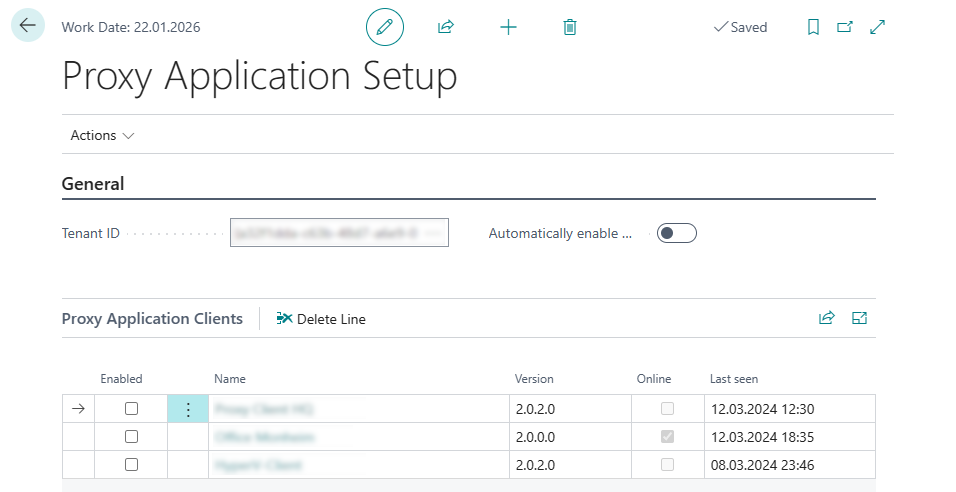
- Enable a client by checking the Enabled box.
- Click the Name of the client to open its card.
- The Client ID is listed in the client card.
Note
The Client ID is used to address the Proxy Application Service directly.
While it's possible to use plugin-specific resolution, this guide assumes you use a specific Client ID.
Step 2.1: Install Proxy Application Client Plugins
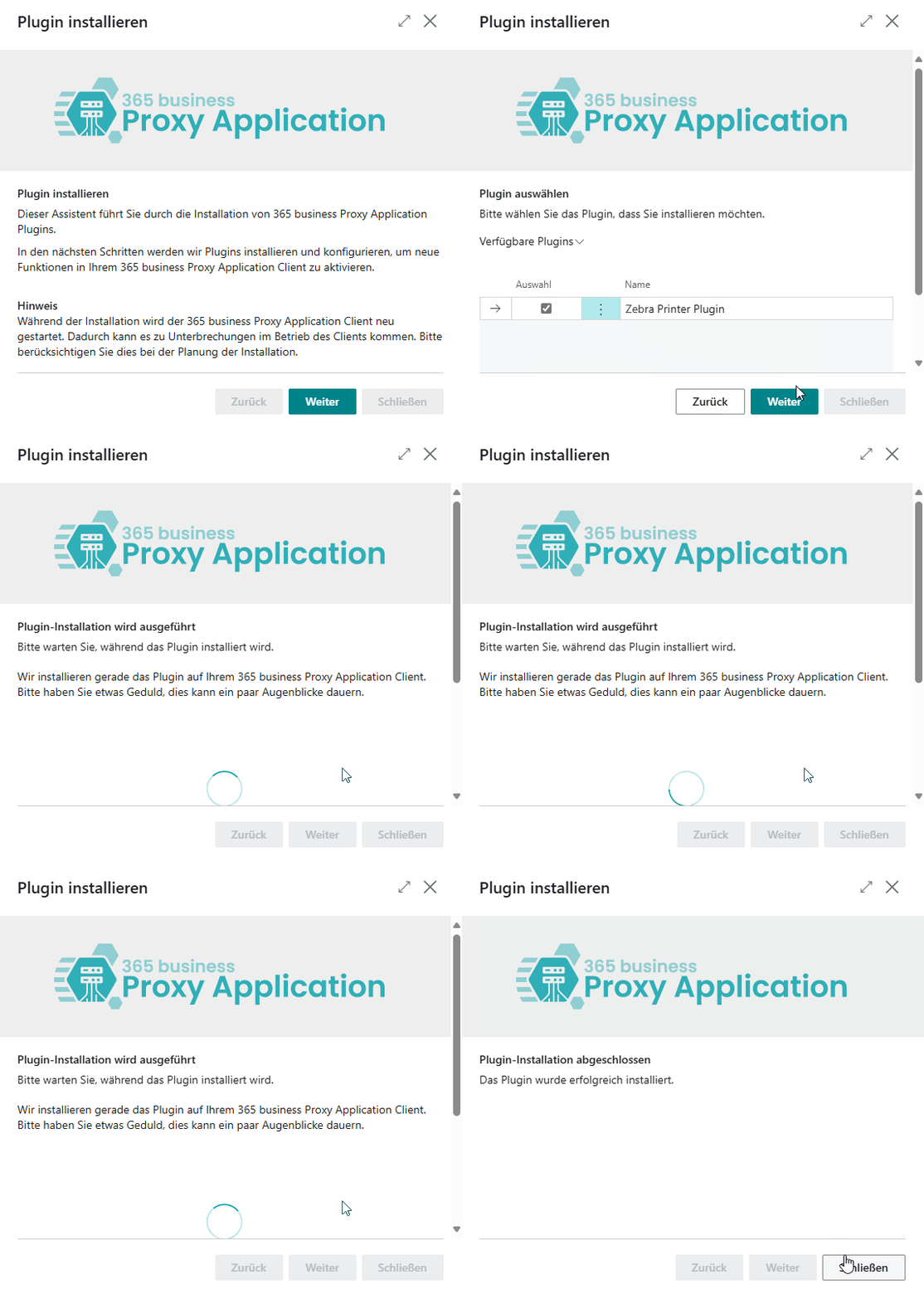
- Open Microsoft Dynamics 365 Business Central.
- Open the Proxy Application Clients page.
- Click Refresh to load available clients.
- Select the client you named earlier.
- Click Install Plugins.
- Click Next.
- Select the plugin(s) you want to install (e.g., File Plugin).
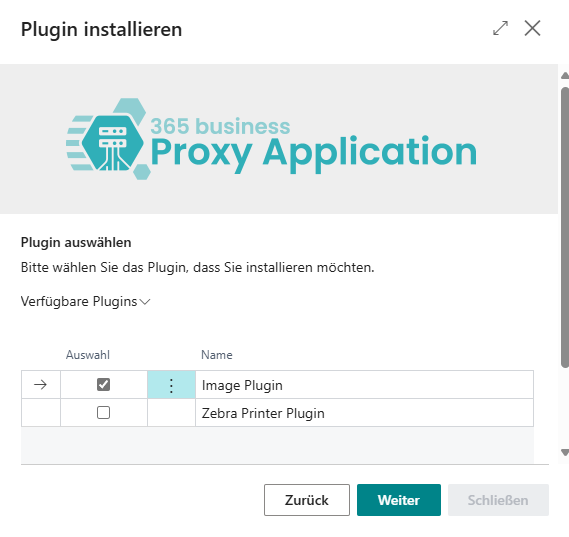
- Click Next.
- After installation completes, click Close.
Step 2.2: Set Default Client for Plugins (Optional)
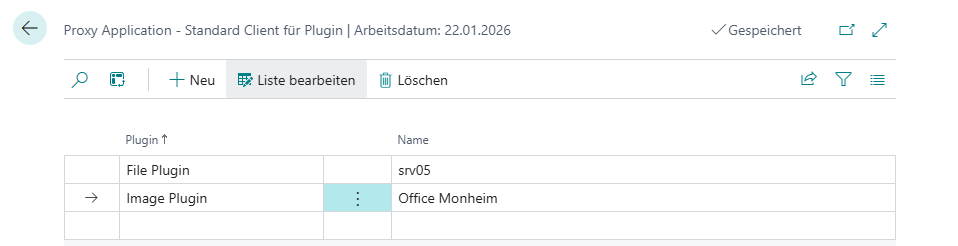
To simplify client selection, you can define a default client per plugin. This allows automatic assignment of clients for specific tasks.
- Open BMicrosoft Dynamics 365 Business Central.
- Navigate to Proxy Application Setup.
- Choose Associated > Standard Clients.
- Select the Plugin (e.g., File Plugin).
- Select the Client Name to assign.
Note
You can only select clients that already have the selected plugin installed.
Step 3: File Plugin Implementation
This quick guide explains how to write a file to your local file system using the File Plugin of 365 business Proxy Application.
We assume that your AL project already exists and just needs to be extended.
Step 3.1: Add Proxy Application Dependency
- Open your
app.jsonmanifest in Visual Studio Code. - Add the following dependency under the
dependenciesarray:Code - Execute the command AL: Download symbols.
Step 3.2: Read and Write a File via AL
This example writes and then reads a file with the contents Hello, World! into/from C:\temp\test.txt.
You can find more detailed information in the Plugin documentation.
- Open an existing code unit or create a new AL file in which the AL code can be developed
- Insert the following AL code:
Code
- Execute the function
WriteAndReadHelloWorldFile().
See also
- Proxy Application Architecture
- What is the Proxy Application Service
- Proxy Application Service Installation
- Proxy Application Setup