Setup
By installing 365 business Sanction Screen, the basic setup is already completed, and you are ready to perform the sanctions list check in Microsoft Dynamics 365 Business Central. However, this is a standard setup that should be customized according to the individual requirements of your company.
Before you start
Before you begin with the sanctions list check, you should review the following points:
- Data Catalogs: Review the data catalogs to be used for the sanctions list check. 365 business Sanction Screen offers comprehensive coverage of over 240 data sources that can be used for the sanctions list check. For more information, click here.
- Intervals: Review the intervals at which the sanctions list check should be performed. 365 business Sanction Screen enables fully automated sanctions checks with configurable intervals for each entity.
Check Intervals
The check intervals determine how often the sanctions list check is performed. You can configure the check intervals for each entity individually, with the following recommendations:
- Small businesses: Annually. Small businesses with low risk and few business partners can perform an annual review.
- Medium-sized businesses: Semi-annually. Medium-sized businesses should review their trading partners and employees every six months to ensure they are not doing business with sanctioned individuals or organizations.
- Large businesses: Quarterly. Large businesses with extensive international business relationships should perform a sanctions list check at least every three months.
- High-risk businesses: Monthly. Businesses operating in high-risk industries or conducting many international transactions should consider monthly reviews.
- Businesses with critical business areas: Weekly. Businesses operating in particularly sensitive or regulated areas, such as financial services or the defense industry, should perform weekly checks.
Setup
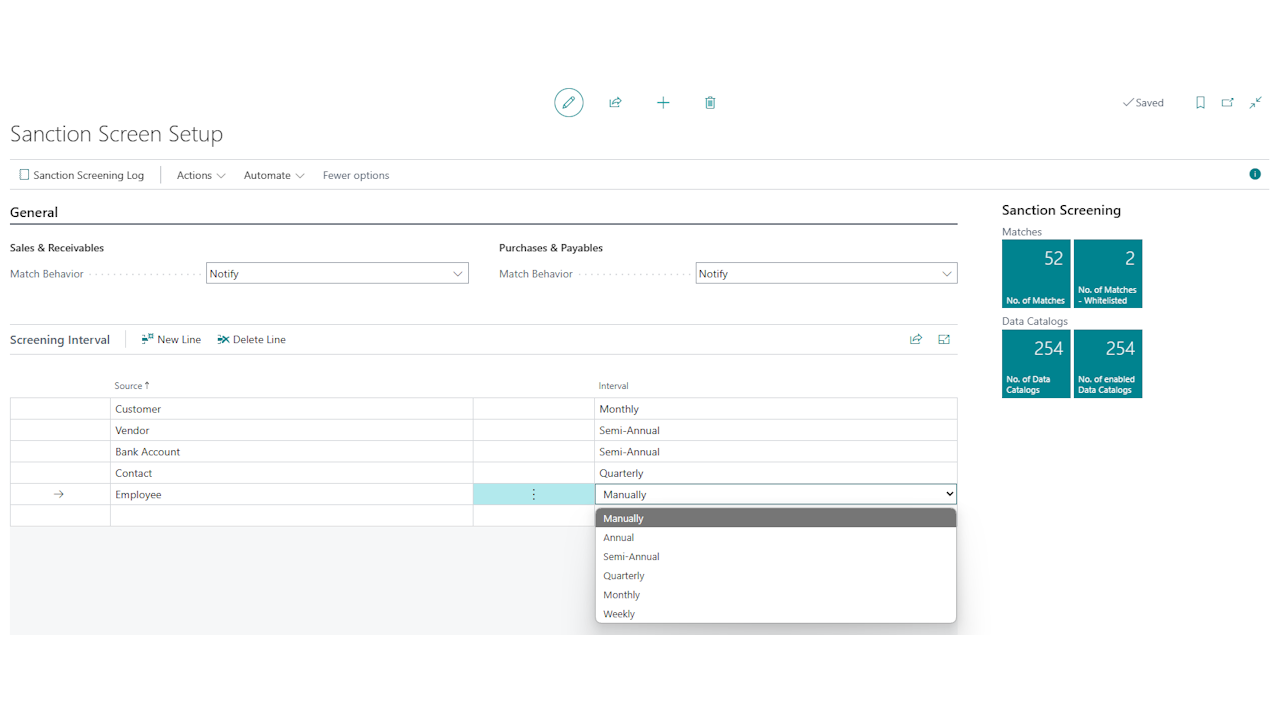
The Sanction Screen Setup can be used as a central point for configuring the sanctions list check in Microsoft Dynamics 365 Business Central. Here you can set the check intervals for each entity, select the data catalogs to be checked, and configure notifications. Additionally, you will find useful information about the current configuration and the checks performed.
Unscreened Entity Status
Using the Unscreened Entity Status setting, you can define how Microsoft Dynamics 365 Business Central should handle records that have not yet been checked. This primarily concerns new entities that have not yet been screened against sanctions lists.

Option - No Data Available
In this setting, the status of a record that has not yet been checked is displayed as No Data Available. This means that the record has not yet been screened against sanctions lists, and no information about potential matches is available.
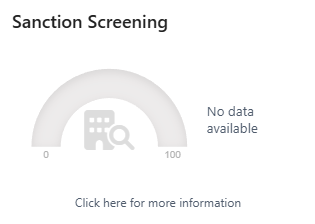
When used, for example, in sales documents, the user is informed based on the selection in Match Behavior and must confirm that the record can be processed further without screening.
Option - Blocked
In this setting, the status of a record that has not yet been checked is displayed as Blocked. This means that the record cannot be processed further until it has been screened against sanctions lists.
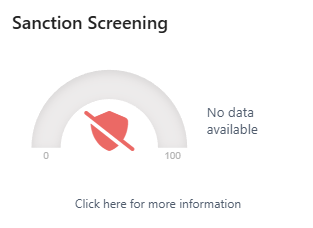
When used, for example, in sales documents, the user receives an error message stating that the record has not yet been checked and cannot be processed further. The match must first be reviewed before continuing.
Sales & Receivables
In the Sales & Receivables group, you can specify how Microsoft Dynamics 365 Business Central should handle potential matches and hits in the sanctions list check within sales documents and customers.
| Field | Description | Default |
|---|---|---|
| Match Behavior | Specifies how Microsoft Dynamics 365 Business Central should handle potential matches in the sanctions list check. | Notify |
For more options, see Match Behavior.
Purchase & Payables
In the Purchase & Payables group, you can specify how Microsoft Dynamics 365 Business Central should handle potential matches and hits in the sanctions list check within purchase documents and vendors.
| Field | Description | Default |
|---|---|---|
| Match Behavior | Specifies how Microsoft Dynamics 365 Business Central should handle potential matches in the sanctions list check. | Notify |
For more options, see Match Behavior.
Match Behavior
The Match Behavior determines how Microsoft Dynamics 365 Business Central should handle potential matches in the sanctions list check. You can set the behavior individually for the areas of Customers & Sales and Vendors & Purchasing.
Notifications are displayed in the documents of the respective areas (e.g., sales quote, sales order, purchase order) and inform the user about possible matches.
| Behavior | Description |
|---|---|
| None | The user does not receive any additional notifications or warnings. |
| Notify | The user is informed about possible matches but can continue to work with the entity. |
| Warn | The user is informed about possible matches and receives a confirmation prompt but can continue to work with the entity. |
| Block | The user is informed about possible matches and cannot continue to work with the entity. The match must be reviewed and possibly added to the whitelist to continue working. |
Additionally, it is checked whether the entity has already been checked (e.g., new customer). If a notification option has been selected, the user is informed that the entity has not yet been checked and must confirm this.
Screening Interval
The Screening Interval determines how often the sanctions list check is performed. You can set the interval for each entity individually.
| Interval | Description |
|---|---|
| Annually | The check is performed within a year after the last check. |
| Semi-annually | The check is performed within six months after the last check. |
| Quarterly | The check is performed within three months after the last check. |
| Monthly | The check is performed within a month after the last check. |
| Weekly | The check is performed within a week after the last check. |
| Manually | The check is performed manually by the user only. |
Permissions
365 business Sanction Screen provides two permission sets required for the sanctions list check:
| Permission Set | Name | Description |
|---|---|---|
BDEV.OS.BASIC |
Sanctions Check - BASIC | Provides the basic permissions to work with 365 business Sanction Screen. This permission set should be assigned to all users. |
BDEV.OS.WHITELIST |
Sanctions Check - Whitelist | Authorizes the user to add sanction hit entries to the whitelist. |